Table of Contents >> Show >> Hide
- What an External Hard Drive Can Actually Do on a PS3
- What You Need Before You Start
- The Most Important Rule: Format the Drive as FAT32
- How to Add the External Hard Drive to a PlayStation 3
- How to Use the Drive for Media
- How to Use the Drive for Backup
- How to Copy Individual Save Files
- When You Should Upgrade the Internal Drive Instead
- Troubleshooting: Why the PS3 Might Not Recognize the Drive
- Best Practices for a Smooth PS3 External Drive Setup
- Conclusion
- Real-World Experiences With Adding an External Hard Drive to a PlayStation 3
- SEO Tags
If you are trying to add an external hard drive to a PlayStation 3, here is the good news: yes, you absolutely can. Here is the less-fun, very-PS3-era news: the console does not treat external storage the way newer systems do. A PS3 is a little old-school, a little picky, and a little dramatic. It can use an external hard drive for media playback, backups, and copied save data, but it does not turn that drive into modern plug-and-play expansion storage for installed PS3 games.
That distinction matters. A lot. Many people connect a drive expecting the PS3 to suddenly behave like a PS5 with extra storage. Instead, the PS3 basically says, “Thanks, I can use this for backup and movies. Also, please make it FAT32 or I will pretend it does not exist.” Once you understand that rule, the rest of the process becomes much easier.
This guide walks through exactly how to add an external hard drive to a PlayStation 3, how to format it correctly, what you can actually do with it, what you cannot do with it, and when you should stop fighting your external drive and simply upgrade the internal one instead.
What an External Hard Drive Can Actually Do on a PS3
Before plugging anything in, it helps to know what success looks like. On a standard PlayStation 3, an external hard drive is best used for four things: backing up the system, copying certain saved data, moving photos, music, and videos, and helping you prepare for an internal hard drive upgrade.
In other words, a PS3 external hard drive is more like a reliable moving truck than a permanent spare bedroom. It helps carry your stuff, protect your stuff, and let you access media, but it is not the same as internal game storage.
If your goal is to free up room for downloaded games, installs, patches, and regular daily use, the smarter long-term move is often replacing the PS3’s internal 2.5-inch SATA drive. If your goal is backup, media access, or save management, an external drive is perfect.
What You Need Before You Start
Adding an external hard drive to a PS3 is simple when you prepare correctly. The key is not the brand name on the drive. The key is the file system.
Checklist
- A USB external hard drive with enough free space for what you want to store or back up.
- A Windows PC or Mac to format the drive.
- A USB cable and a PS3 with an available USB port.
- A little patience, because storage tasks on older consoles are rarely fast and never stylish.
If you plan to back up your whole system, make sure the external drive has more free space than the amount of data currently used on the PS3. If your console is using 120GB, do not show up with a half-empty 64GB drive and optimistic energy.
The Most Important Rule: Format the Drive as FAT32
This is the make-or-break step. The PlayStation 3 expects compatible external storage to be formatted as FAT32. If your drive is in NTFS, exFAT, or something else, the PS3 may ignore it completely. Not dislike it. Not complain about it. Just ignore it like an unread group chat.
FAT32 is older, but it is the file system the PS3 recognizes for this kind of use. That comes with a tradeoff: FAT32 has a maximum single-file size of 4GB. So if you are planning to store one giant video file, that file may need to be split or converted. That is not your PS3 being rude. That is simply how FAT32 works.
How to Format the Drive on Windows
For smaller drives, Windows File Explorer may let you choose FAT32 directly. For larger drives, Windows often refuses to offer FAT32 in the normal formatting menu. That confuses a lot of people because the drive itself is fine; Windows is just being selective about how it formats larger volumes.
If your drive is larger than 32GB, you may need to use PowerShell or a third-party partition utility to format it as FAT32. No matter which method you use, formatting erases the drive, so copy anything important off it first.
How to Format the Drive on Mac
On a Mac, use Disk Utility and choose the equivalent FAT format option, typically shown as MS-DOS (FAT). Again, formatting wipes the drive, so save anything you care about before you begin.
How to Add the External Hard Drive to a PlayStation 3
Once the drive is formatted correctly, the actual connection part is refreshingly easy.
- Turn on the PS3.
- Connect the external hard drive to one of the PS3’s USB ports.
- Wait a moment for the system to detect it.
- Navigate through the XMB menu to the section you want: Photo, Music, Video, or Settings if you want to use Backup Utility.
If the drive is recognized, you should see it appear as a USB device. Congratulations. You have passed the first boss battle.
How to Use the Drive for Media
If you want to play videos, music, or view photos from the external hard drive, the PS3 makes that pretty easy once the drive is readable.
To access media files
- Go to Video, Music, or Photo on the PS3 home menu.
- Select the connected USB device.
- Browse to the files you want to open.
If you connect the drive and do not immediately see your folders or files, do not panic and do not start blaming the cable yet. Highlight the USB device, press the Triangle button, and select Display All. This tells the PS3 to show folders created on a computer, which is often the missing step when files seem to have vanished into the void.
For example, if you copied family photos, MP3 albums, or a few converted video files onto the drive from your laptop, the PS3 can often browse and play them just fine. It turns the console into a decent little media box, which feels very 2009 in the best possible way.
How to Use the Drive for Backup
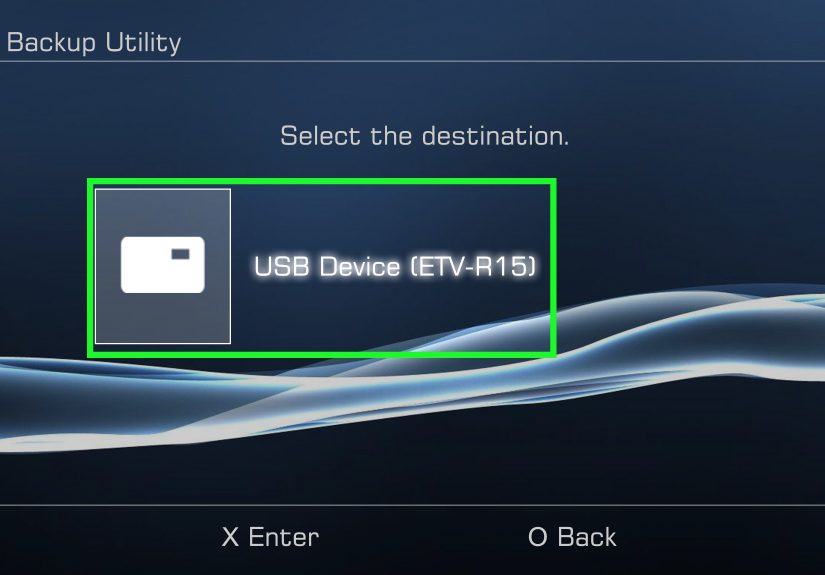
This is where external storage really shines on the PS3. If you are trying to protect your data before replacing the internal hard drive, troubleshooting the console, or just making sure your saves and media are not living dangerously on aging hardware, use the built-in Backup Utility.
To back up your PS3
- Connect the FAT32-formatted external hard drive.
- Go to Settings.
- Open System Settings.
- Select Backup Utility.
- Choose Back Up.
- Follow the on-screen instructions.
The PS3 will create the backup data on the external drive automatically. This is the cleanest method if you are moving to a larger internal drive later. It is also the option that makes you feel like a responsible adult, which is rare and beautiful in gaming.
To restore the backup later
- Reconnect the same external drive.
- Go back to Settings > System Settings > Backup Utility.
- Select Restore.
- Follow the prompts.
One important note: backup is not always the same as live playback. Some backed-up content is meant to be restored to the PS3 system rather than opened directly from the drive. So think of backup files as insurance, not instant entertainment.
How to Copy Individual Save Files
Maybe you do not need a full backup. Maybe you just want to copy certain game saves to an external drive for safety. The PS3 supports that too, although some save files may have copy restrictions depending on the game.
To copy save data
- Connect the FAT32 external drive.
- Go to Game.
- Open Saved Data Utility (PS3).
- Highlight the save file you want.
- Press Triangle.
- Select Copy.
- Choose the external drive.
This is especially useful if you are preserving progress in long RPGs, old sports franchise files, or that one game you swear you are definitely going back to finish any day now. Any day. Totally.
When You Should Upgrade the Internal Drive Instead
If your real problem is that the PS3 itself is running out of room for installs, downloads, patches, and general day-to-day use, an external drive is only a partial solution. The more permanent fix is swapping the internal drive for a larger one.
The good news is that the PS3 was designed in a surprisingly upgrade-friendly way compared with some modern hardware. Many owners replace the original internal drive with a larger 2.5-inch SATA laptop drive or SSD. An external hard drive then becomes part of the process because you use it to back up the console first and restore your data afterward.
If you go that route, keep one more detail in mind: it is smart to have a FAT32 USB drive ready with the PS3 system software on it. The PS3 may ask for a reinstall after the new internal drive is inserted. For that USB, create a folder named PS3, then inside it create UPDATE, and place the system software file there as PS3UPDAT.PUP.
Troubleshooting: Why the PS3 Might Not Recognize the Drive
If the PS3 acts like your external hard drive does not exist, work through the basics in order.
1. The drive is not FAT32
This is the most common problem by far. Recheck the format on your computer. Many drives come as NTFS or exFAT out of the box.
2. The file is larger than FAT32 allows
If a specific video refuses to copy or appear, the issue may be the 4GB single-file limit. The drive might be working perfectly, while the file itself is simply too large for FAT32.
3. Your files are there, but the PS3 is not showing them
Use the correct media section on the XMB and select Display All with the Triangle button. The PS3 can be surprisingly literal about where it expects things to appear.
4. The backup drive is too small
A full system backup needs enough free space. If the used space on your PS3 is larger than the available space on the external drive, the process will not magically compress your optimism into storage.
5. The drive itself is awkward for the console setup
Some desktop external drives are bulky and need their own power adapter, while portable USB drives are easier to plug in and use next to a PS3. That does not make one better than the other, but it can make setup a little less annoying.
Best Practices for a Smooth PS3 External Drive Setup
If you want the least painful experience possible, keep these habits in mind:
- Format the drive to FAT32 before you ever connect it to the console.
- Use the drive mainly for backup, saves, and media rather than expecting full storage expansion.
- Keep enough free space on the external drive for system backups.
- Use Display All if your files seem invisible.
- Keep a separate small FAT32 USB drive ready for system software if you plan to replace the internal drive.
That combination solves most PS3 external storage headaches before they start.
Conclusion
Adding an external hard drive to a PlayStation 3 is not difficult, but it does require knowing the PS3’s rules. The console works best with a FAT32-formatted USB drive, and once connected, that drive can be used for media playback, selected save-file copies, full-system backups, and support during an internal hard drive upgrade. What it cannot do, at least on a standard PS3, is behave like modern expandable game-install storage.
Once you accept that reality, the process becomes straightforward. Format the drive, connect it, choose whether you want backup or media access, and let the PS3 do its wonderfully old-fashioned thing. It may not be the sleekest storage workflow in gaming history, but it still gets the job done. And honestly, there is something charming about a console that demands the correct file system before it will even say hello.
Real-World Experiences With Adding an External Hard Drive to a PlayStation 3
In real life, the experience of adding an external hard drive to a PlayStation 3 usually starts with confidence and ends with a lesson in console archaeology. Most people assume the setup will work the way modern consoles work: plug in the drive, click a button, enjoy more space, done. Then the PS3 reminds everyone that it came from a generation when menus had opinions and storage management felt like filing taxes in a leather jacket.
A very common experience goes like this: someone finds an old PS3 in great condition, powers it on, hears the startup sound, gets hit by a wave of nostalgia, and then immediately discovers there are only a few gigabytes left on the internal drive. They connect a perfectly good external hard drive from a PC, and the PS3 responds with absolute silence. No icon. No warning. No friendly explanation. Just pure emotional distance. That is usually the moment the owner discovers the importance of FAT32.
After formatting the drive correctly, the mood changes fast. Suddenly the PS3 recognizes the device, and it feels like cracking a secret code. Many people say the biggest relief is simply seeing the USB device appear on screen. It is not dramatic in the cinematic sense, but in the practical sense it feels like a victory. You stop wondering whether the console is broken and start feeling like you and the machine are finally speaking the same language.
Another common experience is using the external hard drive as a safety net before replacing the internal drive. This is where the PS3 still feels surprisingly capable. You start a backup, walk away, come back later, and realize the system has been quietly preserving years of saves, profiles, and media. There is something satisfying about that process. It feels less like disposable tech and more like maintaining a favorite old car. Slow? Yes. Glamorous? Not even a little. Effective? Absolutely.
Media playback is often the pleasant surprise. Once the drive is connected properly, many users enjoy loading music collections, old photo folders, and video clips onto the drive just to see the PS3 become a retro entertainment hub again. The trick, of course, is remembering that the PS3 may not show files exactly the way you expect. That is where Display All becomes the unsung hero. Plenty of people think their files are missing, only to press Triangle, reveal the folders, and realize the console was hiding them in plain sight like a smug librarian.
There is also the classic FAT32 frustration with large files. A person tries to move one massive video file, gets blocked by the file-size limit, and briefly considers blaming the hard drive, the cable, the moon phase, or society in general. Then they learn it is a FAT32 limitation and not a hardware failure. That moment is annoying, but it is also part of the full PS3 external-drive experience: half nostalgia, half troubleshooting, all character-building.
In the end, most owners who go through the process come away with the same opinion. A PS3 external hard drive setup is not difficult once you know the rules, but it definitely rewards patience more than assumption. When it works, it is practical, dependable, and oddly satisfying. It feels like restoring order to a beloved older console instead of simply adding storage. And that, for many PS3 fans, is part of the fun.