Table of Contents >> Show >> Hide
- What the "Unidentified Network No Internet" Error Usually Means
- First, Do a 2-Minute Reality Check
- How to Fix the Error Step by Step
- Fix 1: Run the Built-In Windows Network Troubleshooter
- Fix 2: Forget the Network and Reconnect
- Fix 3: Disable and Re-Enable the Network Adapter
- Fix 4: Make Sure IP and DNS Are Set Correctly
- Fix 5: Reset the TCP/IP Stack and Refresh DNS
- Fix 6: Perform a Full Network Reset
- Fix 7: Update or Reinstall the Network Adapter Driver
- Fix 8: Check for Intel Killer or Vendor Utility Problems
- Fix 9: Turn Off VPN, Proxy, or Security Tools Temporarily
- Fix 10: Check the Router, Modem, and ISP Side
- What Not to Do
- How to Prevent the Error From Coming Back
- Real-World Experiences With the "Unidentified Network No Internet" Error
- Conclusion
- SEO Tags
There are few computer messages more annoying than this one: you connect to Wi-Fi or plug in an Ethernet cable, your laptop acts confident, and then Windows basically shrugs and says, "Unidentified network. No internet." Thanks, buddy. Very helpful.
The good news is that this error is usually fixable. The bad news is that it can be caused by several different issues, including a bad DHCP lease, corrupt network settings, buggy adapter drivers, a confused router, overprotective VPN or firewall software, or an ISP outage. In plain English: your computer may be connected to a network, but not to the actual internet.
This guide walks you through the smartest fixes in the right order, so you do not waste an hour doing dramatic tech rituals that accomplish nothing except deepening your personal feud with Windows. Whether you are using Wi-Fi or Ethernet, these steps can help you fix the "Unidentified Network No Internet" error and get back online.
What the "Unidentified Network No Internet" Error Usually Means
Before you start changing settings, it helps to know what Windows is trying to tell you. In most cases, this warning means your computer can see a local connection, but something is broken between your device and the wider internet.
That breakdown often happens because:
- Your computer did not receive a valid IP address from the router.
- Your DNS settings are wrong or stuck.
- Your network adapter driver is corrupted, outdated, or misbehaving after an update.
- Your router or modem is having trouble talking to your internet provider.
- A VPN, proxy, or firewall is blocking traffic.
- Your saved network profile is corrupted.
If you open Command Prompt and see an address that starts with 169.254, that is a major clue. It usually means Windows could not get a proper address from DHCP, so it gave itself a fallback address instead. That is the networking version of bringing your own folding chair because the venue forgot the seating plan.
First, Do a 2-Minute Reality Check
Before diving into advanced fixes, do these quick tests:
1. Check another device on the same network
If your phone, tablet, or another laptop also has no internet, the problem is probably your router, modem, or ISP. If other devices work fine, the issue is more likely on your computer.
2. Restart your PC
Yes, it is the oldest joke in tech support. It is also still surprisingly effective. A restart can reload network services, refresh the adapter, and clear temporary glitches.
3. Restart your modem and router
Unplug both devices. Wait about 30 to 60 seconds. Plug the modem back in first and let it fully reconnect. Then plug in the router and wait another minute or two. This simple power cycle fixes a shocking number of "connected but not really connected" situations.
4. Test another connection
Try a mobile hotspot or a different Wi-Fi network. If your computer works there, your home or office network is likely the real culprit.
5. For Ethernet users, inspect the cable and port
A loose or damaged Ethernet cable can trigger the same error. Swap the cable, try another port on the router, and see whether the connection status changes.
How to Fix the Error Step by Step
Fix 1: Run the Built-In Windows Network Troubleshooter
This tool is not magic, but it is a reasonable place to start. On newer versions of Windows, open Settings > System > Troubleshoot > Other troubleshooters, then run the Network and Internet or Network Adapter troubleshooter.
If Windows finds a broken adapter, disabled service, or incorrect configuration, it may repair it automatically. At the very least, it can point you toward the next step instead of leaving you to guess wildly.
Fix 2: Forget the Network and Reconnect
If the issue is happening on Wi-Fi, your saved network profile may be corrupted. Forgetting the network and reconnecting can refresh the security and connection settings.
- Go to Settings > Network & Internet > Wi-Fi.
- Open Manage known networks.
- Select your Wi-Fi network and choose Forget.
- Reconnect and enter the password again.
This is especially useful after a router change, firmware update, password reset, or power outage.
Fix 3: Disable and Re-Enable the Network Adapter
Sometimes your adapter just needs a firm but respectful nudge.
- Press Windows + R, type ncpa.cpl, and press Enter.
- Right-click your Wi-Fi or Ethernet adapter.
- Select Disable.
- Wait a few seconds, then right-click it again and select Enable.
This can force Windows to renegotiate the connection without a full reboot.
Fix 4: Make Sure IP and DNS Are Set Correctly
Most home networks should use automatic settings, also known as DHCP. If your computer is set to a manual IP address or custom DNS that no longer matches your network, Windows may connect locally but fail to reach the internet.
- Open Settings > Network & Internet.
- Select Wi-Fi or Ethernet, depending on what you use.
- Open the active network.
- Check IP assignment and DNS server assignment.
- For most users, set both to Automatic (DHCP).
If your workplace or ISP gave you manual IP details, do not change them blindly. But on a normal home connection, automatic settings are usually the correct choice.
Fix 5: Reset the TCP/IP Stack and Refresh DNS
This is one of the most effective fixes for the "Unidentified Network No Internet" error because it resets the core networking components Windows uses to connect.
Open Command Prompt as Administrator, then run these commands one at a time:
Restart your computer after running them.
What these commands do is simple:
- netsh winsock reset repairs socket-related network corruption.
- netsh int ip reset resets TCP/IP.
- ipconfig /release drops the current IP address.
- ipconfig /renew requests a new one from the router.
- ipconfig /flushdns clears cached DNS records.
If your PC got stuck with a bad lease, stale DNS data, or a damaged network stack, this step often clears the mess fast.
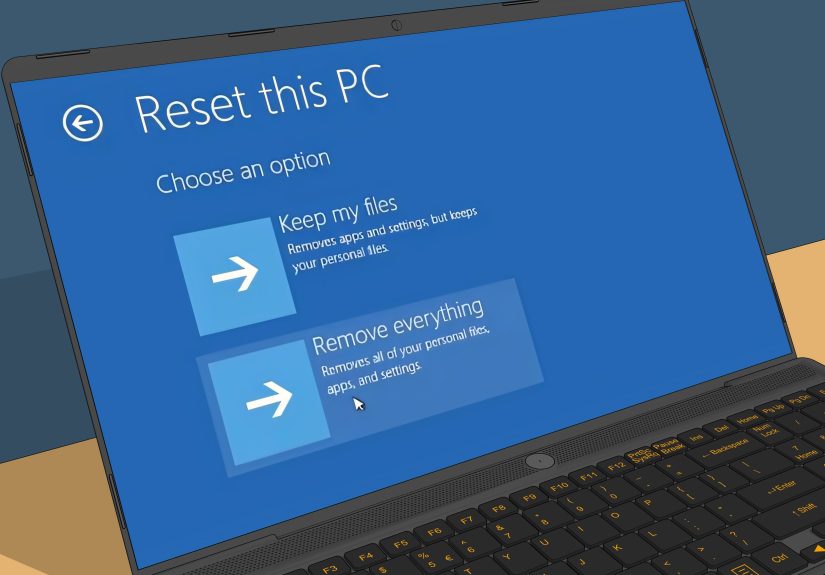
Fix 6: Perform a Full Network Reset
If the quick fixes do not work, use Windows Network Reset. This is the "let us stop being polite and rebuild the whole thing" option.
- Open Settings > Network & Internet > Advanced network settings.
- Select Network reset.
- Click Reset now.
- Restart your computer.
Important: this removes and reinstalls network adapters and resets networking components to default settings. It may also erase saved Wi-Fi networks and passwords, so make sure you know your Wi-Fi password before you hit the button. Nothing ruins a dramatic recovery like realizing the router password is written on a box you threw out in 2023.
Fix 7: Update or Reinstall the Network Adapter Driver
Driver problems are a common reason this error appears after a Windows update, a sleep/wake glitch, or a fresh system install.
To update the driver:
- Right-click Start and open Device Manager.
- Expand Network adapters.
- Right-click your adapter.
- Select Update driver.
If that does not help, reinstall it:
- In Device Manager, right-click the adapter.
- Select Uninstall device.
- Restart the PC.
Windows often reinstalls the driver automatically on reboot. If not, download the latest driver from your PC manufacturer or adapter maker on another device and transfer it by USB.
Fix 8: Check for Intel Killer or Vendor Utility Problems
If your laptop uses an Intel Killer adapter, the issue may not be Windows alone. In some cases, the Killer software stack causes odd connection failures, especially after updates or partial installs.
A clean reinstall of the Intel Killer Performance Suite can help. If your PC uses Dell, HP, Lenovo, ASUS, or another major brand, it is also worth checking the manufacturer support page for your exact model and downloading the recommended wireless or Ethernet driver instead of relying only on generic updates.
This matters because networking problems are sometimes hardware-specific. A fix that works beautifully for one adapter may do absolutely nothing for another.
Fix 9: Turn Off VPN, Proxy, or Security Tools Temporarily
VPN software, manual proxy settings, firewalls, and some antivirus packages can interfere with internet access. This does not mean security software is bad. It just means it occasionally gets enthusiastic and blocks traffic like an overcaffeinated nightclub bouncer.
Try these checks:
- Disconnect your VPN temporarily.
- Go to Settings > Network & Internet > Proxy and turn off manual proxy settings if you do not intentionally use one.
- Temporarily disable third-party firewall or web protection software for testing.
If the connection starts working, you found the conflict. Re-enable your security tools afterward and adjust their settings rather than leaving them off permanently.
Fix 10: Check the Router, Modem, and ISP Side
If every device in your home has the same issue, stop blaming Windows for everything. This may be a router, modem, or ISP problem.
Check for:
- Red, amber, or unusual modem lights
- Loose cables between the modem and router
- An ISP outage in your area
- A router that needs updated firmware or a full reboot
- Internet settings that changed after switching providers
In some cases, calling your ISP saves time. They can often confirm whether the line is down, the modem is not authenticated, or your connection needs to be reprovisioned.
What Not to Do
When the internet goes down, people get creative. Sometimes too creative.
Avoid these common mistakes:
- Do not randomly edit the registry unless a trusted support source tells you to.
- Do not install mystery driver-updater tools from sketchy websites.
- Do not disable every network protocol just because a forum comment said so.
- Do not assume the problem is your laptop if every device is offline.
- Do not factory reset the router as your first move unless you enjoy rebuilding your whole network from scratch.
How to Prevent the Error From Coming Back
Once you fix the problem, a few habits can reduce the odds of seeing it again:
- Keep Windows and network drivers updated.
- Restart your router occasionally, especially if it has been running nonstop for months.
- Use the manufacturer’s recommended network drivers for your laptop model.
- Be cautious with VPN, firewall, and optimization tools that change network settings.
- Write down your router login and Wi-Fi password somewhere safe.
- Replace old Ethernet cables and aging routers if connection problems are frequent.
Real-World Experiences With the "Unidentified Network No Internet" Error
One reason this error drives people crazy is that it rarely shows up in a dramatic, obvious way. It sneaks in. Everything looks normal until a browser tab refuses to load, a video call freezes, or Windows starts behaving like the internet has become a myth invented by better-equipped households.
A very common experience happens right after a Windows update. The PC restarts, the Wi-Fi icon appears, and for a moment everything looks fine. Then the connection changes to "Unidentified network" and nothing loads. In many of these cases, the real issue turns out to be a driver mismatch. The adapter itself is still there, but the software controlling it is not playing nicely anymore. Reinstalling or updating the driver fixes what looked like a major network disaster.
Another classic scenario shows up after a power outage or a router reboot. The modem comes back, the router comes back, the laptop reconnects, and yet the machine still insists there is no internet. This is often a bad DHCP lease problem. The computer is holding onto old connection details while the router is trying to hand out fresh ones. Running the reset commands or forgetting and reconnecting to the network usually clears that mismatch.
Then there is the traveler’s version of the problem. Someone uses hotel Wi-Fi, airport Wi-Fi, an office VPN, a coffee shop hotspot, and then returns home. Suddenly the home network no longer works correctly. Why? Because the laptop may still be clinging to a proxy setting, VPN route, or saved profile that made sense somewhere else but causes chaos at home. It feels mysterious, but the fix is often surprisingly boring: turn off the VPN, disable the proxy, reconnect, and breathe normally again.
Ethernet users get their own special flavor of frustration. You plug in the cable because wired connections are supposed to be the dependable adults in the room, and Windows still throws the same no-internet warning. In real life, this often ends up being one of three things: a bad cable, a dead router port, or a broken adapter driver. Swap the cable, try another port, and suddenly the "serious networking issue" turns out to be a ten-dollar piece of plastic having a bad day.
There are also the cases where the computer is innocent and the ISP is the actual villain. People can spend an hour resetting adapters, flushing DNS, and glaring at Device Manager, only to discover the service provider is having an outage. That is why checking another device early is so important. It can save a huge amount of time and prevent unnecessary tinkering.
The biggest lesson from real-world experience is simple: this error looks scary, but it is usually fixable once you narrow down where the break actually is. Start with the easy checks, move to Windows resets, then repair drivers and software conflicts only if needed. That approach solves the problem far more often than panic-clicking every network setting in sight.
Conclusion
The "Unidentified Network No Internet" error is annoying, but it is not unbeatable. In most cases, the fix comes down to a logical process: check whether the issue is your device or the whole network, restart the modem and router, confirm DHCP and DNS settings, reset the Windows network stack, and repair drivers or software conflicts if necessary.
The trick is not to attack everything at once. Start simple. Test another device. Power cycle the network gear. Run the Windows troubleshooter. Then move into command-line resets, network reset, driver reinstall, and VPN or proxy checks. That order is faster, cleaner, and much less likely to leave you with three new problems while solving the original one.
In other words, when Windows says your network is "unidentified," do not panic. It may be confused, but you do not have to be.