Table of Contents >> Show >> Hide
- What Is Moon+ Reader for Android?
- How to Get Started with Moon+ Reader
- How to Read Books in Moon+ Reader
- Best Moon+ Reader Settings to Change First
- How to Highlight, Bookmark, and Take Notes
- How to Use Moon+ Reader for PDFs
- How to Use Text-to-Speech and Auto-Scroll
- How to Organize Your Library
- How to Sync and Back Up Your Reading Data
- Common Moon+ Reader Problems and Easy Fixes
- Who Should Use Moon+ Reader?
- What Using Moon+ Reader Actually Feels Like in Real Life
- Conclusion
If your phone is already stuffed with group chats, screenshots, and at least one app you downloaded “just to try,” adding another reader app might sound unnecessary. But Moon+ Reader for Android has earned a loyal following for one simple reason: it gives readers an absurd amount of control. It does not just open books. It lets you tune the reading experience until it feels like your own tiny digital reading cave, minus the cave bats and questionable lighting.
This guide walks you through how to use Moon+ Reader for Android the easy way. Whether you want to read EPUB files, organize a messy ebook folder, highlight passages like a scholarly maniac, or make your screen stop blasting your retinas at midnight, this tutorial covers it. We will also look at practical tips for PDFs, customization, syncing, and the little settings that make a surprisingly big difference.
What Is Moon+ Reader for Android?
Moon+ Reader is an Android ebook reader app designed for people who want more flexibility than a basic reading app usually offers. It is popular with readers who already own DRM-free books, download ebooks from online catalogs, or keep personal libraries in formats like EPUB, MOBI, PDF, TXT, HTML, and more. In other words, it is less “here is our store, now buy more books” and more “bring your own library, and let’s make it look gorgeous.”
One reason Moon+ Reader stands out is customization. You can adjust fonts, spacing, themes, brightness controls, tap zones, gestures, scrolling behavior, and page animations. The Pro version also adds features like an ad-free experience, extra PDF tools, more theme options, text-to-speech support enhancements, and additional convenience features for power users. If you are the type of person who rearranges icons on your home screen for fun, Moon+ Reader may feel like a warm hug.
How to Get Started with Moon+ Reader
1. Install the app
Start by downloading Moon+ Reader or Moon+ Reader Pro from the Google Play Store. If you are just testing the waters, the free version is a perfectly reasonable starting point. It lets you read, customize, and organize books without forcing you into a major commitment. Think of it as a first date with an ebook app.
2. Open the app and allow file access
When you first launch Moon+ Reader, it may ask for access to files on your device. This matters because the app is built to read local content. If you deny access, it will have a much harder time finding the books you actually want to read. So yes, this is one of those moments when tapping “Allow” makes life easier.
3. Import your books
After setup, use the library or local files area to scan your device for ebooks. If your books are already stored in a folder on your phone, tablet, SD card, or supported cloud location, Moon+ Reader can usually detect or browse to them. This is especially handy if you keep a collection of EPUB, MOBI, PDF, CBZ, CBR, DOCX, or text files.
If your library does not appear right away, do not panic and assume your files have fallen into a digital black hole. Check where the books are stored, then manually browse to that folder and add or open them from there.
How to Read Books in Moon+ Reader
Open a book
Once your files are imported, tap a title from your bookshelf to open it. Moon+ Reader supports multiple reading modes depending on the file type and your personal preferences. EPUB and other reflowable text formats are where the app really shines, because you can reshape the reading experience more freely than with a fixed-layout PDF.
Use basic reading controls
Most navigation in Moon+ Reader is intuitive. Tap the screen to bring up menus. Swipe to turn pages or scroll. Long-press text to highlight or annotate. Open the center menu to access chapters, bookmarks, themes, visual settings, and reading progress. At first the interface can feel like someone handed you the cockpit of a small spaceship, but after a few minutes, it starts making sense.
Adjust brightness on the fly
One of the nicest built-in conveniences is gesture-based brightness control. In many reading setups, you can slide along the left edge of the screen to adjust brightness without leaving the book. That means less fumbling through Android settings and more actual reading. Revolutionary concept, really.
Best Moon+ Reader Settings to Change First
Choose a comfortable theme
Moon+ Reader includes multiple built-in themes, including day and night modes. If you mostly read in bright light, a lighter theme may feel clean and familiar. If you read in bed and prefer not to feel like your phone has become a tiny sun, switch to night mode. This one setting alone can dramatically improve comfort.
Customize the font and spacing
Go into visual options and adjust the font size, line spacing, margins, paragraph formatting, and alignment. A lot of readers skip this because the default looks “fine enough.” But fine enough is how you end up squinting at page 47 and wondering why your eyes are filing a complaint.
For longer reading sessions, try slightly larger text, a little extra line spacing, and margins that do not crush the text against the sides of the screen. You want readability, not a hostage situation.
Set your tap zones and gestures
Moon+ Reader allows customized tap zones and gesture commands. This is one of its secret weapons. You can assign actions for screen taps, swipes, hardware keys, and other controls. For example, you might tap the right side to go forward, the left side to go back, and the center to open the menu. If you prefer volume buttons for page turning, that is also an option in many setups.
Pick your paging style
You can choose among different page animations and reading behaviors, including scrolling and page-flip styles. Some people want reading to feel like paper. Others want it to feel like a smooth vertical feed without the social media chaos. Moon+ Reader supports both personalities.
How to Highlight, Bookmark, and Take Notes
If you use ebooks for study, research, work, or just aggressive overthinking, Moon+ Reader’s annotation tools are a big deal. Long-press a word or sentence to highlight it. From there, you can usually add notes, save bookmarks, copy text, or look up dictionary information depending on your setup.
Bookmarks are useful when you want to save a location without highlighting text. Highlights are better when a specific quote matters. Notes are ideal when you want to capture your own thoughts, reactions, or reminders. For example, if you are reading nonfiction, you can leave short notes like “important definition,” “look this up later,” or “wow, that is either genius or nonsense.”
In the Pro version, PDF annotation support is more robust, which makes Moon+ Reader more appealing for people who read manuals, articles, academic files, or work documents in PDF format.
How to Use Moon+ Reader for PDFs
Moon+ Reader can open PDFs, but the experience is a little different from reading EPUB files. EPUB content can reflow and adapt to your preferred font and layout. PDFs are usually fixed-layout documents, so they behave more like a digital photograph of a page.
That means your PDF experience depends heavily on the file itself. A simple, text-based PDF may be pleasant to read. A complex magazine-style PDF with columns, tiny text, or image-heavy pages may require zooming or different view settings.
If you read PDFs often, try these tips:
- Use landscape mode for wider pages.
- Experiment with dual-page and scroll settings if available.
- Increase render quality or preview settings when needed.
- Use annotation tools for highlights and notes in Pro.
- Switch to night mode or alternate PDF themes for better comfort.
Moon+ Reader is best for readers who want one app that can handle both ebooks and documents reasonably well. If your life is basically 97 percent heavily formatted PDFs, you may still want a dedicated PDF specialist on standby.
How to Use Text-to-Speech and Auto-Scroll
Moon+ Reader includes text-to-speech support in its feature set, especially in the Pro experience. This can be useful if you want the app to read aloud while you cook, walk, clean, or pretend to organize your desk while actually avoiding work.
To use text-to-speech effectively, make sure your Android device has a working TTS engine installed and configured. Then check Moon+ Reader’s reading controls and speech options. If playback pauses when your screen is off, device battery optimization settings may be the culprit. Background restrictions can interrupt speech features on some Android phones.
Auto-scroll is another underrated feature. Instead of manually turning pages, the app can move text for you at a controlled speed. It sounds minor until you use it during a long reading session and realize your thumb has finally been allowed to retire.
How to Organize Your Library
A good reading app becomes much more useful when your library is not a disaster. Moon+ Reader includes bookshelf-style management tools that help you sort, search, and access your files more easily. Depending on your version and setup, you can organize books by categories such as favorites, downloads, authors, or tags.
Here are a few practical library habits that make a big difference:
- Keep books in clearly named folders before importing them.
- Separate novels, comics, PDFs, and study materials.
- Use favorites for books you are actively reading.
- Use bookmarks and notes instead of trying to “remember where that good part was.” Your brain deserves better.
- Back up your settings and reading data if you rely heavily on annotations.
How to Sync and Back Up Your Reading Data
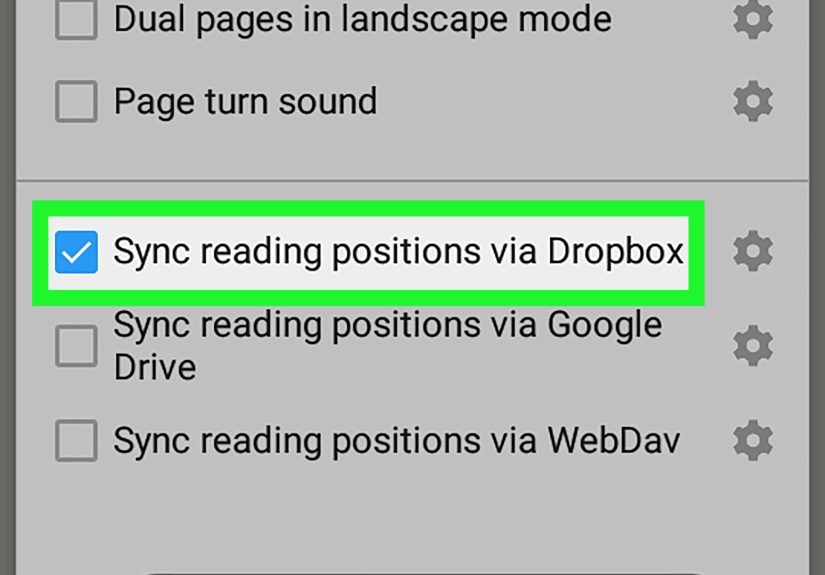
Moon+ Reader includes backup and sync options, and official app materials also reference cloud-related file management and syncing functions. If you switch devices or upgrade from the free version to Pro, backup and restore can save you a lot of frustration. Highlights, notes, and settings are the kind of things you do not realize you care about until they vanish.
If you are moving from the free version to Pro, use the backup and restore tools to transfer your reading data. If you use cloud features, review the app’s permissions and sync settings carefully so you understand what is being stored and where it is being accessed from.
Common Moon+ Reader Problems and Easy Fixes
The app does not find my books
Check file permissions first. Then verify the books are in a supported format and stored in a location the app can access. If needed, browse manually to the folder instead of relying only on auto-import.
The interface feels overwhelming
That is normal. Moon+ Reader has a lot of options. Start with only four changes: theme, font size, tap zones, and brightness gesture. Once those feel right, everything else gets easier.
PDFs do not look great
Try landscape mode, zoom adjustments, alternate PDF themes, or a different scroll setting. Some PDFs are simply stubborn little bricks, and no app can fully turn them into a flowing ebook.
Text-to-speech stops in the background
Review your Android battery optimization settings and allow the reader app and TTS engine to run more freely in the background if your device supports that adjustment.
Who Should Use Moon+ Reader?
Moon+ Reader is a strong choice for Android users who want to read DRM-free ebooks, import local files, manage varied document types, and customize nearly every detail of the reading experience. It is especially good for people who already have their own library and want an Android ebook reader app that bends to their habits rather than bossing them around.
If you want a simple bookstore app with minimal settings, another option may feel more straightforward. But if you want control, flexibility, annotations, themes, gesture-based reading, and support for lots of file types, Moon+ Reader deserves a serious look.
What Using Moon+ Reader Actually Feels Like in Real Life
Here is the experience many users end up having with Moon+ Reader: the first ten minutes are mildly chaotic, the next twenty minutes are weirdly satisfying, and by the end of the first week, you start wondering why every reading app is not built this way. At first, the sheer number of settings can feel like opening a toolbox and finding thirty-seven screwdrivers when you only wanted one. But once you understand the basics, that same complexity becomes the reason the app feels so personal.
For example, someone who reads novels at night may create a calm dark theme with warm text, soft margins, and subtle page transitions. Someone else reading technical manuals might prefer a brighter layout, faster scrolling, visible progress stats, and aggressive highlighting. A student might use bookmarks and notes heavily, while a comic reader may focus more on layout and screen fit. The point is that Moon+ Reader does not force all readers into one narrow format. It lets different kinds of readers build their own rhythm.
Another thing people often notice is that Moon+ Reader gets better the more it matches your habits. If you always read with one hand, tap-zone customization becomes surprisingly useful. If you bounce between phone and tablet, backup and sync features suddenly matter a lot more. If you read long-form articles, essays, or public-domain books, auto-scroll and text-to-speech can turn the app from “nice to have” into “why is this not on every device I own?”
There is also a certain satisfaction in using an app that respects existing libraries. Many reading apps revolve around storefronts, recommendations, or locked ecosystems. Moon+ Reader feels different because it is happy to work with the books you already have. That makes it appealing for people with years of collected EPUB files, PDFs, reference materials, and personal reading archives. It feels less like renting a reading experience and more like actually owning one.
Of course, it is not magic. Some menu names may take a moment to find. Some PDFs will still behave like grumpy office documents. Some settings are so detailed that you may accidentally spend more time adjusting your reading environment than reading the actual book. That is part of the Moon+ Reader experience too. But once everything is tuned, the app can feel incredibly comfortable. It becomes the kind of tool that fades into the background, which is exactly what a good reading app should do. The best software does not yell for attention. It quietly helps you get to the next chapter.
Conclusion
Learning how to use Moon+ Reader for Android is easier once you stop trying to master every setting on day one. Start simple: import your books, choose a theme, adjust the font, set your tap controls, and explore highlighting or bookmarks. After that, you can dig into advanced features like text-to-speech, auto-scroll, cloud backup, and PDF annotation.
Moon+ Reader is not just another Android reading app. For many users, it is the difference between merely opening a file and creating a reading setup that actually feels enjoyable. And in a world where screens constantly compete for your attention, an app that helps you read in peace deserves at least one slow, respectful tap.