Table of Contents >> Show >> Hide
- What the PMT Function Does
- PMT Function Syntax in Excel
- Why Excel Sometimes Returns a Negative Payment
- How to Calculate a Monthly Payment in Excel Step by Step
- Example 1: Car Loan Payment in Excel
- Example 2: Savings Goal Using PMT
- Example 3: Payments at the Beginning of the Month
- Common PMT Mistakes That Wreck Otherwise Good Spreadsheets
- How PMT Fits Into an Amortization Schedule
- When to Use PMT Instead of a Loan Calculator
- Quick PMT Formula Templates You Can Reuse
- Final Thoughts
- Practical Experience: What People Learn After Using PMT in Real Life
- SEO Tags
If you have ever stared at a loan offer and thought, “That monthly payment does not look scary… but I also do not trust it,” Excel’s PMT function is here to help. Think of it as the spreadsheet equivalent of that brutally honest friend who tells you exactly what your future bill will be before you sign anything with suspiciously tiny print.
Whether you are comparing mortgages, car loans, student debt, business financing, or even a savings goal, the PMT function in Excel can quickly calculate a fixed periodic payment when the interest rate and payment schedule stay consistent. In plain English: it tells you how much you will pay each month, or how much you need to save each month, based on the numbers you enter.
This guide breaks down how to calculate a monthly payment in Excel using PMT, what each argument means, how to avoid the most common mistakes, and how to use the function in real-life financial planning. No calculator acrobatics required. No finance degree required. Mild curiosity and a functioning keyboard will do.
What the PMT Function Does
The PMT function calculates a regular payment for a loan or investment when payments are equal and the interest rate stays fixed for the calculation period. That makes it ideal for fixed-rate loans and predictable savings plans.
In most everyday use cases, PMT helps you answer one of these questions:
- How much will my monthly loan payment be?
- How much house or car can I afford based on a target payment?
- How much do I need to save each month to hit a future goal?
- What happens if I change the term from 15 years to 30 years?
That is why the PMT formula shows up everywhere from personal budgeting to finance classes to corporate modeling. It is simple enough for beginners and useful enough that experienced Excel users keep it in heavy rotation.
PMT Function Syntax in Excel
The Excel formula looks like this:
Here is what each part means in regular human language:
1. rate
This is the interest rate per payment period, not always the annual rate. If payments are monthly, the rate must be monthly too. That means you usually divide the annual rate by 12.
2. nper
This is the total number of payment periods. If your loan lasts 5 years and you pay monthly, then nper is 60.
3. pv
This is the present value, which usually means the loan amount or principal. For a $25,000 car loan, pv is 25000.
4. fv
This optional argument is the future value, or the balance you want left at the end. For most loans, that value is 0 because the goal is to pay the balance off completely. For savings goals, though, fv becomes very useful.
5. type
This optional argument tells Excel when the payment is due.
0= payment at the end of the period1= payment at the beginning of the period
If you leave type blank, Excel assumes 0.
Why Excel Sometimes Returns a Negative Payment
Here is the moment that alarms beginners: you enter the PMT formula, press Enter, and Excel gives you a negative number.
Do not panic. Excel is not calling your financial decisions “bad.” It is using cash flow logic. Money you pay out is shown as negative. Money you receive is shown as positive. So if Excel returns -483.32, that simply means you are paying $483.32 each month.
If you want the result displayed as a positive number, use one of these approaches:
or
Both methods are common. I prefer using a negative present value for readability, because it keeps the formula financially consistent and avoids wrapping everything in ABS() like you are hiding a crime scene.
How to Calculate a Monthly Payment in Excel Step by Step
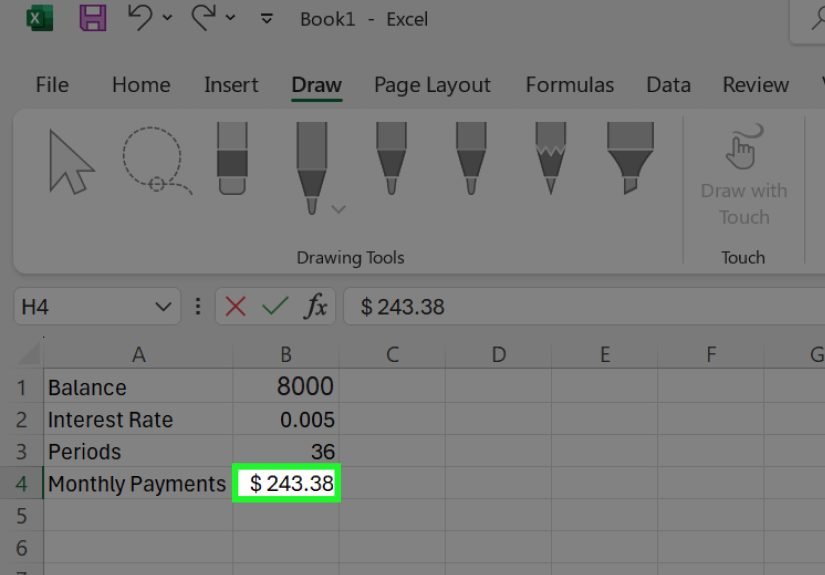
Let’s walk through a practical example. Suppose you are borrowing $300,000 for a home at a 7% annual interest rate for 30 years, with payments due at the end of each month.
| Cell | Label | Value |
|---|---|---|
| B1 | Loan Amount | 300000 |
| B2 | Annual Interest Rate | 7% |
| B3 | Loan Term in Years | 30 |
Then enter this formula in another cell:
The result is $1,995.91.
That number represents the principal and interest payment for a fixed-rate loan under those assumptions. It does not automatically include property taxes, homeowners insurance, HOA fees, or other costs that may ride along in real life like uninvited party guests.
Example 1: Car Loan Payment in Excel
Now let’s use a simpler example. Say you want to finance $25,000 for a car at 6% annual interest over 5 years.
Your monthly payment would be $483.32.
This is one of the easiest ways to compare lenders. If one lender offers 6% for 60 months and another offers 5.5% for 72 months, PMT lets you compare payments quickly instead of doing weird back-of-the-envelope math that somehow ends with coffee stains and regret.
Example 2: Savings Goal Using PMT
PMT is not just for loans. It can also help you figure out how much you need to save each month to hit a future target.
Suppose you want to save $50,000 in 18 years and expect a 6% annual return. If you are starting from zero, the formula looks like this:
The result is about -$129.08, which means you would need to contribute $129.08 per month. Again, the negative sign simply reflects cash going out from your pocket into savings.
Example 3: Payments at the Beginning of the Month
Some payment arrangements happen at the beginning of the period instead of the end. That is where the optional type argument matters.
Using the mortgage-style example below:
Excel calculates the payment assuming each payment is due at the beginning of the month. Because the lender receives money sooner, the payment is slightly lower than it would be if paid at the end of the period.
This is a small detail, but in finance, small details love turning into expensive details.
Common PMT Mistakes That Wreck Otherwise Good Spreadsheets
Forgetting to Convert the Rate
If you make monthly payments, use a monthly rate. Do not enter 6% as the rate for a monthly loan without dividing by 12, unless you enjoy creating fictional monthly payments.
Forgetting to Convert Years to Months
If the term is in years but the payments are monthly, multiply by 12. Excel does not read your mind. It barely tolerates typos.
Mixing Positive and Negative Cash Flows Randomly
Choose a consistent sign convention. A common setup is to enter the loan amount as negative so the payment comes back positive. Or enter the loan amount as positive and accept the payment as negative. Just do not mix approaches halfway through a model unless you want confusion with extra formatting.
Expecting PMT to Include Taxes and Insurance
For mortgages especially, PMT usually gives you only principal and interest. Your real monthly housing payment may be higher once taxes and insurance are included.
Using PMT for Variable-Rate Loans Without Adjustments
PMT assumes a constant interest rate for the modeled period. If your loan rate changes, you either need separate calculations for each stage or a more detailed amortization model.
How PMT Fits Into an Amortization Schedule
Once you know the payment, you can build an amortization schedule in Excel to see how each payment splits between principal and interest over time.
The PMT function gives you the total payment. Then these related functions help with the breakdown:
IPMTfor the interest portion of a paymentPPMTfor the principal portion of a paymentNPERto calculate the number of periodsRATEto estimate the rate when the payment is known
This is where Excel gets especially useful. You are no longer guessing whether a shorter term saves interest. You can model it. You can compare it. You can watch the numbers behave in front of you instead of trusting vague marketing language like “competitive financing.”
When to Use PMT Instead of a Loan Calculator
Online calculators are fine for quick estimates, but Excel wins when you want flexibility.
Use PMT in Excel when you want to:
- compare multiple loan options side by side
- test different interest rates and terms
- build a personal budget workbook
- model mortgage, auto, or business financing scenarios
- create a savings contribution plan
- turn one number into a full decision-making worksheet
In other words, calculators give answers. Excel gives answers and control.
Quick PMT Formula Templates You Can Reuse
Monthly loan payment
Monthly savings contribution
Payment due at the beginning of the month
Final Thoughts
The beauty of the Excel PMT function is that it turns intimidating financial math into something practical and repeatable. Once you understand the logic behind rate, nper, pv, fv, and type, you can calculate monthly payments with confidence instead of finger-crossing optimism.
The biggest lesson is simple: match your time units. Monthly rate with monthly periods. Annual rate with annual periods. Keep your cash flow signs consistent. Remember that mortgages often have additional costs beyond principal and interest. And when Excel gives you a negative number, do not take it personally.
If you are shopping for a loan, planning a payoff strategy, or building a financial model, PMT is one of those Excel functions that earns its keyboard space. It is fast, reliable, and surprisingly versatile. Also, unlike some financial products, it does exactly what it says it does.
Practical Experience: What People Learn After Using PMT in Real Life
Here is something experience teaches very quickly: the PMT function is not just about math. It changes how people think about money. The first time someone compares a 15-year loan and a 30-year loan in Excel, the conversation usually stops being abstract. Suddenly, “lower monthly payment” and “less total interest” are not just phrases. They are numbers staring back from cells on a screen, and those numbers have opinions.
One common experience is that people underestimate how sensitive monthly payments are to interest rates. A small-looking change in APR can create a meaningful shift in monthly cost, especially on larger loans. When users test 5.5%, 6%, and 6.5% side by side in Excel, they stop seeing rates as decoration and start seeing them as budget realities. That is a healthy transformation.
Another common lesson comes from loan term comparisons. A longer term often looks attractive because the monthly payment drops. PMT makes that part obvious. But once users build a simple amortization schedule or calculate the total paid over time, they also see the trade-off: lower monthly pain can mean higher lifetime cost. That is not always wrong. Sometimes cash flow matters more than total interest. But PMT helps people make that choice deliberately instead of accidentally.
People also learn, usually within ten minutes, that Excel is brutally honest about consistency. If the interest rate is annual and the payment period is monthly, the formula only works correctly when the time units match. This is one of those mistakes almost everyone makes once. You enter =PMT(6%,5*12,-25000), Excel returns a number that belongs in a horror film, and suddenly the rule “divide by 12” becomes unforgettable.
There is also a surprisingly practical emotional benefit to using PMT. It reduces uncertainty. Instead of wondering whether a loan offer is “probably manageable,” users can put the exact amount into a spreadsheet, compare it with take-home pay, add insurance or taxes, and see whether the payment actually fits the budget. That kind of clarity can prevent bad borrowing decisions before they turn into long-term stress.
In professional settings, PMT also becomes a communication tool. Managers, analysts, and business owners use it to explain financing options clearly. Rather than presenting vague recommendations, they can show how a change in term, rate, or principal affects the payment immediately. When decision-makers can see the impact in real time, meetings get shorter, choices get sharper, and there is less room for magical thinking.
For personal finance, one of the best experiences people report is using PMT for goals, not just debt. Once someone realizes the same function can estimate monthly saving contributions for a future target, Excel stops being merely a debt calculator and starts acting like a planning partner. Saving for a down payment, emergency fund, tuition goal, or retirement target becomes more concrete when PMT translates the dream into a monthly number.
Finally, experienced Excel users learn that PMT works best when paired with curiosity. What happens if you add an extra payment each month? What if you refinance? What if you shorten the term by five years? PMT opens the door, and the rest of Excel lets you explore the house. That is why this function remains so useful. It is not just a formula. It is a way to make financial choices visible, testable, and far less mysterious.