Table of Contents >> Show >> Hide
- What Does “Map Drive Letter for Folders” Actually Mean?
- Why Mapping a Drive Letter Is So Convenient
- When to Use Each Method
- How to Map a Network Folder to a Drive Letter
- How to Assign a Drive Letter to a Local Folder
- What About Mounted Folders?
- Common Problems and How to Fix Them
- Security and Housekeeping Tips
- Best Use Cases for Mapping Drive Letters to Folders
- Final Thoughts
- Real-World Experiences: Why This Small Trick Feels Bigger Than It Sounds
There are two kinds of Windows users in this world: the ones who lovingly organize their folders, and the ones who have a path so long it looks like a GPS route to Narnia. If you have ever clicked through Documents > Projects > Client Files > 2026 > Final > Final-Final > Actually-Final, you already understand why mapping a drive letter for folders feels oddly magical.
At its best, assigning a drive letter gives a folder a front-row parking spot in File Explorer. Instead of digging through a maze of directories or typing long network paths, you can open something simple like R: or Z: and get to work. That convenience matters for everyday users, office teams, developers, designers, and anyone who wants Windows to stop making simple navigation feel like a scavenger hunt.
But here is the catch: people often use the phrase map drive letter for folders to mean three different things. Sometimes they mean mapping a network folder from another computer or NAS. Sometimes they mean giving a local folder its own virtual drive letter. And sometimes they are actually talking about mounting an entire volume inside a folder. Windows supports all three ideas in different ways, but they are not interchangeable.
This guide breaks down what each method does, when to use it, and how to avoid the classic Windows moment where everything looks connected until it absolutely is not. We will cover the easiest built-in options, practical examples, common mistakes, and real-world experiences that show why this small trick can save time, reduce clicks, and make your file system feel far less dramatic.
What Does “Map Drive Letter for Folders” Actually Mean?
Let’s untangle the vocabulary before Windows untangles your patience.
1. Mapping a network drive
This is the traditional meaning. You connect a shared folder on another computer, server, or NAS to a letter such as Z:. That way, the shared location shows up in File Explorer like a regular drive. This is perfect for office file servers, team folders, or home NAS storage.
2. Assigning a drive letter to a local folder
This is the move most people want when they say, “Can I make this folder show up as a drive?” For a local folder, the built-in Windows trick is the SUBST command. It creates a virtual drive letter that points to a folder path on your computer. Think of it as a shortcut wearing a drive costume.
3. Mounting a volume in a folder
This is different again. Here, you take an actual disk volume and mount it into an empty folder on an NTFS or ReFS drive. It is useful when you want more storage without burning through drive letters. Great for admins. Less exciting for someone who just wanted faster access to their “Taxes” folder.
If your goal is simple convenience, the best option depends on what that folder really is: network share, local folder, or full disk volume.
Why Mapping a Drive Letter Is So Convenient
Drive letters are tiny, old-school, and still weirdly efficient. They reduce long file paths, speed up navigation, and make some scripts, apps, and legacy tools easier to use. Some programs still behave better when working with short paths or obvious drive targets. If you work with build tools, media files, scanned documents, accounting folders, or synchronized project directories, shaving off ten clicks a day adds up faster than you think.
There is also a psychological benefit. A mapped letter makes a folder feel stable and intentional. “Open the folder in R:” is easier for a team than “Open the thing inside the shared path inside the other thing named Archive-New.” Windows may not always be elegant, but it does understand the beauty of a clear letter and a clear destination.
When to Use Each Method
Use a network drive mapping when…
You need access to a shared folder on another PC, a company file server, or a NAS. This is the right choice for collaboration, centralized storage, and files that live somewhere other than your own device.
Use SUBST when…
You want a local folder on your own computer to behave like a drive letter. This is ideal for deep folder structures, development projects, asset libraries, and folders you open constantly.
Use a mounted folder when…
You are dealing with a real disk volume and want to attach it inside a folder instead of assigning another letter. This is more of a storage-management move than a convenience shortcut, but it is extremely useful in certain setups.
How to Map a Network Folder to a Drive Letter
If the folder lives on another machine, this is the standard Windows approach.
Method 1: File Explorer
- Open File Explorer.
- Select This PC.
- Choose Map network drive.
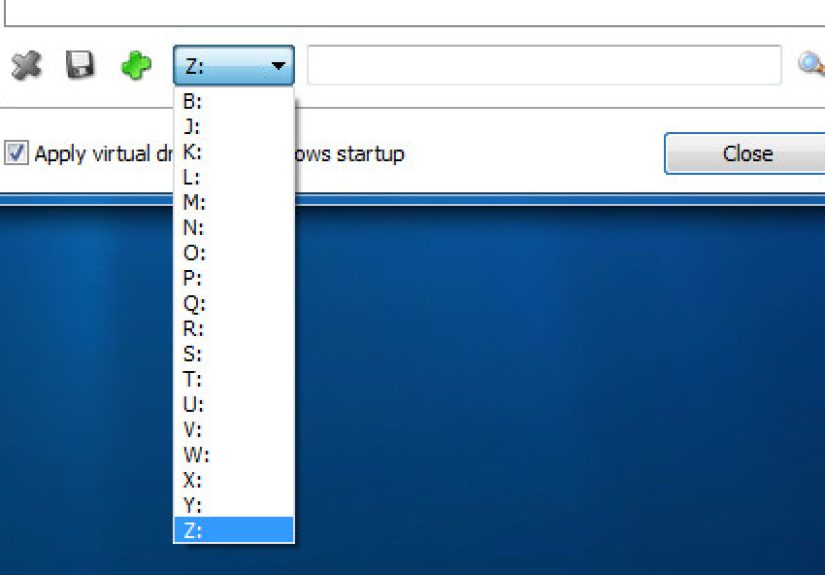
- Pick an available drive letter.
- Enter the shared path, such as \ServerNameSharedFolder.
- Enable Reconnect at sign-in if you want it to come back automatically.
- Use different credentials if the share needs a separate username and password.
This is the cleanest option for most users because it is visual, fast, and doesn’t require memorizing command syntax that looks like it was invented by a keyboard having a bad day.
Method 2: Command Prompt with net use
If you like repeatable commands, scripts, or pretending you are in a movie where all computer work happens in a black window, use net use.
This maps the share to Z: and tells Windows to reconnect it later. To remove it:
This approach is great for login scripts, support teams, and anyone who wants to automate setup across multiple computers.
Method 3: PowerShell
PowerShell can also create persistent mapped network drives:
For IT admins and advanced users, this is handy because it fits nicely into provisioning scripts and modern automation workflows.
How to Assign a Drive Letter to a Local Folder
Now we get to the part many people actually want: turning a folder on your own PC into something like R:.
The built-in trick: SUBST
The SUBST command associates a path with a drive letter. For example:
After that, R: opens directly to that folder. It is clean, fast, and delightfully satisfying. Suddenly your very long path has the same energy as a VIP entrance.
To remove the mapping later, use:
Why people love SUBST
- It is built into Windows.
- It is perfect for very long local paths.
- It helps older apps that do not enjoy giant directory structures.
- It makes repetitive file access quicker and easier.
The important limitation
SUBST is convenient, but it is not the same as a traditional persistent network mapping. If you restart your PC, the virtual drive may not automatically return unless you recreate it at sign-in. That means SUBST is excellent for convenience, but not something to set up once and forget forever unless you also add a startup script or scheduled task.
A practical example
Imagine you edit videos stored in this folder:
Typing or browsing that path repeatedly is not exactly a productivity booster. But mapping it as V: makes the workflow much smoother. In apps that ask for source and export folders all day long, that small change feels larger than it sounds.
What About Mounted Folders?
Mounted folders are often confused with mapped drives, but they solve a different problem. Instead of assigning a new drive letter, Windows can mount a real storage volume inside an empty folder on an NTFS or ReFS drive.
For example, an additional disk volume could be mounted at:
To the user, it feels like part of the existing folder tree, but behind the scenes it is another volume. This is useful when you want to expand storage without cluttering your system with letters from D: to whatever comes after your patience runs out.
Mounted folders are smart in server environments, workstation setups with multiple drives, or machines where drive letters are already crowded. But if you simply want quick access to a normal folder, this is usually more than you need.
Common Problems and How to Fix Them
The path is wrong
This sounds obvious, but it is the reigning champion of mapping problems. A missing slash, the wrong share name, or a typo in the server name will stop a mapping instantly. For network drives, test the UNC path first. Open File Explorer and type the share path directly before mapping it.
The permissions do not match
If the share exists but Windows refuses access, the issue is often permissions. You may need different credentials from the ones you use to sign into your PC. That is why the “connect using different credentials” option exists, and why Credential Manager can become your best friend when Windows keeps remembering the wrong login like an overly loyal but confused assistant.
Network discovery is off
If shared devices do not appear on the network, Windows may have network discovery turned off. Turning on network discovery and file sharing can help the computer find available shares more reliably, especially in home and small-office environments.
The drive letter is already in use
Windows will not map a drive letter that is already assigned. Pick another letter and move on with your day. This is a perfect time to choose something memorable, such as P: for Projects, M: for Media, or T: for the folder that has been called “Temporary” since 2019.
Stale mappings keep returning
If a disconnected mapped drive haunts your File Explorer like a storage ghost, remove it with net use or clear outdated entries from Credential Manager. Old saved credentials can silently break new connections.
Admin and user context do not match
A mapping created in one context may not appear where you expect in another. This especially matters with scripts, elevated windows, and some virtual drive behaviors. If something seems to map successfully but does not show up in Explorer, check whether you created it under a different execution context.
Security and Housekeeping Tips
Convenience is great. Sloppiness is less great. A few habits keep mapped letters useful instead of chaotic.
- Use clear drive letters with a purpose.
- Document shared mappings for teams.
- Do not save credentials on shared computers unless absolutely necessary.
- Remove mappings that are no longer used.
- Test reconnect behavior after restart or sign-in.
- For sensitive shared folders, confirm that permissions are correct on both the share and file system side.
A mapped drive should feel like a shortcut, not a mystery novel.
Best Use Cases for Mapping Drive Letters to Folders
For office teams
Shared finance folders, contracts, templates, and department archives become easier to access when everyone uses the same mapped letter. Training becomes simpler, and support requests become less theatrical.
For developers
Deep project paths can be shortened with SUBST, which is especially helpful for tools that dislike long file paths or build processes buried inside multiple nested directories.
For creatives
Photographers, designers, and video editors often work with massive asset libraries. Giving active folders short drive letters speeds up browsing and keeps favorite working directories one click away.
For home users
If you keep family photos, backups, or media on a NAS, mapping that network folder makes it feel like part of your PC instead of a separate island you have to swim to each time.
Final Thoughts
Mapping a drive letter for folders is one of those small Windows tricks that can make a surprisingly big difference. It cuts down on repetitive navigation, shortens unwieldy paths, and makes important locations easier to recognize and share. The key is choosing the right method.
If the folder is on another machine, map a network drive. If the folder is on your own PC and you want a shortcut with a drive letter, use SUBST. If you are managing real storage volumes and need flexibility, consider mounted folders. Same basic dream, different tools.
In other words, Windows does let you make folders easier to reach. You just have to ask the right way. Once you do, your favorite folder can finally stop hiding six clicks deep like it is trying to avoid rent.
Real-World Experiences: Why This Small Trick Feels Bigger Than It Sounds
One of the most common reactions people have after mapping a drive letter is, “Wait, why didn’t I do this sooner?” That sounds dramatic until you watch how often certain folders get opened in a normal week. A bookkeeper may open the same invoices folder fifty times. A designer may jump between project assets, exports, and feedback folders all day long. A teacher may keep lesson plans on a shared drive and open them before every class. In those moments, a short drive letter is not just convenient; it becomes part of the rhythm of work.
I have seen people use mapped letters to tame messy routines in surprisingly practical ways. One user kept a giant archive of scanned paperwork on a home NAS. Before mapping it, every access started with browsing the network, waiting for the device to appear, and clicking through a shared path that felt one typo away from disaster. After mapping the folder as S: for Scans, the storage suddenly felt local, obvious, and easy to explain to everyone in the house. The technology did not become more advanced. It just became more usable.
Another common experience comes from people with deeply nested local project folders. Developers and power users often discover SUBST after getting tired of absurd path lengths. A folder buried in layers of repositories, branches, test data, and build output becomes a neat drive like R:. The result is not flashy, but it reduces friction. File dialogs open faster in your brain, if not literally on your screen. You stop hunting and start doing.
There is also a teamwork benefit that does not get enough credit. In shared environments, mapped letters create a common language. “Put the report in Q:” is much clearer than “Go into the file share under departments, then operations, then quarterly, then approved.” That kind of clarity saves time, but it also prevents mistakes. Fewer wrong folders. Fewer duplicate files. Fewer panicked messages asking where the latest version lives.
Of course, experience also teaches caution. People learn quickly that convenience only stays convenient if the setup is maintained. Old mappings can break, credentials can go stale, and a virtual drive created for one temporary task can linger long after its purpose has expired. The best setups are the ones that stay simple: choose meaningful letters, document shared mappings, and remove what no longer matters. That way, your mapped drives feel like a tidy toolset instead of a museum of past decisions.
In the end, the real experience of mapping drive letters is not about the letter itself. It is about reducing tiny moments of friction that quietly waste attention. A good mapping does not impress anyone at a party, but it does make everyday computing smoother. And honestly, that is a pretty good deal for one little letter.