Table of Contents >> Show >> Hide
- What “Hide YouTube Controls” Really Means on Android
- The Short Answer: Can You Completely Hide YouTube Controls on Android?
- Method 1: Adjust the Auto-Hide Behavior Through Accessibility Settings
- Method 2: Use Lock Screen to Stop Accidental Taps
- Method 3: Go Fullscreen for a Cleaner Look
- Method 4: Use Miniplayer and Picture-in-Picture When Fullscreen Is Overkill
- Method 5: Developers Can Hide Controls in Embedded YouTube Players
- What to Do If YouTube Controls Will Not Go Away
- What Usually Does Not Work
- Best Setup for Most People
- Real-World Experiences: What Users Actually Run Into
- Conclusion
- SEO Tags
If you have ever tried to watch YouTube on Android while cooking, stretching, commuting, cleaning, or pretending to answer emails while actually watching gadget reviews, you already know the struggle: the player controls seem to pop up exactly when you do not want them. The progress bar appears, the pause button sits in the middle like it pays rent, and one accidental thumb tap turns a peaceful viewing session into a mini wrestling match with the interface.
The good news is that you can make YouTube on Android feel cleaner. The less-good news is that there is no magic “delete all controls forever” button in the standard YouTube app for normal viewers. Instead, YouTube gives you a handful of practical options: let controls auto-hide faster, turn off the Accessibility Player if it is keeping controls on screen too long, lock the screen to prevent accidental taps, use fullscreen more strategically, and switch to Picture-in-Picture or Miniplayer when that makes more sense. If you are embedding YouTube videos on a website or inside an app, that opens up another route entirely.
This guide breaks down what actually works, what only sort of works, and what sounds good in a forum comment at 2 a.m. but is not a real solution. In other words, no fluff, no sketchy hacks, and no advice that requires a sacrificial goat and three unsupported APK files.
What “Hide YouTube Controls” Really Means on Android
Before fixing the problem, it helps to define it. On Android, people usually mean one of four things when they say they want to hide YouTube video player controls:
- The on-screen controls stay visible too long.
- The controls keep reappearing after accidental taps.
- The video player looks cluttered in fullscreen mode.
- They want a truly clean video window with no YouTube chrome at all.
Those are similar problems, but they do not all have the same answer. For regular viewers using the YouTube Android app, the best options are built around auto-hide timing, lock screen, and playback mode. For developers using embedded YouTube players, you can go further and suppress controls through player parameters.
The Short Answer: Can You Completely Hide YouTube Controls on Android?
For most people using the standard YouTube app on Android, not permanently. YouTube is designed to keep playback controls available when you tap the screen, and they normally disappear after a short delay. That means your real goal is not “remove every control forever,” but “make the interface get out of the way faster and stay out of the way longer.”
The closest official solutions are surprisingly useful, though. If you are seeing an annoying X button or oversized controls, the Accessibility Player may be turned on. If the controls are flashing up because of accidental touches, the Lock screen feature is your friend. And if you want less clutter while multitasking, Miniplayer and Picture-in-Picture can keep playback going without the standard fullscreen overlay hogging attention.
Method 1: Adjust the Auto-Hide Behavior Through Accessibility Settings
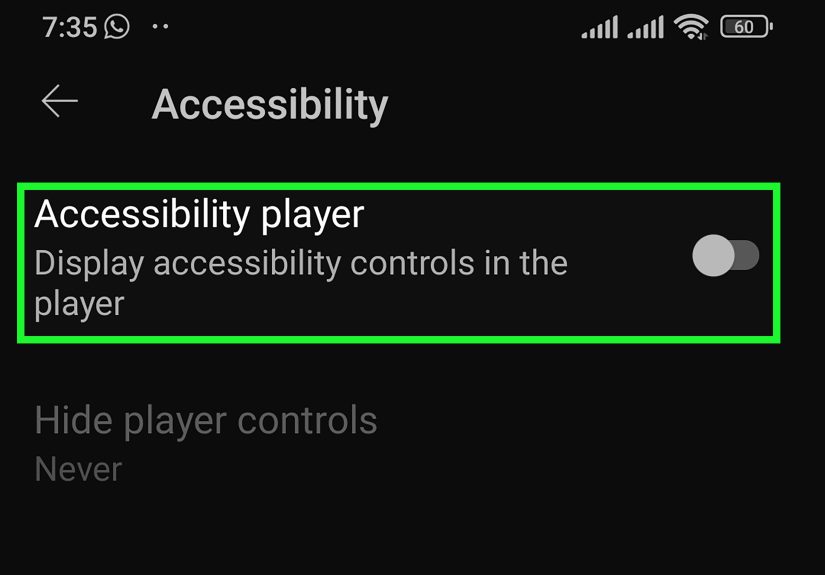
This is the first setting to check because it is the one most people miss. If your YouTube controls seem stubborn, sticky, or weirdly persistent, head into the app’s Accessibility settings. Inside the YouTube app, tap your profile picture, open Settings, then Accessibility.
Here, YouTube lets you do two important things. First, you can turn off Accessibility Player. Second, you can set a timer that automatically hides the video player controls after a certain number of seconds.
That timer is the closest thing to an official “hide controls faster” option. It does not erase the interface from existence, but it does reduce how long it hangs around after you interact with the screen. If your goal is a cleaner viewing experience on Android, this is easily the best place to start.
When this method works best
This fix is ideal if the controls are not broken but simply too persistent. It is especially helpful for people who watch long videos, tutorials, movie clips, podcasts, white-noise videos, or anything where the same overlay showing up over and over starts to feel like a needy roommate.
Why the Accessibility Player matters
Sometimes users see a strange X icon in the player and assume YouTube changed the interface just to be dramatic. In reality, the app may be responding to accessibility settings on the device. Turning off the Accessibility Player inside YouTube can restore a more typical viewing experience.
Method 2: Use Lock Screen to Stop Accidental Taps
If you are not actually trying to change the controls but just want them to stop appearing every time your palm, finger, sleeve, or kitchen towel grazes the display, use Lock screen. This is one of YouTube’s best underused features on Android.
Start playing a video, tap the settings icon, and choose Lock screen. Once it is enabled, the video player stays locked until you manually unlock it. That means random taps and swipes will not interrupt playback.
This does not literally remove every control from existence, but it solves the real problem for a lot of users: accidental interaction. If your phone is propped up on a stand during a workout, parked beside the stove, or handed to a child with the survival instincts of a tiny tornado, Lock screen is a lifesaver.
Best use cases for Lock screen
- Watching recipes while cooking
- Following workouts or yoga sessions
- Keeping kids from pausing or skipping videos every seven seconds
- Watching in bed without grazing the screen and summoning the controls from the void
One small catch: some ads or in-app notifications may temporarily allow interaction. So yes, the video can be locked, but advertising occasionally still barges in like it owns the place.
Method 3: Go Fullscreen for a Cleaner Look
This sounds obvious, but it matters. Fullscreen mode is still one of the easiest ways to reduce clutter on YouTube for Android. Tap the fullscreen icon at the bottom of the player and rotate your device horizontally. That gives the video more room and makes the interface feel less cramped.
Fullscreen does not permanently hide controls, but it improves the overall viewing experience because the video gets priority. On smaller Android phones, that difference is huge. Buttons feel less crowded, text overlays are less distracting, and the video stops looking like it is fighting for survival under a pile of icons.
If your main complaint is visual clutter rather than accidental touches, fullscreen is step one and Accessibility timing is step two.
Method 4: Use Miniplayer and Picture-in-Picture When Fullscreen Is Overkill
Sometimes the cleanest setup is not fullscreen at all. If you want to keep a video going while browsing YouTube or using another app, Miniplayer and Picture-in-Picture can reduce the sense that the standard player is taking over your whole phone.
Miniplayer appears inside the YouTube app when you hit back or swipe down while watching a video. You can move it, resize it, and even hide it at the edge of the screen. This is handy when you want playback to continue while you browse comments, search for another video, or wander into a recommendation rabbit hole you absolutely did not plan to visit.
Picture-in-Picture, or PiP, shrinks the video into a floating window outside the app. On Android, this is great for multitasking. Open a video, leave the app while it is playing, and the video can continue in a small movable player if PiP is enabled in both Android and YouTube settings.
Why this helps with controls
Both modes change the viewing context. Instead of staring at the regular full player and its overlays, you get a smaller, more purpose-driven video window. You still have controls, but they feel less intrusive because the whole experience is built for quick playback rather than immersive watching.
Important limitations
Miniplayer is not available for every type of content. Shorts and videos marked Made for Kids behave differently. Also, hiding the Miniplayer does not always mean playback continues unless you have the right YouTube Premium features for background play. In other words, the smaller player is helpful, but it is not a universal replacement for the regular one.
Method 5: Developers Can Hide Controls in Embedded YouTube Players
Now for the big distinction: if you are a viewer using the YouTube app, your control over controls is limited. If you are a developer embedding YouTube on a website or in an app, you have more options.
Google’s embedded YouTube player supports the controls=0 parameter, which tells the player not to display the standard player controls. You can also use fs=0 to prevent the fullscreen button from showing. That means if your real goal is to create a cleaner viewing experience on a mobile website, a kiosk setup, a learning portal, or a branded app experience, embedded playback is where true interface control begins.
This is not a fix for the YouTube Android app itself, but it matters because a lot of people search for “hide YouTube controls on Android” when they are actually building a page, not just watching a video. If that is you, stop fighting the app and start configuring the embed.
What to Do If YouTube Controls Will Not Go Away
If the controls seem stuck on screen, do not assume YouTube is haunted. Run through a quick checklist:
- Check Accessibility settings inside YouTube and turn off Accessibility Player if it is on.
- Set the control auto-hide timer to a shorter delay.
- Enter fullscreen mode and test whether the issue only happens in portrait mode.
- Use Lock screen if accidental taps are causing controls to reappear.
- Test another video type. Shorts, livestreams, standard videos, and kids’ content do not always behave the same way.
- Make sure Picture-in-Picture is not confusing the situation if you are leaving and re-entering the app.
Sometimes the problem is not that the controls refuse to hide, but that the app is responding exactly as designed and you simply hate the design. Fair enough. That is why the practical approach matters. You are not trying to “break” the interface. You are trying to choose the version of it that annoys you the least.
What Usually Does Not Work
Let’s save you some time. These ideas are commonly suggested, but they are not reliable solutions for regular Android users:
- Waiting for a hidden YouTube setting called “Disable all controls forever” because it is not there.
- Assuming fullscreen automatically means control-free viewing at all times.
- Thinking every third-party trick from desktop browsers applies to the Android app.
- Treating forum myths as official features.
If you need a truly bare video surface, that usually points to an embed-based solution, not the stock YouTube Android app.
Best Setup for Most People
If you just want the cleanest realistic YouTube experience on Android, use this combo:
- Turn off Accessibility Player unless you specifically need it.
- Set the controls to auto-hide after fewer seconds.
- Watch in fullscreen for long-form videos.
- Use Lock screen when your hands, kids, pets, or gravity keep touching the display.
- Use PiP or Miniplayer when multitasking matters more than immersion.
That setup will not make YouTube look like a minimalist art installation, but it does make the app much calmer and more usable.
Real-World Experiences: What Users Actually Run Into
In real life, the frustration around YouTube player controls on Android is rarely about one button. It is about context. A phone on a desk behaves differently from a phone on a treadmill. A video watched in bed behaves differently from a video playing during meal prep. And a tutorial you are trying to follow with one flour-covered finger feels very different from a video you are casually watching on the couch.
Take the kitchen scenario. You prop up your Android phone to follow a recipe, and for a glorious ten seconds everything is fine. Then you tap the screen to rewind a step, the controls appear, and the next accidental brush keeps them hanging around while you try to read measurements through the progress bar. In that case, the Lock screen feature is not just a nice bonus. It is the difference between a smooth cooking session and rage-staring at your phone while your onions burn in the background.
Or think about workouts. A lot of people watch exercise videos on YouTube because they want something quick, free, and easy to start. But when you are mid-plank and the screen registers a touch from your wrist or foot, YouTube suddenly decides you wanted to pause, scrub, or open controls. Nobody wants to lose their rhythm because the pause icon decided to become the star of the show. Lock screen and faster auto-hide timing make a huge difference here.
Then there is the bedtime crowd: people who play rain sounds, brown noise, lectures, lo-fi music, or long-form podcasts before sleep. These users usually do not want a flashy interface. They want the video to start, the controls to disappear, and the phone to stop demanding attention. That is where shorter control timers, fullscreen viewing, and sleep-friendly settings create a better experience. The goal is less “advanced customization” and more “please stop glowing at me like a tiny robot lighthouse.”
Parents run into a different version of the same problem. Handing a phone to a child without screen locking is basically issuing a challenge. Within seconds, the video gets paused, skipped, minimized, or replaced with something profoundly chaotic. If your definition of “hide controls” is really “keep little fingers from detonating the interface,” screen locking is one of the smartest tools YouTube offers.
And for multitaskers, the issue is not always the standard player. Sometimes the better question is whether you should even be using the full player at all. If you are replying to messages, checking notes, or following instructions in another app, PiP can feel much cleaner than battling the regular player overlay. It gives you a small video window with only the basics, which is often exactly what busy Android users want.
That is why the best solution depends on your viewing habit. Some users want fewer controls. Some want fewer interruptions. Some want fewer accidental taps. And some just want YouTube to stop behaving like it assumes every video session is an interactive event. Once you figure out which annoyance is actually bothering you, the fix gets much easier.
Conclusion
If you want to hide YouTube video player controls on Android, the most honest answer is this: you cannot completely strip the standard YouTube app down to a control-free blank canvas, but you can make it much less annoying. Start with Accessibility settings, shorten the auto-hide delay, turn off Accessibility Player if needed, use Lock screen to stop accidental touches, and switch between fullscreen, Miniplayer, or PiP depending on how you watch.
That approach works because it matches how YouTube actually behaves on Android today. No fantasy features. No weird hacks. Just the best official options and the smartest workarounds for real-world viewing. Sometimes the perfect solution is not deleting the controls. It is teaching them some manners.