Table of Contents >> Show >> Hide
- Why Transfer Documents to a Kindle Through USB?
- Before You Start: What You Need
- Best File Types for USB Document Transfer
- How to Transfer a Document to a Kindle Through a USB Cable
- What to Do If the Document Does Not Show Up
- USB vs. Send to Kindle: Which Is Better?
- Tips for a Better Reading Experience After Transfer
- Common Mistakes to Avoid
- Real-World Experiences With USB Document Transfer on Kindle
- Conclusion
If your Wi-Fi is acting dramatic, your email-to-Kindle setup is nowhere to be found, or you simply prefer the old-school satisfaction of dragging a file from one place to another, transferring a document to a Kindle through a USB cable is still a perfectly good move. In fact, for many readers, it is the simplest way to get a PDF, article draft, school handout, or work document onto the device without involving cloud sync, extra apps, or one more login screen asking whether you are really you.
The good news is that the process is usually easy: connect the Kindle, open its storage, drop the document into the right folder, eject the device, and start reading. The slightly less glamorous news is that file format quirks, charge-only cables, and newer Kindle models can sometimes make the process feel like a tiny battle against modern technology. This guide walks you through the cleanest, fastest way to transfer a document to a Kindle through a USB cable, plus the common mistakes that make people mutter at their laptops.
Why Transfer Documents to a Kindle Through USB?
There are plenty of ways to send files to a Kindle, but USB still has a loyal fan club for good reason. First, it works well when you want a direct transfer without cloud syncing. Second, it can feel faster and more predictable for personal documents. Third, it is useful when you are traveling, working offline, or handling sensitive files you would rather not send through email or another service.
There is also a practical difference between personal documents and purchased Kindle books. If you are moving your own file, such as a PDF, Word document, or saved reading material, USB is still absolutely relevant. If you are thinking about purchased Kindle books from Amazon, that is a different lane with different rules. So for this article, we are talking specifically about transferring your own document files to a Kindle device with a cable.
Before You Start: What You Need
1. A Kindle device
This method is meant for Kindle e-readers, including popular models like the basic Kindle, Kindle Paperwhite, and Kindle Scribe. The exact on-screen experience may vary slightly by model, but the file transfer idea is the same.
2. A USB data cable
This is the part that trips up more people than they would like to admit. Not every USB cable transfers data. Some cables only charge. If you plug in your Kindle and nothing appears on your computer, the cable may be the villain of the story. Try the cable that came with the Kindle first, or use a confirmed data-transfer cable.
3. A document in a Kindle-friendly format
For straightforward USB transfers, PDFs are usually the least fussy choice. If your document began life in Microsoft Word, exporting it as a PDF often preserves layout better and avoids formatting surprises. Other document types may work depending on the workflow you use, but if your main goal is “please just open correctly on my Kindle,” PDF is the safe bet.
4. A Windows PC or Mac
Windows is generally the easier path because the Kindle usually appears like a connected storage device. On newer 2024 Kindle models, Mac users may need additional file-transfer software before the computer can browse the device properly. So yes, the Kindle may be ready before your Mac is emotionally prepared.
Best File Types for USB Document Transfer
If you are choosing the format yourself, pick the file type based on how you plan to read:
PDF is the best option when you want the document to keep its original layout. This is ideal for forms, lecture notes, reports, worksheets, brochures, or image-heavy documents. It is also especially useful if the spacing, charts, tables, or page design matter.
DOC or DOCX
Word documents can be convenient if you are moving plain text or lightly formatted material. That said, complex formatting may not display exactly the way it looked on your computer. If the document has columns, fancy fonts, layered graphics, or footnotes doing gymnastics across the page, convert it to PDF first.
TXT, RTF, HTML, and similar text-based formats
These can work for basic reading, but they are best for simple documents. If appearance matters, they are not your most elegant option.
A good rule of thumb is this: if your file is meant to look exactly the same on every screen, use PDF. If it is mostly plain text and you want flexible reflow, a simpler document format may be fine. If it is EPUB, do not assume USB is the best route. EPUB usually behaves better through Amazon’s Send to Kindle conversion workflow than through manual drag-and-drop.
How to Transfer a Document to a Kindle Through a USB Cable
Step 1: Prepare the file
Find the document on your computer and make sure it is ready to go. Rename it clearly if needed. A file named FinalFinal_REALLYFINAL2.pdf may be honest, but it will not make your Kindle library feel organized. Choose a clean title that will be easy to spot later.
If the original file is in Word and includes important formatting, export it as a PDF before transferring. This small step can save you from weird spacing, missing elements, or a document that looks like it got dressed in the dark.
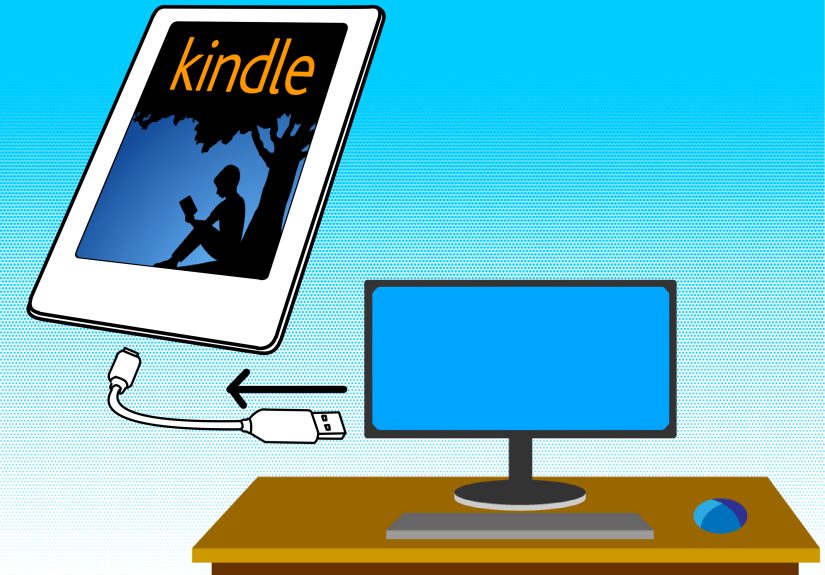
Step 2: Connect your Kindle to your computer
Use the USB cable to connect the Kindle to your computer. On Windows, the device will typically appear in File Explorer. On Mac, older Kindle models may show up more simply, but newer 2024 models often require extra software to browse files over USB.
If nothing appears:
- Try a different USB port.
- Try a different cable.
- Disconnect and reconnect the Kindle.
- Restart the Kindle if needed.
In many cases, the issue is not the Kindle at all. It is the cable pretending to be helpful while only delivering power.
Step 3: Open the Kindle storage
Once your computer recognizes the device, open it like an external drive. Look for the main Kindle storage area. Inside, find the folder where readable documents belong. On many Kindle devices, this is the documents folder.
Do not overthink the folder structure. You are not trying to map a digital cave system. You just need the correct document storage folder on the Kindle.
Step 4: Drag and drop the document
Now drag your file from your computer into the Kindle’s document folder. If you prefer, you can copy and paste instead. Wait for the transfer to finish fully before doing anything else. Large PDFs, scanned documents, and image-heavy files may take a bit longer than lightweight text files.
If you are transferring multiple files, it may be smart to move them in a few smaller batches instead of dumping fifty giant documents onto the device all at once like you are feeding a paper monster.
Step 5: Safely eject the Kindle
After the file finishes copying, eject the Kindle properly from your computer. This matters. Pulling the cable too early can interrupt the transfer and lead to missing files or a document that refuses to open.
On Windows, use the eject option in File Explorer. On Mac, eject the device the normal way before unplugging it.
Step 6: Check your Kindle library
Once disconnected, give the Kindle a moment to refresh. Then open your library and look for the transferred document. Depending on your device and settings, you may see it in your downloaded items or general library view.
If it does not appear right away, do not panic. First, let the device finish indexing. Then try opening the library again or restarting the Kindle. A reboot solves a surprising number of small e-reader mysteries.
What to Do If the Document Does Not Show Up
USB transfer is simple when it works and irritatingly mysterious when it does not. Here are the most common reasons a document fails to appear on a Kindle:
The cable only charges
This is probably the most common issue. A charge-only cable powers the Kindle but does not allow file transfer. Swap in a known data cable.
The file format is not ideal
Some files are technically documents but not great Kindle documents. If your file refuses to show up or opens poorly, convert it to PDF and try again.
The document is in the wrong folder
If the file is dropped into the wrong part of the Kindle storage, the device may ignore it. Move it into the proper document folder and eject the device again.
The file name is messy
Overly strange file names with unusual symbols can occasionally cause problems in document workflows. Keep the name simple, especially if you are troubleshooting.
The Kindle needs a restart
Sometimes the transfer succeeds, but the library does not update immediately. Restarting the device can help it recognize newly added content.
The PDF is too awkward for the screen
This is not always a transfer problem. Sometimes the file appears, but the reading experience is rough because the page was designed for a full-size monitor or printed sheet. Tiny text, wide tables, and multi-column layouts are common offenders. In that case, consider creating a Kindle-friendlier PDF or using a larger-screen device like a Kindle Scribe.
USB vs. Send to Kindle: Which Is Better?
If your goal is pure convenience, Amazon’s Send to Kindle tools are often the easiest recommendation. They can support more automated syncing and are especially handy for certain file types, including EPUB conversion.
But USB transfer still wins in a few situations:
- You want an offline process.
- You do not want to email files or use a cloud step.
- You need a direct manual transfer.
- You want fast control over exactly what goes onto the device.
- You are dealing with personal PDFs or work documents and want a no-nonsense workflow.
In other words, Send to Kindle is the polished concierge. USB is the reliable side door. Both work. One just feels more delightfully old-school.
Tips for a Better Reading Experience After Transfer
Keep your PDFs clean and readable
If you are creating the document yourself, use readable fonts, generous margins, and a page size that will not look microscopic on an e-reader. Avoid cramming too much content onto one page.
Export Word files as PDF when layout matters
This is worth repeating because it saves headaches. If the document needs to preserve charts, headers, spacing, or images, PDF is usually the better choice.
Use clear file names
A well-named file is much easier to find later. Titles like Client-Notes-April-2026.pdf or History-Reading-Chapter-4.pdf beat mystery names every time.
Update your Kindle software
Recent Kindle software has improved how some USB-transferred PDFs behave, especially with reading tools and navigation. If your PDF experience feels clunky, a software update may help.
Know when not to use USB
If your document is an EPUB file or something you want synced across multiple devices automatically, Send to Kindle may be the better route. USB is excellent, but it is not the universal champion for every file type.
Common Mistakes to Avoid
- Using the wrong cable and blaming the Kindle.
- Dragging the file into the wrong folder.
- Expecting every document format to behave perfectly.
- Unplugging the Kindle before the transfer finishes.
- Forgetting that newer Kindle models on Mac may need extra software.
- Assuming purchased Kindle books and personal documents follow the same USB rules.
A little preparation goes a long way here. Most Kindle transfer problems are not major technical disasters. They are usually one tiny wrong turn wearing a mustache.
Real-World Experiences With USB Document Transfer on Kindle
In real life, transferring a document to a Kindle through a USB cable tends to fall into one of three categories. Category one is magical success: plug it in, drag the file, eject, and boom, your PDF is waiting on the Kindle like it has been there all along. Category two is the “why is this cable lying to me?” experience, where the Kindle charges beautifully but never appears on the computer because the cable is power-only. Category three is formatting chaos, where the file transfers just fine but the document itself looks cramped, shrunken, or oddly spaced once it opens on the screen.
Students often find USB transfer helpful when moving lecture notes, readings, and annotated PDFs onto a Kindle for distraction-free study. Instead of opening social media by accident while trying to read one chapter, they can sit down with a dedicated reading device and actually focus. That alone feels like wizardry. Professionals use the same trick for reports, meeting materials, contracts, and draft documents they want to review without staring at a glowing laptop for two more hours.
One of the most relatable experiences is discovering that the transfer itself is not the hard part. The real challenge is preparing a document that feels good to read on an e-reader. A standard letter-size PDF with small text may technically open, but “technically open” and “pleasant to read” are not the same thing. Many users eventually learn that a cleaner layout, larger text, and simpler page design make a huge difference. After one or two awkward PDFs, people get smarter about exporting better versions.
There is also a kind of quiet satisfaction in using USB for personal documents. It feels direct. No waiting for a sync. No wondering whether the file got sent to the right account. No email attachment ceremony. You connect the Kindle, move the file, eject it, and you are done. For readers who like control, that simplicity is a big reason USB transfer remains popular.
Mac users with newer Kindle models can have a different experience, though. On Windows, the process often feels very straightforward. On Mac, especially with newer devices, the setup may include an extra step before the Kindle becomes browseable over USB. That can be annoying at first, but once the setup is complete, the routine becomes much easier. The first transfer feels like work; the second feels normal.
Another common experience is using USB as a backup plan when wireless methods fail. Maybe the document is too large, maybe the connection is unreliable, or maybe you just want the file on the device right now. In those moments, the cable method feels less outdated and more like the dependable friend who shows up with jumper cables and no judgment.
Ultimately, the people who love Kindle USB transfers usually love them for the same reason: predictability. When you know the right file format, use a real data cable, and place the document in the correct folder, the process is refreshingly simple. It is not flashy. It is not trendy. But it works, and sometimes that is exactly what you want from technology.
Conclusion
If you want to transfer a document to an Amazon Kindle device through a USB cable, the process is still very doable and often delightfully uncomplicated. Start with a Kindle-friendly file, preferably a clean PDF if formatting matters. Use a proper data cable, connect the device, open the Kindle’s document folder, drag the file over, eject safely, and then check your library. That is the core workflow.
The main things that trip people up are unsupported or awkward file formats, charge-only cables, and newer Kindle model behavior on Mac. But once you know those weak spots, the rest is straightforward. For many readers, USB remains the easiest way to move personal documents onto a Kindle without relying on cloud tools or wireless delivery.
If your goal is calm, focused reading with fewer distractions and more control, this method still earns its place. Sometimes the best tech trick is not the fanciest one. Sometimes it is just a cable, a folder, and a file that lands exactly where you want it.