Table of Contents >> Show >> Hide
- What a Philips Universal Remote Can Do
- Before You Start: Quick Checklist
- Method 1: Direct Code Entry (Fastest When You Have the Code)
- Method 2: Auto Code Search (When You Don’t Know the Code)
- Method 3: Brand-Specific Code Search
- Method 4: Use Learning Mode for Missing Commands
- Programming Different Device Types
- Common Problems and Quick Fixes
- Helpful Tips to Make Setup Easier
- Real-World Experiences: What Programming a Philips Universal Remote Is Really Like
- Wrapping Up
If your coffee table is buried under a pile of remotes, it might be time to let a Philips universal remote take charge.
The good news? Programming a Philips universal remote is much less painful than hunting for your TV’s original remote
behind the couch. In this easy setup guide, we’ll walk through the main ways to program your Philips remotewith or
without codesplus cover learning mode, troubleshooting, and real-world tips so you can go from “Which remote is for
what?” to “One remote to rule them all.”
What a Philips Universal Remote Can Do
Philips universal remotes are designed to control multiple devices with one set of buttons. Depending on the model, you can:
- Control your TV, cable or satellite box, streaming device, and audio system with a single remote.
- Use pre-programmed device codes to quickly sync with popular brands.
- Run an automatic code search if you don’t know your device code.
- Use “learning” mode on some models to copy commands from the original remote.
The exact steps vary slightly by model, but most Philips universal remotes use the same core programming methods.
The key is knowing which method to use and what the remote’s lights and buttons are trying to tell you.
Before You Start: Quick Checklist
1. Identify your remote model
Flip the remote over and look inside the battery compartment or on the back for the model number
(for example, SRP9232D, SRP2018, SRP1003, etc.). Knowing the model helps you find the correct
manual or code list if you need it later.
2. Get the right code list
Philips usually includes a printed code list or a note pointing you to an online PDF. The list is
grouped by device type (TV, DVD, audio, streaming, and so on) and brand (Samsung, LG, Sony, Vizio, etc.).
The codes are typically 4- or 5-digit numbers. You don’t need to memorize anythingjust know where your
code list is so you can quickly try codes in order of popularity for your brand.
3. Power on the device
Whether you’re using code entry or auto code search, you’ll usually start with the device turned on:
- Turn on the TV if you’re programming the TV button.
- Turn on the cable or satellite box if you’re programming CBL/SAT.
- Turn on the Blu-ray, DVD player, or streaming box as needed.
4. Insert fresh batteries
Weak batteries can cause the LED to behave oddly or cause you to lose programming if the remote
powers down mid-setup. Start with fresh alkaline batteries so you’re not reprogramming everything next week.
Method 1: Direct Code Entry (Fastest When You Have the Code)
Direct code entry is the classic way to program a Philips universal remote. It’s quick, simple, and ideal
if you have the printed or downloaded code list handy.
Step-by-step: Direct code entry
- Turn on the device you want to control (TV, cable box, DVD, etc.).
-
Press and hold the device button on the remote.
- Common labels: TV, CBL/SAT, DVD, AUD, or STREAM.
- On some models you press and hold the device button for about 5 seconds until a red or blue LED turns solid.
- On others, you press and hold SETUP until the LED stays lit, then press the device button once.
- Wait for the LED to turn solid. When it does, the remote is in programming mode for that device.
-
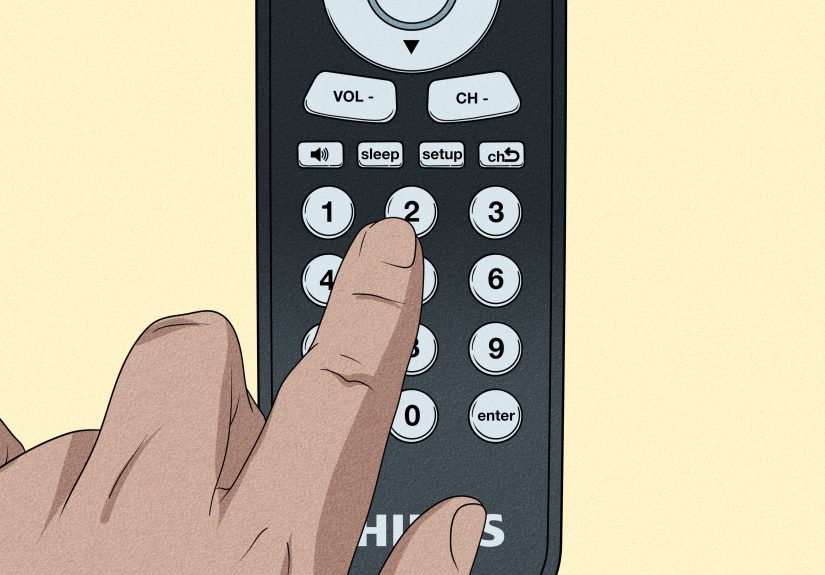
Enter the first code for your brand.
Use the number keys to enter the 4- or 5-digit code from the list. The LED usually blinks or turns off after the last digit. -
Test the remote.
Aim the remote at the device and press Power. If the device turns off, the code worked. Also test volume, channel, and menu buttons:- If most buttons work: you’re done.
- If only some buttons work: try the next code for that brand until you find the best match.
-
Save the code.
On many models, the code saves automatically when the LED goes off. Some remotes need you to press MUTE or another key to lock in the codecheck your manual if the light stays on.
Direct code entry is ideal when your code list is nearby and you don’t want to wait while the remote scans
through hundreds of possibilities. If you don’t know the code or your brand isn’t listed, the auto search method is your friend.
Method 2: Auto Code Search (When You Don’t Know the Code)
Auto code search lets the remote cycle through its entire code library for a given device type. It’s slower than direct entry,
but very handy if your TV is an off-brand model or you misplaced the printed code list.
Step-by-step: Auto code search
- Turn on the device you want to program (for example, your TV).
-
Enter setup mode.
Typically, you’ll:- Press and hold SETUP until the LED turns solid, then release, or
- Press and hold the device button (TV, CBL, etc.) until the LED lights steadily.
- Select the device type if required by your model by pressing the appropriate device button once.
-
Start the auto search.
On many Philips remotes, you press a key like Power or Channel + to begin scanning. The remote will send a different code every couple of seconds. -
Watch the device carefully.
Each time the device reacts (for example, the TV turns off or the volume changes), it means the remote found a candidate code. -
Lock in the code.
As soon as the device responds, press OK, SETUP, or another confirm key (depending on your model) to save the code. -
Test multiple buttons.
Make sure not only Power workscheck volume, channel, input, and menu. If something important doesn’t work, restart the auto search to look for a better code.
Auto search is a bit like speed dating for your remote and devices: the first match might work, but it’s worth checking
compatibility before committing.
Method 3: Brand-Specific Code Search
Some Philips universal remotes also support a “brand search” option that narrows the auto search to codes for a single brand.
This can be much faster than scanning every code in the library.
How brand search usually works
- Turn on the device (TV, DVD, etc.).
- Press and hold the device key for about 5 seconds until the LED stays on.
- Enter a brand ID or brand group number from the instructions (this groups several codes for that brand).
- Press a key like Power or Channel + to begin scanning only that brand’s codes.
- When the device reacts, confirm and save the code as in the auto search method.
Not every Philips model supports brand search, so check your manual or quick-start sheet. If you don’t see a unique brand
search section, you can safely rely on direct code entry or full auto search.
Method 4: Use Learning Mode for Missing Commands
Some higher-end Philips universal remotes include a learning feature. This lets the remote copy individual
button commands from your original device remote. It’s especially useful when:
- Your device is too new or too obscure for the built-in codes.
- A few specialized buttons (like Picture Mode or Game) don’t work even though basic functions do.
Typical learning mode steps
- Place the Philips remote and the original remote on a flat surface, facing each other head-to-head about 1–2 inches apart.
- Enter learning mode by pressing and holding a specific key combination (for example, 1 + 6 for 5 seconds) until the LED stays on.
- On some Philips remotes, you then enter a “learning code” like 9 9 9 0 0 to confirm learning mode.
- Press the button on the Philips remote that you want to teach (for example, INPUT).
- Immediately press and hold the corresponding button on the original remote until the LED on the Philips remote blinks to confirm.
- Repeat for other buttons you want to copy.
- Exit learning mode by pressing SETUP or another key called out in your manual.
Learning mode takes a little patience, but it’s a powerful way to make a universal remote behave almost exactly like the original.
Programming Different Device Types
While the basic programming steps are similar, here are device-specific tips to get the best results.
1. TVs
- Start with the most popular codes for your brandthe first code listed is often the best match.
- After programming, test Power, Volume, Channel, and Input.
- If the TV turns off but volume doesn’t work, try the next code in the list.
2. Cable / Satellite boxes
- Make sure the box is fully powered on (not just in a “sleep” mode).
- Test channel up/down, guide, menu, and info buttons after programming.
- If your provider’s box has a slow response, wait a second between button presses while testing.
3. Streaming devices
- Some Philips remotes can control major streaming brands via IR (like older Roku or Apple TV boxes with an IR receiver).
- Newer streaming sticks that live behind the TV often rely on Bluetooth or Wi-Fi and may not work with an IR-only universal remote.
- Check your Philips remote’s packaging or manual to see whether it specifically supports streaming devices.
4. Soundbars and audio receivers
- Program the audio device under AUD or AUDIO if your remote has that mode.
- After programming, test volume up/down and mute firstthese are the most important controls.
- If the power button doesn’t work but volume does, consider using the TV’s HDMI-ARC or optical control, or learn the power command using learning mode if available.
5. DVD / Blu-ray players
- Test Play, Pause, Stop, Skip, and Menu.
- If navigation buttons (up/down/left/right) don’t work, try a different code for that brand.
Common Problems and Quick Fixes
Problem: The device doesn’t respond at all
- Confirm you’re in the correct mode (TV, CBL, DVD, etc.).
- Check that the device is powered on and not unplugged.
- Try a different code from the list or rerun the auto search.
- Make sure nothing is blocking the front of the device’s IR sensor.
Problem: Only some buttons work
- The code might be for a slightly different model of your brand.
- Try the next code for your brand and retest all the main buttons.
- Use learning mode (if supported) to fill in missing commands.
Problem: The remote “forgets” codes after changing batteries
- Some universal remotes retain memory during battery changes; others can lose codes if batteries are removed for too long.
- Swap batteries quickly and avoid leaving the remote empty for extended periods.
- Keep your most recent codes written down inside the battery cover so reprogramming is fast.
Problem: The LED blinks strangely during setup
- A rapid or repeated blinking pattern can mean an invalid code or that you’ve reached the end of the code list for a brand.
- Start the process over and ensure you press keys in the correct sequence.
- If nothing works, download the latest manual or code list for your specific modelPhilips occasionally updates documentation.
Helpful Tips to Make Setup Easier
- Program the TV first. It’s the device you use most often, and many people stick with TV-only control.
- Write down working codes. Once you find a code that works well, jot it down on a sticky note inside the battery compartment.
- Control lighting. IR signals aren’t usually bothered by room light, but bright direct sunlight hitting the device sensor can interfere.
- Move closer. During setup, stand reasonably close to the device so you don’t miss the moment it responds to a test signal.
- Check for model-specific instructions. Some Philips remotes have extra features (macros, backlighting, Bluetooth pairing) with their own setup steps.
Real-World Experiences: What Programming a Philips Universal Remote Is Really Like
In practice, programming a Philips universal remote tends to follow a very human pattern: a few minutes of confusion, a moment
of “Oh, that’s how it works,” and then the quiet satisfaction of tossing your extra remotes into a drawer.
Imagine a family that just upgraded their TV but still has an older cable box, a Blu-ray player, and a basic soundbar. The living
room now has four separate remotes, each with a slightly different layout. They pick up a Philips universal remote, flip to the
quick-start guide, and begin by programming the TV with direct code entry. After entering the first code listed for their brand,
the TV turns off on the first try. That tiny victory sets the tone: the process isn’t nearly as scary as it looked on paper.
The cable box takes a bit more patience. The first code turns the box off but doesn’t respond to the Guide button. Instead of
giving up, they try the next code. This one powers the box and also opens the on-screen guide, scrolls through channels, and
responds to the info key. Within five minutes, they’ve found a combination that makes the cable box feel just like it did with
the original remote.
The soundbar provides a different challenge. Several codes let them control volume, but the power button is hit-or-miss. Rather
than constantly turning the soundbar on manually, they decide to use the remote’s learning mode. They place the original soundbar
remote and the Philips remote nose-to-nose, teach the Philips remote the soundbar’s power signal, and suddenly everything works
from one device. No more shuffling remotes every time someone wants to watch a movie.
For older relatives or anyone who doesn’t love tech, a Philips universal remote can make things easier as long as someone walks
through programming once and labels the modes clearly. Many families stick small labels like “TV” or “CABLE” above each device
button. This simple trick turns a potentially intimidating gadget into a very friendly one-button-per-device solution.
Another common scenario is the person who inherits a TV with no original remote at all. They buy a Philips universal remote and
use auto code search because they have no idea which code applies. It’s not the fastest method, but it works. They start the scan,
watch for the TV to turn off, and then confirm the code. Even if they need to run the search twice to find a code where input and
menu buttons work properly, the end result is a fully functional TV controlled by a remote they actually own.
Over time, users often develop their own best practices. Some keep a short list of working codes taped inside their media cabinet.
Others immediately download the PDF manual for their exact Philips model and save it in the cloud so it’s never lost. Many people
learn that if something doesn’t respond the way they expect, it’s rarely a “broken” remotemore often it’s just the wrong code or
an incomplete setup. Once they get comfortable with direct code entry and auto search, programming future devices becomes routine.
The bottom line: programming a Philips universal remote feels complex only the first time. Once you’ve walked through the steps,
it becomes a quick, repeatable process. With clear instructions, a little patience, and maybe one or two attempts at finding the
perfect code, you can simplify your home entertainment setup dramaticallyand finally reclaim your coffee table from that pile of remotes.
Wrapping Up
Learning how to program a Philips universal remote is less about memorizing every variation and more about understanding the core
methods: direct code entry, auto code search, brand-specific search, and learning mode. Start with your TV, work through other devices,
and keep your working codes handy. With a bit of setup time, you can enjoy a cleaner, simpler, one-remote experienceand spend more time
actually watching your shows instead of hunting for the “right” remote.