Table of Contents >> Show >> Hide
- What “Mobile Data” Actually Means (And Why It Sometimes “Doesn’t Work”)
- The Fastest Way: Turn On Mobile Data from Quick Settings
- The Reliable Way: Turn On Mobile Data in Settings (Works on “Any Android”)
- Dual SIM and eSIM: Make Sure You’re Turning On Data for the Right Line
- Mobile Data Is On… But Nothing Loads: Fixes That Actually Work
- 1) Check the obvious (because it’s usually the obvious)
- 2) Make sure you didn’t set a data limit (Android loves “helping”)
- 3) Check Data Saver (it can block background data hard)
- 4) Verify roaming settings (especially while traveling)
- 5) Check your APN (Access Point Name) if you’re on BYOD or recently switched carriers
- 6) Reset network settings (the “clean slate” for connectivity)
- 7) Consider carrier-side issues (it’s not always your phone)
- Helpful Mobile Data Settings You Should Know (But Don’t Have to Touch Daily)
- Quick Troubleshooting Checklist (1 Minute)
- Real-World Experiences: When Turning On Mobile Data Saves the Day (500+ Words)
- Conclusion: Mobile Data On, Stress Down
Mobile data is the superhero of “I’m not on Wi-Fi, but I still need the internet.” It’s how your Android phone
loads maps, sends iMessages’ cooler cousin (RCS), refreshes your email, and helps you figure out why your friend’s
“5 minutes away” is actually 27 minutes away.
The good news: turning on mobile data is easy on every Android phone. The mildly annoying news: manufacturers
love renaming menus. So this guide gives you the universal steps first, then the most common menu paths for
Samsung Galaxy, Google Pixel, Motorola, and basically everything else.
What “Mobile Data” Actually Means (And Why It Sometimes “Doesn’t Work”)
Mobile data (sometimes labeled Cellular data) is your internet connection through your carrier’s
network (like Verizon, AT&T, T-Mobile, etc.) using a SIM or eSIM. It’s separate from Wi-Fi.
- Wi-Fi = internet from a router (home, school, cafe).
- Mobile data = internet from the cell network (works while you’re out and about).
- Airplane mode = turns off wireless radios (so mobile data won’t work until airplane mode is off).
If mobile data is on but nothing loads, it’s usually one of these: weak signal, a data limit setting, Data Saver,
APN/carrier configuration, or an account-level restriction. We’ll cover fixes later.
The Fastest Way: Turn On Mobile Data from Quick Settings
This method works on most Android phones and is the quickest when you’re standing in a parking lot trying to load
a digital coupon before it expires.
Step-by-step (Quick Settings)
- Swipe down from the top of your screen.
- Swipe down again to fully expand Quick Settings (if needed).
- Tap the tile that says Mobile data, Cellular data, or sometimes Internet.
- If you see a switch for Mobile data, turn it On.
If you don’t see the Mobile Data tile
- Tap the Edit button (often a pencil icon) in Quick Settings.
- Find Mobile data (or Internet) and drag it into your active tiles.
- If your phone hides it (rare, but it happens), use the Settings method below.
The Reliable Way: Turn On Mobile Data in Settings (Works on “Any Android”)
When Quick Settings is missing or your phone is being dramatic, Settings is the most consistent path.
The exact wording varies, but you’re looking for something like Network, Internet, SIM, or Connections.
Universal menu path (most Android 12+ phones)
- Open Settings.
- Tap Network & internet (or Connections on Samsung).
- Tap Internet, SIMs, or Mobile network.
- Turn Mobile data On.
Google Pixel (Pixel UI / “stock-ish” Android)
On many Pixels, you’ll see something like:
Settings > Network & internet > SIMs (or Internet) > Mobile data.
If you have multiple SIMs/eSIMs, pick the line you want first, then toggle mobile data.
Samsung Galaxy (One UI)
Samsung typically uses:
Settings > Connections > Data usage > Mobile data (toggle On).
Samsung also gives extra tools like Data Saver and usage warnings in the same neighborhood.
Motorola, OnePlus, Xiaomi, and other Android flavors
Many brands stick close to:
Settings > Network & internet (or Mobile network) > Mobile data.
If your menus look different, use the Settings search bar and type mobile data or cellular.
The search bar is the unsung hero of Android.
Dual SIM and eSIM: Make Sure You’re Turning On Data for the Right Line
If your phone has two SIMs (or a SIM + eSIM), you might turn on mobile data and still see no internet because
your phone is trying to use the wrong line for data.
How to choose the default data SIM
- Open Settings.
- Go to Network & internet / Connections.
- Tap SIMs, SIM manager, or Mobile network.
- Find Preferred SIM for mobile data (or Mobile data under a specific SIM) and select the correct line.
Example: If you keep a work SIM and a personal SIM, you might want calls/texts on one line but data on the other.
Android can do thatit just needs you to pick a favorite.
Mobile Data Is On… But Nothing Loads: Fixes That Actually Work
If mobile data is enabled but apps act like they’re stranded on a desert island, run through these fixes in order.
They go from “takes 5 seconds” to “okay, let’s get serious.”
1) Check the obvious (because it’s usually the obvious)
- Airplane mode: Make sure it’s off.
- Signal bars: If you have no signal (or “Emergency calls only”), data won’t work.
- Restart: Yes, really. A quick reboot fixes more than it should.
- Toggle mobile data off/on: Turn it off for 10 seconds, then back on.
2) Make sure you didn’t set a data limit (Android loves “helping”)
Android can warn youor outright stop datawhen you hit a usage threshold. Great feature… unless it’s set too low.
- Open Settings.
- Go to Network & internet (or Connections).
- Tap Internet / Mobile network / Data usage.
- Look for Data warning or Data limit. Disable the limit or raise it.
3) Check Data Saver (it can block background data hard)
Data Saver reduces data usage by limiting background activity. That can make apps “fail silently,” especially
email, cloud backup, or social apps that refresh in the background.
- Open Settings.
- Search for Data Saver or go to Network & internet > Data Saver.
- Turn it off temporarily to test.
4) Verify roaming settings (especially while traveling)
If you’re outside your normal coverage areaor traveling internationallyyour carrier may require Data roaming
to be enabled for data to work. Just remember: roaming can cost extra depending on your plan.
- Open Settings > Network & internet (or Connections).
- Tap your SIM / Mobile network.
- Toggle Data roaming on (only if you understand your plan’s roaming charges).
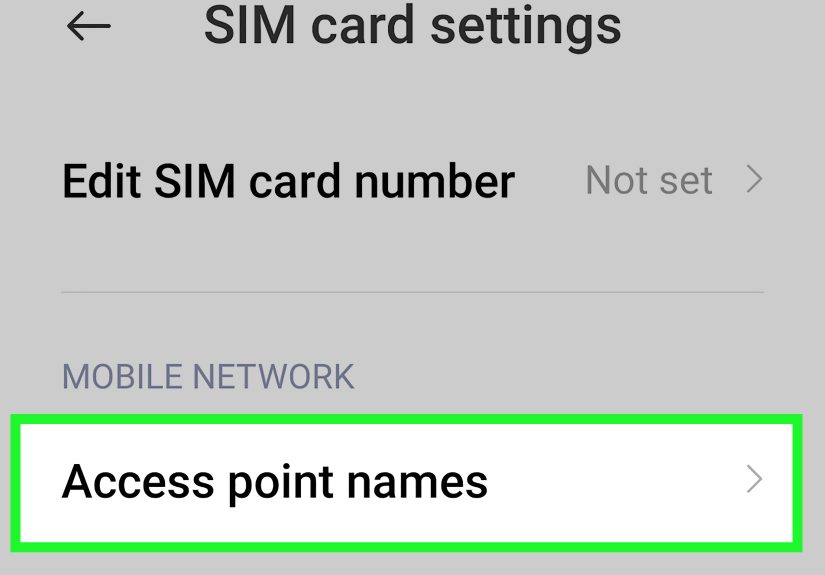
5) Check your APN (Access Point Name) if you’re on BYOD or recently switched carriers
The APN is the carrier configuration your phone uses to access mobile data and MMS. If it’s wrong, you might get
calls and texts but no internet (or no picture messages). This is common when you:
- brought your own phone to a new carrier,
- swapped SIMs,
- or restored a phone from a backup.
To check it:
Settings > Network & internet (or Connections) > Mobile network > Access Point Names (APN).
If your carrier provides automatic setup, use it. Otherwise, your carrier support page will list the correct APN values.
6) Reset network settings (the “clean slate” for connectivity)
If everything looks correct but data still won’t cooperate, a network settings reset can help. It won’t erase your
photos, but it will forget saved Wi-Fi networks and Bluetooth pairings, so you’ll need to reconnect afterward.
- Open Settings.
- Search for Reset (or go to System > Reset options).
- Tap Reset Wi-Fi, mobile & Bluetooth (wording varies).
- Confirm, then reboot.
7) Consider carrier-side issues (it’s not always your phone)
Sometimes mobile data is blocked by the account: an unpaid bill, a suspended line, a plan change in progress,
a temporary outage, or a data cap/throttle scenario. If your phone shows strong signal but nothing works,
check your carrier app/account dashboard or contact support.
Helpful Mobile Data Settings You Should Know (But Don’t Have to Touch Daily)
Preferred network type (5G/LTE)
If you’re in an area with weak 5G coverage, forcing your phone to use LTE/4G can sometimes stabilize data.
Look for Preferred network type or Network mode under your SIM/mobile network settings.
Background data permissions (per app)
On many phones you can control whether specific apps can use data in the background. That’s useful if one app
behaves like it’s trying to download the entire internet.
- Open Settings > Apps.
- Select an app > tap Mobile data & Wi-Fi (or similar).
- Adjust Background data and Unrestricted data settings.
Data usage alerts (save your plan, save your wallet)
If you’re on a limited plan, set a warning at something like 70–80% of your monthly allowance. It’s like a
friendly tap on the shoulder before your bill turns into a jump scare.
Quick Troubleshooting Checklist (1 Minute)
- Turn off Airplane mode.
- Toggle Mobile data off/on.
- Restart the phone.
- Disable Data Saver (temporarily).
- Check data limits/warnings.
- Confirm the correct SIM is selected for data (dual SIM phones).
- Try a different location (signal might be the real villain).
- If BYOD/new SIM: verify APN settings.
- If still broken: reset network settings.
Real-World Experiences: When Turning On Mobile Data Saves the Day (500+ Words)
Most people don’t think about mobile data until the exact moment they need it right now. And that’s where the
“How do I turn this on again?” panic kicks in. Here are some real-life scenarios that show why knowing where the
mobile data switch lives is basically modern survival knowledge (right up there with “don’t reply to obvious phishing texts”).
The parking lot coupon scramble: You’re outside a store, Wi-Fi is either locked, slow, or named something
suspicious like “FREE_WIFI_NO_VIRUSES_100%.” You open your shopping app to pull up a barcode coupon and it just spins.
Turning on mobile data from Quick Settings instantly brings everything back to lifeno awkwardly hovering near the entrance
trying to “catch” the Wi-Fi signal like it’s a rare Pokémon.
The rideshare/map moment: You’re leaving a concert or a friend’s house, and you need directions or a ride.
Your phone shows Wi-Fi connected, but it’s actually still clinging to a network from inside the building that you’re no longer
close enough to use. Switching to mobile data (or just turning it on) makes maps snap into place and your pickup pin stop
drifting into a nearby lake for no reason.
The group chat meltdown: Someone says, “I’m here,” but you don’t get the message until 10 minutes later.
You check and realize mobile data is off, and you’re not on Wi-Fi anymore. With data back on, messages refresh, photos load,
and suddenly you’re caught upalong with 37 memes you apparently missed in the last eight minutes. (A blessing and a curse.)
The dual SIM confusion: A lot of people use two lines nowwork and personal, local SIM for travel, physical SIM
plus eSIM, you name it. It’s surprisingly easy to turn on mobile data… for the wrong SIM. Then you’re staring at a perfectly
enabled toggle while your apps still won’t load. The fix is usually just choosing the right “Preferred SIM for mobile data” in
settings. Once you do, everything works and you feel like a genius, even though the phone was the one being confusing.
The “data limit” facepalm: Some Android phones let you set a hard data cap. That’s great if you’re trying to stay
under a plan limituntil you forget you set it. Then, one day, your data “dies” exactly at 2:17 p.m. like it hit a wall. You
check Settings, find the data limit, raise it (or turn it off), and suddenly the internet is back. No carrier conspiracy required.
The travel roaming reality check: When you land in a new country, your phone might show signal, but data won’t work
unless data roaming is enabled (and your plan supports it). People often toggle roaming on just to test, then turn it off again
to avoid surprise charges. Knowing where that setting is can save you from wandering an airport searching for Wi-Fi like it’s a
hidden quest item.
The common thread in all these experiences is simple: mobile data isn’t complicated, but the menu labels can be. Once you learn
the two reliable pathsQuick Settings and Settings > Network/Connectionsyou can fix the problem in seconds and get on with your
life (and your loading screens-free existence).
Conclusion: Mobile Data On, Stress Down
Turning on mobile data on Android comes down to two methods: Quick Settings for speed and Settings for reliability.
If data still won’t work, the best fixes are toggling data, checking limits and Data Saver, confirming the correct SIM, verifying APN
settings (especially for BYOD), and resetting network settings when needed.
Once you know where the switch is, you’ll never be stuck staring at a loading spinner like it’s trying to solve quantum physics.