Table of Contents >> Show >> Hide
- What causes a PS5 black screen?
- 1. Check the TV input and reseat the HDMI cable
- 2. Try a different HDMI cable, a different HDMI port, and a simpler setup
- 3. Power cycle both the PS5 and the display
- 4. Start the PS5 in Safe Mode
- 5. Use Safe Mode to change the video output settings
- 6. Update the PS5 system software
- 7. Clear the cache and rebuild the database
- 8. Turn off HDMI Device Link and simplify display features
- 9. Restore defaults, reinstall system software, or get the PS5 repaired
- Final thoughts
- PS5 Black Screen Experiences: What This Problem Often Looks Like in Real Life
If your PS5 turns on but your TV stares back like it has suddenly forgotten what electricity is, welcome to one of the console’s most annoying problems: the black screen issue. Sometimes the screen stays black from startup. Sometimes you get the PlayStation logo and then nothing. Sometimes the TV says “No Signal,” which is never a comforting message unless you enjoy suspense.
The good news is that a PS5 black screen usually has a fix. In many cases, the problem comes down to an HDMI handshake failure, a bad cable, a confused display setting, or a software glitch that needs Safe Mode to straighten itself out. In plain English: your console is not necessarily doomed. It may just be having a dramatic little episode.
Below, you’ll find nine practical troubleshooting tips you can try in order, starting with the fast, painless fixes and moving toward the heavier stuff like Safe Mode, database rebuilds, and system software reinstallation. If you work through these step by step, you’ll have the best shot at getting your picture back without making the problem worse.
What causes a PS5 black screen?
A PS5 black screen usually happens for one of a few reasons. The most common culprit is an HDMI problem, such as a loose connection, a damaged cable, the wrong TV input, or a display that simply does not like the signal the console is sending. Another possibility is corrupted system data or a system update that did not go smoothly. Less commonly, the issue points to hardware trouble, especially if the HDMI port is bent, loose, dusty, or physically damaged.
A helpful clue is what your console does besides showing no image. If you hear menu sounds but see nothing, that often points to an HDMI or display-setting issue. If the PS5 light blinks strangely, freezes, or refuses to stay on, you may be dealing with a deeper system problem. Either way, the fixes below cover the most likely scenarios.
1. Check the TV input and reseat the HDMI cable
Before you do anything fancy, do the boring fix first. Yes, really. Make sure your TV or monitor is set to the exact HDMI input your PS5 is using. Then unplug the HDMI cable from both the console and the display and plug it back in firmly.
This works because black screen errors often come from a simple connection issue. The PS5 may be on, but the TV is listening to the wrong input or not detecting the signal properly. If the cable is slightly loose, the console and screen may fail to establish a stable connection.
What to do
Turn off the PS5. Confirm which HDMI port the console is connected to. Switch your TV to that exact input. Unplug the HDMI cable from both ends, inspect it quickly, and reconnect it so it sits snugly. If your TV has multiple HDMI inputs, remember that not all of them may support the same features, especially on older sets.
It is the tech equivalent of checking whether the toaster is plugged in, but that does not make it less important.
2. Try a different HDMI cable, a different HDMI port, and a simpler setup
If reseating the cable does nothing, swap parts. Try another HDMI port on the TV or monitor. If possible, use the HDMI cable that came with the PS5, or another known-good high-speed cable. If your setup runs through a soundbar, AV receiver, HDMI switch, capture card, or some mysterious little box you bought at 2 a.m., remove that device temporarily and connect the PS5 straight to the display.
This matters because the PS5 supports HDMI 2.1 features and higher-bandwidth video modes. When the cable, port, or middleman device cannot handle the signal cleanly, your console may reward you with a blank screen instead of a beautiful game.
Why this helps
Changing the cable and port helps isolate whether the problem lives in the console, the display, or the connection path between them. If the PS5 works on another TV or monitor, the console itself is probably fine. If it fails everywhere, you may be looking at a console-side issue instead.
Also, inspect the PS5 HDMI port itself. If the cable feels loose, the pins look bent, or the port seems damaged, stop forcing it. That is how a repairable issue becomes an expensive one.
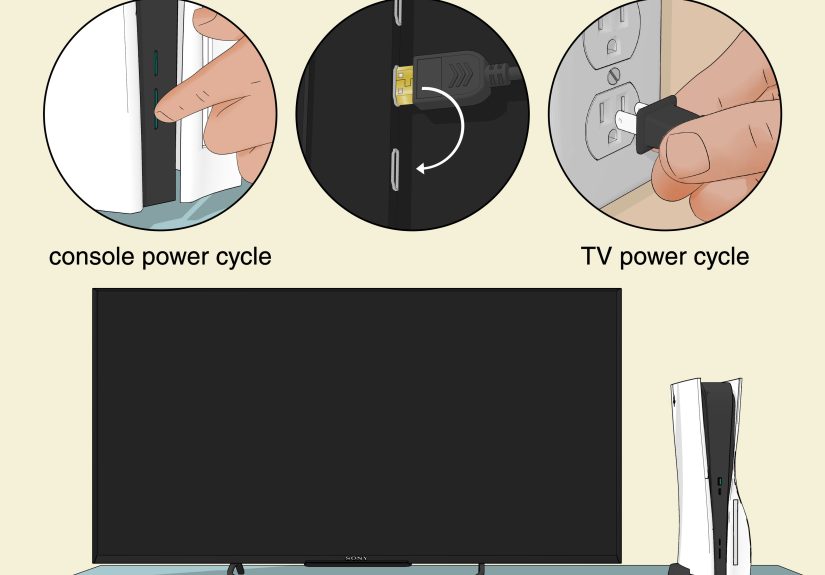
3. Power cycle both the PS5 and the display
Sometimes your console and screen just need to stop fighting and restart the relationship. A full power cycle can reset the HDMI handshake and clear temporary glitches.
Unlike a quick tap of the power button, a real power cycle gives the system time to fully shut down and clear whatever weirdness got stuck in memory.
How to do it
Turn off the PS5 completely by holding the power button until it shuts down. Turn off the TV or monitor too. Unplug the PS5 from power for a few minutes, then unplug the display as well if you can. Reconnect everything, power on the display first, and then start the PS5.
If your console was frozen, this can be especially effective. A lot of black screen cases are not true hardware failures; they are temporary startup or display negotiation bugs. In other words, your PS5 may just need a reset instead of a funeral.
4. Start the PS5 in Safe Mode
If the normal startup still gives you nothing, Safe Mode is your next best friend. Safe Mode loads the console with basic functions, which makes it easier to fix display and software issues that prevent a normal boot.
How to enter Safe Mode
Turn the PS5 off completely. Then press and hold the power button again until you hear the second beep. That second beep is the magic sound. Connect your controller with a USB cable, press the PS button, and you should see the Safe Mode menu.
If Safe Mode appears, that is actually good news. It suggests your console can still output video under simpler conditions, which usually means the problem is tied to settings or software rather than total hardware failure.
If Safe Mode does not appear either, go back and recheck the HDMI cable, port, and display. When even Safe Mode refuses to show up, the odds of a hardware issue become a lot higher.
5. Use Safe Mode to change the video output settings
This is one of the most effective fixes for a PS5 black screen. In Safe Mode, use the video output options to lower the resolution or adjust display compatibility. A black screen can happen when the PS5 outputs a signal your TV or monitor does not handle properly.
What to change
In Safe Mode, choose the option that lets you change video output. Lowering the resolution can help the display lock onto the signal again. If your screen problem is tied to HDCP or compatibility issues, changing that mode can help too.
Once the image returns, go into the regular PS5 settings and review Screen and Video. If needed, lower the resolution manually, double-check the current video output signal, and test more conservative settings before jumping back to 4K, HDR, or other advanced display features.
This fix is especially useful if the problem started after switching TVs, changing cables, moving the console, or enabling a feature your display does not love quite as much as the marketing brochure promised.
6. Update the PS5 system software
Outdated or corrupted system software can absolutely cause display problems. If you can get into Safe Mode, update the PS5 software there. If you cannot reach the normal home screen, this is still possible through Safe Mode and, if needed, with a USB drive.
Why updates matter
System updates do more than add features. They also fix bugs, improve compatibility, and patch issues that can affect startup, display output, and general stability. If your black screen appeared after a crash, an interrupted update, or a long stretch without updating the console, this step deserves your attention.
After updating, restart the PS5 normally and check whether the display returns. If it does, fantastic. If not, keep moving down the list. Your console is stubborn, not unbeatable.
7. Clear the cache and rebuild the database
If the PS5 boots unpredictably, gets stuck after the logo, behaves strangely in menus, or throws random visual problems your way, clearing the system cache and rebuilding the database can help. These options live in Safe Mode and are designed to clean up software-side messes without immediately resorting to a full reset.
What this actually does
Clearing the cache removes temporary system data that may be causing trouble. Rebuilding the database scans storage and reorganizes system data so the console can function more cleanly. Think of it like tidying a room that has reached the “I can’t find my shoes, but I found a USB cable from 2013” stage.
This step is worth trying when the black screen seems tied to crashes, unstable behavior, or slow system performance rather than an obvious cable problem. It is not magic, but it is often the kind of maintenance fix that gets a flaky PS5 back on its feet.
8. Turn off HDMI Device Link and simplify display features
HDMI Device Link, also known as HDMI-CEC on many TVs, can sometimes cause weird startup and display behavior. The idea is convenient: your TV and console turn each other on or off automatically. In practice, some setups get confused and produce black screens, bad handshakes, or power-state weirdness.
What to try
If you can get the image back long enough to navigate settings, go to Settings > System > HDMI and disable HDMI Device Link. Then test the console again.
If your display has aggressive gaming features, smart switching, or odd compatibility quirks, simplify your setup. Use a direct connection from PS5 to TV. Avoid adapters and switches during troubleshooting. You can also temporarily dial back features like HDR or other advanced video settings after the picture returns, especially if your problem shows up as flickering, signal drops, or black screens during transitions.
The goal here is not to make your setup less cool forever. It is to figure out which feature is being the diva.
9. Restore defaults, reinstall system software, or get the PS5 repaired
If nothing else works, you have reached last-resort territory. That does not mean you are out of options. It means you should use the serious ones carefully.
Last-resort fixes
From Safe Mode, you can restore default settings first. That is less destructive and may fix a bad configuration without erasing your content. If the black screen continues, you can reset the PS5. Keep in mind that a reset deletes user data. Reinstalling system software is even more drastic and is meant for deeper system corruption.
If reinstalling the software does not fix the issue, hardware becomes the likely suspect. A damaged HDMI port, internal board issue, or other console failure may be preventing video output. That is when it makes sense to stop troubleshooting at home and contact PlayStation repair support or a reputable repair professional.
In short: if your PS5 still shows no picture after cable swaps, Safe Mode fixes, software updates, cache clearing, and reinstallation, the problem is probably not something a motivational speech and another reboot can solve.
Final thoughts
A PS5 black screen looks dramatic, but it is often fixable. Start with the simple HDMI checks, then move into Safe Mode, video output changes, software updates, and database rebuilding. Save resets and reinstallation for last. That order matters because it gives you the best chance of fixing the issue without wiping data or wasting time.
The biggest mistake people make is jumping straight to panic. The second biggest mistake is jiggling cables like they are trying to crack a safe. Be methodical instead. Change one thing at a time. Test after each step. That is how you figure out whether the problem is the display, the cable, the settings, the software, or the console itself.
And if the answer turns out to be hardware failure, at least you will know you ruled out the easy stuff first. That is not as satisfying as an instant fix, but it is a lot better than buying a new cable, a new TV, and possibly a new personality out of frustration.
PS5 Black Screen Experiences: What This Problem Often Looks Like in Real Life
One reason the PS5 black screen issue is so frustrating is that it rarely shows up the same way twice. For some people, the console powers on normally, the white light appears, and the TV simply says “No Signal,” as if the PS5 has vanished into another dimension. For others, the PlayStation logo appears for a second, which feels promising, and then the screen goes black again like the console remembered it had somewhere else to be.
A very common experience happens after someone changes something small. Maybe they moved the PS5 to a different room, swapped TVs, ran the console through a soundbar, or reused an older HDMI cable from a previous console. On paper, none of that seems dramatic. In reality, that small change can be enough to break the HDMI handshake or create a compatibility problem between the console and the display. The user usually thinks, “But it worked yesterday,” which is fair. The HDMI ecosystem, however, does not care about fairness.
Another pattern shows up after Rest Mode, a system crash, or an update. The PS5 seems alive, but it refuses to give a picture. In these cases, users often assume the console is completely dead, when the real issue is that the system did not restart cleanly or got stuck in a bad display state. That is why Safe Mode is such a big deal in black screen troubleshooting. When Safe Mode appears, it tells you the console may still be healthy enough to recover without a full repair.
There is also the “everything works except this one display” experience. A PS5 might fail on one TV, then work perfectly on another screen across the house. That usually points away from a catastrophic console failure and toward a compatibility issue with the original display, port, cable, or HDMI-CEC behavior. It can feel ridiculous, but sometimes changing a port, disabling device link, or lowering the resolution fixes a problem that looked serious five minutes earlier.
Then there is the truly annoying case where the user hears sound or menu movement but still sees a black screen. That experience often sends people down the wrong path because the console is clearly doing something. In practice, that symptom strongly suggests a video output problem rather than a total system death. It is not pleasant, but it is often more fixable than a system that will not boot at all.
And yes, sometimes the outcome is hardware repair. If the HDMI port is loose, bent, or damaged, or if the console refuses to display anything even in Safe Mode after every reasonable software fix, the black screen stops being a settings issue and starts being a repair issue. That is not the ending anyone wants, but it is still useful to know. A clear diagnosis saves time, money, and the emotional wear and tear of trying the same six fixes over and over.
The overall lesson from these experiences is simple: a PS5 black screen feels terrifying in the moment, but the cause is often more ordinary than it seems. Cable, port, input, handshake, settings, Safe Mode, update, cache, repair. That is the order of battle. Follow it calmly, and you give yourself the best chance of turning a blank screen back into actual gameplay.