Table of Contents >> Show >> Hide
- The October Timeline: What Microsoft Actually Announced
- What Arrives on Day One (and What Shows Up Fashionably Late)
- Can Your PC Join the Party? System Requirements and Eligibility
- How the Upgrade Works: Free, Gradual, and (Mostly) Painless
- What Windows 11 Changes Day-to-Day
- Should You Upgrade Right Away?
- Prep Checklist Before October (or Before You Click “Install”)
- of “Real-World” Experiences Around the October Windows 11 Launch
- Conclusion
When Microsoft says “Windows,” it usually means two things: (1) your PC is about to get new features, and
(2) someone, somewhere, is about to spend an afternoon arguing with a printer. In late summer 2021,
Microsoft finally put a real date on the calendar: Windows 11 would start rolling out on October 5, 2021.
Not “holiday,” not “soon,” not “when the vibes are right.” An actual datewith an actual plan.
This wasn’t just another update. Windows 11 arrived as the first major “new Windows era” moment since Windows 10,
bringing a refreshed design, new productivity tools, a revamped Microsoft Store, and a hardware eligibility conversation
loud enough to rattle every BIOS menu on earth. If you heard “October” and thought, “Coolso everyone gets it that day,”
you’re adorably optimistic. The rollout was intentionally phased, and the real story is how Microsoft tried to balance
excitement with stability, while nudging PCs (and people) into a more secure baseline.
The October Timeline: What Microsoft Actually Announced
From “Holiday 2021” to a date you can circle
Microsoft previewed Windows 11 earlier in 2021 and originally framed the public release as a “holiday” launch.
That’s marketing shorthand for “sometime between pumpkin spice season and your end-of-year inbox meltdown.”
The official update arrived at the end of August: Windows 11 begins becoming available October 5, 2021,
including new PCs shipping with Windows 11 and the start of free upgrades for eligible Windows 10 devices.
Why a phased rollout (and why you should like it)
Microsoft didn’t want a repeat of the bad old dayswhen major OS launches occasionally felt like volunteering for a
public beta. Instead, Windows 11’s release was positioned as “phased and measured,” using reliability signals and
hardware eligibility to decide which devices get the upgrade offer first. Translation: the newest, most compatible
machines get the invite before your older laptop that has survived three moves and one suspicious coffee incident.
In practical terms, October 5 was the start, not the finish line. Many outlets described the rollout as stretching
into 2022, with Microsoft expecting broader availability over time rather than a single worldwide “everyone update now”
moment.
What Arrives on Day One (and What Shows Up Fashionably Late)
The headline upgrades you notice immediately
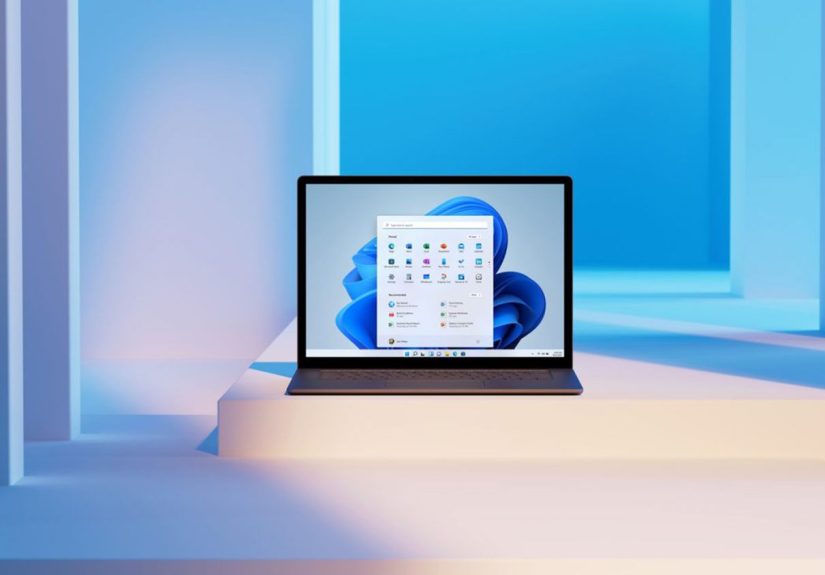
Windows 11’s most obvious change is visual: a cleaner, more modern interface with rounded corners, subtle transparency,
and a Start menu that’s centered by default (don’t worryyou can still move it left if your muscle memory demands it).
Microsoft also pushed productivity improvements, like better snap layouts and simpler ways to manage windows across
monitors and virtual desktops. It’s less “Where did that window go?” and more “Oh, there it is… behaving.”
Another big shift was the Microsoft Store reboot. Microsoft aimed for a store that felt less like a forgotten mall kiosk
and more like a real marketplace, with support for more app types and better developer flexibility.
Teams integration: convenient… or a little too eager?
Windows 11 emphasized communication, including tighter integration with Microsoft Teams. The idea was simple:
if people are working, learning, or calling family from their PCs, the OS should make that smoother. Some users loved
the convenience; others immediately asked, “Can I turn this off?” (Windows tradition: a feature isn’t real until someone
searches “disable feature” within five minutes.)
Android apps: the feature that didn’t fully launch on launch day
One of the most talked-about features during the Windows 11 reveal was Android app support via the Microsoft Store,
using an Amazon Appstore integration. But here’s the fine print that became big print: early reporting noted that
Android apps were not part of the complete day-one experience and would arrive later, after the initial release window.
If you expected October 5 to instantly turn your PC into an Android-app playground, Windows 11 politely asked you to
practice patience.
Can Your PC Join the Party? System Requirements and Eligibility
Windows 11 didn’t just bring a new lookit brought stricter minimum requirements that sparked a very loud, very passionate
internet debate. Microsoft’s official requirements emphasized modern security foundations: TPM 2.0,
Secure Boot, and newer supported processors, alongside baseline specs like RAM and storage.
The essentials (in plain English)
- A compatible 64-bit CPU (newer supported models)
- At least 4 GB RAM and 64 GB storage
- UEFI firmware with Secure Boot capability
- TPM 2.0 enabled (often present but sometimes turned off by default)
- DirectX 12–compatible graphics and a suitable display
Why Microsoft pushed TPM 2.0 so hard
If Windows 10 was the “keep everything running everywhere” era, Windows 11 was the “let’s start from a more secure baseline”
era. TPM 2.0 helps support modern protections like device encryption and stronger identity safeguards. Many PCs already had
TPM support, but plenty of people discovered it wasn’t enabledturning the Windows 11 upgrade journey into a BIOS scavenger hunt.
How to check compatibility without becoming a part-time IT detective
Microsoft pointed users toward the PC Health Check app and Windows Update notifications to determine eligibility.
The simplest approach: run the check, see what’s missing, and address the fixable items (like enabling TPM/Secure Boot)
before you assume your PC is “too old.” A surprising number of machines were capablethey just weren’t configured.
How the Upgrade Works: Free, Gradual, and (Mostly) Painless
Windows Update is the main gateway
For most Windows 10 users, the upgrade offer appears through Windows Update when Microsoft’s rollout logic decides your
device is ready. That’s the “recommended” path because it’s the least dramatic: click, download, install, restart,
and then spend 12 minutes re-finding the settings you swear were “right here yesterday.”
But you’re not stuck waiting forever
Microsoft also provided ways to upgrade via installation tools (like an Installation Assistant or ISO-based installs)
for users who wanted more control. The catch: if you skip ahead, you also accept more responsibilitydrivers, firmware,
compatibility checks, and the occasional “why does my audio device have amnesia?” moment.
New PCs ship with Windows 11 starting October
October 5 also kicked off the wave of new hardware marketed as “ready for Windows 11,” with devices shipping preloaded.
For buyers already considering a new laptop or desktop, Windows 11 became part of the pitch: modern security, modern UI,
and modern performance expectations.
What Windows 11 Changes Day-to-Day
Productivity: snapping gets a glow-up
Windows has always been good at multitasking, but Windows 11 tried to make it feel more intentional. Snap layouts help
you quickly arrange windows into common patternsespecially helpful on larger monitors where “organized chaos” is the default.
Add improved virtual desktops, and it becomes easier to separate work, school, and personal setups without turning your
taskbar into a crowded sidewalk.
Design: less clutter, more calm
Windows 11’s design choices aimed for a cleaner, more consistent lookrounded corners, updated icons, and a UI that feels
less stitched together from different decades. It’s still Windows (you can still find a legacy dialog box if you try),
but the overall experience is more cohesive than Windows 10’s “some parts are modern, some parts are… historically significant.”
Gaming: modern features, modern expectations
Windows 11 also leaned into gaming improvements associated with newer hardware and display standardsfeatures like Auto HDR
(for compatible HDR displays) and support for technologies that reduce load times on appropriate storage and GPU setups.
For many gamers, the real question wasn’t “Is Windows 11 better?” but “Is it better enough to justify upgrading right now?”
Should You Upgrade Right Away?
Upgrade early if…
- You have a newer, fully supported PC and want the newest interface and productivity features.
- You’re buying a new computer anyway and want the latest OS out of the box.
- You like being on the current platform as apps and features increasingly target Windows 11.
Wait a bit if…
- Your PC is eligible but mission-critical (school, work, business) and you can’t afford surprise hiccups.
- You rely on older peripherals or niche software and want time for compatibility updates.
- You’re not seeing the upgrade offer yetbecause Microsoft is intentionally pacing it.
The smart approach for many people was simple: let the phased rollout do its job. If Microsoft’s update system offers the upgrade,
that’s usually a strong sign your hardware and drivers look stable in the real worldnot just on paper.
Prep Checklist Before October (or Before You Click “Install”)
- Back up important files (because the universe loves irony).
- Update Windows 10 fully firstdriver and reliability fixes matter.
- Run PC Health Check to confirm eligibility and see what needs attention.
- Check TPM and Secure Boot status; enable them if your device supports them but they’re off.
- Make room on your driveOS upgrades hate cramped storage.
- Update firmware/BIOS if your manufacturer recommends it for Windows 11 readiness.
of “Real-World” Experiences Around the October Windows 11 Launch
Even if you never installed Windows 11 on October 5, the launch had a familiar Windows-season energy: equal parts excitement,
confusion, and someone on your group chat asking, “Do I need this TPM thing or can I ignore it like terms and conditions?”
The October release date created a shared moment where a lot of people started doing the same three activities at the same time:
refreshing Windows Update, reading compatibility guides, and reconsidering every life decision that led them to own a seven-year-old laptop.
The first “experience” many users had wasn’t a fancy new Start menuit was the PC Health Check verdict. For some, it was a quick win:
“You can upgrade!” For others, it was a dramatic plot twist: “This PC can’t run Windows 11.” That message hit especially hard when the
computer in question still felt perfectly fine for homework, browsing, and streaming. And then came the follow-up discovery:
sometimes the PC could run Windows 11, but TPM or Secure Boot was disabled. Cue the rite of passage: entering the BIOS,
navigating menus that look like they were designed by a time traveler from 2006, and trying not to touch anything labeled “voltage.”
On the upgrade day itself, the phased rollout created a different kind of social experience. Instead of everyone upgrading at once,
people compared notes like they were tracking concert ticket drops. “Did you get it yet?” “No.” “How about now?” “Still no.”
And when the upgrade finally arrived, it often came with that classic Windows moment: the restart countdown that appears exactly when you
planned to do something importantlike join a meeting, submit an assignment, or finally, finally clean up your desktop icons.
Once installed, the immediate emotional reaction was usually about the design. Some people loved the calmer look and centered taskbar.
Others spent the first hour customizing settings so it felt more like “their Windows.” That’s not a bugthat’s a Windows tradition.
A new Windows release isn’t just an OS update; it’s a personalization project disguised as an update prompt.
The most practical “real-world” experience, though, was learning that new features have timelines. Plenty of users heard about
Android apps and assumed they’d be there on day one. Then they realized: the launch was more like opening night for a long-running show.
The main cast showed up immediatelynew UI, productivity updates, store improvementswhile other features rolled in later.
For many people, that was actually reassuring. It suggested Microsoft was prioritizing a stable core release over shipping everything
at once and hoping it all held together with optimism and duct tape.
The October release date became less about a single day and more about a season: a gradual shift toward a new Windows baseline.
Whether you upgraded immediately or waited for the upgrade offer to appear, the shared experience was the same: Windows moved forward,
and everyone got to decide whether to sprint, walk, or casually stroll behind it with a backup drive in their pocketjust in case.
Conclusion
“Windows 11 Release Date Set for October” wasn’t just a headlineit was Microsoft’s way of saying the next Windows era starts now, but
it starts responsibly. October 5, 2021 kicked off the rollout, introduced a refreshed Windows experience, and made modern security
requirements part of the mainstream PC conversation. The smartest move for most users was to treat the launch like a guided upgrade:
check eligibility, prep your system, and upgrade when the offer arrives (or when you’re ready to take control).
Windows 11’s real success wasn’t determined on October 5 alone. It was shaped over the months that followedby phased availability,
driver updates, feature rollouts, and how well it fit into everyday life. And if nothing else, Windows 11 proved one timeless truth:
the only thing more permanent than Windows is the human urge to move the taskbar back where it “belongs.”