Table of Contents >> Show >> Hide
- What Is WordPad in Windows 10?
- Where to Find WordPad in Windows 10
- 1. Open WordPad from Windows Search
- 2. Open WordPad from the Start Menu
- 3. Open WordPad with the Run Dialog
- 4. Open WordPad from File Explorer
- 5. Open WordPad from Command Prompt or PowerShell
- 6. Pin WordPad and Open It in One Click Later
- Which Method Is Best?
- What If You Cannot Find WordPad in Windows 10?
- WordPad vs. Notepad vs. Microsoft Word
- Common Questions About Opening WordPad in Windows 10
- Real-World Experiences With WordPad in Windows 10
- Final Thoughts
- SEO Tags
WordPad is one of those classic Windows tools that somehow survives every major update like a stubborn houseplant that refuses to die. It is not as bare-bones as Notepad, not as overwhelming as Microsoft Word, and for a lot of people, that middle ground is exactly the point. Need to jot down formatted notes, open an RTF file, or clean up text without launching a full office suite? WordPad still gets the job done in Windows 10.
The funny part is that many people use WordPad for years without actually knowing where it lives. They click it when they see it, forget where they found it, and then later go on a mini treasure hunt through the Start menu like they are searching for buried software. If that sounds familiar, welcome to the club.
In this guide, you will learn six easy ways to open WordPad in Windows 10, exactly where to find WordPad, what to do if it seems to have vanished, and which method is fastest depending on how you use your PC. I will also walk through real-life situations where WordPad still makes surprising sense in 2026, even in a world full of cloud editors, AI writing tools, and apps that insist on syncing everything you type.
What Is WordPad in Windows 10?
WordPad is a built-in Windows text editor that sits somewhere between Notepad and Microsoft Word. It can handle plain text, but it also supports basic formatting like font changes, bold text, alignment, spacing, and simple document layout. That makes it useful for quick notes, rough drafts, simple letters, and lightweight document editing.
In other words, WordPad is the “I just need to write something” app. No templates. No ribbon overload panic. No login screen asking whether you want to save to the cloud, the moon, or a collaborative workspace called “Quarterly Strategy Final FINAL v7.” Just open it and type.
Where to Find WordPad in Windows 10
If you are wondering where WordPad is located, there are two answers: the easy answer and the technical answer.
The easy answer
On most Windows 10 computers, WordPad appears in the Start menu under Windows Accessories. That is the place most users find it for the first time.
The technical answer
The program file is usually stored in this folder:
C:Program FilesWindows NTAccessorieswordpad.exe
If you like opening programs by path, creating shortcuts, or checking whether an app actually exists on your computer, that is the folder to know.
Now let’s get to the part you came for: the fastest ways to open WordPad in Windows 10.
1. Open WordPad from Windows Search
This is the easiest and probably fastest method for most people.
- Click the Search box on the taskbar, or press the Windows key.
- Type WordPad.
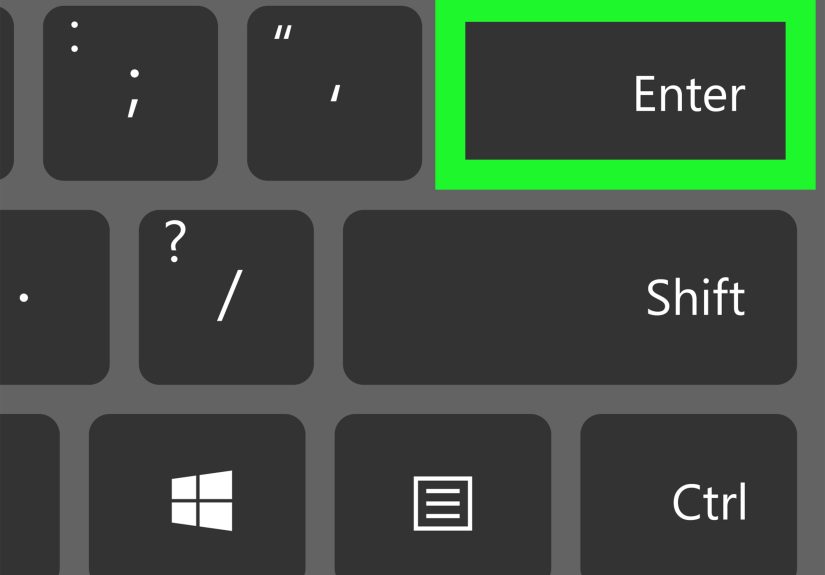
- Click the WordPad result, or press Enter.
This method works well because Windows 10 search is built for exactly this kind of task. You do not need to remember folders, file paths, or where Microsoft tucked the program away. Just type the name and let Windows do the heavy lifting.
Best for: everyday users, fast launching, and anyone who does not enjoy digital scavenger hunts.
2. Open WordPad from the Start Menu
If you prefer the old-school route, the Start menu still works beautifully.
- Click the Start button.
- Scroll down through the app list.
- Open the folder called Windows Accessories.
- Click WordPad.
This method is especially handy if you want to right-click WordPad and pin it somewhere more convenient, such as the Start menu or taskbar. Once you do that, you probably will not need to dig through Windows Accessories again.
Best for: users who like browsing apps visually or want to pin WordPad for later.
3. Open WordPad with the Run Dialog
This method makes you look slightly more tech-savvy, even if you only learned it 30 seconds ago.
- Press Windows + R to open the Run dialog.
- Type wordpad.
- Press Enter.
That is it. WordPad should open immediately.
The Run box is perfect for launching built-in Windows tools fast. It skips menus completely and feels wonderfully efficient. It is also helpful when your taskbar search is acting moody, which, let’s be honest, happens sometimes.
Best for: keyboard lovers, power users, and people who enjoy launching apps like they are in a movie about hacking.
4. Open WordPad from File Explorer
This method is useful when you want to know exactly where WordPad lives on your system.
- Press Windows + E to open File Explorer.
- Click the address bar.
- Paste this path:
C:Program FilesWindows NTAccessories - Press Enter.
- Double-click wordpad.exe.
This is also the best method when you want to create your own desktop shortcut. Just right-click wordpad.exe and choose the option to create a shortcut or send it to the desktop.
Best for: users who want the exact WordPad location in Windows 10 or need a shortcut.
5. Open WordPad from Command Prompt or PowerShell
Yes, WordPad can also be launched from the command line. It is a simple trick, but it feels impressively nerdy.
In Command Prompt
- Open Command Prompt.
- Type
start wordpad - Press Enter.
In PowerShell
- Open PowerShell.
- Type
wordpad - Press Enter.
You can also launch the full executable path if you want to be extra precise. This method is handy for advanced users, IT troubleshooting, scripts, or just showing off in front of someone who still clicks every icon manually.
Best for: admins, tinkerers, and people who think black terminal windows make everything feel more important.
6. Pin WordPad and Open It in One Click Later
This is less a way to discover WordPad and more a way to stop searching for it forever.
- Open WordPad using Search or the Start menu.
- Right-click the WordPad icon.
- Select Pin to Start or Pin to taskbar.
Once pinned, WordPad becomes a one-click app. That is especially useful if you use it for daily notes, quick copy cleanup, or opening lightweight text documents. It turns “Where is WordPad?” into “Oh right, there it is.”
Best for: regular users who want speed and zero future hunting.
Which Method Is Best?
If you just want the fastest answer, here is the quick ranking:
- Fastest for most people: Windows Search
- Fastest from the keyboard: Run dialog
- Best for finding the file location: File Explorer
- Best long-term solution: Pin to taskbar or Start
- Best for advanced users: Command Prompt or PowerShell
Personally, the Search method wins for everyday convenience. But once you know where WordPad is, pinning it is the real smart move.
What If You Cannot Find WordPad in Windows 10?
If WordPad does not show up, do not panic. Your computer is probably not haunted. A few things may be happening:
1. Search is not finding it
Try the Start menu route under Windows Accessories.
2. The shortcut is missing
The shortcut may be gone even if the actual program still exists. Check the file path manually in File Explorer.
3. Your system has been customized
Some users, organizations, or stripped-down installations remove or hide certain built-in apps.
4. You are mixing up Windows versions
This article is specifically for Windows 10. In newer Windows releases, WordPad has been deprecated and removed from some versions, so online advice can get messy fast if it is not version-specific.
If WordPad is genuinely missing and you still need a lightweight editor, Notepad can handle plain text, while Microsoft Word or another word processor is better for rich text documents.
WordPad vs. Notepad vs. Microsoft Word
Choosing between these three is easier than it looks.
Use Notepad when:
- You want pure plain text
- You are editing code snippets, logs, or config files
- Formatting would just get in the way
Use WordPad when:
- You want simple formatting without the bulk of Word
- You need a quick letter, outline, or notes file
- You are opening a basic RTF document
Use Microsoft Word when:
- You need serious formatting tools
- You are working with complex documents
- You care about templates, collaboration, comments, or advanced layout
Think of it this way: Notepad is a sticky note, WordPad is a legal pad, and Word is a whole office supply store.
Common Questions About Opening WordPad in Windows 10
Is WordPad free in Windows 10?
Yes. On a standard Windows 10 installation, WordPad is a built-in app and does not require a separate purchase.
Can I create a desktop shortcut for WordPad?
Yes. Navigate to the WordPad executable in File Explorer, right-click it, and create a shortcut. That makes opening WordPad even faster.
Why do some people say WordPad is gone?
Because Microsoft has deprecated WordPad in newer Windows releases. That creates confusion online, especially when articles about Windows 11 and Windows 10 get mashed together like leftovers in a mystery casserole.
Can WordPad replace Microsoft Word?
Not really. It is great for basic writing and simple formatting, but it is not a full-featured word processor.
Real-World Experiences With WordPad in Windows 10
Here is the funny thing about WordPad: people usually do not think about it until the exact moment they need it. Then suddenly it becomes the hero of the afternoon.
One common situation is when someone needs to open a simple text document with a little formatting but does not want to wait for a full office app to load. A student might paste notes from a website and clean them up before printing. A parent might type a quick permission slip. A small business owner might open a rough draft of a letter and adjust spacing without caring about design flourishes, collaboration tools, or ten thousand menu options. In those moments, WordPad feels refreshingly direct.
Another real-world use is copy cleanup. Anyone who has ever copied text from a webpage knows the pain: weird fonts, odd spacing, mystery formatting, and the occasional visual chaos that makes a simple paragraph look like it lost a fight. WordPad is surprisingly useful here. You can paste text, keep only basic formatting, and turn digital spaghetti into something readable. It is not glamorous, but neither is unclogging a drain, and that is still valuable work.
There is also a nostalgia factor. Many Windows users learned basic typing, school assignments, and home computer habits on simple built-in tools. WordPad feels familiar. It opens quickly, does not ask a lot of questions, and does not try to upsell you into a subscription while you are just trying to write “Don’t forget eggs” in 14-point Arial. There is something charming about software that minds its business.
For troubleshooting, WordPad can be unexpectedly handy too. If a document refuses to open in one program, trying it in another lightweight app can sometimes help you figure out whether the issue is with the file, the file association, or the original program itself. IT-minded users also appreciate that WordPad is easy to launch from Search, Run, File Explorer, or even the command line. It is one of those utilities that quietly fits into many workflows without demanding attention.
And then there is the simple convenience factor. Plenty of users pin WordPad to the taskbar and use it every day for temporary notes, copied phone numbers, rough outlines, meeting reminders, and quick formatting jobs. It is not flashy. It will never trend on social media. Nobody is making dramatic unboxing videos about WordPad. But in real life, usefulness beats flash more often than the internet likes to admit.
So while WordPad may not be the star of the Windows lineup, it still earns its spot by being quick, familiar, and just capable enough. Sometimes that is exactly what you need from a writing tool.
Final Thoughts
If you need to open WordPad in Windows 10, you have plenty of easy options: Search, Start menu, Run, File Explorer, Command Prompt, PowerShell, or a pinned shortcut for one-click access. The best method depends on your habits, but for most people, Windows Search is the winner and pinning WordPad afterward is the real upgrade.
As for where to find WordPad, remember the two key locations: Start > Windows Accessories and the executable path inside Program FilesWindows NTAccessories. Once you know those, WordPad stops being mysterious and starts being what it was always meant to be: a simple, practical tool that opens fast and gets out of your way.
And honestly, in an age where every app wants an account, a sync, a subscription, and your emotional commitment, that simplicity feels downright luxurious.