Table of Contents >> Show >> Hide
- Before We Start: Why iPod touch Batteries Feel “Smaller Than You Remember”
- 1) Turn On Low Power Mode (a.k.a. “Battery Diet Without the Sadness”)
- 2) Fix the Biggest Battery Hog: Your Screen
- 3) Stop Background App Refresh From Sneaking Around
- 4) Put Notifications on a Diet (Your Battery Will Thank You)
- 5) Location Services: Use “While Using,” Not “Forever”
- 6) Turn Off Wireless Extras You’re Not Using (Wi-Fi, Bluetooth, AirDrop)
- 7) Reduce Motion and Visual Effects (Because Your Battery Doesn’t Care About Drama)
- 8) Use Battery Settings Like a Detective (Find the Apps That Are Actually Guilty)
- 9) Treat Your Battery Like It’s Trying Its Best (Heat + Charging Habits Matter)
- Experiences: What Battery-Saving Looks Like in Real Life (No Lab Coat Required)
- Conclusion
Your iPod touch is basically the Swiss Army knife of “still useful” gadgets: compact, fast enough for music and
streaming, great for kids, perfect as a Wi-Fi communicator, and oddly comforting in a world where phones keep
growing into tablet-sized pocket bricks.
There’s just one tiny catch (and by “tiny,” I mean “constantly yelling at you with a low battery warning”):
battery life. The good news? You don’t need a degree in electrical engineering to
conserve battery life on your iPod touch. You just need a few smart settings tweaks and a tiny
bit of self-control around the most battery-hungry habits.
Below are 9 practical, real-world ways to extend iPod touch battery lifewritten for actual
humans who listen to music, watch videos, play games, and occasionally forget where they left the charger (again).
Before We Start: Why iPod touch Batteries Feel “Smaller Than You Remember”
Battery drain usually comes down to three things: the screen, wireless radios
(Wi-Fi/Bluetooth), and background activity (apps quietly doing stuff while you’re not looking).
The iPod touch is a Wi-Fi-only device, so you don’t have cellular drain, but it can still burn power searching for
networks, pushing notifications, refreshing apps, and lighting up the display like it’s auditioning for Broadway.
The goal isn’t to turn your iPod touch into a silent, dim, joyless rectangle. The goal is to make it stop wasting
battery on things you don’t actually care about.
1) Turn On Low Power Mode (a.k.a. “Battery Diet Without the Sadness”)
If you only do one thing from this list, do this. Low Power Mode is Apple’s built-in “calm down”
button. It reduces background activity and dials back certain features so your iPod touch can last longer when you
need it most.
How to enable it
- Go to Settings > Battery
- Turn on Low Power Mode
Low Power Mode is especially clutch when you’re below 30% and still pretending you’re “fine.” It’s also great
before long trips, school days, or binge-watching sessions when an outlet is not part of your future.
2) Fix the Biggest Battery Hog: Your Screen
The display is the #1 power spender on most mobile devices. If you want to save battery on iPod touch,
your screen is the first place to negotiate.
Lower brightness (yes, even a little helps)
- Open Control Center
- Drag the Brightness slider down until it’s comfortable (not “cave bat,” just “reasonable adult”)
Turn on Auto-Brightness
Auto-Brightness uses the ambient light sensor to avoid blasting your eyes (and your battery) when you don’t need
maximum brightness.
- Go to Settings > Accessibility > Display & Text Size
- Turn on Auto-Brightness
Shorten Auto-Lock time
Every minute your iPod touch stays awake while you’re not using it is basically your battery donating money to a
stranger on the street.
- Go to Settings > Display & Brightness > Auto-Lock
- Set it to 30 seconds or 1 minute
If you’re reading long articles, you can always bump Auto-Lock back up later. But for everyday use, a short Auto-Lock
is one of the easiest ways to conserve battery life without sacrificing features.
3) Stop Background App Refresh From Sneaking Around
Background App Refresh sounds helpful in theory: apps update content in the background so they’re ready when you open
them. In practice? Many apps treat it like an all-you-can-eat buffet and grab seconds when you’re not looking.
What to do
- Go to Settings > General > Background App Refresh
- Turn it Off, or disable it for the apps you don’t need constantly updating
Pro tip: Keep Background App Refresh on only for apps that truly benefit from it (maybe a messaging app). Your
“Daily Horoscope For Left-Handed Labradoodles” app can refresh when you open it like everyone else.
4) Put Notifications on a Diet (Your Battery Will Thank You)
Notifications aren’t just annoying. They’re expensive. Every alert can trigger a screen wake, a vibration, a sound,
and a small burst of background processing. Multiply that by a few dozen apps and your iPod touch spends half the day
reacting to nonsense it didn’t even enjoy.
Clean-up strategy
- Go to Settings > Notifications
- Turn off notifications for apps you don’t truly need
- For “semi-important” apps, disable Lock Screen alerts and reduce sounds/badges
Bonus: fewer notifications improves battery life and your mood. That’s what we call a high-ROI setting.
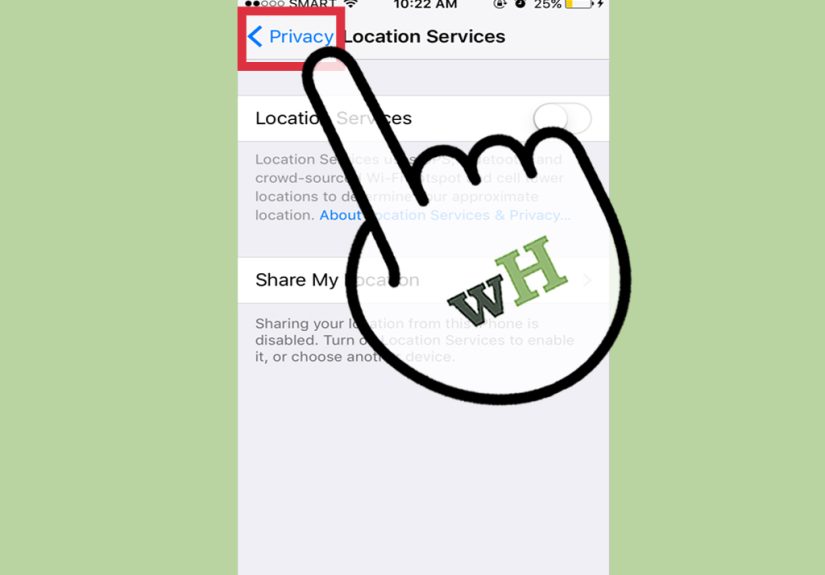
5) Location Services: Use “While Using,” Not “Forever”
Location features are useful, but constant location checks can drain powerespecially if multiple apps have
permission to track you all the time. On iPod touch, location is often assisted by Wi-Fi networks, so it’s still
worth controlling.
Set smarter location permissions
- Go to Settings > Privacy & Security > Location Services
- For most apps, choose While Using the App (or Never if you don’t need it)
- Turn off Precise Location for apps that don’t need your exact position
Example: A weather app probably doesn’t need your precise location down to the exact blade of grass you’re standing on.
Approximate is usually fine, and your battery gets to keep its lunch money.
6) Turn Off Wireless Extras You’re Not Using (Wi-Fi, Bluetooth, AirDrop)
Wireless connections are convenient, but they cost batteryespecially when your device is constantly searching for
networks, accessories, or nearby devices.
Quick wins
- Bluetooth: Turn it off when you’re not using headphones/speakers.
- AirDrop: Set receiving to Receiving Off when you’re not actively using it.
- Wi-Fi: If you’re not going online for a while, toggle it off (especially when traveling).
The fastest way to manage these is through Control Center. Think of it like a cockpit for your battery:
if you wouldn’t leave the windshield wipers on in the desert, don’t leave Bluetooth hunting for devices you don’t own.
7) Reduce Motion and Visual Effects (Because Your Battery Doesn’t Care About Drama)
iOS animations are pretty. They’re also extra work for the graphics system. Turning down visual flair can help your
iPod touch feel snappier and use less energy.
Reduce Motion
- Go to Settings > Accessibility > Motion
- Turn on Reduce Motion
Bonus visual trims
- Use a still wallpaper instead of a dynamic/live one.
- Reduce transparency (if available in your iOS version) for a slightly lighter graphics load.
Your iPod touch will still look good. It’ll just stop doing unnecessary cartwheels every time you open an app.
8) Use Battery Settings Like a Detective (Find the Apps That Are Actually Guilty)
Guessing is cute, but Battery settings let you see what’s really happening. iPod touch can show your
battery usage over the last 24 hours and up to the last 10 days, so you can identify which apps are draining power.
Where to look
- Go to Settings > Battery
- Check which apps are using the most power
- If something looks suspicious, tap into that app’s settings and reduce background permissions (refresh, location, notifications)
Example: If a simple game is topping your battery list, it might be running background activity, pushing ads, or
constantly pinging the network. Limit its permissionsor save it for times when you’re near a charger.
9) Treat Your Battery Like It’s Trying Its Best (Heat + Charging Habits Matter)
Settings help you extend iPod touch battery life today. But if you want better battery performance
over months and years, protect the battery itself.
Avoid heat (the silent battery killer)
- Don’t leave your iPod touch in direct sunlight or hot cars.
- If it gets hot while charging, remove thick cases that trap heat.
- Pause heavy tasks (gaming/streaming) while charging if your device feels warm.
Charge smarter (you don’t need 100% all the time)
- For everyday use, keeping a lithium-ion battery roughly in the 20%–80% range can reduce long-term wear.
- Avoid storing it fully dead or fully topped off for long periods.
Think of your battery like a rubber band: stretching it to the extreme constantly can wear it out faster. Gentle,
regular charging habits help your iPod touch stay useful longer.
Experiences: What Battery-Saving Looks Like in Real Life (No Lab Coat Required)
Let’s make this practical. Here are a few real-world situations that iPod touch owners run into, and how the 9 tips
above play out when you’re not sitting in a perfectly climate-controlled room with a charger on standby.
The “School Day Survivor” setup: You toss an iPod touch in a backpack for music, notes, and messaging
over Wi-Fi. The battery used to die before the final bell, and you assumed the device was just “old.” But the culprit
wasn’t ageit was noise. Notifications from games, social apps, and random shopping apps were constantly
waking the screen. The fix was simple: you trimmed notifications to the essentials, shortened Auto-Lock to 30 seconds,
and turned on Low Power Mode before first period. Suddenly the battery stopped evaporating during class, because the
iPod wasn’t lighting up every five minutes like a tiny Times Square billboard.
The “Long Commute Playlist” trap: Streaming music over Wi-Fi while the screen stays bright is the
fastest way to burn battery while doing almost nothing. The upgrade here is hilariously small: start your playlist,
lock the screen, and keep brightness low. If you’re using Bluetooth earbuds, turn Bluetooth off immediately after you
arrive (people forget this all the time). It’s not that Bluetooth is always catastrophicit’s that leaving it on
24/7 “just in case” is like leaving your car idling because you might go somewhere later.
The “Airport / Travel Day” battery mystery: Travelers often report that their battery drains faster
even when they’re barely using the device. That’s because travel is basically a gauntlet of wireless searching:
scanning for Wi-Fi networks, reconnecting, dropping, reconnecting again, plus a bunch of apps waking up to fetch
updates the second a network appears. The travel-friendly move is to intentionally control your radios: disable Wi-Fi
when you don’t need it, then turn it on when you’re ready to connect. Add Low Power Mode, and you’ll usually get a
noticeable boostenough to keep your iPod touch alive for boarding time entertainment instead of dying during the
“Group 7, please line up” phase.
The “One Weird App” vampire story: Sometimes battery drain isn’t about your habitsit’s about a single
app behaving badly. Maybe it’s a social app stuck refreshing in the background, or a game that quietly phones home
for updates. The detective move is to check Settings > Battery and look for an app that’s wildly
out of proportion. Once you find it, you don’t have to delete it immediately. First try: disable Background App
Refresh for that app, limit its notifications, restrict location access, and update it. If it still acts like a
battery vacuum? Congratulationsyou’ve found an app that doesn’t deserve your time or your power.
The “I Close All My Apps Constantly” habit: This is the most common battery myth in the wild:
“If I swipe away every app, my battery will last longer.” In reality, constantly force-closing apps can backfire
because reopening them makes your device do extra work. The better approach is to let apps stay idle, and instead
control the settings that truly cause background drain (Background App Refresh, location, notifications). Your
iPod touch isn’t a messy kitchen you need to clean every five minutes. It’s more like a library: quiet is the default
unless you let something run around yelling.
The punchline: battery-saving isn’t about suffering. It’s about making your iPod touch stop spending power on stuff
you didn’t ask for. Once you trim the background chaos, your device feels calmer, lasts longer, and becomes the handy
little sidekick it was meant to be.
Conclusion
To conserve battery life on your iPod touch, focus on the big levers: use Low Power Mode, keep the screen in check,
reduce background activity, and cut down on unnecessary wireless scanning and notifications. Then use Battery settings
to spot the real culprits and adjust app permissions. Finally, protect long-term battery health by avoiding heat and
practicing smarter charging habits.
Do those consistently, and your iPod touch won’t just last longer todayit’ll stay useful longer overall.