Table of Contents >> Show >> Hide
- What Is PS Remote Play, Exactly?
- What You Need Before You Start
- How to Set Up PS4 Remote Play on Your Computer
- How to Use PS4 Remote Play Day to Day
- Best Settings for a Smoother Remote Play Experience
- Common Problems and How to Fix Them
- Can You Just Plug a PS4 Into a Laptop With HDMI?
- What Games Feel Best Over Remote Play?
- Who Should Use PS4 Remote Play on a PC?
- Final Thoughts
- Real-World Experiences With PS4 Remote Play on a Computer
If your TV is busy, your couch is occupied by a snack avalanche, or you simply want to play Bloodborne from your desk like a civilized goblin, PS Remote Play is the easiest way to get your PS4 onto a computer. No, you do not need to perform HDMI wizardry. No, you do not need a capture card just to play. And no, your laptop does not secretly become a console monitor because you stared at it hard enough.
The short version is simple: your PS4 stays at home doing the heavy lifting, while your computer becomes the screen and controller bridge. The game runs on the console, the video streams to your PC, and your inputs travel back to the PS4. It is basically long-distance gaming with surprisingly few trust issues when the network behaves itself.
This guide walks you through exactly how to play PS4 on a computer using Remote Play, how to set it up the right way, how to fix the most common problems, and how to make the experience feel less like “wow, technology!” and more like “wow, I can finish this boss fight without fighting for the TV remote.”
What Is PS Remote Play, Exactly?
PS Remote Play is Sony’s official streaming feature that lets you access your PS4 from another device, including a Windows PC. Your games are still running on the console, not on the computer itself. That means your PC does not need to be a gaming monster with neon fans and a name like “DragonCore X9000.” It just needs to meet the app requirements and maintain a stable internet connection.
This also means Remote Play is different from cloud gaming. You are not pulling a game from Sony’s servers. You are streaming from your own PS4. If the console is off, unplugged, or sitting in a rest mode setup that is missing one key setting, Remote Play will not work. The PS4 is the star of the show. The computer is the very competent stage crew.
What You Need Before You Start
On the PlayStation side
- A PS4 or PS4 Pro with the latest system software
- A PlayStation account signed in on the console
- Your PS4 activated as your primary console
- Remote Play enabled in system settings
On the computer side
- A Windows 10 or Windows 11 computer
- The PS Remote Play app installed
- A compatible controller, ideally a DUALSHOCK 4 connected by USB
- A stable broadband connection
On the network side
- At least 5 Mbps internet speed
- About 15 Mbps or higher for a smoother experience
- Preferably Ethernet for the PS4 if you want fewer stutters and fewer dramatic sighs
If you have a PS4 Pro, you may get higher-quality streaming than a standard PS4. A standard PS4 generally tops out at 720p through Remote Play, while PS4 Pro can go up to 1080p in the right conditions. Translation: PS4 Pro has a better chance of looking crisp instead of “mysteriously soft.”
How to Set Up PS4 Remote Play on Your Computer
Step 1: Enable Remote Play on the PS4
On your PS4, go to Settings > Remote Play Connection Settings and turn on Enable Remote Play. This tells the console that, yes, you would indeed like to control it from somewhere else instead of remaining glued to the TV forever.
Step 2: Activate the PS4 as Your Primary Console
Next, head to Settings > Account Management > Activate as Your Primary PS4. If your console is not activated as primary, Remote Play can become fussy. And “fussy” is the polite version of what you will call it.
Step 3: Adjust Rest Mode Settings
If you want to start playing without physically turning on the console every time, set up Rest Mode correctly. Go to Settings > Power Save Settings > Set Features Available in Rest Mode, then enable:
- Stay Connected to the Internet
- Enable Turning on PS4 from Network
This step matters a lot. Without it, your PS4 is basically saying, “I am resting, please do not text.”
Step 4: Download and Install PS Remote Play on the PC
Install Sony’s PS Remote Play app on your computer. Once installed, launch it and sign in using the same PlayStation account that your PS4 uses. Different accounts are a classic way to turn a five-minute setup into a thirty-minute mystery novel.
Step 5: Connect Your Controller
For the simplest setup, plug a DUALSHOCK 4 into the PC with a USB cable. That is the most reliable route and the one Sony directly supports for Remote Play on PC. Wireless controller setups can work in some cases, but USB is the “I would like my evening to remain peaceful” option.
Step 6: Start Remote Play
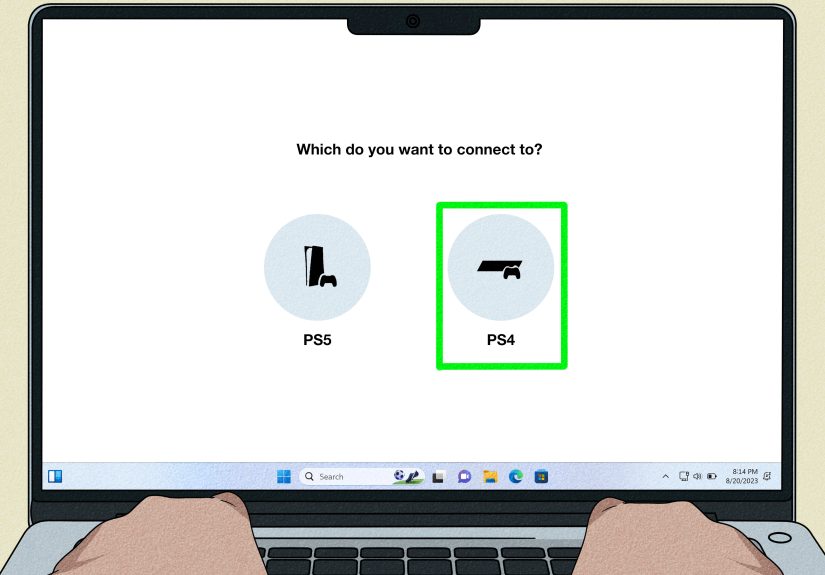
Open the app, select your PS4, and let the software search for your console. If both devices are on the same network and the console is configured properly, it should connect without much drama. When it works, your PS4 home screen appears on your computer, and you are ready to play.
How to Use PS4 Remote Play Day to Day
Once the initial setup is done, using PS4 Remote Play is easy:
- Turn on the PS4 or leave it in properly configured Rest Mode
- Connect your controller to the PC
- Launch the PS Remote Play app
- Sign in if needed
- Select the PS4 and wait for it to connect
From there, you can browse the PS4 home screen, launch games, suspend games, and use the console almost like you were sitting in front of it. It is especially useful when someone else wants the TV, when you want to wear headphones at your desk, or when you would prefer not to explain to your family why the living room is echoing with boss fight music at midnight.
Best Settings for a Smoother Remote Play Experience
Lower the resolution if the connection struggles
If the stream looks choppy, fuzzy, or starts freezing like it just remembered an embarrassing moment from 2014, lower the Remote Play video quality. On standard PS4, common options include 360p, 540p, and 720p. Dropping from 720p to 540p can make a surprisingly big difference on unstable networks.
Use Ethernet for the console
If you can wire only one device, wire the PS4. A wired console connection usually improves stability more than trying to perfect every other network variable. Wi-Fi can work well, but wired is the gold standard when you want fewer hiccups in action-heavy games.
Use 5 GHz Wi-Fi when possible
If Ethernet is not practical, a strong 5 GHz Wi-Fi connection can help reduce interference compared with crowded 2.4 GHz networks. That is especially helpful in apartments, dorms, or homes where every device from the smart speaker to the robot vacuum is competing for attention.
Close bandwidth-hungry apps on the PC
If your computer is also downloading a giant update, backing up photos, and streaming 4K video in the background, Remote Play may not feel great. It turns out your network does not enjoy juggling chainsaws.
Common Problems and How to Fix Them
The PC cannot find the PS4
First, make sure the PS4 has Remote Play enabled and is signed into the same PlayStation account as the app. If auto-detection fails, use the manual pairing method. On the PS4, go to Settings > Remote Play Connection Settings > Add Device. The console gives you a one-time code, which you can enter in the app.
The stream is laggy
Reduce the resolution, check your network speed, move closer to the router, or switch the PS4 to Ethernet. Fast-paced games like shooters and fighting games are more sensitive to latency than turn-based or slower-paced titles. In plain English: strategy games forgive; racing games do not.
The image quality looks soft
This often comes down to bandwidth and console model. A standard PS4 has lower Remote Play ceiling than a PS4 Pro. If your network is struggling, the stream may automatically scale down to stay stable. A softer image is annoying, but it is still better than a slideshow pretending to be a game.
The controller is not working
Use a known good USB cable and reconnect the controller directly to the PC. Cheap or charge-only cables love to waste your time. A proper data cable is the real hero here, even if it gets none of the glory.
The PS4 will not wake from Rest Mode
Double-check the Rest Mode options: Stay Connected to the Internet and Enable Turning on PS4 from Network. If either is off, the console may nap like a teenager on summer break.
Can You Just Plug a PS4 Into a Laptop With HDMI?
Usually, no. Most laptops and many all-in-one PCs have HDMI output, not HDMI input. That means they can send video out to a monitor, but they cannot accept a console video signal directly. This is why Remote Play is the practical official solution for most people who want to use a computer screen for PS4 gaming.
If your goal is simply to play PS4 on a computer, Remote Play is easier, cheaper, and less annoying than trying to reinvent your laptop as a TV.
What Games Feel Best Over Remote Play?
Not every genre feels the same over streaming. Story-driven games, RPGs, indie titles, puzzle games, and turn-based games usually work beautifully. They do not demand perfect split-second reaction times, and that makes Remote Play feel almost native.
Competitive shooters, rhythm games, and twitch-heavy fighting games are a tougher test. They can still work, especially on a strong home network, but they are more likely to reveal even tiny delays. If your idea of joy is frame-perfect inputs, Remote Play may occasionally feel like your thumbs are sending postcards instead of commands.
Who Should Use PS4 Remote Play on a PC?
Remote Play makes sense for a lot of players:
- People sharing one TV with family or roommates
- Players who want to game at a desk with a headset and keyboard nearby
- Students in dorms or small apartments
- Anyone who wants flexibility without rebuying games on another platform
It is not a replacement for local console play in every situation, but it is an excellent backup plan and, in the right setup, good enough to become your regular habit.
Final Thoughts
If you have been wondering how to play PS4 on a computer, the answer is pleasantly straightforward: use PS Remote Play, set up the console correctly, connect a controller to your PC, and give your network the respect it demands. The process is easier than many people expect, and once it is configured, it can feel almost effortless.
The biggest mistakes are usually small ones: using the wrong account, forgetting the Rest Mode settings, expecting HDMI magic from a laptop, or trying to stream on a chaotic network while three other devices are fighting over bandwidth. Fix those issues, and PS4 Remote Play becomes one of the most useful features Sony offers.
In other words, your TV is no longer the boss of your gaming schedule. And frankly, it was getting a little too confident.
Real-World Experiences With PS4 Remote Play on a Computer
The most relatable Remote Play experience is not some high-tech lab scenario. It is usually a very ordinary household moment: somebody else wants the TV, the living room is loud, or you just want to sit at a desk with a proper headset and a cup of coffee that is slightly too ambitious for the time of night. In those situations, PS4 Remote Play feels less like a bonus feature and more like a quiet little lifesaver.
One of the best experiences people report is how convenient it feels for slower, immersive games. If you are playing a long RPG, a narrative adventure, or a strategy-heavy title, Remote Play can be excellent. You settle into your chair, plug in the controller, and after a minute or two it stops feeling like streaming at all. It just feels like your PS4 somehow learned a new trick and followed you into another room.
There is also a productivity-adjacent joy to playing on a computer. That sounds fake, but stay with me. When your gaming session is at a desk, you can keep guides, maps, or party chat tools nearby. Need to check a puzzle clue? It is right there. Want to message a friend while grinding through side quests? Easy. It turns the PC setup into a kind of mission control for your console gaming, which is a lot more useful than it sounds on paper.
That said, Remote Play has a personality. On a strong home network, it can feel smooth, clean, and almost suspiciously competent. On a weak network, it can become a tiny chaos machine. Players often notice that calm games still feel fine when the connection dips a little, but competitive titles become immediately grumpy. A racing game may suddenly feel “floaty.” A shooter may remind you that milliseconds are real and very rude. This is why many experienced users end up developing a simple rule: save story games for Remote Play, and save sweaty online matches for the TV.
Another common experience is that setup is easier than expected, but optimization takes a bit of tinkering. The first successful connection feels great. The second stage is where people start making little improvements: moving the console to Ethernet, switching Wi-Fi bands, lowering resolution one notch, or replacing a flaky USB cable that was apparently held together by hope. Those tiny fixes often make the difference between “neat feature” and “I use this all the time.”
Maybe the most underrated part of the whole experience is flexibility. Remote Play gives your PS4 a second life in your daily routine. It lets you play without taking over the main TV, without relocating the console, and without building an elaborate hardware setup that looks like a science fair project. When it is configured well, it feels modern, practical, and just a little bit magical. Not wizard-in-a-tower magical. More like “I can keep gaming while someone watches a cooking show” magical. Which, in real life, is honestly the more useful kind.