Table of Contents >> Show >> Hide
- What Is an IMEI Number, Exactly?
- Before You Start: Does Your iPad Even Have an IMEI?
- How to Find the IMEI Number on iPhone or iPad: 5 Easy Ways
- Bonus Method for iPhone: Dial *#06#
- What You Can Do With the IMEI Once You Find It
- Common Mistakes People Make
- What to Do If You Still Cannot Find the IMEI
- Real-World Experiences: When People Actually Need the IMEI
- Conclusion
If you have ever tried to switch carriers, check whether a used device is legit, file a loss report, or activate an eSIM while standing in a store with exactly 2% battery left, you already know one thing: the IMEI number suddenly becomes the most important 15 digits in your life.
The good news is that finding the IMEI number on an iPhone or iPad is usually quick. The slightly less exciting news is that Apple gives you more than one place to look, which is great for flexibility and mildly annoying for people who just wanted one big button labeled “Here. It’s here.”
In this guide, you will learn how to find the IMEI number on iPhone or iPad using five easy methods, plus a few backup options, common mistakes to avoid, and real-world examples of when that number actually matters. Whether your device is fully working, wiped, locked, or sitting in a drawer beside three old charging cables and some emotional baggage, there is probably a method here that will work.
What Is an IMEI Number, Exactly?
IMEI stands for International Mobile Equipment Identity. In plain English, it is a unique identifier assigned to a cellular device. Carriers and support teams use it to identify specific hardware, check compatibility, verify activation, and flag devices reported as lost or stolen.
Think of it like your device’s passport number. Your phone number can change. Your SIM can change. Your wallpaper can change from “clean minimal design” to “photo of your dog wearing sunglasses.” But the IMEI is tied to the device itself.
This number is especially useful when you need to:
- activate a new iPhone or cellular iPad
- set up a physical SIM or eSIM
- check compatibility with a carrier network
- verify a secondhand device before buying it
- report a lost or stolen device
- work with Apple or a carrier on troubleshooting
Before You Start: Does Your iPad Even Have an IMEI?
This part matters more than people expect. Not every iPad has an IMEI.
If you have a Wi-Fi-only iPad, there is no cellular radio, which means there is no IMEI. In that case, you will see other identifiers like the serial number, but not an IMEI.
If you have an iPad Wi-Fi + Cellular model, then yes, it should have an IMEI. On iPhone, the IMEI is standard because iPhones are cellular devices.
You may also see related terms such as IMEI2, MEID, or EID. That is normal on some models, especially devices that support multiple SIM paths or eSIM. For most everyday tasks, the number you want is the one labeled IMEI.
How to Find the IMEI Number on iPhone or iPad: 5 Easy Ways
1. Check Settings on the Device
This is the simplest and most reliable method if the device turns on and you can unlock it.
On an iPhone or cellular iPad:
- Open Settings.
- Tap General.
- Tap About.
- Scroll down until you see IMEI.
On many devices, you can also press and hold the IMEI to copy it. That is handy when you need to paste it into a support form, activation page, or carrier checker without playing a fun little game called “Did I type an 8 or a 3?”
Best for: everyday use, support calls, trade-ins, activation, and quick verification.
2. Use the Info Button on the Hello Screen
This method is a lifesaver when the device has been erased, reset, or not fully set up yet.
If your iPhone or iPad is sitting on the startup screen that says Hello in multiple languages, you do not need to finish setup first. Instead:
- Turn on the device.
- Wait for the Hello screen to appear.
- Tap the small Info button in the bottom-right corner.
That screen can display important device details, including the IMEI on eligible models. This is especially useful if you are preparing a device for sale, checking a used iPad before setting it up, or trying to gather information from a phone that was wiped but not yet reactivated.
Best for: reset devices, secondhand purchases, and setup-stage troubleshooting.
3. Look on the Device Itself
If the device will not open Settings, the physical hardware may still help. This method depends on the model.
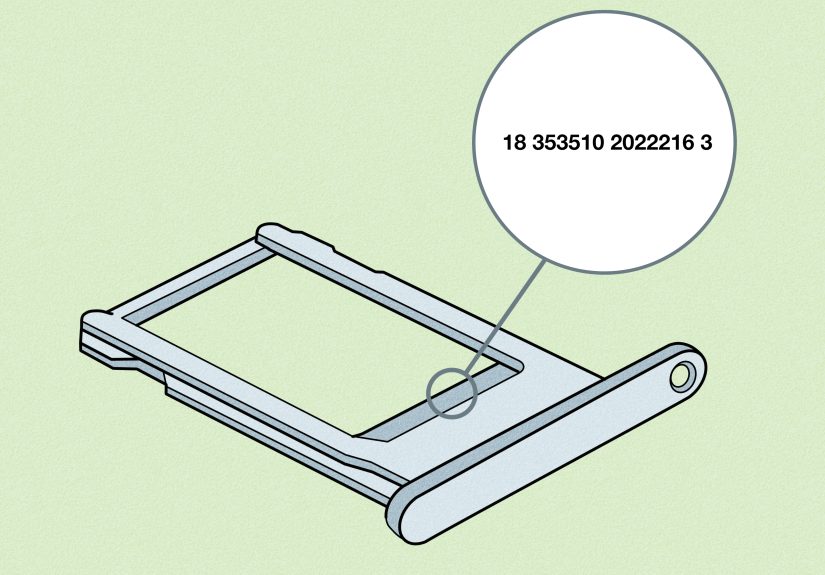
For some older iPhones, Apple printed or engraved the IMEI on the back of the device. On certain other iPhone models, the IMEI appears on the SIM tray. For some cellular iPads, the IMEI can be found on the back casing.
This is the kind of method that makes you squint, tilt the device toward a lamp, and wonder whether you should have kept that reading glasses coupon. The number is often tiny.
A few things to keep in mind:
- Many newer iPhones do not have the IMEI engraved on the outside.
- If the device has a SIM tray, check that area carefully.
- On cellular iPads, inspect the back of the device for printed identification text.
- If your iPad is Wi-Fi-only, you should not expect to find an IMEI there.
Best for: broken screens, locked devices, dead devices, and situations where software access is unavailable.
4. Use a Mac or PC
If the device has been connected to a computer before, or you can connect it now, your computer may reveal the IMEI without much drama.
Apple provides a few routes depending on your setup:
- Finder on a Mac running newer macOS versions
- Apple Devices app on a Windows PC
- iTunes on older Macs or Windows setups
After you connect the device:
- Open Finder, Apple Devices, or iTunes.
- Select the iPhone or iPad.
- Look at the device summary or general information area.
- Click through the displayed identifier if needed until the IMEI appears.
On iPhone, you may need to click the device model or phone number area. On a cellular iPad, clicking the serial number field can reveal more identifiers, including the IMEI.
This is a very practical method if the screen is difficult to use, you are working from a desk anyway, or you need to copy and paste the number directly into an online form.
Best for: office setup, support tickets, activation forms, and people who prefer keyboards over tiny taps.
5. Check Your Apple Account Online
If the device is tied to your Apple Account, you may be able to look up its IMEI online without touching the device at all.
- Go to your Apple Account in a web browser.
- Sign in with the same Apple Account used on the device.
- Open the Devices section.
- Select the iPhone or cellular iPad you want to inspect.
If the device details are available, you can see identifiers such as the serial number and IMEI. This method is surprisingly useful when a device is missing, packed away, or physically unavailable.
If you own another Apple device signed in to the same account, you may also be able to view associated device details there. That can be a neat workaround when your main phone is unavailable and your tablet is nearby, or vice versa.
Best for: lost devices, remote lookups, account-based troubleshooting, and “my phone is not with me but the carrier wants the IMEI right now” moments.
Bonus Method for iPhone: Dial *#06#
If you are using an iPhone, there is a classic shortcut: open the Phone app and dial *#06#. The IMEI should appear on screen automatically.
This is one of the fastest ways to find the IMEI on an iPhone, especially when you do not feel like tapping through menus. Just remember that this is mainly an iPhone method. Most iPads do not have the same phone-dialer workflow, so do not be surprised if this is not an option on your iPad.
What You Can Do With the IMEI Once You Find It
After you locate the IMEI, the next step depends on why you needed it in the first place.
Check Carrier Compatibility
If you are switching providers, many carriers let you enter the IMEI into an online checker to see whether the device is compatible with their network. This is especially useful for unlocked iPhones and cellular iPads bought secondhand.
Verify a Used Device Before Buying
If you are shopping for a used iPhone or iPad, the IMEI can help confirm whether the device is clean and eligible for activation. It is one of the smartest checks you can do before handing over money to someone who insists the phone is “basically brand new” even though it looks like it survived a camping trip in 2019.
Report a Lost or Stolen Device
If the device is lost or stolen, your carrier may ask for the IMEI so it can identify the hardware and, in some cases, restrict network use. This is one reason it is worth saving the number before you ever need it.
Use It for Support or Repairs
Apple support, carriers, insurers, and repair services may request the IMEI to confirm the exact device you are dealing with. It can speed up troubleshooting and reduce mix-ups, especially if you own multiple Apple devices.
Common Mistakes People Make
Finding the IMEI is not hard, but a few details trip people up all the time.
- Confusing the serial number with the IMEI: they are not the same thing.
- Expecting every iPad to have an IMEI: only cellular models do.
- Missing tiny printed text on the device: the number can be very small.
- Ignoring IMEI2: on some devices, more than one IMEI may appear.
- Typing the number incorrectly: copy and paste when possible.
- Assuming the box is useless: original packaging can still help if you kept it.
What to Do If You Still Cannot Find the IMEI
If none of the five main methods work, try these backup ideas:
- Check the original packaging for the barcode label and device details.
- Sign in to your Apple Account from another device.
- Look through old carrier records, activation emails, or device insurance details.
- If the device was previously backed up or synced to a computer, check your computer-based device information again.
And if the device is so old it belongs in a museum exhibit called “The Era of 30-Pin Connectors,” slow down and inspect the back casing and SIM tray carefully. Apple’s older devices often stored identification info there.
Real-World Experiences: When People Actually Need the IMEI
Most people do not wake up in the morning thinking, “Today feels like a great day to locate a 15-digit hardware identifier.” Usually, the IMEI becomes relevant because something happened. Maybe you are switching carriers, trading in an old iPhone, checking whether a secondhand iPad is safe to buy, or trying to help a family member activate a device without turning the whole afternoon into a tech-support sitcom.
One very common experience happens during a carrier switch. Everything feels simple until the new provider asks for the IMEI to check compatibility. Suddenly, the calm setup process turns into a scavenger hunt. People often start by opening Settings, which works beautifully, unless the phone is reset, frozen, or in someone else’s hands across town. That is usually when the Apple Account method or the Hello screen trick becomes the hero of the day.
Another frequent scenario involves buying a used iPhone or cellular iPad. A seller may say the device is unlocked and ready to go, but smart buyers know that the IMEI is what helps verify whether the device can actually be activated. This is where people learn a valuable lesson: a clean screen and a friendly seller are not the same thing as a clean device record. The IMEI turns guesswork into something closer to proof.
There is also the “my device is broken, but I still need the number” experience. A cracked display, unresponsive touchscreen, or battery issue can make the Settings method impossible. That is when people appreciate having multiple ways to find the same information. Checking the SIM tray, reading the back of a cellular iPad, or connecting the device to a Mac or PC can save a lot of frustration. It is not glamorous, but it works.
Parents and relatives run into this issue all the time too. Someone upgrades their phone, hands down the older iPhone, and then the new user needs the IMEI for setup or activation. The original owner cannot remember the passcode, the device was erased, and nobody wants to spend an hour arguing over which Lightning cable still works. In those moments, the Hello screen Info button feels almost magical.
People also discover the value of the IMEI after a device goes missing. When stress is high, having that number already written down or stored somewhere safe can make the next steps much easier. Instead of digging through drawers, boxes, and random screenshots, you can move faster with support or your carrier.
The big takeaway from all these experiences is simple: the best time to find your IMEI is before you urgently need it. Save it once, store it somewhere secure, and future-you will be extremely grateful. Future-you may even call present-you a genius. Quietly. Respectfully. While activating a phone in five minutes instead of fifty.
Conclusion
If you are wondering how to find the IMEI number on iPhone or iPad, the process is usually easier than it sounds. Start with Settings > General > About. If that is not available, try the Hello screen, inspect the device itself, use a Mac or PC, or check your Apple Account online. And if you are on iPhone, the *#06# shortcut can be a speedy extra option.
The key is knowing which method fits your situation. If the device is in your hand and working, Settings is fastest. If it is erased, the Hello screen helps. If it is damaged, the SIM tray, back casing, or computer route may save the day. And if the device is not physically with you, your account may still hold the answer.
In other words, the IMEI is not hiding from you. It is just waiting in one of several perfectly reasonable places, quietly judging how long it took all of us to check there first.