Table of Contents >> Show >> Hide
- Why Checking Your Apple Pencil Battery Matters
- The Fast Answer: The Main Ways to Check Apple Pencil Battery
- How to Check Apple Pencil Battery With the Batteries Widget
- How to Check Apple Pencil Battery in Settings
- How to Check the Battery on Apple Pencil Pro
- How to Check the Battery on Apple Pencil 2
- How to Check the Battery on Apple Pencil USB-C
- How to Check the Battery on Apple Pencil 1
- What If the Apple Pencil Battery Percentage Is Not Showing?
- Apple Pencil Compatibility Matters More Than People Think
- How to Keep Apple Pencil Battery Problems to a Minimum
- Real-World Examples of Checking Apple Pencil Battery
- Common Questions About Apple Pencil Battery Checks
- Experiences Related to Checking the Apple Pencil Battery
- Conclusion
If your Apple Pencil suddenly quits in the middle of a sketch, a math problem, or a very dramatic PDF markup session, the problem is usually not bad luck. It is usually battery. The good news is that checking your Apple Pencil battery is easy once you know where Apple hides the useful stuff. The less-good news is that Apple Pencil models do not all behave the same way, which is a very Apple way to keep life interesting.
In this guide, you will learn exactly how to check the Apple Pencil battery on every major model, what to do if the battery percentage does not appear, and how to avoid the classic “my Pencil died at the worst possible moment” experience. We will also cover common troubleshooting steps, compatibility tips, and real-world examples so you can stop guessing and start drawing, writing, or editing with confidence.
Why Checking Your Apple Pencil Battery Matters
The Apple Pencil is one of those accessories you barely think about when it is working well. It just glides across the screen, makes handwriting feel polished, and turns an iPad into a notebook, sketchbook, or portable whiteboard. But when the battery gets low, the magic disappears fast. Unlike an old-school wooden pencil, this one needs power to keep doing its thing.
That is why it helps to know where the battery level lives before you need it. Whether you use your Apple Pencil for taking lecture notes, doodling during meetings, editing documents, or pretending your grocery list is a design project, a quick battery check can save you from annoying interruptions.
The Fast Answer: The Main Ways to Check Apple Pencil Battery
There are three common ways to check the Apple Pencil battery, depending on your model:
1. Use the Batteries Widget
This is the most reliable method for most people. Add the Batteries widget to your iPad Home Screen or Today View, and you can see the battery percentage of your Apple Pencil when it is connected.
2. Open Settings > Apple Pencil
Your iPad can also show the Apple Pencil battery level inside Settings. This is a simple built-in option that works well if you do not like widgets cluttering your screen.
3. Attach a Magnetic Apple Pencil to the iPad
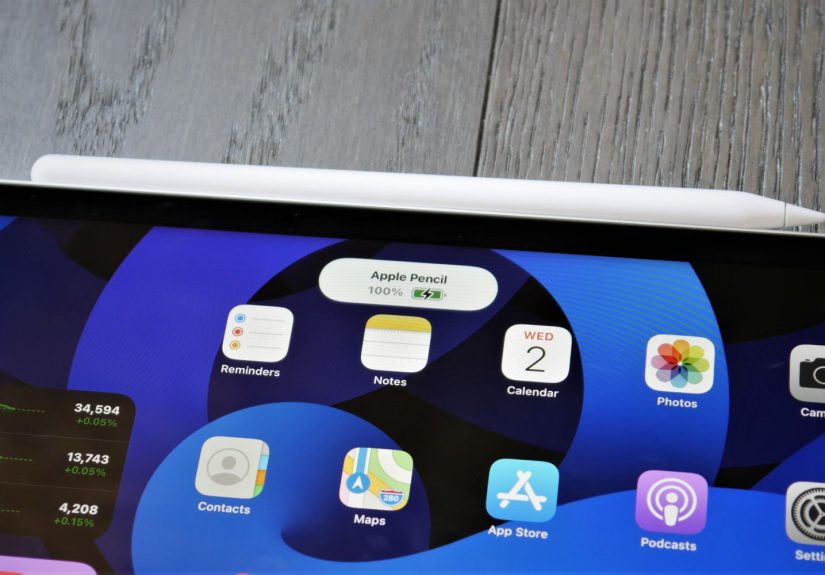
If you have a magnetic model, such as Apple Pencil Pro or Apple Pencil 2, attaching it to the side of the iPad usually triggers a quick battery pop-up on the screen. It is handy, fast, and disappears almost immediately, like a magician who refuses to do an encore.
How to Check Apple Pencil Battery With the Batteries Widget
For many users, the Batteries widget is the best method because it is easy to access and does not require digging into settings. It can show your iPad battery along with connected accessories, including the Apple Pencil.
How to Add the Batteries Widget on iPad
Start on your Home Screen. Touch and hold an empty area until the apps begin to jiggle. Tap the plus sign to add a widget, then search for Batteries. Choose the widget style you want and place it on the Home Screen. Once it is added, your iPad can show the Apple Pencil battery percentage whenever the Pencil is connected and recognized.
This is especially useful if you use the Apple Pencil daily. Instead of checking manually every time, you can glance at the widget and know whether your stylus is ready for note-taking, sketching, marking up screenshots, or whatever productive chaos your day requires.
When the Widget Works Best
The widget is perfect if you want ongoing visibility. It is also great for Apple Pencil 1 and Apple Pencil USB-C users, since those models do not give you the same quick magnetic battery pop-up that Pro and second-generation models do.
If the Apple Pencil battery does not show up in the widget, do not panic. Usually that means the Pencil is not currently connected, not paired, out of battery, or Bluetooth is turned off.
How to Check Apple Pencil Battery in Settings
If widgets are not your style, Apple gives you another built-in option. Open the Settings app on your iPad and tap Apple Pencil. You should see the battery status there when the Pencil is connected.
This method is simple, clean, and useful if you already visit Settings to adjust Apple Pencil preferences such as squeeze, double tap, handwriting options, or accessory behavior. It is not as fast as a Home Screen widget, but it gets the job done without extra setup.
Best Use Case for the Settings Method
The Settings route is helpful when you are troubleshooting. If the widget is not showing your Pencil battery, checking the Apple Pencil section in Settings can confirm whether the Pencil is connected properly. It can also reassure you that your iPad still recognizes the accessory and has not decided to act mysterious for no reason.
How to Check the Battery on Apple Pencil Pro
Apple Pencil Pro works with supported newer iPads and charges magnetically. To check its battery, you can use the Batteries widget, open Settings > Apple Pencil, or attach it to the magnetic side of your compatible iPad for a quick on-screen battery indicator.
This is arguably the easiest Apple Pencil model to live with because the magnetic attachment makes charging and battery checks feel almost effortless. If you store it on the side of your iPad regularly, you will probably spend less time wondering about battery life and more time actually using the thing.
How to Check the Battery on Apple Pencil 2
Apple Pencil 2 also supports the quick magnetic check. Snap it onto the side of the compatible iPad, and a battery notification usually appears near the top of the display. You can also use the Batteries widget or look in Settings > Apple Pencil.
If you are someone who uses the Apple Pencil for class notes, illustration, or document review, the magnetic attachment is convenient because it pairs, stores, and charges in the same place. Translation: fewer cables, less clutter, and fewer moments of, “Wait, where did I put that tiny expensive stick?”
How to Check the Battery on Apple Pencil USB-C
The Apple Pencil USB-C is a little different. It can magnetically attach to the side of some iPads for storage, but it charges through a USB-C cable, not through the magnetic side. To check its battery, use the Batteries widget or go to Settings > Apple Pencil.
If you are switching from Apple Pencil 2 or Pro, this difference matters. A lot. Some users assume that attaching it to the iPad means it is charging. It is not. It is just hanging out there, looking useful. For actual power, you need the cable.
Quick Tip for Apple Pencil USB-C Users
If the battery seems low and the Pencil is not responding, connect it with the USB-C cable first, then check the widget or Settings again. Sometimes the problem is not a missing battery display. It is just a very empty battery.
How to Check the Battery on Apple Pencil 1
Apple Pencil 1 does not charge magnetically. Depending on your iPad model, it charges through a Lightning connection or with an adapter. To check the battery, the easiest methods are the Batteries widget and Settings > Apple Pencil.
This model still works well for many people, but it definitely belongs to the era of adapters, dongles, and slightly more patience. If you use it with an iPad 10th generation or certain newer compatible setups, make sure you have the right adapter arrangement. Otherwise, checking the battery becomes a little academic because charging it becomes the real challenge.
What If the Apple Pencil Battery Percentage Is Not Showing?
If your Apple Pencil battery is not showing up, there are several likely reasons. The good news is that most of them are easy to fix.
Make Sure Bluetooth Is On
The Apple Pencil depends on Bluetooth to communicate with the iPad. If Bluetooth is off, the iPad may not see the Pencil properly, and the battery percentage may vanish.
Confirm the Pencil Is Paired
If the Pencil is unpaired, recently reset, or connected to a different iPad, the battery may not appear. Reconnect it using the proper method for your model.
Charge It for a Few Minutes
If the battery is extremely low, the iPad may need a moment to recognize it. Attach or plug it in, wait a few minutes, then check again.
Re-Add the Batteries Widget
Sometimes the widget itself is the problem. Remove it and add it back. This often clears up weird display issues without requiring more dramatic measures.
Restart the iPad
Yes, the old “turn it off and on again” move still works surprisingly often. If your Apple Pencil battery widget disappears or the percentage stops updating, a restart can refresh the connection.
Check Compatibility
Not every Apple Pencil works with every iPad. If the Pencil and iPad are not a supported match, battery checks, pairing, and charging can all fail. Before blaming the battery, make sure the hardware combination makes sense.
Apple Pencil Compatibility Matters More Than People Think
One of the biggest reasons users get confused about Apple Pencil battery checks is compatibility. Apple now has multiple Apple Pencil models, and they do not all work with the same iPads. That means the charging method, battery behavior, and setup steps can change depending on which Pencil you own.
In plain English, there is no one-size-fits-all answer. The correct method depends on whether you have Apple Pencil Pro, Apple Pencil USB-C, Apple Pencil 2, or Apple Pencil 1. If you bought an iPad and Apple Pencil separately, it is worth double-checking that they are a valid pair before you spend an afternoon fighting a problem that is really a mismatch.
How to Keep Apple Pencil Battery Problems to a Minimum
Checking the Apple Pencil battery is useful. Avoiding battery drama in the first place is even better. Here are a few smart habits that help:
Store Magnetic Models on the iPad
If you have Apple Pencil Pro or Apple Pencil 2, keeping it attached to the side of the iPad makes life easier. It stays with the device, remains ready to charge, and is harder to lose in the couch cushions.
Use the Batteries Widget Daily
If your workflow depends on the Apple Pencil, keep the widget somewhere visible. It is the digital equivalent of checking whether your pen has ink before an exam.
Do Not Ignore Sudden Drops
If the battery percentage seems to plunge unexpectedly, test again after reconnecting or restarting. Sometimes the reading updates oddly. Sometimes the battery really is draining fast. Either way, it is worth noticing early.
Charge Before Important Tasks
Presentations, exams, client reviews, long note-taking sessions, and travel days are not ideal times to gamble on 14 percent. Give it a quick top-up before you start.
Real-World Examples of Checking Apple Pencil Battery
Imagine a student opening Notes right before class begins. The professor starts writing formulas like they are speed-running the universe, and the Apple Pencil dies after the first line. A two-second battery check beforehand could have prevented a lot of stress and some very ugly finger scribbling.
Or picture a designer reviewing a PDF with a client. The Apple Pencil works beautifully for annotations until it abruptly stops responding. Nothing says “professional confidence” quite like muttering, “Hang on, my stylus has feelings.” Again, a quick glance at the Batteries widget would have saved the moment.
For casual users, the same principle applies. Maybe you only use the Pencil for crossword puzzles, quick sketches, journaling, or editing screenshots. Even then, checking the battery before you begin can spare you from an avoidable interruption.
Common Questions About Apple Pencil Battery Checks
Can I Check Apple Pencil Battery Without a Widget?
Yes. Open Settings > Apple Pencil. On magnetic models, you can also attach the Pencil and look for the quick battery pop-up.
Why Does the Battery Pop-Up Disappear So Fast?
Because Apple apparently believes in efficiency and suspense. The pop-up is meant to be a quick status confirmation, not a permanent dashboard. If you want a lasting view, use the Batteries widget.
Does the Apple Pencil Show Battery All the Time?
Not by default. The battery appears when the Pencil is connected and recognized. The easiest ongoing display is the Batteries widget.
Can I Check Battery While the Pencil Is Charging?
Yes. In most cases, the Batteries widget or the Apple Pencil section in Settings will update while the Pencil is connected and charging.
Experiences Related to Checking the Apple Pencil Battery
In everyday use, checking the Apple Pencil battery becomes less of a technical trick and more of a routine habit. People who use the Pencil once in a while may not think about it until the stylus stops working. But people who use it often begin to treat the battery check the same way they treat checking Wi-Fi before a Zoom call or making sure their laptop charger is in the bag. It is small, simple, and incredibly helpful.
For students, the experience is often tied to timing. The Apple Pencil feels most important when class is already moving fast. During lectures, there is no great moment to pause and troubleshoot a dead stylus. That is why experienced iPad note-takers usually develop a pre-class ritual. Open the note, glance at the Batteries widget, make sure the Pencil is alive, and only then settle in. It sounds boring, but boring is wonderful when it prevents panic.
Artists and illustrators experience battery checks a little differently. Their concern is not only whether the Pencil works, but whether it stays responsive during long sessions. There is nothing especially fun about getting into a drawing groove, building momentum, and then having the Pencil tap out before the sketch does. Many artists end up appreciating magnetic charging models more because attaching the Pencil to the iPad becomes part of the workflow. They finish a session, snap it back on, and move on. It feels almost automatic.
Professionals who use the Apple Pencil for markup, reviews, and document editing often care more about predictability than anything else. In work settings, the Pencil is not just a creative tool. It is a productivity tool. Whether they are signing forms, circling changes on a floor plan, or annotating a draft, they want to know the accessory is ready before a meeting starts. The battery check becomes a confidence check. A quick glance says, “Yes, this will work,” and that peace of mind is worth a lot.
There is also a surprisingly common travel experience with the Apple Pencil. People toss the iPad into a bag, assume everything is fine, and then discover later that the Pencil was not actually charging, was not attached correctly, or was paired but nearly empty. This happens a lot with users who switch between different Pencil models or multiple iPads. Battery checks become especially useful on travel days because a two-second look can spare you from hunting for a cable in an airport lounge like it is buried treasure.
Even casual users notice the difference once they get used to checking the battery properly. It changes the Apple Pencil from a device that is “sometimes randomly unavailable” into one that feels dependable. That is really the heart of the whole topic. Checking the Apple Pencil battery is not about obsessing over percentages. It is about making the accessory feel ready when you need it. And when your expensive digital pencil behaves like a dependable tool instead of a moody roommate, your entire iPad experience gets better.
Conclusion
If you want the easiest way to check the Apple Pencil battery, use the Batteries widget on your iPad. It is fast, practical, and always within reach. If you prefer a built-in menu, go to Settings > Apple Pencil. And if you have Apple Pencil Pro or Apple Pencil 2, attaching it magnetically can give you a quick battery pop-up on screen.
The most important thing is knowing which Apple Pencil model you have, because the charging and battery-checking behavior changes from one version to another. Once you match the right method to the right model, the process is simple. No guesswork, no frantic tapping, and no mid-project battery betrayal.