Table of Contents >> Show >> Hide
- Why Blocking Senders in Gmail Matters
- Method 1: Block a Sender Directly in Gmail
- Method 2: Create a Gmail Filter to Auto-Delete, Archive, or Label Messages
- Method 3: Unsubscribe or Report Spam Instead of Blocking
- Common Mistakes to Avoid When Blocking Senders in Gmail
- Quick Examples of the Best Gmail Blocking Strategy
- Frequently Asked Questions
- Experience: What Blocking Senders in Gmail Feels Like in Real Life
- Conclusion
If your Gmail inbox has started acting like a street market where everyone is shouting for your attention, you are not alone. One store wants you back, one newsletter thinks you miss it, and one mystery sender keeps promising “important account updates” that look about as trustworthy as a raccoon in a trench coat. The good news is that Gmail gives you several ways to block senders, control unwanted email, and get your inbox back to something that resembles peace.
In this guide, you will learn three practical ways to block senders in Gmail, plus when to use each option. That matters because Gmail’s tools are not all the same. A direct block is quick. A filter is more powerful. And in some cases, unsubscribe or report spam is the smarter move. By the end, you will know exactly how to block annoying emails in Gmail without accidentally burying messages you still need.
Why Blocking Senders in Gmail Matters
Most people start looking for how to block emails in Gmail after one of three things happens. First, a legitimate sender becomes an annoying sender. Maybe it is a retailer, a marketer, or a club you joined once in 2021 and forgot before your coffee got cold. Second, a real person keeps sending messages you do not want to see. Third, the email is suspicious, spammy, or clearly phishing.
Here is the important distinction: not every unwanted message should be handled the same way. If you simply do not want to hear from a person again, a direct Gmail block is usually enough. If a business keeps emailing you from several addresses at the same company, a Gmail filter may work better. If the email looks deceptive or dangerous, reporting spam or phishing can be the better choice.
Think of Gmail like a bouncer with three personalities. One says, “You can come in, but straight to the junk room.” Another says, “Nope, you are going directly to the trash.” The third says, “Security, please take a look at this.” Choosing the right one makes your inbox cleaner and your email habits smarter.
Method 1: Block a Sender Directly in Gmail
This is the fastest way to block someone in Gmail. It works best when a specific email address keeps sending you messages and you want future messages from that sender pushed out of your main life immediately.
How direct blocking works
When you use Gmail’s built-in Block option, future emails from that sender are routed to your Spam folder. That means you generally stop seeing them in your inbox, but Gmail is not building a concrete wall around your account. It is more like moving that sender behind a digital velvet rope.
This is an easy option when the problem is one person, one address, one headache.
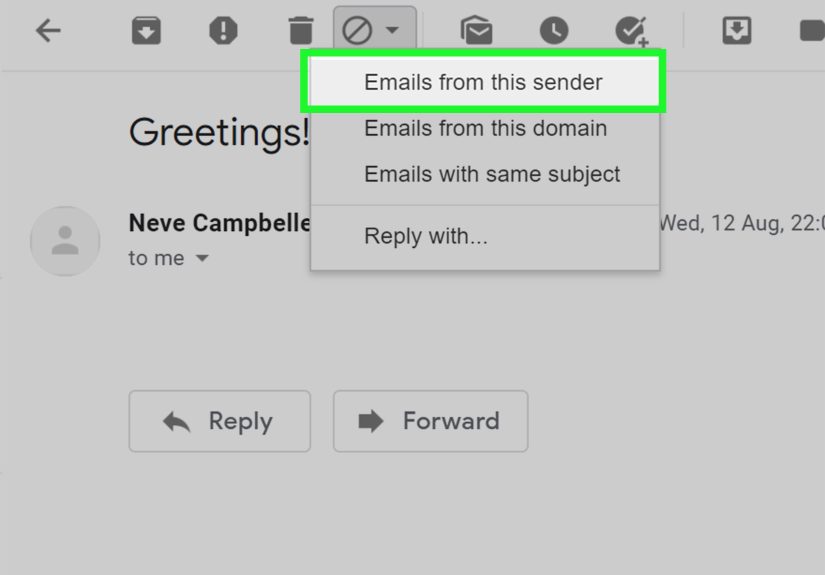
How to block a sender on desktop
- Open Gmail in your browser.
- Open a message from the sender you want to block.
- Click the three-dot menu near the reply area.
- Select Block [Sender Name].
- Confirm the action.
That is it. Gmail will send future emails from that address to Spam. If your inbox has been getting peppered with messages from a single sender, this method is the quickest fix.
How to block a sender in the Gmail app
You can also block someone in the Gmail mobile app on iPhone, iPad, or Android. Open the email, tap the menu next to the reply controls, and choose the block option. The layout looks a little different on mobile, but the result is the same: future messages from that sender are pushed to Spam.
When this method works best
- One person keeps emailing you and you are done.
- A single newsletter address keeps slipping through.
- You want a fast fix without building rules or filters.
What direct blocking does not do
This is where many users get tripped up. Blocking a sender in Gmail does not unsubscribe you from a mailing list. So if a store or newsletter keeps sending campaigns from multiple addresses, blocking one email address may feel like swatting one mosquito in a swamp. Helpful, yes. Final victory, no.
Also, already received messages are not always magically cleaned up for you. You may still need to delete or archive older messages yourself.
Method 2: Create a Gmail Filter to Auto-Delete, Archive, or Label Messages
If direct blocking is the quick fix, Gmail filters are the power tool. This is the method to use when you want more control over what happens to messages from a sender, a group of senders, or even an entire domain.
Filters are especially useful if you are dealing with things like:
- promotional emails from multiple addresses at the same company
- repeated messages from the same domain
- emails you do not want in your inbox, but might want to review later
- messages you want to delete automatically
Why filters are often better than blocking
Gmail’s block feature sends future mail to Spam. A filter lets you be far more specific. You can tell Gmail to:
- Delete it
- Skip the Inbox (Archive it)
- Apply a label
- Mark as read
- Send to a category or organize for later review
In other words, a filter is not just “block this sender.” It is “when this sender shows up, here is exactly what I want you to do.” That is why power users love Gmail rules and filters.
How to create a filter from a sender
- Open Gmail on a computer.
- Open a message from the sender you want to control.
- Click the three-dot menu.
- Choose Filter messages like these.
- Gmail will fill in the sender details automatically.
- Click Create filter.
- Choose the action you want, such as Delete it or Skip the Inbox.
- Click Create filter again to save it.
If your goal is to make messages disappear from your daily view, choosing Delete it is usually the strongest move. If you are not ready to go full email guillotine, archiving is a gentler option.
How to block an entire domain in Gmail
This is the secret weapon for dealing with companies, repetitive campaigns, or waves of messages from variations of the same sender. Instead of filtering one address, you can filter the domain. For example, if several unwanted emails come from @example.com, you can create a filter using that domain in the From field.
This is often much more effective than direct blocking because marketers and bulk senders may rotate individual email addresses while keeping the same domain. If you only block one address, two more can appear like backup dancers you never auditioned.
How to manage existing filters
If you ever need to edit or remove a filter, open Gmail settings, go to See all settings, then open Filters and Blocked Addresses. There you can review filters, edit them, delete them, or update them when your email life changes.
This matters because sometimes a filter you created in a moment of inbox rage ends up catching messages you actually wanted. We have all had moments where “delete everything from this brand” felt wise until the shipping confirmation vanished into the abyss.
Best use cases for filters
- blocking a company instead of one sender
- automatically deleting spam-like promotions
- archiving messages from newsletters you may want later
- labeling certain mail while keeping it out of the inbox
Method 3: Unsubscribe or Report Spam Instead of Blocking
Sometimes the best way to “block” a sender in Gmail is not technically the block button at all. This is especially true for mailing lists, promo emails, spam, and phishing attempts.
Use unsubscribe for legitimate marketing emails
If the sender is a legitimate business and you simply no longer want its emails, unsubscribe is often the cleanest option. Gmail may show an unsubscribe link near the top of the message for eligible mailing lists, which saves you from digging through microscopic footer text that looks like it was printed for ants.
Unsubscribing tells the sender to stop mailing you. That is different from blocking, which mainly changes how Gmail handles future messages from that sender. If you are dealing with a real newsletter, unsubscribe is usually more sustainable than blocking one address at a time.
Report spam for junk and garbage mail
If the email is obvious junk, use Report spam. This moves the message to Spam and helps Gmail improve spam protection. It is a better move than merely deleting the email, because it teaches Gmail something useful.
Spam is annoying. Reporting it gives your annoyance a purpose.
Report phishing for dangerous messages
If the message pretends to be from your bank, a major brand, Google, or another trusted source and asks you to click a suspicious link, verify account details, or hand over personal information, report phishing instead. That tells Gmail the email is not just unwanted. It may be harmful.
In short:
- Block for a person or sender you do not want to hear from
- Filter for advanced control, auto-delete, or domain-wide handling
- Unsubscribe for legitimate mailing lists
- Report spam or phishing for suspicious or deceptive email
Common Mistakes to Avoid When Blocking Senders in Gmail
Blocking one address when the whole domain is the issue
If emails keep coming from [email protected], [email protected], and [email protected], blocking just one sender will not solve the real problem. Create a filter for the domain instead.
Using block when unsubscribe is the cleaner choice
If a company is sending legal marketing emails, unsubscribe is usually more effective. Blocking may hide some messages, but it does not remove you from the list.
Forgetting about filters later
Filters are powerful, and power occasionally comes with chaos. Review your Filters and Blocked Addresses section once in a while so you do not accidentally bury useful mail.
Ignoring spoofed email addresses
Some spam messages come from addresses that look almost like a trusted sender but are slightly off. In that case, do not just block and move on. Treat it as possible phishing and report it.
Quick Examples of the Best Gmail Blocking Strategy
Example 1: An ex-coworker keeps sending personal chain emails
Use the direct Block feature. Fast, simple, effective.
Example 2: A retailer sends endless offers from multiple addresses
Start with Unsubscribe. If the messages keep coming from the same domain, create a filter to delete or archive them.
Example 3: You get fake security alerts pretending to be from your bank
Use Report phishing. Do not click links. Do not reply. Do not hand your personal information to the internet’s least talented villain.
Frequently Asked Questions
Can blocked senders still email me in Gmail?
Yes, but their future messages are typically routed to Spam instead of your inbox.
Can I block someone in Gmail without opening their email?
Usually, the quickest built-in block option appears when you open the message. If you do not want to open it fully, using filters or reporting spam may be better depending on the situation.
Can I unblock someone later?
Yes. Go to Gmail settings and open Filters and Blocked Addresses to review blocked senders and remove them if needed.
Does Gmail notify the sender that I blocked them?
No. Gmail does not send them a dramatic breakup speech. They are not officially notified.
Experience: What Blocking Senders in Gmail Feels Like in Real Life
In real-world inbox management, blocking senders in Gmail is less about one big cleanup and more about building better habits. At first, most people use the block option like a panic button. One annoying message arrives, patience evaporates, and boom, block. That works for some situations, especially when one specific sender is the problem. It is satisfying in the same way that finally swatting a fly is satisfying.
But after a while, you start to notice patterns. The truly annoying email is rarely just one sender. It is often a category of sender. A store you bought socks from once. A webinar you attended because someone promised “actionable insights,” which turned out to be 47 slides and one vague pie chart. A cluster of promo emails from slightly different addresses, all from the same brand, all convinced you are one coupon away from becoming their biggest fan.
That is when Gmail filters become the grown-up solution. Instead of reacting one email at a time, you start thinking in systems. You create a filter for a domain. You archive newsletters you may want someday but definitely not at 8:14 a.m. on a Tuesday. You label messages that matter and quietly route the rest out of your main inbox. Suddenly Gmail feels less like a battlefield and more like a house with closets.
There is also a learning curve. Nearly everyone makes one overly aggressive filter at some point. It feels brilliant in the moment. “Delete anything from this company forever.” Then, three days later, you need a receipt, a shipping notice, or a password reset from that same company. Congratulations: you have outsmarted yourself. The best Gmail experience usually comes from combining methods instead of relying on one blunt tool.
Another real-life lesson is that unsubscribe is underrated. People often skip it because it feels slower than blocking. But for legitimate mailing lists, unsubscribe is cleaner. It addresses the source of the problem instead of just moving messages around on your end. When it works, it feels like turning off a faucet instead of mopping the floor every morning.
The spam and phishing side of things teaches a different lesson: not every ugly email is harmless clutter. Some messages are annoying. Some are malicious. Once users understand that difference, they make smarter choices. Blocking is for control. Reporting spam is for junk. Reporting phishing is for danger. That mental model alone can make email feel much easier to manage.
Over time, the best Gmail setup is usually simple. Block the occasional individual sender. Use filters for repeat offenders and domain-wide clutter. Unsubscribe from legitimate lists you no longer want. Report suspicious mail instead of just deleting it. Those four habits can transform an inbox from stressful to manageable.
And perhaps the most comforting truth is this: no one has a perfectly clean inbox forever. Email clutter is like laundry or weeds. It comes back. The win is not permanent perfection. The win is knowing exactly which Gmail tool to use when the nonsense returns.
Conclusion
If you want to block senders in Gmail, the best method depends on the problem in front of you. Use Gmail’s built-in Block feature when one person or one address is the issue. Use filters when you need more power, especially for domains, auto-delete rules, or inbox organization. Use unsubscribe, Report spam, or Report phishing when the message is not just unwanted, but part of a bigger pattern.
Once you understand the difference, Gmail becomes much easier to manage. And that means fewer interruptions, less inbox clutter, and a better chance of finding the messages you actually care about before lunch.