Table of Contents >> Show >> Hide
- Why Use Google Docs for a Calendar?
- Method 1: Create a Calendar in Google Docs From Scratch
- Method 2: Use a Google Docs Calendar Template
- Method 3: Use Google Docs Calendar Event Drafts
- Google Docs vs. Google Sheets vs. Google Calendar
- Best Tips for Making Your Google Docs Calendar Look Better
- Common Mistakes to Avoid
- A Simple Example: Creating a Content Calendar in Google Docs
- Real-World Experiences and Lessons From Making Calendars in Google Docs
- Final Thoughts
- SEO Tags
If you have ever opened Google Docs and thought, “Surely there must be a magical calendar button hiding in here somewhere,” I have news: there is no giant red button labeled Make Me Organized. But the good news is that creating a calendar in Google Docs is still very doable, and once you know the tricks, it is surprisingly easy.
Google Docs works best for simple, clean, printable calendars that you can customize for school, work, content planning, meal prep, family schedules, or that noble fantasy known as “getting your life together on Monday.” You can build a calendar from scratch with a table, start from a template, or use Google Docs’ calendar event draft feature if your goal is scheduling meetings rather than making a classic month-at-a-glance layout.
In this guide, you will learn exactly how to create a calendar in Google Docs, which method makes the most sense, how to format it so it does not look like a spreadsheet that lost a fight, and how to make your calendar actually useful in real life.
Why Use Google Docs for a Calendar?
Before diving into the steps, let’s answer the obvious question: why use Google Docs at all when Google Calendar already exists? Because the two tools are built for different jobs.
Google Docs is ideal when you want a calendar that is easy to print, easy to share in a document, and easy to customize with notes, headings, branding, lesson plans, editorial notes, or project details. It is especially handy if you want your calendar to live inside a larger document, such as a classroom packet, a team planning guide, or a household binder.
Google Calendar, on the other hand, is better for reminders, recurring events, invitations, and notifications. Google Sheets sits in the middle, great for people who want formulas, automation, and more powerful layouts. So if your goal is a visual planning page that looks polished and flexible, Google Docs is a solid choice.
Method 1: Create a Calendar in Google Docs From Scratch
This is the most hands-on method, but it also gives you the most control. If you want a monthly calendar that looks the way you want, building it with a table is usually the best route.
Step 1: Open a Blank Google Doc
Start with a new blank document in Google Docs. Give it a clear name, such as March 2026 Calendar or Content Calendar Template. Naming it early sounds boring, but future you will be grateful when your Google Drive is not packed with nineteen files called “Untitled document.”
Step 2: Set Up the Page for Calendar Layout
Before inserting your calendar, think about how you will use it. If you plan to print it, a landscape layout usually works better for a monthly grid because it gives you more room across the page. If you want a wide digital planner, a pageless document can also be useful.
In general, a monthly calendar works best when you:
- Switch the page to landscape if you want more horizontal space.
- Use reasonable margins so the table does not feel cramped.
- Choose Pages format if you plan to print.
- Choose Pageless if you want a more flexible on-screen layout.
This one setup choice makes a huge difference. A calendar squeezed into portrait mode often looks like it is apologizing for existing.
Step 3: Insert a Table
Now the real construction begins. Go to the table menu and insert a grid for your month. A standard monthly calendar usually needs 7 columns for the days of the week and 6 rows for the dates. If you also want a weekday header row, you will need one extra row, making it 7 columns by 7 rows.
That gives you enough room for months that stretch across six weeks on the calendar, which happens more often than people expect. If you use too few rows, your beautiful plan falls apart around day 29, and nobody needs that kind of drama.
Step 4: Add the Month Title
At the top of the page, type the month and year in a large bold heading, such as April 2026. If you want a cleaner design, you can also insert an extra row at the top of the table and merge all seven cells to create a centered month title area.
This gives your calendar a more polished look and helps separate it from the rest of the document. You can also add a subtitle under the month, such as Editorial Deadlines, Study Schedule, or Family Planner.
Step 5: Add the Days of the Week
In the first row of the table, type the days of the week: Sunday, Monday, Tuesday, Wednesday, Thursday, Friday, Saturday. Some people prefer Monday-first calendars, especially for work planning. That is completely fine. Just stay consistent so your dates line up correctly.
Bold the weekday names and center them. This makes the layout easier to scan and keeps the calendar from looking like a random table full of suspicious numbers.
Step 6: Fill in the Dates
Next, determine which day of the week the first day of the month falls on. Put the number 1 in the correct cell, then continue across the row and down the table until the month is complete.
For example, if the first day of the month falls on a Thursday, leave Sunday through Wednesday blank and start with 1 under Thursday. Continue filling in the numbers until you reach the last day of the month.
Leave extra space beneath each date if you want to add tasks, appointments, or reminders inside the cells. That blank room is not wasted space. It is planning real estate.
Step 7: Format the Table
This is where your calendar stops being “technically functional” and starts being actually nice to use. Adjust the row height and column width so each day box has enough room. In Google Docs, you can also change cell padding, vertical alignment, table alignment, border thickness, and background color.
Some useful formatting ideas include:
- Use light shading for the weekday header row.
- Center the date numbers or place them in the top corner of each cell.
- Use bold for important deadlines.
- Add color to weekends or holidays.
- Keep borders subtle so the page stays clean.
If your table stretches across multiple pages, header rows can help maintain readability. If your calendar is meant to be printable, this kind of cleanup matters more than people think.
Step 8: Add Notes, Events, and Categories
Once the structure is done, start using the calendar. Add birthdays, school assignments, content deadlines, meetings, workout plans, social media posts, or bill reminders. You can keep it simple with plain text, or add symbols and short labels such as Launch, Exam, Travel, or Payday.
If you are making a work calendar, color-coding categories can help. For example, use one style for meetings, another for deadlines, and another for publishing dates. Just do not go so wild with color that your document starts looking like a pack of melted highlighters.
Method 2: Use a Google Docs Calendar Template
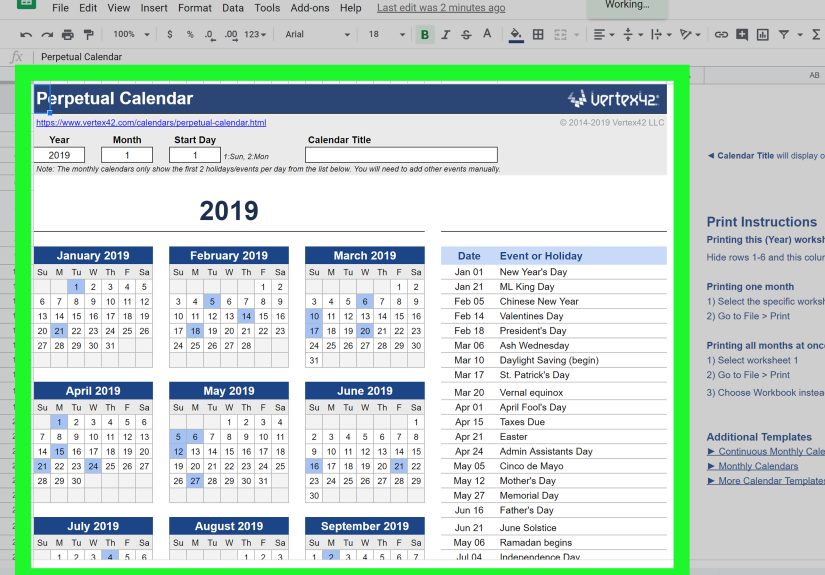
If building a calendar from scratch sounds like a lovely way to lose 45 minutes, templates are your friend. Many users assume Google Docs has a built-in monthly calendar template, but in practice, most people either use a third-party Google Docs template or create their own master template and reuse it every month.
This method is great when you want speed, consistency, and fewer formatting headaches.
How to Use a Calendar Template
- Open a template you like in Google Docs format.
- Make a copy so you can edit it safely.
- Replace the month, year, and dates.
- Customize colors, text, and headings to fit your needs.
- Save the finished version or duplicate it for the next month.
Templates are especially useful for teachers, marketing teams, students, and small business owners who need the same structure over and over again. You can create a monthly planning template once, save it in Drive, and duplicate it whenever needed. That is the productivity equivalent of meal prepping, but for your schedule.
Method 3: Use Google Docs Calendar Event Drafts
There is also a newer option worth knowing about: the calendar event draft building block in Google Docs. This is not the same thing as a full monthly grid calendar, but it is extremely useful if your goal is to draft an event inside a document and then turn it into a Google Calendar entry.
This works well for meeting agendas, collaborative planning, team events, and project kickoffs.
How to Create a Calendar Event Draft in Docs
- Open your Google Doc.
- Insert a calendar event draft from the building blocks menu, or type @calendar event draft.
- Add the event title, guests, date, time, location, and description.
- Review the details with your team inside the document.
- Turn it into an actual Google Calendar event when ready.
This is a smart option when you do not need a printable month view but do need a collaborative scheduling workflow. In other words, it is for “let’s plan this meeting properly,” not “I want a wall calendar for June.”
Google Docs vs. Google Sheets vs. Google Calendar
If you are wondering which Google tool is best for calendars, here is the practical answer.
Use Google Docs when you want a simple visual calendar inside a document, especially for printing, sharing, or combining with notes and written content.
Use Google Sheets when you want calculations, automatic date handling, reusable calendar templates, and more flexibility with larger planning systems.
Use Google Calendar when you need reminders, recurring events, invitations, notifications, and real-time scheduling.
A lot of people actually use all three. They draft the plan in Docs, track detailed workflows in Sheets, and schedule real appointments in Google Calendar. That may sound like overkill, but it is also how many organized teams keep chaos on a leash.
Best Tips for Making Your Google Docs Calendar Look Better
A functional calendar is good. A readable calendar is better. A readable calendar that does not make your coworkers squint is best.
- Use one month per page for cleaner printing.
- Choose landscape orientation for monthly grids.
- Keep fonts simple and readable.
- Use subtle borders instead of heavy black lines everywhere.
- Leave enough white space in each day box.
- Create one master template and duplicate it monthly.
- Do a print preview before sharing or printing.
That last tip is sneaky but important. A calendar that looks gorgeous on screen can suddenly behave like a gremlin when printed.
Common Mistakes to Avoid
The most common mistake is trying to force Google Docs to behave like advanced calendar software. Docs is flexible, but it is still a document editor. If you need automatic reminders, repeating events, or live syncing, use Google Calendar. If you need formulas and dynamic date systems, use Google Sheets.
Other common mistakes include using a table that is too small, forgetting to check the starting weekday, overcrowding each cell with too much text, and skipping formatting until the end. That last one usually leads to a calendar that works, technically, but has the visual charm of a tax form.
A Simple Example: Creating a Content Calendar in Google Docs
Let’s say you run a blog, YouTube channel, or small business. A Google Docs calendar can become a simple editorial planner. You might label each day with tasks like Draft article, Film reel, Publish newsletter, or Review analytics.
You can also add a short key below the calendar, such as:
P = Publish
D = Draft
E = Edit
M = Meeting
This keeps your calendar clean while still making it useful. The same idea works for study schedules, chore charts, classroom planning, fitness programs, and family routines.
Real-World Experiences and Lessons From Making Calendars in Google Docs
One of the most common experiences people have when learning how to create a calendar in Google Docs is realizing that the first draft usually looks a little rough. Not terrible. Not unusable. Just a little like it was assembled during a power outage. That is normal. The trick is understanding that Google Docs calendars improve fast once you know which small adjustments matter.
A lot of beginners start in portrait mode because that is the default, then wonder why every day box looks too narrow for actual planning. The moment they switch to landscape, the whole thing suddenly makes sense. It feels less cramped, more readable, and much easier to print. That single change often makes the difference between “I made a calendar” and “I made something I would actually use.”
Another common experience is discovering that templates save time, but personal templates save even more time. People often begin by downloading or copying a ready-made calendar, which is great for getting started. But after using a few different layouts, they usually realize they prefer one style over the others. Maybe they want larger weekend boxes. Maybe they want Monday to appear first. Maybe they need a section for goals, meals, assignments, or social media campaigns. Once they build a version that fits their routine, they stop hunting for new templates and start reusing their own. That is when the process becomes efficient.
There is also the experience of learning what Google Docs is good at and what it is not. For example, Docs is wonderful for visual planning, collaboration, and printable calendars that include notes. It is not wonderful for advanced automation. If someone tries to turn Docs into a live scheduling machine with recurring reminders and dynamic date logic, frustration arrives quickly. The better experience comes from using Docs for layout and presentation, then using Google Calendar or Google Sheets for the heavy lifting when needed.
Many users also find that calendars in Google Docs work especially well for collaborative environments. Teachers can share monthly class plans. Families can outline chores and events in one document. Marketing teams can create simple editorial calendars that sit next to campaign notes. Students can combine reading schedules, assignment deadlines, and project reminders in one neat file. In those situations, the biggest win is not automation. It is clarity. Everyone can see the same plan without needing special software or advanced setup.
Printing brings another lesson. A calendar can look perfect on screen and then come out misaligned, too small, or oddly spaced on paper. People who use Docs regularly learn to preview before printing, reduce visual clutter, and leave breathing room inside each cell. They also learn not to cram every box with a novel’s worth of text. A calendar is supposed to help you see your month at a glance, not challenge you to decode tiny paragraphs.
One more experience stands out: the satisfaction of building a tool that actually matches your life. Some people need a minimal calendar with only dates. Others want a planner with project labels, goals, notes, and reminders. Google Docs lets you shape that experience without much technical skill. Once you stop expecting it to be a fully automated app and start treating it like a flexible planning canvas, it becomes much more useful. That is really the secret. The best Google Docs calendar is not the fanciest one. It is the one you will keep using after the excitement of organizing your life wears off sometime around Wednesday.
Final Thoughts
If you want a clean, customizable, and easy-to-share calendar, Google Docs is a practical tool. You can create a monthly calendar from scratch with a table, use a reusable template for speed, or draft calendar events directly inside Docs if your focus is scheduling rather than layout.
The best method depends on how you plan. If you want something printable and visually simple, build it in Docs. If you want formulas and automation, move to Sheets. If you want reminders and invitations, use Google Calendar. But for a flexible planning document that you can personalize in minutes, Google Docs holds up remarkably well.
And once you build your first good one, save it as a template. Organization is hard enough. There is no reason to reinvent January every year.