Table of Contents >> Show >> Hide
- What Are Sent Friend Requests on Facebook?
- Why You May Want to Track Sent Friend Requests
- How to Track Friend Requests You’ve Sent on Facebook: 10 Steps
- Step 1: Open Facebook and Log In
- Step 2: Go to the Menu or Friends Section
- Step 3: Open Friend Requests
- Step 4: Tap the Three-Dot Menu or “View Sent Requests”
- Step 5: Review the Names in Your Sent Requests List
- Step 6: Cancel Requests You No Longer Want Pending
- Step 7: Check a Person’s Profile If You Need More Context
- Step 8: Use Activity Log for a Broader History
- Step 9: Understand Why a Request May Not Appear
- Step 10: Keep Your Friend Requests Intentional
- How to View Sent Friend Requests on Facebook Mobile
- How to View Sent Friend Requests on Facebook Desktop
- What Happens When You Cancel a Sent Friend Request?
- Why Can’t I Send a Friend Request on Facebook?
- Tips for Managing Facebook Friend Requests Safely
- Common Mistakes When Tracking Sent Friend Requests
- Troubleshooting: What If “View Sent Requests” Is Missing?
- Real-Life Experience: What Tracking Sent Facebook Requests Teaches You
- Conclusion
Sending a Facebook friend request is easy. Tracking it afterward? That can feel like checking the back of your junk drawer for one specific paperclip. Maybe you tapped “Add Frieur old classmate ignored you, missed the notification, or simply has not logged in since the era of skinny jeans and farm games. Good news: Facebook does give you a way to view sent friend requests, cancel pending requests, and clean up your social trail without needing detective goggles.
This guide explains how to track friend requests you’ve sent on Facebook using the Facebook mobile app and desktop website. You will also learn what “pending” really means, why a request may disappear, how to cancel one politely, and how to avoid sending requests that make your account look suspicious. Think of it as social housekeeping: less awkward than texting “Did you see my request?” and much more effective.
What Are Sent Friend Requests on Facebook?
A sent friend request is a request you have already sent to another Facebook profile but that person has not accepted yet. Until they respond, the request usually stays in a pending state. If the person accepts, the request becomes a friendship. If they delete it, ignore it, or if you cancel it, it will no longer appear as a pending sent request.
Facebook uses friend requests to help people connect with people they know in real life, such as classmates, relatives, coworkers, neighbors, and community contacts. The platform also gives users privacy controls, so not everyone can receive friend requests from everyone. Some users limit requests to “friends of friends,” while others may not show the Add Friend button at all.
Why You May Want to Track Sent Friend Requests
There are plenty of normal reasons to check your sent friend requests. Maybe you want to cancel old pending requests, make sure you did not accidentally send one to the wrong person, or tidy up your profile activity. Maybe you are networking and want to remember who you contacted. Or maybe your thumb got ambitious while scrolling at midnight, and now you need to do a little cleanup. We have all had a “wait, did I just tap that?” moment.
Tracking sent requests can also help you avoid looking spammy. If you send too many requests to people who do not know you, Facebook may limit your ability to send more. A clean, intentional friend-request list is healthier for your account and less awkward for everyone involved.
How to Track Friend Requests You’ve Sent on Facebook: 10 Steps
The exact buttons may change slightly depending on your device, app version, or region, but the process usually follows the same path: open Friends, go to Friend Requests, choose the menu, and select the option to view sent requests.
Step 1: Open Facebook and Log In
Start by opening the Facebook app on your iPhone or Android phone, or visit Facebook on your desktop browser. Make sure you are logged in to the correct account. This matters if you manage more than one profile or have access to multiple accounts, because friend requests are tied to the account that sent them.
If you are using a shared device, confirm your profile photo and name before continuing. Accidentally checking someone else’s account is not “research”; it is a privacy problem wearing a tiny hat.
Step 2: Go to the Menu or Friends Section
On the Facebook mobile app, tap the Menu icon. On Android, it is often in the upper-right area. On iPhone, it may appear along the bottom navigation bar or in the lower-right corner, depending on the app version. Once you are in the menu, look for Friends.
On desktop, look at the left sidebar and select Friends. If you do not see it immediately, click See more or use Facebook search to find the Friends section.
Step 3: Open Friend Requests
Inside the Friends section, choose Friend Requests. This area usually shows requests other people have sent to you. It may also show People You May Know, suggestions, or related friend-management options.
Do not panic if you only see incoming requests at first. Your sent requests are usually tucked behind another menu, which is very Facebook of Facebook.
Step 4: Tap the Three-Dot Menu or “View Sent Requests”
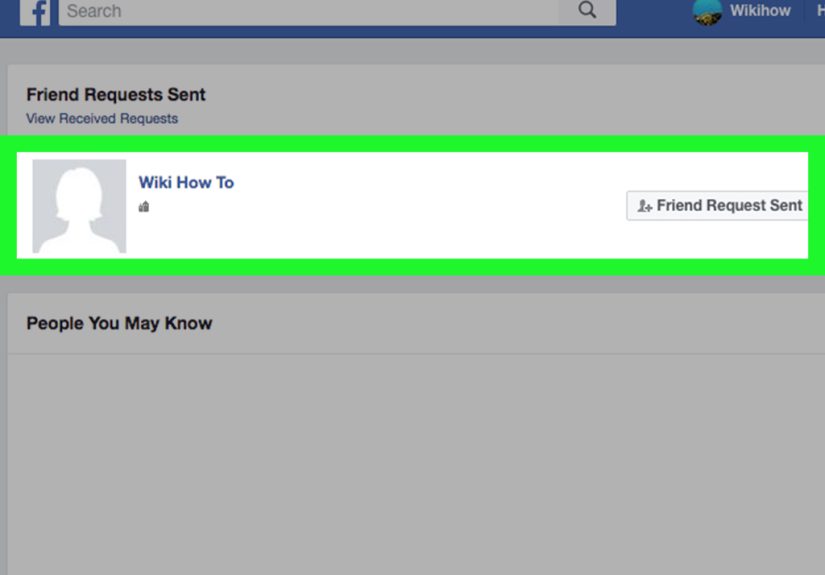
On mobile, look for a three-dot menu, often near the top-right corner of the Friend Requests screen. Tap it, then choose View sent requests. This opens the list of friend requests you have sent that are still pending.
On desktop, you may see View sent requests directly inside the Friend Requests area. Click it to see your outgoing pending requests.
Step 5: Review the Names in Your Sent Requests List
Once the list opens, Facebook shows the people who have not accepted your request yet. This is your main tracking area. If a name appears here, the request is still pending. If the name does not appear, one of several things may have happened: the person accepted it, you canceled it earlier, the person deleted it, the account became unavailable, or Facebook no longer shows the request in that list.
Use this list to spot requests you forgot about. Old requests can sit quietly for a long time, like digital leftovers in the back of the fridge.
Step 6: Cancel Requests You No Longer Want Pending
If you see a request you want to remove, select Cancel or Cancel Request next to that person’s name. Once canceled, the request is withdrawn. The person will not become your friend unless you send a new request later and they accept it.
Canceling a request can be useful if you sent it by accident, no longer know the person well, or want to reduce the number of unanswered requests connected to your account. Facebook does not usually offer a true bulk-cancel option for sent friend requests, so expect to cancel them one by one.
Step 7: Check a Person’s Profile If You Need More Context
If you are not sure whether a request is still pending, you can also visit that person’s profile. If you see Requested, Pending, or Cancel Request, your request is still active. If you see Add Friend, your previous request is no longer pending. If you see no Add Friend button, their privacy settings may limit who can send requests.
This method is helpful when the sent requests page does not show what you expected. Facebook’s interface can vary, so checking the profile directly gives you another clue.
Step 8: Use Activity Log for a Broader History
Your Facebook Activity Log can help you review account activity, including connection-related actions. To find it, go to your profile, open the menu or settings area, and look for Activity Log. From there, explore filters related to connections, friends, or friend requests.
Activity Log is not always as simple as the sent requests list, but it can be useful when you want a broader history of what you have done on Facebook. It may help you remember when you interacted with someone, followed a profile, or made changes connected to friends and connections.
Step 9: Understand Why a Request May Not Appear
A missing sent request does not always mean something dramatic happened. The person may have accepted your request, deleted it, changed privacy settings, deactivated their account, blocked you, or reached Facebook’s friend limit. Facebook personal profiles can have a limited number of friends, and if someone has reached that limit, they may not be able to accept more requests.
Also, if you canceled the request earlier, it will no longer appear as pending. In short: no listing means the request is not currently sitting there waiting for acceptance.
Step 10: Keep Your Friend Requests Intentional
The best way to manage sent friend requests is to send fewer, better ones. Add people you genuinely know, recognize, or have a clear reason to connect with. If you met someone at an event, send a quick message when possible so they know who you are. “Hi, we met at the Denver gardening workshop” works much better than a silent request from a profile photo featuring sunglasses, a dog, and a mysterious mountain.
Being intentional helps you avoid ignored requests and reduces the chance that Facebook sees your activity as spammy. It also makes your friend list more meaningful instead of turning it into a digital attic full of people you cannot place.
How to View Sent Friend Requests on Facebook Mobile
For most users, the Facebook app is the easiest way to find sent requests. Here is the simple mobile version:
- Open the Facebook app.
- Tap Menu.
- Select Friends.
- Tap Friend Requests.
- Tap the three-dot menu.
- Select View sent requests.
- Review the pending requests.
- Tap Cancel beside any request you want to remove.
If your app looks different, update Facebook from the App Store or Google Play Store and try again. You can also search inside the Facebook app for “Friend Requests” or “Activity Log” if the menu has moved.
How to View Sent Friend Requests on Facebook Desktop
Desktop users can usually find sent requests through the Friends section:
- Go to Facebook in your browser.
- Click Friends in the left sidebar.
- Select Friend Requests.
- Click View sent requests.
- Review the list of pending outgoing requests.
- Click Cancel Request if you want to withdraw one.
If the left sidebar is hidden, expand the menu or use Facebook’s search bar. Facebook often rearranges its layout, but the Friends area is still the main hub for managing requests.
What Happens When You Cancel a Sent Friend Request?
When you cancel a sent friend request, Facebook withdraws it. The person will not be added to your friends list, and the request will no longer sit in their pending requests. In many cases, they may not receive a new notification that you canceled it. However, if they had already seen the request, they may remember it.
After canceling, you may be able to send another request later, depending on that person’s settings and Facebook’s limits. But do not cancel and resend repeatedly. That can look annoying to the recipient and suspicious to the platform. Social media rule number one: do not behave like a doorbell that got stuck.
Why Can’t I Send a Friend Request on Facebook?
If you cannot send a friend request, there are several possible reasons. The person may have changed their privacy settings so only friends of friends can add them. You or the other person may have reached the profile friend limit. You may have already sent a request that is still pending. The person may have blocked you, restricted contact, or removed the Add Friend option from public view.
Facebook may also temporarily limit accounts that send too many requests too quickly, especially if those requests are ignored or deleted. If your goal is to build real connections, slow down and send requests only to people who are likely to recognize you.
Tips for Managing Facebook Friend Requests Safely
Send Requests to People You Know
Facebook is built around personal connections, so friend requests work best when the other person can identify you. If you are adding a coworker, classmate, or neighbor, make sure your profile photo and name are recognizable.
Do Not Use Third-Party Tools to Mass-Cancel Requests
Some browser extensions or websites claim they can cancel all sent friend requests at once. Be careful. Tools that ask for account access can put your privacy and security at risk. Manual cleanup may be slower, but it is much safer than handing your Facebook account to a mystery tool with a logo that looks like it was designed during lunch.
Review Your Privacy Settings
Go to your Facebook settings and review how people can find and contact you. You can control who can send you friend requests and who can look you up using contact information. This does not directly track sent requests, but it helps you understand how friend-request privacy works from both sides.
Use Following When Friendship Is Not Necessary
If someone is a public figure, creator, expert, or local business owner, following may be more appropriate than sending a friend request. Following lets you see public updates without asking for personal friend access.
Common Mistakes When Tracking Sent Friend Requests
One common mistake is looking only at incoming requests and assuming Facebook does not show sent ones. The sent list is usually behind a small menu. Another mistake is expecting to see every request you have ever sent. The sent requests page typically focuses on pending requests, not a complete historical archive of accepted, deleted, and canceled requests.
A third mistake is assuming someone ignored you just because a request is pending. They may not use Facebook often, may have missed the notification, or may be careful about adding people. Silence on Facebook is not always a statement. Sometimes it is just someone with 147 unread notifications and a phone battery at 3%.
Troubleshooting: What If “View Sent Requests” Is Missing?
If you cannot find View sent requests, try these fixes:
- Update the Facebook app to the newest version.
- Log out and log back in.
- Try the desktop website instead of the mobile app.
- Use Facebook search to look for Friend Requests.
- Check Activity Log for connection-related history.
- Visit the person’s profile directly to see whether the request is pending.
Facebook’s interface changes often, so the same feature may appear under slightly different wording. Look for phrases like Sent requests, Outgoing, Pending requests, or Cancel request.
Real-Life Experience: What Tracking Sent Facebook Requests Teaches You
After helping people clean up their Facebook friend requests, one thing becomes obvious: most users do not remember half the requests they have sent. That is not because people are careless. It is because Facebook makes connecting feel casual. You see a familiar face, tap Add Friend, and move on. Three months later, that request is still floating around like a tiny digital paper airplane.
The most useful habit is checking your sent requests once every month or two. It only takes a few minutes, and it keeps your account tidy. For example, someone might send requests after a wedding, school reunion, conference, or neighborhood event. At the time, everyone feels familiar. Later, you may realize some people were only briefly connected to that moment. Canceling old requests is not rude; it is simply organizing your online life.
Another lesson: context matters. A silent friend request from a person you barely remember can feel confusing. But a request with a short message, when messaging is available, feels warmer. Something like, “Hi Amanda, we worked together at the spring volunteer event,” can turn a random-looking request into a welcome connection. People are more likely to accept when they understand why you are reaching out.
There is also a privacy angle. Your friends list can reveal a lot about your personal world: family, coworkers, school circles, hobbies, and community ties. Tracking sent requests helps you think before expanding that circle. Not every familiar name needs full friend access. Sometimes following a public profile, joining a group, or sending a message is the better choice.
From experience, the best Facebook friend list is not the biggest one. It is the one that makes sense. If you use Facebook for family updates, keep it personal. If you use it for professional networking, be intentional and recognizable. If you use it for community groups, connect with people you actually interact with. The goal is not to collect friends like arcade tickets. The goal is to make your feed useful, comfortable, and human.
Finally, do not take pending requests too personally. People miss notifications, take breaks from Facebook, or keep strict privacy boundaries. A pending request is not a dramatic rejection scene with rain and violin music. It is just a pending request. Check it, cancel it if needed, and move on with your day like the emotionally mature internet citizen you are becoming.
Conclusion
Learning how to track friend requests you’ve sent on Facebook is a small skill that can save you from confusion, accidental awkwardness, and a cluttered pending list. The process is simple: go to Friends, open Friend Requests, choose View sent requests, and review or cancel anything that no longer makes sense.
Whether you use Facebook on mobile or desktop, the key is to manage requests intentionally. Send requests to people who will recognize you, avoid mass-adding strangers, and review old pending requests from time to time. A cleaner friend-request list makes your Facebook experience more organized, more private, and a lot less “Who is this person again?”
Note: Facebook updates its menus regularly, so button names and locations may vary slightly by device, region, and app version. If one path does not appear, try checking the Friends section, the person’s profile, or Activity Log.