Table of Contents >> Show >> Hide
- Why OpenOffice Calc Is a Good Place to Start
- Way 1: Learn the Grid First, Not the Fancy Stuff
- Way 2: Learn Formulas by Solving Tiny Real Problems
- Way 3: Learn by Organizing and Visualizing Real Data
- A Smart Beginner Routine for Learning Calc
- Common Beginner Mistakes to Avoid
- Conclusion
- Real-Life Learning Experiences with OpenOffice Calc
- SEO Tags
If spreadsheets make you feel like you accidentally opened the control panel for a spaceship, take a breath. OpenOffice Calc is far less scary than it looks. Under the grid of cells, mysterious letters, and suspiciously serious toolbar icons is a beginner-friendly tool that can help you organize data, calculate totals, track expenses, build schedules, and even make charts that look like you know what you are doing.
OpenOffice Calc is the spreadsheet application in Apache OpenOffice, and it covers the fundamentals most beginners actually need. You can type text and numbers, format cells, write formulas, sort lists, filter information, and turn raw data into simple visuals. The secret to learning it is not memorizing every command in one heroic afternoon. The secret is learning in the right order.
This guide breaks the process into three practical ways to learn spreadsheet basics with OpenOffice Calc. Each method builds real skills, keeps frustration low, and helps you go from “Why is cell B7 yelling at me?” to “I made this budget sheet and it works.” That is progress worth celebrating.
Why OpenOffice Calc Is a Good Place to Start
Before getting into the three methods, it helps to know why Calc works well for beginners. A spreadsheet teaches you a few core concepts that apply almost everywhere: rows, columns, cells, ranges, formulas, functions, formatting, and data organization. Once those click, moving between spreadsheet apps becomes much easier.
Calc is especially useful for learners because it gives you a classic spreadsheet environment without pushing too many advanced features into your face on day one. You can learn how to enter data, use formulas that begin with an equals sign, copy values with the fill handle, and build charts from selected data ranges. In other words, it teaches the grammar of spreadsheets. Once you know the grammar, the accent is easy.
Way 1: Learn the Grid First, Not the Fancy Stuff
Start by understanding how a spreadsheet thinks
The fastest way to get comfortable with OpenOffice Calc is to stop treating it like a random table and start treating it like a system. Every spreadsheet is built from columns, rows, and cells. Columns use letters. Rows use numbers. A cell is identified by its column letter and row number, so A1 is the cell in column A and row 1. That little coordinate system is the backbone of everything else you will do.
Beginners often rush to formulas because formulas seem like the “smart” part. But spreadsheet success starts with navigation and clean data entry. Learn how to click into a cell, type data, edit data, move across a worksheet, resize columns, adjust row height, and rename sheets. These tiny actions are not glamorous, but they save a shocking amount of future pain.
Build one simple practice sheet
Create a basic household expense tracker. In row 1, add headers such as Date, Category, Item, and Cost. Then enter ten to fifteen sample rows of information. Type a mix of groceries, transportation, subscriptions, and snacks. Yes, snacks deserve their own line item. This one mini-project teaches you the structure of a useful spreadsheet faster than reading a manual from cover to cover.
As you build the sheet, practice these core actions:
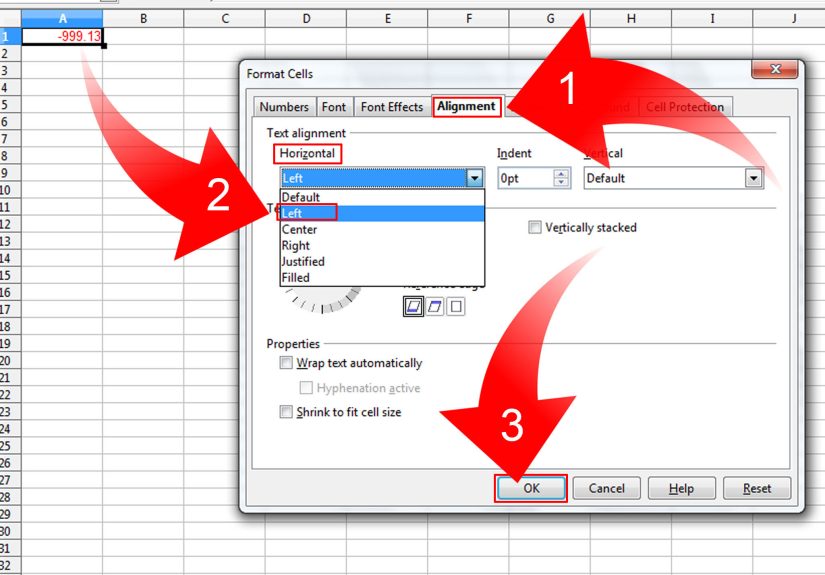
First, format your header row so it stands out. Make it bold, center the labels, and add a light background color if you want the sheet to look less like raw spreadsheet wilderness. Second, widen columns so text fits cleanly. Third, try different data types: dates, words, and numbers. Fourth, save the file with a useful name instead of something like final_v2_real_final_for_real. Your future self will thank you.
What this method teaches you
Learning the grid first helps you understand layout, structure, and readability. It also teaches the quiet but important habit of entering data consistently. For example, if one row says “Groceries” and another says “grocery” and another says “food stuff,” the spreadsheet is not confused exactly, but it is definitely unimpressed. Clean data makes later sorting, filtering, and calculating much easier.
This first method is ideal for absolute beginners because it reduces the number of new ideas on screen. You are not worrying about functions yet. You are learning how a spreadsheet is organized, how information flows, and how to make a sheet readable. That foundation matters more than flashy tricks.
Way 2: Learn Formulas by Solving Tiny Real Problems
Formulas are less scary when they solve obvious tasks
Once you are comfortable entering data, the next step is formulas. This is where many learners either fall in love with spreadsheets or temporarily consider throwing the laptop out a window. The good news is that formulas become manageable when you use them to answer simple questions.
In OpenOffice Calc, formulas usually begin with an equals sign. You can reference cells directly, so instead of typing numbers again, you can tell Calc to use the values already on the sheet. That is the magic: the spreadsheet becomes dynamic. Change one value, and the result updates automatically.
Go back to your expense tracker and add a summary section below the data. In one cell, calculate the total of the Cost column. In another, calculate the average expense. In a third, count how many expenses you entered. Suddenly you are no longer just storing information. You are analyzing it.
Start with a small set of beginner formulas
You do not need fifty functions to feel capable. Start with a practical starter pack: SUM, AVERAGE, MIN, MAX, and COUNT. These teach the logic of ranges and functions without burying you in complexity. If your costs are in cells D2 through D16, a formula like =SUM(D2:D16) shows you how Calc reads a range. That one pattern unlocks a lot.
Then try one simple arithmetic formula. Maybe you want to add tax to a number, compare two totals, or subtract one value from another. Build a tiny example sheet with Unit Price, Quantity, and Total. Use a formula that multiplies price by quantity. Change one number and watch the result update. That immediate feedback is one of the best teachers in the spreadsheet world.
Use AutoFill and repetition to your advantage
One of the easiest ways to feel powerful in Calc is to write one formula correctly and then copy it down a column. Use the fill handle to repeat a pattern instead of retyping the same logic over and over. For beginners, this is the moment spreadsheets stop feeling like tedious typing and start feeling like useful automation.
For example, if column B contains quantities and column C contains prices, you can create a formula in D2 that multiplies B2 by C2. Then copy that formula down the rest of the column. Calc adjusts the row references as it goes. This teaches a major spreadsheet idea: formulas can scale.
What this method teaches you
This second method teaches problem-solving. You are not memorizing formulas for trivia night. You are learning how to answer questions with data. How much did I spend? What was my highest cost? How many items are on the list? What is the average? These are real spreadsheet questions, and Calc handles them beautifully once you learn the pattern.
Even better, this method helps you spot common beginner mistakes early. If a formula does not work, check whether you started with an equals sign, whether you referenced the correct cells, and whether your data is stored as numbers rather than text. Most spreadsheet mistakes are not disasters. They are just the spreadsheet equivalent of putting your socks on backward.
Way 3: Learn by Organizing and Visualizing Real Data
Sorting and filtering make spreadsheets feel useful fast
After you understand the grid and basic formulas, the next best way to learn OpenOffice Calc is through data organization. This is where spreadsheets start doing work that feels impressively grown-up. Sorting helps you rearrange data in a meaningful order, and filtering helps you display only the rows that match specific criteria.
Using your expense sheet again, sort the Cost column from highest to lowest. Instantly, you can see where your money is going. Then filter the Category column to show only transportation or only groceries. This teaches an essential spreadsheet lesson: you do not always need more data; sometimes you just need a better view of the data you already have.
Sorting and filtering are beginner-friendly because the results are visual and immediate. When you click a filter and watch half the sheet disappear because it does not match your criteria, the spreadsheet suddenly feels smart. It is not magic, but it is close enough to keep learning fun.
Turn data into a simple chart
Charts are another powerful learning tool because they force you to think about structure. If your data is messy, the chart will remind you in a very public way. If your data is organized, Calc can turn it into a clear visual summary.
Try this: create a mini summary table with categories in one column and total spending in another. Then insert a simple column chart or pie chart. A column chart works well for comparing categories like Groceries, Transportation, Utilities, and Entertainment. A pie chart can be useful if you want a snapshot of how one total is divided. Keep it simple at first. The goal is not to create a masterpiece worthy of a boardroom projector. The goal is to understand how spreadsheets transform data into meaning.
Use a project that matters to you
The best beginner spreadsheet is one you actually care about. If budgeting bores you, use a school assignment tracker. If school tracking sounds grim, build a movie watchlist with ratings and dates. If you are motivated by hobbies, make a gaming inventory, workout log, or small business order sheet. Real interest beats forced practice almost every time.
Here are three project ideas that work especially well in OpenOffice Calc:
A monthly budget teaches labels, currency formatting, formulas, sorting, and charts. A grade tracker teaches percentages, averages, and conditional checking. An inventory list teaches organization, quantity calculations, and filtering by item type. Each one turns abstract spreadsheet concepts into visible results.
What this method teaches you
This third method teaches insight. You stop seeing the spreadsheet as a digital notebook and start seeing it as a decision-making tool. You learn that tables are useful, formulas are useful, but organized and visualized data is where spreadsheets become genuinely practical. That is when spreadsheet basics stop feeling basic.
A Smart Beginner Routine for Learning Calc
If you want to make steady progress, use a simple weekly routine. On day one, practice navigation and data entry. On day two, work with formatting and sheet organization. On day three, write five basic formulas. On day four, copy formulas with AutoFill. On day five, sort and filter your data. On day six, create one chart. On day seven, rebuild a small project from scratch without looking at your notes too much.
This routine works because it mixes repetition with small wins. You do not need marathon study sessions. Twenty to thirty minutes of focused practice is enough to build real comfort over time. Spreadsheet learning is not about intensity. It is about consistency and a healthy willingness to click around without panicking.
Common Beginner Mistakes to Avoid
One common mistake is typing everything manually, even when a formula or fill pattern would save time. Another is using inconsistent labels, which makes sorting and filtering messy. A third is ignoring formatting, which turns a perfectly useful worksheet into a visual traffic jam. And perhaps the most classic mistake of all is editing numbers directly in a summary area instead of fixing the source data. That is like painting over a cracked wall and calling it renovation.
Also, save versions as you learn. When experimenting, create a copy before making major changes. Spreadsheet confidence grows faster when you know one wrong click will not erase your whole afternoon.
Conclusion
If you want to learn spreadsheet basics with OpenOffice Calc, the best approach is simple: learn the grid, learn formulas through tiny useful tasks, and learn organization by sorting, filtering, and charting real data. These three methods work because they move from structure to calculation to insight. That sequence helps beginners build skill without drowning in features.
OpenOffice Calc does not demand that you become a data wizard overnight. It rewards steady practice, curiosity, and a little patience. Start with one clean sheet. Build one working formula. Make one chart that tells a simple story. Then build another. Before long, you will stop thinking of spreadsheets as intimidating boxes and start seeing them as practical tools you can actually control.
And that is the real win. Not becoming a spreadsheet superhero in a cape made of formulas, but becoming the person who opens Calc and thinks, “Yep, I know what to do here.”
Real-Life Learning Experiences with OpenOffice Calc
Most people do not learn OpenOffice Calc in one smooth, cinematic montage with inspiring music in the background. They learn it in a much more realistic way: by opening a blank sheet, typing a few things, making one mistake, fixing it, and then slowly realizing that the grid is not out to get them. That learning experience matters because it shows how spreadsheet confidence is actually built.
A typical beginner experience starts with confusion about where to click and what belongs in each cell. At first, even simple actions like adjusting a column width or moving to another sheet can feel oddly dramatic. Then a small breakthrough happens. Maybe it is the first time a total updates automatically after changing one number. Maybe it is the moment a filter hides everything except one category. Those tiny victories are what keep learners going.
Another common experience is discovering that spreadsheets reward neat habits. People quickly learn that consistent labels, clean columns, and simple headers make everything easier. The first messy sheet often teaches more than the fifth polished one. When data is entered sloppily, formulas become harder to manage and charts look strange. When the sheet is clean, Calc feels cooperative. This is why beginners often improve fast after one or two rough practice files.
Many learners also say that OpenOffice Calc becomes easier once they stop trying to memorize every feature. The better experience comes from repeating a few useful tasks: adding totals, calculating averages, sorting lists, and making one chart from a small table. Repetition makes the layout familiar. Familiarity lowers anxiety. And once the anxiety goes down, learning speeds up.
There is also a confidence boost that comes from using Calc for a personal project instead of random sample data. A student might use it to track assignments. A family might use it for a grocery budget. A hobbyist might use it to organize book purchases, workout stats, or game collections. When the spreadsheet reflects real life, the experience feels less like software training and more like solving an actual problem.
Perhaps the most useful long-term experience is learning that mistakes are normal and fixable. A wrong formula, a misaligned column, or a weird chart does not mean someone is bad at spreadsheets. It usually means they are learning exactly the way most people learn: by trying, checking, adjusting, and trying again. In that sense, OpenOffice Calc teaches more than spreadsheet basics. It teaches a practical, low-stakes kind of problem-solving that carries over into work, school, and everyday planning.