Table of Contents >> Show >> Hide
- First, figure out what “broken” really means
- Quick checks to try before assuming the worst
- The best temporary fix: turn on AssistiveTouch
- How to keep using your iPhone without the physical Home button
- When the Home button problem is really a Touch ID problem
- Should you repair it yourself?
- Professional repair: when it is the smartest move
- Know the model-specific catch before you spend money
- When repair may not be worth it
- How to prepare before sending your iPhone in for service
- Common mistakes to avoid
- Real-world experiences with a broken iPhone Home button
- Final thoughts
A broken iPhone Home button has a special talent: it can make a perfectly good phone feel like it suddenly forgot how to be a phone. One minute you are checking a text, the next minute you are trapped inside an app like it is an escape room you never agreed to enter. The good news is that a damaged or unresponsive Home button is annoying, but it is not always the end of the road.
If your iPhone still has a Home button, there are several ways to keep using it while you figure out whether the issue is minor, temporary, or repair-worthy. In many cases, you can get back to normal daily use with a built-in iPhone feature called AssistiveTouch. In other cases, especially when Touch ID is involved, the smartest move is to stop experimenting and get professional help.
This guide walks through what to try first, how to use your iPhone without pressing the Home button, when DIY makes sense, and when it absolutely does not. Because sometimes the heroic thing is not grabbing a tiny screwdriver. Sometimes the heroic thing is backing up your phone and stepping away from the butter knife.
First, figure out what “broken” really means
Not every “broken iPhone Home button” is the same problem. Some buttons are physically stuck. Some work only when pressed hard. Some still return you to the Home screen but no longer read fingerprints. Some feel dead because the surrounding hardware, case, or debris is interfering. And on certain models, especially the iPhone 7, iPhone 8, and newer iPhone SE models with Touch ID, the Home button is not a classic mechanical clicker at all. It relies on haptics and internal hardware to create that click-like feeling.
That distinction matters because the fix depends on the symptom. If the button is sticky, the issue may be physical debris or damage. If Touch ID fails but the button still responds, the sensor may be the real problem. If the button feels strange on an iPhone 7 or 8, the issue might involve haptic behavior rather than a simple jam. In other words, your Home button may not be lazy. It may just be misunderstood.
Quick checks to try before assuming the worst
1. Remove your case or screen protector
Start with the easiest fix first. Some cases, protective films, or poorly aligned screen protectors can interfere with the Home button or the metal ring around it. Remove them and test the button again. It sounds obvious, but obvious fixes are still fixes.
2. Check for dirt, lint, or grime
If the button area looks dirty, gently clean around it with a soft, lint-free cloth. Do not soak the phone, do not spray cleaner directly into the opening, and do not turn your iPhone into a science project. Gentle cleaning is fine. Aggressive liquid experiments are not.
3. Restart the iPhone
A restart can rule out a temporary software glitch. If the phone is still responsive, power it off normally and turn it back on. If you have already enabled AssistiveTouch, you can even use that to restart the device without relying on the physical button. That is one reason AssistiveTouch is such a lifesaver: it is not just a virtual Home button, it is basically a backup control panel.
4. Test whether the issue is the button or Touch ID
If the Home button still takes you to the Home screen but fingerprint unlock fails, head to your settings and check Touch ID. Clean the sensor with a lint-free cloth, make sure your finger is dry, and confirm that your case is not covering the sensor or ring. You can also see whether iPhone Unlock and other Touch ID options are enabled and try adding a different finger. If Touch ID is dimmed, grayed out, or repeatedly fails setup, that usually points toward a problem that needs service.
5. Adjust accessibility settings
If your button works but feels unreliable, try adjusting click speed in Settings. On Home-button iPhones, accessibility settings let you slow the required speed for double-clicks or triple-clicks. This will not repair hardware, but it can make a button that feels “finicky” much easier to live with.
The best temporary fix: turn on AssistiveTouch
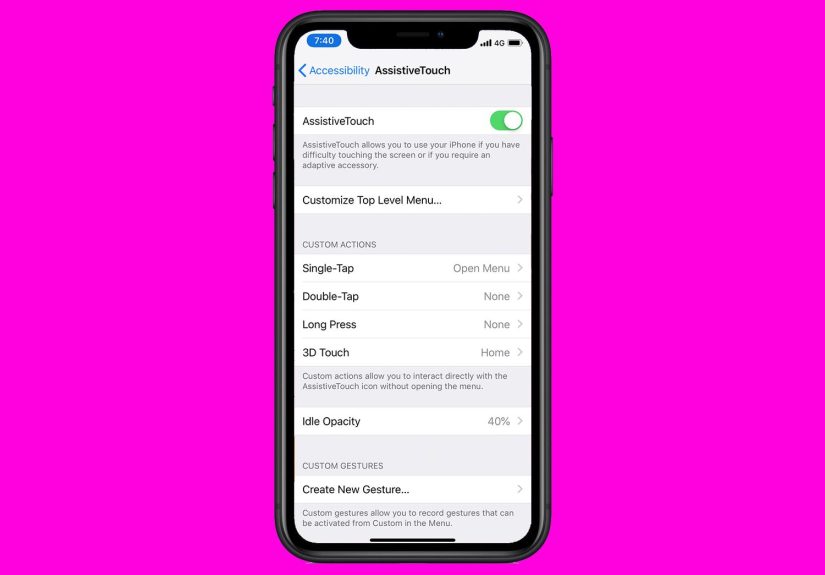
If there is one feature every Home-button iPhone owner should know about, it is AssistiveTouch. Apple includes it as an accessibility tool, but it also happens to be the MVP of broken-button survival. Once enabled, it places a movable on-screen button on your display. Tap it, and you can open the Home screen, launch the app switcher, adjust volume, take screenshots, lock the screen, call up Siri, and even restart the phone.
To turn it on, go to Settings > Accessibility > Touch > AssistiveTouch. You can also ask Siri to turn on AssistiveTouch if voice commands are working. After that, a small floating button appears on the screen. It is not glamorous, but neither is being stranded inside the calculator app.
The real magic is customization. You can edit the top-level menu so the virtual button includes the actions you use most. For a broken Home button, the smartest setup is usually:
- Home for obvious reasons
- App Switcher so you can move between apps without button clicks
- Control Center for brightness, Wi-Fi, and media controls
- Siri for hands-free shortcuts
- Screenshot because some tasks normally require button combinations
- Lock Screen or Restart if other hardware controls are acting up too
Once you set this up, your iPhone becomes much more manageable. You may not love the little floating circle, but you will respect it.
How to keep using your iPhone without the physical Home button
Here is the part most people care about: yes, you can continue using an iPhone with a broken Home button in everyday life. You just need a few workarounds.
Unlocking the phone
If Touch ID is unreliable, use your passcode. After a restart, iPhone already requires the passcode anyway, so you are not doing anything unusual. If the physical Home button is completely gone as a usable tool, AssistiveTouch can help you reach the Home screen and navigate the phone once you are in.
Taking screenshots
Screenshots usually depend on hardware buttons, but Apple also supports taking screenshots through AssistiveTouch. That is a small thing until the first time you need to save a boarding pass, recipe, or suspicious text thread from a cousin who thinks vitamins cure gravity.
Getting to the app switcher
On older Home-button iPhones, the app switcher often depends on double-pressing the button. AssistiveTouch can replace that action too, which is very handy if your Home button now responds with all the enthusiasm of a teenager asked to do dishes.
Using shortcuts and alternate gestures
If your device supports it, Back Tap is another useful feature. On supported models, you can assign actions like opening Control Center, taking a screenshot, or triggering accessibility shortcuts by double-tapping or triple-tapping the back of the iPhone. It will not replace every Home-button action, but it can reduce how often you rely on the broken hardware.
When the Home button problem is really a Touch ID problem
Many people say, “My Home button is broken,” when the actual issue is that Touch ID stopped working. Those are related, but not identical problems. The button assembly and the fingerprint sensor are closely tied together, and Apple treats biometric parts very seriously for security reasons.
If Touch ID is the main problem, try the simple fixes first: clean and dry your finger, wipe the sensor gently, remove any case interference, confirm Touch ID is enabled for the features you want, and try enrolling another finger. If the setup fails repeatedly or the option becomes unavailable, it is time to stop poking at settings and consider repair.
One key point: replacing a Home button is not like swapping a shoelace. On many older Touch ID models, replacing the button can restore basic press functions but not fingerprint recognition. On newer Home-button models such as the iPhone 7, iPhone 8, and some iPhone SE versions, replacement behavior is even trickier. That is why repairs involving Touch ID are best handled through Apple, an Apple Authorized Service Provider, or a highly qualified repair path that uses appropriate parts and procedures.
Should you repair it yourself?
This is where optimism and reality sometimes get into a fistfight.
Yes, DIY repair resources exist. Apple offers Self Service Repair for experienced people on eligible devices, and repair communities like iFixit publish detailed guides. But “available” does not mean “wise for everyone.” Apple itself says Self Service Repair is intended for people with the knowledge and experience to repair electronics. That is a polite way of saying this is not a great first craft project.
Home button repairs are especially sensitive because of Touch ID pairing, part compatibility, and the risk of losing biometric features even if you restore basic button behavior. If your only goal is to get a click back on a very old phone you plan to keep around as a backup, a DIY route may be worth researching carefully. If you want full functionality, security, and the fewest surprises, professional repair is the safer bet.
Professional repair: when it is the smartest move
If your Home button is physically damaged, intermittently responsive, or tied to Touch ID failure, professional repair is usually the cleanest path. Apple-certified repair has obvious advantages: genuine parts, trained technicians, and coverage compatibility with Apple warranty or AppleCare when applicable. Apple also says only repairs performed by Apple or an Apple Authorized Service Provider are covered by Apple’s warranty and AppleCare plans.
That does not mean every third-party repair shop is bad. Many reputable independent shops do solid work, and Apple also has broader repair programs and parts support than it used to. But you still need to be picky. Ask what part will be used, whether Touch ID functionality can be preserved, what warranty the shop provides, and whether the repair changes any existing Apple coverage. Cheap repairs can become expensive if they leave you with a ghost button and new regret.
Best Buy’s Geek Squad, Apple’s authorized network, and established repair companies like uBreakiFix by Asurion or CPR Cell Phone Repair are often part of the conversation because they offer phone repair services and diagnostics. The best option depends on your model, your coverage, and whether keeping Touch ID intact matters to you.
Know the model-specific catch before you spend money
Here is the important reality check: not every Home-button repair restores every feature.
On older iPhones with Touch ID, replacing the Home button can sometimes bring back ordinary button presses but not fingerprint recognition. On the iPhone 7, iPhone 8, and related SE models, replacement Home buttons sold by repair suppliers often restore only non-biometric Home-button functions, while Touch ID remains unavailable. So before you pay for any repair, ask one simple question: What exactly will work afterward?
That question can save you from the classic repair-shop surprise known as “Good news, your button works. Bad news, your fingerprint does not.”
When repair may not be worth it
If your iPhone is already very old, has multiple issues, or is close to replacement time anyway, a Home button repair may not be the best investment. If the screen is cracked, battery life is poor, and the button is failing, you may be pouring money into a phone that is already giving retirement speech energy.
In those cases, AssistiveTouch can be a perfectly practical bridge solution while you plan your upgrade. You get continued use without rushing into a repair that may not make financial sense.
How to prepare before sending your iPhone in for service
Before any repair appointment, back up your iPhone. Then remove cards and passes from Wallet if needed, and turn off Find My if the repair provider requires it. Apple also advises users never to share their Apple Account password or passcode with repair staff, and to stay present if software support requires access. In plain English: protect your data like it is the VIP at the party, because it is.
If the device is unresponsive and you cannot complete every prep step, do as many as you can. A little prep saves a lot of post-repair grief.
Common mistakes to avoid
- Do not force the button. Extra pressure can make the damage worse.
- Do not drip liquid into openings. Gentle cleaning is one thing; improvising a chemistry lab is another.
- Do not assume every replacement restores Touch ID. Ask first.
- Do not ignore liquid damage. If the phone got wet, the Home button may be only part of the problem.
- Do not skip a backup. Repairs and restores are much less scary when your data is safe.
Real-world experiences with a broken iPhone Home button
One of the most common experiences with a broken iPhone Home button is that the failure starts small. The button works most of the time, then only if you press harder, then only if you press it at a weird angle like you are entering a secret code to a spy bunker. Many people ignore that stage because the phone is still technically usable. Then one morning the button stops responding while they are in an app, and suddenly the problem feels much bigger.
Another very typical experience is confusion over whether the issue is the button itself or Touch ID. Someone notices the phone no longer unlocks with a fingerprint, assumes the button is dead, and starts shopping for repair quotes. But in practice, the Home screen function still works while the fingerprint sensor does not. That distinction matters because it changes the next steps. People who catch that early often buy themselves time by switching to passcode unlock and using the phone normally until they can arrange service.
Then there is the AssistiveTouch phase, which almost everyone resists for about five minutes and then secretly appreciates. At first, the floating button seems annoying. It sits there like a tiny digital barnacle. But after customizing it with Home, App Switcher, Screenshot, and Lock Screen, many users realize it is shockingly useful. Some even keep it turned on after the physical button is repaired because it makes certain tasks easier. That is the funny part: the emergency workaround occasionally becomes the feature you did not know you wanted.
There are also plenty of people who discover the Home button problem after a drop that did not crack the screen. That can be especially frustrating because the phone looks fine. No shattered glass, no dramatic damage, just a button that has decided to retire without filing paperwork. In those situations, users often waste time thinking it must be a software issue because the outside of the phone seems normal. Sometimes it is software. Sometimes it is internal damage hiding behind a very calm-looking exterior.
And finally, there is the repair-shop lesson. People who do not ask enough questions can walk in expecting a perfect fix and walk out with only partial function restored. The best experiences usually happen when users ask in advance whether Touch ID will still work, whether genuine parts are involved, and what warranty comes with the repair. The worst experiences usually begin with the sentence, “I found someone online who said they could do it for super cheap.” As with many things in life, “super cheap” and “works exactly like before” are not always close friends.
Final thoughts
Dealing with a broken iPhone Home button is half troubleshooting, half damage control, and half learning that apparently this article contains three halves. Start simple: remove obstructions, clean gently, restart, and test whether the issue is really Touch ID. Then turn on AssistiveTouch right away so your phone remains usable. After that, decide whether your situation calls for patience, repair, or replacement.
The big takeaway is this: a broken Home button is inconvenient, but it is not instant disaster. With the right workaround and a little caution, you can keep using your iPhone while making a smart decision instead of a panicked one. And in the world of tech mishaps, that already counts as a win.