Table of Contents >> Show >> Hide
- What “Disable Login Password” Really Means in Windows 10
- Before You Begin: A Quick Safety Checklist
- Method 1: Disable the Windows 10 Login Password Prompt with Netplwiz
- What If the Netplwiz Checkbox Is Missing?
- Method 2: Remove the Password from a Windows 10 Local Account
- Method 3: Stop Windows 10 Asking for a Password After Sleep
- Method 4: Remove a Windows Hello PIN Instead of the Password
- Which Option Should You Choose?
- Troubleshooting Common Problems
- Security Risks You Should Not Ignore
- Practical Experience: What It Is Like to Use Windows 10 Without a Login Password
- Conclusion
Typing your Windows 10 password every morning can feel like paying a tiny toll just to reach your own desktop. If your PC sits safely at home, never leaves your desk, and is not shared with curious roommates, kids, coworkers, or that one friend who “just wants to check something,” disabling the login password prompt may make daily use faster and less annoying.
But before we send your password prompt into early retirement, let’s be clear: there are a few different things people mean when they say they want to disable login passwords in Windows 10. Some want the computer to sign in automatically at startup. Some want Windows to stop asking for a password after sleep. Others want to remove the password from a local account entirely. These are related, but they are not the same thing.
This quick tutorial explains the safest practical options, shows the steps clearly, and helps you decide which method is right for your situation. You will also learn what to do if the famous netplwiz checkbox is missing, why Microsoft accounts behave differently from local accounts, and when turning off the password is a bad idea wrapped in a convenient little bow.
Important note: Removing or bypassing a login password reduces protection. Use these steps only on a private computer in a secure location. If your laptop travels, contains work files, stores browser passwords, or has financial documents, keep a password, PIN, fingerprint, or Windows Hello sign-in enabled.
What “Disable Login Password” Really Means in Windows 10
Windows 10 offers several sign-in methods, including a traditional password, PIN, fingerprint, facial recognition, security key, and picture password. When users ask how to remove the Windows 10 login password, they usually want one of three results:
1. Skip the password screen at startup
This is the most common goal. Windows still keeps your account password, but the computer signs in automatically when it boots. This is usually done with the netplwiz user account tool. It is convenient, but not the same as deleting the password.
2. Remove the password from a local account
If you use a local Windows account, you can change the password and leave the new password fields blank. After that, the account has no password. This does not work the same way for Microsoft accounts because those are tied to online identity and services.
3. Stop Windows asking after sleep or screen lock
Sometimes users do not mind signing in after a restart, but they hate being asked again after making coffee. In that case, you can adjust the “Require sign-in” setting so Windows does not request a password when the PC wakes from sleep.
Before You Begin: A Quick Safety Checklist
Disabling a Windows 10 password can be harmless on the right machine and reckless on the wrong one. Think of it like leaving your front door unlocked. Fine if you live alone in a bunker. Less fine if your laptop regularly visits airports, cafes, classrooms, or shared offices.
You should keep password protection turned on if:
- Your computer is a laptop or tablet that leaves the house.
- You use the device for work, school, banking, or client files.
- Other people can physically access the computer.
- You store saved browser passwords, tax documents, photos, or personal records.
- Your Windows 10 PC is no longer receiving regular security updates.
Because Windows 10 has reached the end of standard support, security matters even more. A password is not a magic shield, but it is one useful layer. If you continue using Windows 10, consider upgrading to Windows 11 when possible, enrolling in available security update options, and keeping your important data backed up.
Method 1: Disable the Windows 10 Login Password Prompt with Netplwiz
The fastest way to make Windows 10 sign in automatically is through the built-in netplwiz tool. This method is best when you want to skip the password at startup without deleting your account password.
Step-by-step instructions
- Press Windows + R to open the Run box.
- Type
netplwizand press Enter. - In the User Accounts window, select your user account.
- Uncheck the box that says Users must enter a user name and password to use this computer.
- Click Apply.
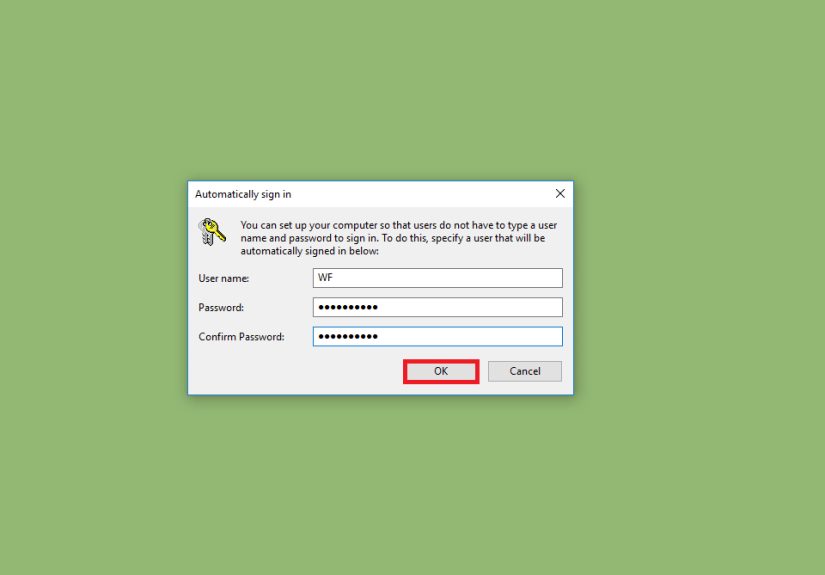
- When prompted, enter your current password and confirm it.
- Click OK, then restart your PC to test it.
After the restart, Windows 10 should move directly to your desktop instead of stopping at the login screen. Congratulations: you have removed one small daily annoyance from your life. Sadly, it will not also fold laundry.
What this method actually does
This method does not erase your password. It configures Windows to automatically sign in with the selected account. That means your password still exists and may still be required for certain system actions, remote access, network shares, account changes, or troubleshooting.
This is often the best balance for a private desktop computer. You get quick access at startup while keeping the account password available when Windows needs it.
What If the Netplwiz Checkbox Is Missing?
On some Windows 10 systems, the checkbox for Users must enter a user name and password does not appear. This often happens when Windows Hello sign-in requirements are enabled for Microsoft accounts. In plain English, Windows is saying, “Nice try, but I would prefer you use a modern sign-in method.”
Try this fix first
- Open Settings.
- Go to Accounts.
- Select Sign-in options.
- Look for a setting such as Require Windows Hello sign-in for Microsoft accounts.
- Turn it Off, if available.
- Restart the computer.
- Open
netplwizagain and check whether the missing checkbox has returned.
If the setting is missing, grayed out, or controlled by an organization, your PC may be using policy settings from work, school, device management software, or a newer Windows configuration. In that case, do not force registry changes unless you know exactly what you are doing. Editing the registry just to save three seconds at login is like using a chainsaw to open a snack bag: technically possible, spiritually questionable.
Method 2: Remove the Password from a Windows 10 Local Account
If you use a local account, Windows 10 allows you to remove the password by changing it and leaving the new password fields blank. This is the cleanest option for users who truly want a password-free local account.
How to remove a local account password
- Click the Start button.
- Open Settings.
- Go to Accounts.
- Select Sign-in options.
- Under Password, click Change.
- Enter your current password.
- When asked for a new password, leave the new password fields blank.
- Click Next, then Finish.
The next time you sign in, Windows should not require a password for that local account. If you are using a Microsoft account, this approach usually will not work the same way because your password belongs to your online Microsoft identity.
Should you switch from a Microsoft account to a local account?
You can switch to a local account if your priority is a simpler offline sign-in experience. However, doing so may affect syncing, Microsoft Store access, OneDrive integration, device recovery options, and other connected features. For some people, that is a fair trade. For others, it turns a minor login annoyance into a small ecosystem headache.
If you rely heavily on Microsoft services, consider keeping the Microsoft account and using automatic sign-in or Windows Hello instead of removing the password completely.
Method 3: Stop Windows 10 Asking for a Password After Sleep
Maybe startup is not the problem. Maybe your PC wakes from sleep and demands credentials like a tiny security guard who just had espresso. You can change that behavior in Settings.
Disable password request after sleep
- Open Settings.
- Go to Accounts.
- Select Sign-in options.
- Find Require sign-in.
- Under “If you’ve been away, when should Windows require you to sign in again?” choose Never.
Now Windows should stop asking for a password when the computer wakes from sleep. This is useful for desktop PCs in private rooms, media PCs connected to TVs, or home workstations where constant re-entry is more irritating than protective.
For laptops, be more careful. A sleeping laptop can become a lost laptop. A lost laptop with no wake password is basically a gift basket for whoever finds it.
Method 4: Remove a Windows Hello PIN Instead of the Password
Some users say “password” when they really mean “PIN.” Windows Hello PIN is separate from your Microsoft account password. It is device-specific, which makes it more secure than many people assume, but you may still want to remove it.
How to remove a PIN in Windows 10
- Open Settings.
- Go to Accounts.
- Select Sign-in options.
- Choose Windows Hello PIN.
- Select Remove, if the option is available.
- Confirm with your account password if Windows asks.
If the Remove button is grayed out, check whether Windows Hello sign-in is required. You may need to turn off the Windows Hello-only option first. On managed work or school PCs, the option may be locked by policy.
Which Option Should You Choose?
Here is the simple version:
- Use netplwiz if you want automatic login at startup but want to keep the password attached to the account.
- Remove the local password if you use a private local account and truly want no password.
- Set Require sign-in to Never if Windows only bothers you after sleep.
- Remove the PIN if the thing annoying you is Windows Hello PIN, not the actual password.
For most home users, the best choice is automatic sign-in with netplwiz, not deleting the password entirely. It solves the daily problem while avoiding some account-management complications.
Troubleshooting Common Problems
Windows still asks for a password after restart
Open netplwiz again and confirm that the correct user account is selected. If you entered the wrong password during automatic sign-in setup, Windows may still stop at the login screen. Re-check the box, click Apply, then uncheck it again and re-enter the correct password.
Windows asks for a password after sleep
Automatic sign-in at startup does not always control wake-from-sleep behavior. Go to Settings > Accounts > Sign-in options and set Require sign-in to Never.
The computer is managed by work or school
If your PC belongs to an employer or school, you may not be allowed to disable password sign-in. That is normal. Organizations often require passwords, PINs, encryption, and lock-screen rules to protect business data. Translation: the IT department has spoken, and the checkbox has left the building.
You forgot your password
This tutorial is for disabling a password when you already have access to the account. If you forgot your Windows password, use official recovery options such as Microsoft account recovery, local account security questions, a password reset disk, or help from another administrator account on the PC. Avoid shady “password remover” tools from unknown websites.
Security Risks You Should Not Ignore
Disabling your Windows 10 login password makes access easier for you, but also for anyone who touches your machine. That includes family members, visitors, repair technicians, thieves, and extremely ambitious cats walking across the keyboard.
The biggest risks include:
- Anyone can open your files if they can access the computer.
- Saved browser passwords may expose email, banking, and shopping accounts.
- Work or school data could violate security rules.
- Stolen laptops become much easier to browse.
- Automatic login can reveal private notifications, chats, or documents immediately after startup.
If you still want convenience, consider a compromise: use a PIN, fingerprint reader, or face recognition instead of removing sign-in protection completely. Windows Hello is usually faster than typing a password and safer than having no lock at all.
Practical Experience: What It Is Like to Use Windows 10 Without a Login Password
In real daily use, disabling the Windows 10 login password feels wonderfully boring, which is exactly the point. You press the power button, the machine boots, and the desktop appears without the usual pause. On a home desktop used for browsing, streaming, writing, light photo editing, or managing recipes, this can make the computer feel more like an appliance and less like a tiny office checkpoint.
The benefit is most obvious on older Windows 10 PCs with slow hard drives. These machines already take their sweet time starting up, as if they are stretching before a marathon. Removing the login stop does not magically make the hardware faster, but it does make the startup flow smoother. You can press the power button, refill your coffee, and return to a ready desktop instead of a password field waiting like an unpaid parking ticket.
For a living-room computer connected to a TV, automatic login is especially practical. Nobody wants to grab a keyboard just to open a streaming app, play local media, or start a video call with family. In that setup, netplwiz automatic sign-in makes sense because the device is usually stationary, shared for casual use, and not carrying highly sensitive information.
However, the convenience can become uncomfortable once the computer contains personal accounts. The first time someone else sits down and your email is already open, you may suddenly remember why passwords exist. A password-free PC works best when you also practice basic housekeeping: sign out of sensitive websites, avoid saving banking passwords in the browser, keep personal folders organized, and do not store documents on the desktop like digital laundry.
Another experience many users report is confusion between startup login and wake-from-sleep login. They disable automatic sign-in, restart successfully, celebrate briefly, then close the laptop lid and later get asked for a password again. That is not Windows being dramatic. It is simply a different setting. Startup behavior and sleep behavior live in different corners of Windows 10, so you may need to adjust both.
There is also a psychological effect. Once a PC opens instantly, people often become less cautious. They leave it running, walk away from the desk, or forget that anyone nearby can access it. For a private desktop in a locked room, that may be acceptable. For a family PC, rental space, dorm, office, repair bench, or travel laptop, it is not.
The best real-world approach is to match the setting to the environment. A desktop in your home office? Automatic login may be perfectly reasonable. A laptop you carry to coffee shops? Keep the password. A media PC with no private files? Go password-free and enjoy the convenience. A work computer? Do not fight the security policy; it will win, and it has spreadsheets.
In short, disabling the Windows 10 login password is not good or bad by itself. It is a tool. Used on the right computer, it saves time and removes friction. Used on the wrong computer, it creates unnecessary risk. Convenience is great, but convenience plus common sense is better.
Conclusion
Disabling login passwords in Windows 10 is easy once you know which password prompt you are trying to remove. For most users, netplwiz is the quickest way to enable automatic login at startup. If you use a local account, you can remove the password by changing it and leaving the new password fields blank. If Windows keeps asking after sleep, adjust the Require sign-in setting. And if the problem is really a PIN, manage it through Windows Hello sign-in options.
The smart move is to balance speed with security. A password-free setup can be convenient on a private home desktop, media PC, or low-risk machine. It is not ideal for laptops, shared computers, work devices, or any PC that stores sensitive data. Your desktop should be easy to reach, but not so easy that anyone with two hands and thirty seconds can stroll through your digital life.