Table of Contents >> Show >> Hide
- Why printing email from iPhone or iPad is easier than it looks
- Before you start
- How to Print an Email on iPhone or iPad: 7 Steps
- How to print an email attachment on iPhone or iPad
- How to print from Gmail on iPhone or iPad
- What if your printer does not support AirPrint?
- Common reasons your iPhone or iPad will not print an email
- Tips for printing emails neatly
- Real-world experiences with printing email on iPhone or iPad
- Final thoughts
- SEO Tags
Note: Source links are intentionally omitted for web publication. Content is based on current support guidance and reputable U.S. tech-help sources.
Sometimes technology feels magical. Sometimes it feels like your printer joined a secret society dedicated to ignoring you. If you need a hard copy of an email on your iPhone or iPad, the good news is that the process is usually fast, simple, and surprisingly painless once you know where Apple hides the print option.
Whether you want to print a flight confirmation, school form, invoice, legal message, work thread, or that one email you absolutely do not trust yourself to remember later, this guide walks you through exactly how to print an email on iPhone or iPad in seven clear steps. We’ll also cover what to do if you use Gmail, how to print attachments, what happens if your printer does not support AirPrint, and how to fix common printing problems without dramatically sighing at your kitchen counter.
Why printing email from iPhone or iPad is easier than it looks
On Apple devices, printing is usually built around AirPrint, Apple’s wireless printing feature. If your printer supports AirPrint, you typically do not need to install drivers, connect cables, or perform any weird digital rituals. You open the email, tap the appropriate menu, choose Print, select your printer, and send it off.
That said, the exact button you tap depends on the app. In Apple Mail on iPhone, you’ll usually tap the Reply button. In Apple Mail on iPad, you’ll likely use the More Actions menu. In Gmail, you’ll use the More menu. Same destination, different hallway.
Before you start
Before jumping into the steps, make sure of three things:
- Your printer is turned on and ready.
- Your iPhone or iPad is connected to Wi-Fi.
- Your printer is on the same Wi-Fi network as your device if you are using AirPrint.
If your printer does not support AirPrint, do not panic. Many brands such as HP, Canon, Epson, and Brother offer their own iPhone and iPad printing apps. We’ll get to that in a minute.
How to Print an Email on iPhone or iPad: 7 Steps
Step 1: Open the email you want to print
Start in the email app you use most. This may be the built-in Apple Mail app, Gmail, Yahoo Mail, or another email app on your device. Open the exact message you want to print.
If the message is part of a long thread, make sure you are looking at the right email. This matters because some apps let you print only one message, while others let you print an entire conversation. If you need only the final message and not the full back-and-forth drama from the last six weeks, double-check before continuing.
Step 2: Find the print menu in your app
This is the part that trips people up, mostly because email apps enjoy being “creative” with menus.
In Apple Mail on iPhone: tap the Reply button inside the message, then look for Print.
In Apple Mail on iPad: tap the More Actions button, usually in the bottom-right area of the message, then tap Print.
In Gmail on iPhone or iPad: open the message, tap More, and then tap Print. If you want the entire conversation with replies, choose the option to print all messages in the thread.
If you do not see a print option right away, look for the Share menu, a three-dot menu, or an actions icon. Printing is often hiding there like it owes someone money.
Step 3: Tap Print
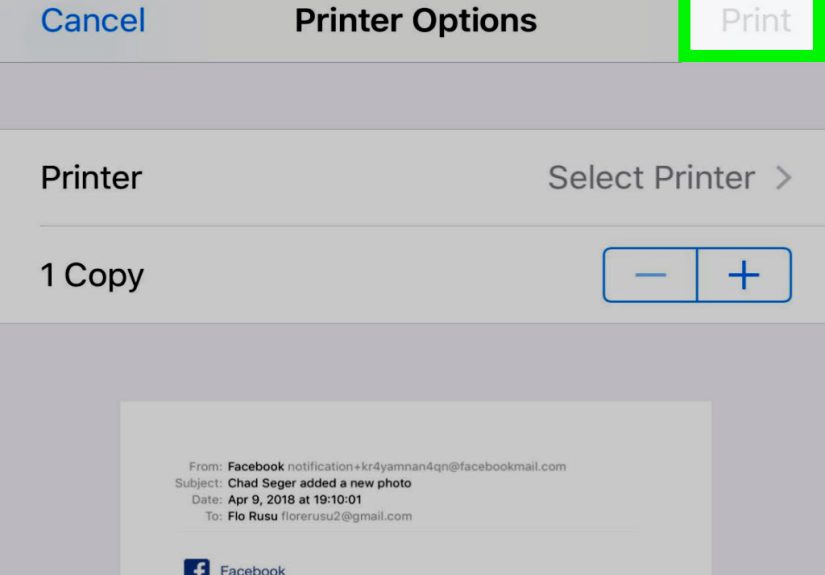
Once you find the option, tap Print. This opens the printer settings screen on your iPhone or iPad.
At this point, your device should begin looking for available printers. If your printer supports AirPrint and is on the same Wi-Fi network, it will usually appear automatically. This is the moment where everything works beautifully and you feel smarter than you actually are.
Step 4: Select your printer
Tap No Printer Selected or Printer, depending on what your screen shows. Then choose the printer you want from the list.
If your printer does not appear, check whether it is awake, connected to the right network, and close enough to respond. Some printers go into sleep mode and become unavailable until you tap the power button or glare at them meaningfully.
If you use a shared office printer, read the printer name carefully. Sending your personal email to the giant copier in Accounting is a memory you only need once.
Step 5: Adjust print settings
After selecting a printer, review your printing options. Depending on your printer and the email content, you may be able to change:
- Number of copies
- Page range
- Paper size
- Orientation
- Double-sided printing
- Scaling or layout options
This step matters more than people think. For example, if you are printing a long email chain or a PDF attachment, choosing specific pages can save paper, ink, and your future self’s mild annoyance. If the email includes screenshots, charts, or tickets with QR codes, review the preview to make sure nothing important is cut off.
Step 6: Preview the email before printing
Use the preview pane to check what the printed email will look like. This is especially useful when the message contains:
- Long signatures
- Embedded images
- Forwarded conversations
- Tables or receipts
- Attachments that open separately
If the formatting looks strange, consider printing the attachment instead of the email body. For example, a boarding pass PDF, invoice, contract, or return label usually prints better when opened as its own file first. In Apple Mail, you can tap an attachment, open it, and print that item directly.
Step 7: Tap Print
Once everything looks right, tap Print in the upper-right corner. Your email will be sent to the printer queue.
If you need to stop the job, you may be able to access the print queue from your device and cancel it before the full document prints. That can be handy if you accidentally selected twenty copies because your thumb was feeling ambitious.
How to print an email attachment on iPhone or iPad
Sometimes you do not want the email itself. You want the attachment inside it, such as a PDF, image, form, or shipping label. In that case, open the email, tap the attachment to view it, then use the Share or action menu and choose Print.
This often gives cleaner results than printing the message body, especially for forms and documents designed to be printed. For example, if your manager emailed a two-page contract as a PDF, printing the PDF directly will usually preserve the intended layout better than printing the entire email thread with the contract thumbnail buried inside it.
How to print from Gmail on iPhone or iPad
If you use Gmail instead of Apple Mail, the process is still simple. Open the email, tap the menu icon, and choose Print. If the email is part of a conversation, Gmail may also offer Print all, which prints the full thread with replies.
That is useful for work approvals, customer service exchanges, or school communication where context matters. It is less useful for family group emails that somehow turned into twelve opinions about potato salad.
What if your printer does not support AirPrint?
You still have options.
Use the printer manufacturer’s app
Many printers work through official mobile apps even without AirPrint. Popular examples include:
- HP Smart
- Canon PRINT
- Epson iPrint
- Brother iPrint&Scan
These apps can often detect your printer over Wi-Fi and let you print emails, documents, web pages, and photos. The steps vary slightly by brand, but the general idea is the same: connect the printer through the app, choose the file or content you want, and print.
Try a wired connection if supported
Some users can print from an iPhone or iPad with a cable and compatible adapter, though this is less common and a bit less elegant. It can work in a pinch, especially with older printers that are not ideal for wireless printing.
Use a third-party print app
If you have an unusual setup, a third-party printing app may help bridge the gap. This is more of a backup plan than the first choice, but it can be useful when you need to print from iPhone without AirPrint and the official printer app is not cooperating.
Common reasons your iPhone or iPad will not print an email
If printing is not working, one of these issues is usually the culprit:
Your printer and device are on different Wi-Fi networks
This is the classic problem. If your printer is on the guest network and your iPad is on the main network, they may not see each other at all.
Your printer is asleep or offline
Wake it up, check the display, and make sure it is actually connected to Wi-Fi.
The app does not support printing in that view
Some apps hide or limit the print option depending on what you opened. Try opening the message differently, printing from the original app, or printing the attachment instead.
The email content is better saved as a PDF first
If the layout is messy, saving or opening the attachment as a PDF before printing can solve the problem.
Your software needs an update
An outdated iOS, iPadOS, printer firmware version, or printer app can cause strange connection issues.
Tips for printing emails neatly
- Print the attachment instead of the email when formatting matters.
- Preview the pages before printing long threads.
- Reduce copies to one unless you genuinely need more.
- Use page range when printing long documents.
- Print the whole conversation only when context is important.
- Keep the printer on the same Wi-Fi as your iPhone or iPad.
Real-world experiences with printing email on iPhone or iPad
In real life, people usually discover this feature at exactly the wrong moment. It is rarely a calm, organized Saturday afternoon. It is more often five minutes before leaving for the airport, eight minutes before a school meeting, or two minutes after someone says, “Can you bring a printed copy?” in the sort of tone that suggests this was obviously your destiny all along.
One common experience is printing travel documents from an email while standing in the kitchen, half-packed, holding coffee in one hand and an iPhone in the other. The email itself may contain a confirmation number, while the attachment holds the actual ticket or PDF itinerary. Many people tap Print on the email body first, only to realize that what really needs printing is the attached boarding pass. Once they learn to open the attachment directly, the process becomes much smoother.
Another familiar situation happens with work messages. Someone receives an important approval chain, contract update, invoice, or shipping notice and wants a paper copy for a folder, signature, or meeting. On an iPad, especially, the screen is large enough to preview the document clearly, which makes it easier to catch whether the printer is about to spit out twelve pages of signatures and disclaimers instead of the two pages you actually needed. That preview screen quietly saves paper, ink, and dignity.
Parents and students run into this all the time too. Schools love email attachments: permission slips, schedules, lunch forms, calendars, sign-up sheets, and instructions that somehow become urgent the night before they are due. Being able to print straight from an iPhone or iPad means you do not have to forward everything to a laptop first. Once the printer is set up properly, it turns a mildly chaotic evening into a manageable one.
Then there is the printer problem experience, which deserves its own category of emotional weather. Most people who say, “My iPhone won’t print,” are actually dealing with a network mismatch, a sleeping printer, or a non-AirPrint model that needs the brand’s app. Once they switch the device to the same Wi-Fi network or use the correct app, the mystery suddenly disappears. It feels less like advanced troubleshooting and more like discovering the printer was being extremely literal the whole time.
Over time, frequent users get faster. They learn which option to use in Apple Mail, when Gmail’s Print all is helpful, and when printing the attachment directly is smarter than printing the email body. The first attempt may feel like a scavenger hunt. After that, it becomes one of those quiet phone skills that makes life easier more often than you expected.
Final thoughts
If you know where the Print option lives, printing an email on iPhone or iPad is refreshingly simple. For most people, the fastest route is an AirPrint-enabled printer on the same Wi-Fi network. Open the email, tap the correct menu, select your printer, adjust the settings, preview the result, and print.
And if your printer does not support AirPrint, you are not out of luck. A manufacturer app or alternative setup can often get the job done just as well. Either way, once you’ve done it once, you’ll stop thinking of mobile printing as a tech puzzle and start treating it like what it actually is: one more useful trick your iPhone or iPad has been hiding in plain sight.