Table of Contents >> Show >> Hide
- Before You Start
- How to Connect a PC to a Mac in 15 Steps
- Step 1: Put both computers on the same network
- Step 2: Use a private network, not a public one
- Step 3: Turn on Network Discovery in Windows
- Step 4: Turn on File and Printer Sharing in Windows
- Step 5: Choose the folder you want to share on the PC
- Step 6: Make note of the PC name or IP address
- Step 7: Check Windows account credentials
- Step 8: Open Finder on the Mac
- Step 9: Click Go > Connect to Server
- Step 10: Enter the Windows share using SMB
- Step 11: Sign in with your Windows credentials
- Step 12: Add the shared folder to Favorites if you plan to use it often
- Step 13: Turn on File Sharing on the Mac
- Step 14: Enable SMB sharing on the Mac
- Step 15: Connect from Windows to the Mac’s shared folder
- Troubleshooting Tips If the PC and Mac Refuse to Cooperate
- Other Easy Ways to Connect a PC to a Mac
- Real-World Experiences: What Connecting a PC to a Mac Is Actually Like
- Conclusion
- SEO Tags
Note: This guide is written for modern versions of macOS and Windows, and it focuses on the easiest real-world way to connect a PC to a Mac: sharing files over the same network. It also covers smarter backup options when Wi-Fi gets moody, cables go missing, or your devices decide to act like distant cousins at a family reunion.
Connecting a PC to a Mac sounds like one of those tasks that should be simple, yet somehow turns into a mini tech drama. One machine speaks fluent Windows, the other prefers macOS manners, and suddenly you are wondering whether you need a cable, an app, a cloud service, or a degree in wizardry. The good news is that you do not. In most cases, all you need is the right settings, a shared network, and a little patience.
If your goal is to transfer files between a Mac and PC, access shared folders, migrate data, or even control one computer from the other, there are several solid options. The most practical method for everyday use is SMB file sharing over a private local network. It is built into both operating systems, does not require a third-party subscription, and works well for documents, photos, videos, and project folders. For bigger jobs, you can also use an Ethernet connection, a shared external drive, cloud storage, or Migration Assistant if you are moving from a Windows PC to a new Mac.
This guide breaks the process into 15 clear steps so you can connect a PC to a Mac without turning your desk into a support hotline. Let’s do this the sane way.
Before You Start
Before diving into the steps, make sure both computers are powered on, updated, and connected to the same private network. That can be the same Wi-Fi network or a direct Ethernet connection. Also, decide what you want from this connection. Are you trying to share files, move everything to a new Mac, or remotely access your Windows computer from your Mac? The steps below focus on file sharing between Windows and macOS, which is the most common use case and the least likely to ruin your afternoon.
How to Connect a PC to a Mac in 15 Steps
Step 1: Put both computers on the same network
Start with the obvious-but-easy-to-miss part: both the PC and the Mac need to be on the same local network. If one is on your home Wi-Fi and the other is on a phone hotspot, they are not really “neighbors.” Put them on the same router connection first. If you want a more stable connection for large transfers, use Ethernet.
Step 2: Use a private network, not a public one
On Windows, network sharing works best when your current network is set to Private. Public networks are intentionally stricter because Windows assumes you are in an airport, coffee shop, or some other place where strangers should not be invited to browse your folders. In Windows Settings, check that your current network profile is Private before you go any further.
Step 3: Turn on Network Discovery in Windows
Open the Windows sharing settings and turn on Network Discovery. This allows your PC to see other devices on the network and lets other approved devices see your PC. Without this setting, your computer becomes the digital equivalent of hiding behind the curtains and pretending nobody is home.
Step 4: Turn on File and Printer Sharing in Windows
While you are in Windows sharing settings, enable File and Printer Sharing. Even if you do not care about printers, this setting is part of the package that allows network file access. Think of it as buying concert tickets and getting the service fee whether you like it or not.
Step 5: Choose the folder you want to share on the PC
Pick a folder on your Windows PC that you actually want your Mac to access. Right-click the folder, open its sharing properties, and share it with the user account or permission level you want. For many home users, read/write access for their own account is enough. Do not share your entire system drive unless you enjoy living dangerously.
Step 6: Make note of the PC name or IP address
Your Mac needs a destination to connect to. On the Windows computer, note the PC name or local IP address. Either one can work when connecting from macOS. If names are not resolving correctly on your network, the IP address is often the faster, less dramatic option.
Step 7: Check Windows account credentials
When your Mac connects to the Windows shared folder, it may ask for your Windows username and password. Make sure you know them. This is not the moment for “I usually just use my fingerprint.” Network sharing still loves traditional credentials.
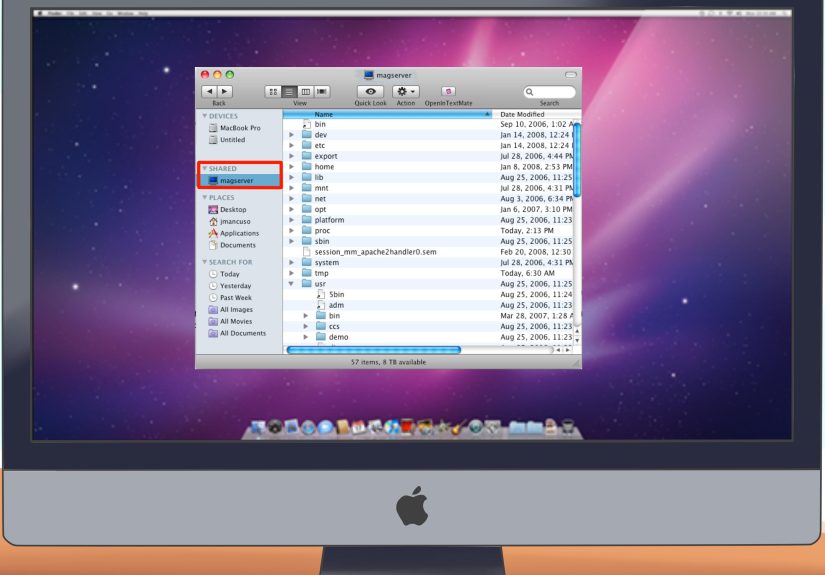
Step 8: Open Finder on the Mac
Now move to your Mac. Open Finder, because that is where the connection magic happens. Finder is not just for locating random screenshots and forgotten PDFs. It is also your doorway to network shares.
Step 9: Click Go > Connect to Server
In the Finder menu bar, click Go > Connect to Server. This is the standard macOS method for connecting to another computer that is sharing files. If the PC appears when you browse the network, great. If not, you can manually type the address.
Step 10: Enter the Windows share using SMB
In the server address field, type the Windows share location using the SMB format. A typical example looks like smb://PC-NAME or smb://192.168.1.25. If needed, include the shared folder name too. SMB is the common language both systems use for file sharing, which is nice because Macs and PCs are not always known for their diplomatic skills.
Step 11: Sign in with your Windows credentials
When prompted, enter the Windows username and password for the account allowed to access that shared folder. After authentication, your Mac should mount the shared folder like a network drive. At that point, you can drag files back and forth just like you would between local folders.
Step 12: Add the shared folder to Favorites if you plan to use it often
If this is not a one-time transfer, drag the shared folder into Finder’s sidebar or add it to your login items so it reconnects more easily later. This saves you from retyping the same server path every single time and muttering things at your screen that your router does not deserve.
Step 13: Turn on File Sharing on the Mac
If you want the connection to go both ways, open System Settings > General > Sharing on the Mac and turn on File Sharing. This allows the Mac to act as a host, not just a guest. In other words, the PC gets to visit too.
Step 14: Enable SMB sharing on the Mac
Inside the Mac’s File Sharing options, make sure Share files and folders using SMB is turned on. Then select the Mac user account you want to allow for SMB access. This step matters because Windows typically connects to Macs through SMB, not through Apple-only sharing methods.
Step 15: Connect from Windows to the Mac’s shared folder
On your PC, open File Explorer and type the Mac network path using a format such as \MacNameSharedFolder. You can also map it as a network drive if you want it to behave like a regular drive letter. Once connected, your PC can access shared Mac folders, and the two machines are officially speaking to each other like civilized devices.
Troubleshooting Tips If the PC and Mac Refuse to Cooperate
Even when you follow the steps correctly, network sharing can still get stubborn. Here are the most common reasons a Mac cannot connect to a Windows PC or vice versa:
The network profile is wrong
If Windows is set to Public instead of Private, sharing features may stay locked down. Switch it to Private and try again.
The firewall is blocking the connection
Firewalls are useful, but sometimes a little too enthusiastic. If the Mac cannot access the Windows share, verify that sharing traffic is allowed. On some setups, SMB traffic on TCP port 445 must be open for file sharing to work properly.
You used the wrong username or password
This one is incredibly common. Use the actual Windows account credentials for the shared PC, not your Microsoft account email unless that is truly how the system is configured.
SMB is not enabled on the Mac
If Windows cannot see the Mac share, double-check that the Mac’s SMB sharing option is enabled and that the correct user account has permission to connect.
The folder permissions are too strict
A folder may be shared on the surface but still blocked by permissions underneath. Review both sharing permissions and file system permissions if something looks shared but still acts locked.
Other Easy Ways to Connect a PC to a Mac
Use a direct Ethernet connection
If you are moving a lot of data, a direct Ethernet connection can be faster and more reliable than Wi-Fi. Modern Macs without an Ethernet port can use a USB-to-Ethernet adapter. This method is excellent for large media libraries, backups, and folders that would take ages over weak wireless connections.
Use Migration Assistant for a new Mac
If your real goal is moving from a Windows PC to a Mac permanently, Apple’s Migration Assistant is the cleaner route. It is designed to transfer contacts, calendars, email accounts, and more from a Windows PC to the appropriate places on the Mac. It is less about casual sharing and more about “I am switching teams now.”
Use cloud storage for long-distance convenience
If the computers are not on the same network, cloud platforms can do the heavy lifting. OneDrive, Google Drive, Dropbox, and iCloud for Windows all make cross-platform access easier. This is especially handy if you regularly switch between a Windows desktop and a MacBook.
Use an external drive formatted for both systems
For quick transfers without network setup, an external SSD or USB drive is still a classic move. The important detail is the format. ExFAT is usually the sweet spot for Mac-and-PC compatibility, especially for large files. If the drive is formatted only for Mac or only for Windows, one machine may complain, or worse, pretend everything is fine until you try to write a file.
Use remote access when you need control, not just files
If you want to operate a Windows PC from your Mac, not just browse its folders, remote access is a different category. Microsoft’s newer Windows App has replaced the old Remote Desktop app for macOS in many scenarios. Just remember that hosting incoming Remote Desktop connections on Windows generally requires a compatible Windows edition, not Home.
Real-World Experiences: What Connecting a PC to a Mac Is Actually Like
In real life, connecting a PC to a Mac is rarely a dramatic, movie-worthy tech moment. It is usually more like this: you have a Windows desktop stuffed with years of documents, a shiny MacBook on the table, and a growing sense that your files are being held hostage by whichever machine they happen to be sitting on. The first time you set up sharing, it can feel fussy. The second time, it feels obvious. By the third time, you will wonder why you ever emailed yourself files like it was 2012.
One common experience is the “family photo rescue mission.” A person has vacation photos, tax documents, and old videos on a Windows PC, but wants to organize everything on a Mac. At first, they try random flash drives, then discover the drive is too small, too slow, or formatted in a way one computer hates. Once network sharing is set up correctly, the transfer becomes far smoother. They can sort folders on one machine and move them in batches without plugging and unplugging hardware every ten minutes.
Another frequent scenario is the mixed-device home office. Maybe the gaming tower runs Windows, while the work laptop is a Mac. In that setup, the best experience often comes from leaving a shared project folder on one device and accessing it from the other over SMB. It is not glamorous, but it works. Designers move assets, writers move drafts, and video editors shuffle giant files around while quietly judging their Wi-Fi speed.
Then there is the “new Mac, old PC” experience. This is where users realize that connecting the machines is not just about file sharing; it is about reducing friction during a transition. Migration Assistant tends to feel less like copying data and more like moving house with labeled boxes. Your documents land where you expect them, your contacts do not vanish into another dimension, and the switch from PC to Mac feels less like starting over.
Of course, not every experience is smooth from the start. The most common frustration is when both computers are technically on the same Wi-Fi, but Windows is set to a public profile, the firewall is grumpy, or the Mac is trying to connect with the wrong credentials. That part can feel annoying. But once those settings are corrected, the connection usually settles down and becomes routine. The lesson is simple: most cross-platform problems are not deep compatibility disasters. They are ordinary settings problems wearing dramatic costumes.
The best long-term experience usually comes from choosing one primary method and sticking with it. For regular access, use network sharing. For travel or remote access, use cloud storage. For huge transfers, use Ethernet or an exFAT external SSD. When you stop trying five half-solutions at once, the whole process gets much easier, and your PC and Mac start behaving less like rivals and more like coworkers who finally agreed to share the conference room.
Conclusion
If you want to connect a PC to a Mac, the easiest and most reliable method for most people is local network sharing with SMB. Put both devices on the same private network, enable sharing on Windows, connect from Finder on the Mac, and then return the favor by turning on SMB file sharing on the Mac. That gives you two-way access without extra software and without relying on awkward workarounds.
For bigger moves, Ethernet, Migration Assistant, cloud services, and exFAT external drives all have their place. The trick is choosing the method that matches the job. If you just need to swap files, keep it simple. If you are migrating your digital life from one ecosystem to another, use the tools built for that purpose. Either way, once the setup is done, Mac and PC can work together surprisingly well. Not perfectly, because technology likes to stay humble, but well enough that you can get on with your day.