Table of Contents >> Show >> Hide
- What Automatic App Updates Mean in Windows 10
- Before You Begin: App Updates vs. Windows Updates
- How to Disable Automatic App Updates in Windows 10: 4 Steps
- What Happens After You Turn Off Automatic App Updates?
- How to Manually Update Microsoft Store Apps
- Why You Might Want to Disable Automatic App Updates
- Why You Might Not Want to Disable Automatic App Updates
- Can You Disable Updates for Only One Microsoft Store App?
- What If the Automatic App Update Toggle Is Missing?
- How to Troubleshoot Microsoft Store Settings
- Should You Disable Automatic App Updates on Windows 10 in 2026?
- Best Practices After Turning Off Automatic App Updates
- Common Mistakes to Avoid
- Real-World Example: When Disabling App Updates Helps
- Experience Notes: Lessons From Managing App Updates in Windows 10
- Conclusion
Automatic app updates in Windows 10 are a bit like a helpful roommate who means well but occasionally rearranges your desk, updates your favorite app, changes a familiar button, and then quietly leaves you to figure out what happened. Most of the time, Microsoft Store app updates are useful. They fix bugs, patch security issues, improve performance, and sometimes add genuinely helpful features. But there are also moments when you may want more control.
Maybe you rely on a specific version of an app for work. Maybe your internet connection has a monthly data cap. Maybe your laptop always chooses the worst possible moment to update apps, usually right when you are trying to finish something important. Or maybe you simply prefer to review changes before installing them. Whatever the reason, learning how to disable automatic app updates in Windows 10 can help you manage your PC with fewer surprises.
This guide explains the simple four-step method for turning off automatic Microsoft Store app updates in Windows 10. It also covers what this setting does, what it does not do, why you should still update important apps manually, and how to avoid confusing app updates with Windows system updates. Because yes, Windows has more than one type of update, and naturally, they all like to wear similar hats.
What Automatic App Updates Mean in Windows 10
In Windows 10, automatic app updates usually refer to apps installed through the Microsoft Store. These can include apps such as Microsoft Photos, Mail and Calendar, Calculator, Xbox-related apps, media tools, productivity apps, and other Store-based software.
When automatic updates are enabled, the Microsoft Store can download and install newer versions of these apps without asking you each time. This keeps apps current, but it can also create problems if an update changes the interface, removes a feature, introduces a bug, or uses bandwidth at an inconvenient time.
It is important to understand that disabling automatic app updates does not usually stop traditional desktop programs from updating themselves. Apps like Google Chrome, Adobe software, Zoom, Steam, antivirus tools, and many printer utilities often use their own update systems. Turning off Microsoft Store app updates will not control every program on your computer.
Before You Begin: App Updates vs. Windows Updates
Before you flip any switches, let’s clear up a common confusion. Microsoft Store app updates and Windows Update are not the same thing.
Microsoft Store app updates update individual apps downloaded or managed through the Store. These updates may include new app features, bug fixes, interface changes, or compatibility improvements.
Windows Update updates the operating system itself. These updates may include security patches, driver updates, reliability improvements, and important system fixes. Disabling or delaying Windows security updates can make your device more vulnerable, especially now that Windows 10 has reached the end of standard support and users need to be more careful about security planning.
So, this article focuses on how to disable automatic app updates in Windows 10 through the Microsoft Store. It is not a guide to blocking Windows security updates. Think of it this way: turning off Store app auto-updates is like deciding when to update the apps on your phone. Turning off system security updates is more like deciding not to lock the front door because the key feels annoying.
How to Disable Automatic App Updates in Windows 10: 4 Steps
The easiest way to stop automatic app updates in Windows 10 is through the Microsoft Store settings. The wording may vary slightly depending on your Store version, but the general process is the same.
Step 1: Open the Microsoft Store
Click the Start button in the lower-left corner of your screen. Type Microsoft Store into the search box, then select the Microsoft Store app from the results.
You can also open it from the taskbar if you have the Store icon pinned there. The icon usually looks like a shopping bag with the Windows logo on it. If you do not see it immediately, do not panic. Windows 10 likes to hide things in plain sight, like a digital sock drawer.
Step 2: Open Your Microsoft Store Profile or Menu
Once the Microsoft Store opens, look toward the top-right corner of the window. Depending on your version of the Store app, you may see a profile picture, your account icon, or a three-dot menu.
Click that profile or menu area. This is where Microsoft keeps several account and app management options. If your Store app has been updated recently, the layout may look a little different from older tutorials, but the settings area should still be accessible from the top-right section of the Store window.
Step 3: Go to App Settings
From the menu, choose Settings or App settings. This opens the Microsoft Store settings page, where you can control several Store-related options.
Look for a setting called App updates, Update apps automatically, or similar wording. This is the setting that controls whether Microsoft Store apps update on their own.
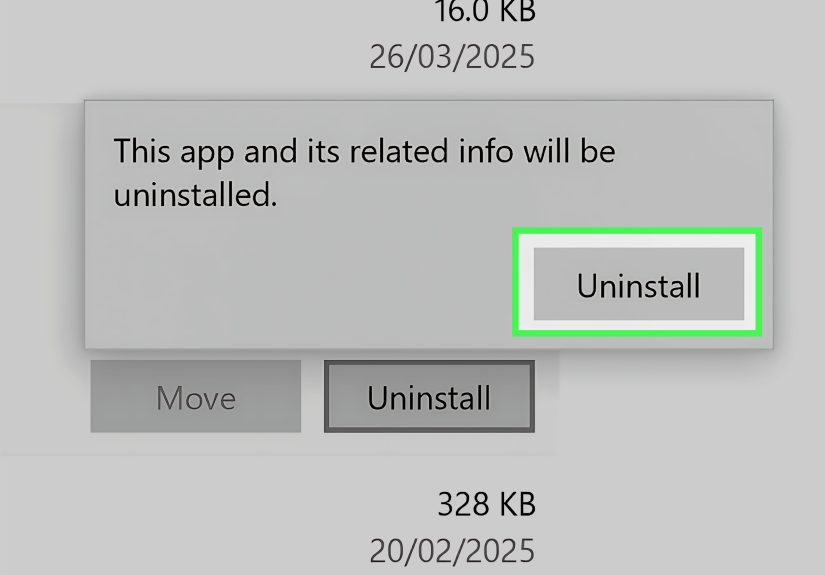
Step 4: Turn Off Automatic App Updates
Find the toggle for automatic app updates and switch it to Off. Once the toggle is off, Microsoft Store apps should no longer automatically update in the same way.
That is the main process. Four steps, no command line, no registry spelunking, no dramatic background music required.
What Happens After You Turn Off Automatic App Updates?
After you disable automatic app updates, your Microsoft Store apps may stay on their current versions until you update them manually. This gives you more control, but it also gives you more responsibility.
For example, if Microsoft Photos receives a bug fix but you have automatic updates turned off, you may not get that fix right away. If an app has a security update, you may need to manually install it. If a streaming or communication app requires the latest version to work correctly, you might eventually see errors, missing features, or sign-in problems.
In other words, disabling automatic updates is not a “set it and forget it forever” solution. It is more like switching from autopilot to manual driving. You get the steering wheel, but you also have to watch the road.
How to Manually Update Microsoft Store Apps
If you turn off automatic updates, it is smart to check for app updates manually from time to time. A good routine is to check once every week or two, especially if you use Microsoft Store apps for school, work, communication, media, or productivity.
To manually update Store apps, open the Microsoft Store, go to Library, and look for an option such as Get updates. The Store will check for available updates and let you install them. You can usually update everything at once or manage apps individually, depending on the Store version.
This manual approach gives you a middle ground. You avoid surprise updates, but you still keep important apps from becoming dusty little software antiques.
Why You Might Want to Disable Automatic App Updates
You Need Version Stability
Some users depend on a specific app version because it works well with their workflow. For instance, a designer may use a media app that behaves perfectly in one version but changes dramatically after an update. A student may rely on a note-taking app layout that changes after an automatic update. A small business may prefer to test updates before letting them run on every computer.
In these cases, automatic updates can create unnecessary disruption. Turning them off lets you wait, research feedback, and update when you are ready.
You Have Limited Internet Data
Not everyone has unlimited high-speed internet. If you use a mobile hotspot, shared connection, rural internet plan, or capped home broadband, automatic app downloads can become annoying. A few small updates may not matter, but several large app updates can quietly eat into your data allowance.
Disabling automatic updates can help you decide when to download updates, such as when you are on a stronger or unlimited Wi-Fi connection.
You Want Fewer Background Interruptions
Automatic updates usually happen in the background, but they can still affect performance. On older Windows 10 laptops, background downloads and installations may make the system feel slower. If your computer already groans when you open more than three browser tabs, reducing background activity can help.
Turning off automatic app updates may not transform an old laptop into a gaming spaceship, but it can reduce one source of background work.
You Prefer Manual Control
Some people simply like to know what is happening on their PC. There is nothing wrong with that. Manual control lets you review app changes, avoid sudden redesigns, and decide when updates fit your schedule.
If your computer is a tool you depend on every day, a little extra control can feel less like micromanagement and more like common sense.
Why You Might Not Want to Disable Automatic App Updates
While there are good reasons to disable automatic app updates, there are also good reasons to leave them enabled. App updates often fix bugs, patch vulnerabilities, improve compatibility, and support newer online services. If you rarely check for updates manually, turning off automatic updates may cause more problems than it solves.
For most casual users, automatic app updates are convenient. They reduce maintenance and keep apps working smoothly. If you are helping a family member who does not want to manage updates, leaving automatic updates on may be the better choice. Sometimes the best computer setting is the one that prevents future tech-support phone calls that begin with, “I didn’t touch anything, but now it’s weird.”
Can You Disable Updates for Only One Microsoft Store App?
Windows 10 does not usually provide a simple built-in option to disable automatic Microsoft Store updates for only one specific Store app while leaving all others automatic. The main setting controls automatic Store app updates broadly.
If one app is causing trouble after updates, you may need to manage it manually, contact the app developer, check the app’s own settings, or consider whether a non-Store version offers more control. Some app publishers handle updates through their own systems, which means the Microsoft Store setting may not control every update behavior.
What If the Automatic App Update Toggle Is Missing?
Some users may notice that their Microsoft Store layout does not match older guides. Microsoft has changed the Store interface over time, and certain update controls may look different depending on the Store version, Windows edition, account type, organization policy, or device management settings.
If the automatic app update toggle is missing, check these possibilities:
- Your Microsoft Store app has a newer design with different wording.
- Your PC is managed by a school, workplace, or organization.
- A system policy controls Microsoft Store behavior.
- The app you are concerned about uses its own update system outside the Store.
- Your Windows 10 installation or Microsoft Store app needs repair.
If your device is managed by an organization, you may not be able to change update settings yourself. In that case, the setting is probably controlled by an administrator. This is common on school or business computers, where IT teams manage updates to protect security and compatibility.
How to Troubleshoot Microsoft Store Settings
If the Microsoft Store does not open, freezes, or fails to show settings correctly, try restarting your PC first. It sounds basic, but restarting Windows still fixes a surprising number of problems. It is the digital equivalent of telling your computer to take a deep breath and try again.
You can also try signing out of the Microsoft Store and signing back in. If that does not help, check for Windows updates, reset the Microsoft Store cache, or repair the Store app from Windows settings.
To reset the Store cache, press Windows + R, type wsreset.exe, and press Enter. A blank command window may appear briefly, and then the Microsoft Store should reopen. This does not remove your apps, but it can clear Store-related glitches.
Should You Disable Automatic App Updates on Windows 10 in 2026?
Because Windows 10 has already passed its standard end-of-support date, users should be extra careful about update habits. If you continue using Windows 10, you should keep security in mind and avoid letting important apps become outdated for long periods.
Disabling automatic Microsoft Store app updates can still make sense if you need control, but it should be paired with a manual update routine. Do not turn updates off and then ignore them for six months. That is how small software issues grow into larger headaches.
A balanced approach is best: disable automatic app updates if you need control, then manually check updates regularly. Keep browsers, security tools, communication apps, and productivity apps current. Also consider your long-term plan for Windows 10, including upgrading to a supported operating system when possible.
Best Practices After Turning Off Automatic App Updates
Create a Manual Update Schedule
Pick a day to check for updates, such as Friday afternoon or the first Monday of each month. Put it on your calendar if needed. Manual updates work best when they are actually manual, not imaginary manual.
Update Critical Apps First
Prioritize browsers, communication apps, password managers, cloud storage tools, and security-related apps. These apps often interact with the internet and personal data, so keeping them current matters.
Read Recent Reviews Before Updating Problem Apps
If you are worried about a specific app update, check recent user feedback before installing it. Other users may report bugs, missing features, or performance problems. This is especially useful for apps you rely on daily.
Keep Backups of Important Data
Before major software changes, keep backups of important files. App updates rarely destroy data, but backups are still a good habit. Computers are wonderful tools, but they are not famous for apologizing when things go wrong.
Common Mistakes to Avoid
Mistake 1: Thinking This Stops All Updates
The Microsoft Store setting controls Store app updates. It does not necessarily stop Windows system updates, traditional desktop program updates, browser updates, driver updates, or antivirus updates.
Mistake 2: Never Updating Apps Again
Turning off automatic updates should not mean avoiding updates forever. Updates often fix real problems. Use manual updates as a control method, not as a time machine back to 2018.
Mistake 3: Ignoring Security
Some app updates include security improvements. If an app handles personal information, online accounts, payments, files, or messages, do not leave it outdated for too long.
Mistake 4: Confusing Store Apps with Desktop Programs
Many Windows programs are not managed by the Microsoft Store. If a desktop program keeps updating, check that program’s own settings. For example, browsers and creative software often include separate update controls.
Real-World Example: When Disabling App Updates Helps
Imagine you use a Windows 10 laptop for online classes and note-taking. Your favorite note app works perfectly. The layout is familiar, your shortcuts behave correctly, and everything syncs the way you like. Then one morning, the app updates automatically and suddenly the toolbar moves, a feature changes, and your notes look slightly different. Nothing is broken, exactly, but your routine is disrupted.
In that situation, disabling automatic app updates can help. You can wait a few days, read user feedback, and install the update when you are ready. This gives you time to adapt instead of being surprised ten minutes before a deadline.
Another example is a small office using several Windows 10 PCs. If every computer updates apps automatically at different times, employees may see different versions of the same app. One person’s screen has a new button while another person’s screen does not. That can make training and troubleshooting harder. Manual updating allows the office to test changes first, then update everyone together.
Experience Notes: Lessons From Managing App Updates in Windows 10
After using Windows 10 for years, one practical lesson becomes clear: updates are helpful, but timing matters. Automatic app updates are designed for convenience, and for many users, they work quietly in the background without drama. But when an update arrives at the wrong time, it can feel less like convenience and more like your computer made a decision during a staff meeting and forgot to invite you.
One of the most common experiences is the “where did that button go?” problem. An app updates, the interface changes, and suddenly a familiar workflow takes longer. This can happen with photo apps, media apps, email tools, note-taking apps, and even simple utilities. The update may be technically better, but users still need time to adjust. Disabling automatic updates gives you that adjustment window.
Another real-world issue is performance on older hardware. Windows 10 runs on many older PCs, and not all of them handle background activity gracefully. If your computer has a slower hard drive, limited RAM, or an aging processor, automatic downloads and installations can make the system feel sluggish. Turning off Store app auto-updates will not solve every performance problem, but it can reduce one layer of background activity.
Data usage is also a major reason people take control of updates. Users on mobile hotspots, shared Wi-Fi, prepaid internet, or limited rural connections may not want apps updating whenever they feel like it. A manual update routine allows downloads to happen at a better time, such as late at night, during unlimited data periods, or when connected to faster Wi-Fi.
However, the biggest lesson is that manual control requires discipline. The first week after disabling automatic updates feels great. No surprise changes. No background downloads. No mysterious app refreshes. But after a month or two, outdated apps can become a problem. Some apps may stop syncing correctly. Others may ask you to update before you can use certain features. In some cases, older versions may contain bugs that were already fixed.
A smart habit is to create a simple update routine. Open the Microsoft Store once or twice a month, check the Library section, and review available updates. Install updates for important apps first. If you are nervous about a specific update, search for recent user feedback or wait a few days. This approach gives you control without letting your apps become museum exhibits.
For families, the best setting depends on who uses the computer. A tech-comfortable user may prefer manual updates. A parent’s shared home PC or a grandparent’s laptop may be better with automatic updates enabled, simply because fewer maintenance tasks means fewer problems. The right choice is not always the most technical one. It is the one that fits the user’s habits.
For work computers, consistency matters. If a team depends on the same apps, uncontrolled updates can create confusion. One person may get a new interface while another still sees the old one. In that environment, disabling automatic updates and scheduling manual updates can make support easier. It also gives teams a chance to test app changes before everyone gets them.
The main takeaway is simple: disabling automatic app updates in Windows 10 is not about rejecting updates. It is about choosing when they happen. Updates are still important, especially for apps connected to online accounts, files, messages, or personal data. The goal is not to freeze your computer in time. The goal is to avoid surprise changes while still keeping your system healthy.
Conclusion
Disabling automatic app updates in Windows 10 is easy: open the Microsoft Store, go to your profile or menu, open settings, and turn off automatic app updates. The process takes less than a minute, but the decision should be thoughtful.
If you need control over app versions, want to save data, or prefer to avoid surprise interface changes, turning off automatic Microsoft Store app updates can be a smart move. Just remember that manual control comes with manual responsibility. Check for updates regularly, prioritize important apps, and do not confuse Store app updates with critical Windows system updates.
Note: This guide is about Microsoft Store app updates in Windows 10. It is not a recommendation to block important security updates. If you continue using Windows 10 after its standard support period, keep security, backups, and your long-term upgrade plan in mind.