Table of Contents >> Show >> Hide
- First, Identify What “Shutting Off” Actually Means
- Why Your Mobile Hotspot Keeps Shutting Off (Common Causes)
- 8 Solutions to Stop Your Hotspot From Shutting Off
- Solution 1: Turn Off Hotspot “Timeout” / Auto Shutoff
- Solution 2: Disable Battery Saver / Low Power Features (Temporarily)
- Solution 3: Check Data Limits (Carrier AND Device Settings)
- Solution 4: Fix Signal Problems and Stop Network “Flip-Flopping”
- Solution 5: Prevent Overheating (Heat = Hotspot’s Natural Predator)
- Solution 6: Restart, Update, and Refresh Network Settings
- Solution 7: Rebuild the Connection on the Device That Keeps Getting Kicked Off
- Solution 8: Fix Laptop Wi-Fi Power Saving (The Sneaky Disconnect Machine)
- Quick “If This, Then That” Troubleshooting Map
- When to Suspect a Carrier or Hardware Issue
- Real-World Experiences: Why Hotspots “Act Possessed” (And What Actually Fixed It)
- Experience 1: “It Disconnects the Moment I Lock My Phone”
- Experience 2: “It Works Fine… Until I Plug In the Charger”
- Experience 3: “It Dies After Exactly 10 Minutes, Like It’s Following a Script”
- Experience 4: “My Phone Hotspot Is FineMy Laptop Is the Problem Child”
- Experience 5: “It Only Fails in Certain Places”
- Conclusion
Your phone is supposed to be a tiny internet superhero. Instead, it keeps rage-quitting the moment you need it mostlike when you’re
submitting a form, joining a Zoom, or finally downloading that “urgent” file your teacher/manager swears was due yesterday.
If your mobile hotspot keeps shutting off, the good news is: this is usually fixable. The even better news is:
you don’t have to become a part-time network engineer to fix it.
In this guide, we’ll break down why a hotspot turns itself off and walk through 8 practical solutions
that work for iPhone (Personal Hotspot) and Android (Mobile Hotspot/Tethering). We’ll keep it real, keep it readable, and keep the “why”
behind each fixbecause guessing is not a strategy (unless you’re playing Wordle).
First, Identify What “Shutting Off” Actually Means
People say “my hotspot shuts off,” but it can mean a few different things. Pinpointing which one you’re seeing speeds up the fix.
- The hotspot toggle turns OFF by itself (you check settings and it’s disabled).
- The hotspot stays ON, but your laptop/tablet gets kicked off the Wi-Fi network.
- It works for a few minutes, then dropsoften on a predictable schedule (like 5 or 10 minutes).
- It fails when the screen locks, when battery gets low, or when you start charging the phone.
Keep that behavior in mind as you go through the solutions below. You can absolutely try them in order, but if your hotspot is turning
off at the same exact time every time, jump straight to the “timeout” fix.
Why Your Mobile Hotspot Keeps Shutting Off (Common Causes)
Mobile hotspots are designed to be “helpful” by conserving battery, preventing overheating, and (sometimes) protecting your carrier plan
from accidental data explosions. That helpfulness can look like:
- Hotspot timeout / auto turn-off when no device is connected or when traffic pauses.
- Battery Saver / Low Power Mode limiting background networking.
- Data limits (either a device setting or a carrier cap/throttle) that stops hotspot use.
- Weak signal or network switching (5G to LTE, tower handoffs, roaming rules).
- Overheating triggering protective shutdowns.
- Software glitches after updates, buggy settings, or corrupted network profiles.
- Client-device issues (your laptop’s Wi-Fi power saving is the silent villain).
8 Solutions to Stop Your Hotspot From Shutting Off
Solution 1: Turn Off Hotspot “Timeout” / Auto Shutoff
This is the #1 “it disconnects after exactly X minutes” culprit. Many Android phones (especially Samsung) include a setting that
automatically disables hotspot after a period of inactivity or when no devices are connected.
What to do (Android/Samsung):
- Open Settings → Connections (or Network & Internet).
- Tap Mobile Hotspot and Tethering → Mobile Hotspot.
- Look for Timeout, Turn off when no devices connected, or Auto turn off.
- Set it to a longer duration or Never (if available).
Example: If your hotspot dies after 10 minutes when you’re “just reading,” your phone may interpret that as inactivity
(no big data transfer) and shut the hotspot down to “save you.” Cute. Not helpful. Turn the timeout up.
What to do (iPhone):
-
iPhone doesn’t always expose a simple “timeout” switch, but it will drop connections if nothing is actively connected/using it.
If it’s shutting off quickly, try the battery/power settings fixes below and keep the hotspot screen open while initially connecting.
Solution 2: Disable Battery Saver / Low Power Features (Temporarily)
Battery modes are greatuntil they decide your hotspot is “non-essential.” Some phones get aggressive and reduce background networking,
restrict tethering behavior, or put the hotspot process on a short leash.
Try this:
- Android: Turn off Battery Saver or Power saving while tethering.
-
Android (advanced): Search settings for Battery optimization. If you see hotspot/tethering services,
set them to Unrestricted or Not optimized. - iPhone: Turn off Low Power Mode while hotspot is in use.
Pro tip: If your hotspot drops the moment your screen turns off, this solution + the next one (sleep/lock settings)
tends to fix it fast.
Solution 3: Check Data Limits (Carrier AND Device Settings)
Two different “limits” can cause shutdowns:
(1) a device-level hotspot data limit you (or an update) enabled, and
(2) a carrier plan hotspot limit.
Device-level limits (common on Android):
-
In Mobile Hotspot settings, look for Data limit or One-time data limit.
If it’s set to something tiny (or weirdly set to “0”), the hotspot may stop once it thinks you’ve hit the cap.
Carrier plan limits (iPhone and Android):
-
Some plans include hotspot data, others require an add-on, and many throttle hotspot speeds after a set amount.
If the plan doesn’t support hotspot, your phone may show the option but it won’t stay reliable. -
If you consistently lose hotspot after heavy usage (streaming, downloads, game updates), check your carrier account for hotspot usage
and whether you’ve hit a threshold.
Example: Your hotspot works in the morning, then “mysteriously” fails after you updated a laptop and installed a big game.
That’s not mysteryit’s math. Big downloads can burn through hotspot allowances surprisingly fast.
Solution 4: Fix Signal Problems and Stop Network “Flip-Flopping”
Hotspot stability depends on your phone’s cellular connection. If your phone is bouncing between 5G/LTE, dropping to one bar,
or roaming, your hotspot can disconnect even if the hotspot setting remains enabled.
Try this checklist:
- Move a few feet (seriously). Near a window often beats “deep inside concrete cave.”
- Toggle Airplane Mode ON for 10 seconds, then OFF (quick radio reset).
-
Switch preferred network:
Settings → Cellular/SIM → try locking to LTE temporarily if 5G is unstable. -
If your hotspot has both 2.4 GHz and 5 GHz options:
use 2.4 GHz for longer range/stability; use 5 GHz for speed at close range.
Specific example: If your laptop stays connected at home but disconnects in a crowded café, it may be Wi-Fi interference.
Switching the hotspot band or moving away from dense router zones can help.
Solution 5: Prevent Overheating (Heat = Hotspot’s Natural Predator)
Running hotspot is a workout: your phone is using cellular data + broadcasting Wi-Fi + managing multiple connections.
Add charging and a thick case, and your phone can overheatthen protect itself by throttling or shutting down features.
Do this:
- Remove the case during hotspot sessions (temporary fashion sacrifice).
- Keep the phone out of direct sun and off soft surfaces (beds = heat traps).
- Avoid heavy apps while tethering (gaming + hotspot = phone sauna).
- If possible, try USB tethering to reduce wireless workload and improve stability.
Quick reality check: If the hotspot only shuts off when charging, that’s a huge clue. Charging generates heat.
Heat + hotspot is like inviting two drama queens to the same party.
Solution 6: Restart, Update, and Refresh Network Settings
Yes, “turn it off and on again” is a meme. It’s also effective because tethering relies on multiple services that can get stuck:
cellular radio, Wi-Fi broadcast, DHCP, and carrier authentication.
Do these in order:
- Restart your phone.
- Restart the device connecting to the hotspot (laptop/tablet).
- Install any OS updates (iOS/Android updates often include modem/network fixes).
-
If it still drops: perform a Network Settings Reset.
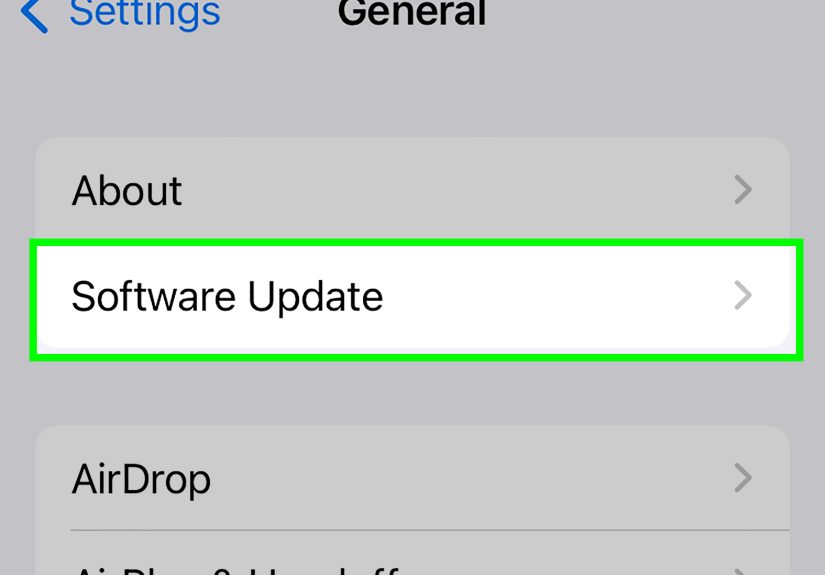
- iPhone: Settings → General → Transfer or Reset → Reset → Reset Network Settings.
- Android: Settings → System → Reset options → Reset Wi-Fi, mobile & Bluetooth (wording varies).
Note: Network resets delete saved Wi-Fi passwords and Bluetooth pairings. Annoying, yes. But it often fixes “ghost”
configuration issues that cause repeated disconnects.
Solution 7: Rebuild the Connection on the Device That Keeps Getting Kicked Off
Sometimes the hotspot isn’t the problemthe client device is. Corrupted Wi-Fi profiles or saved network settings can cause repeated drops.
Try this on your laptop/tablet:
- Forget the hotspot Wi-Fi network.
- Reconnect and re-enter the password.
- Disable/enable Wi-Fi (or reboot) if it still won’t stick.
- On the phone, change the hotspot password and reconnect (forces a fresh handshake).
Example: If your phone hotspot works perfectly with your iPad but your Windows laptop disconnects every few minutes,
the laptop’s saved profile or power settings are probably the issue. Which leads us to…
Solution 8: Fix Laptop Wi-Fi Power Saving (The Sneaky Disconnect Machine)
Many laptops try to conserve battery by powering down the Wi-Fi adapter, especially on battery power. That can look exactly like a hotspot problem:
you’re connected, thenpoof“No internet.”
Windows fix (common):
- Open Device Manager → expand Network adapters.
- Right-click your Wi-Fi adapter → Properties.
- Go to Power Management.
- Uncheck: Allow the computer to turn off this device to save power.
Also helpful:
- Windows: Settings → System → Power & battery → set Wi-Fi/laptop sleep to a less aggressive setting while tethering.
- Mac: Check Battery settings and disable “sleep” behavior that interrupts Wi-Fi during use.
When this is the right solution: Your hotspot stays on, but one specific laptop disconnectsespecially when its screen sleeps or
when it’s running on battery.
Quick “If This, Then That” Troubleshooting Map
- It turns off after exactly 5–10 minutes: Solution 1 (timeout) + Solution 2 (battery saver).
- It drops only when charging: Solution 5 (overheating) + Solution 2.
- It works in one location but not another: Solution 4 (signal/interference).
- Only one device keeps disconnecting: Solution 7 (rebuild connection) + Solution 8 (laptop power saving).
- It started after an update: Solution 6 (restart/update/network reset).
When to Suspect a Carrier or Hardware Issue
If you’ve tried the solutions above and the hotspot still shuts off constantly, the remaining suspects are:
- Carrier restrictions (plan doesn’t include hotspot, hotspot allotment is exhausted, or account provisioning issues).
- SIM or account authentication problems (rare, but can happen).
- Hardware issues (overheating even under light use, failing battery, or unstable modem).
At that point, it’s worth testing with:
(1) a different device connecting to your hotspot,
(2) a different location with stronger signal,
and (3) your carrier’s support to confirm hotspot provisioning and limits.
Real-World Experiences: Why Hotspots “Act Possessed” (And What Actually Fixed It)
Below are common real-life hotspot situations people run intobecause troubleshooting is easier when you can say,
“Yes, that’s exactly what mine is doing.”
Experience 1: “It Disconnects the Moment I Lock My Phone”
This one usually shows up during travel: you turn on hotspot, connect your laptop, lock the phone, slip it into your pocket, and two minutes later
your laptop acts like it’s been abandoned in the wilderness. The fix is almost always a mix of Battery Saver and
sleep/optimization settings. Turning off power saving (Solution 2) and extending hotspot timeout (Solution 1 on Android)
stops the phone from treating “screen off” as “nobody needs internet anymore.” On the laptop side, Windows power management can also be the culprit
(Solution 8), especially if disconnects happen right when the laptop dims or goes into battery mode.
Experience 2: “It Works Fine… Until I Plug In the Charger”
People assume charging should make everything better. But hotspot + charging can turn your phone into a small space heaterespecially in a thick case,
on a bed, or in a warm car. Once the device warms up, it may start shutting off network features to protect the battery and modem.
The surprisingly effective fix is basic: remove the case, keep the phone on a hard surface, avoid direct sunlight, and reduce background activity
(Solution 5). If you need maximum stability for hours, USB tethering (Solution 5/8 combo) often runs cooler and more reliably than
blasting Wi-Fi nonstop.
Experience 3: “It Dies After Exactly 10 Minutes, Like It’s Following a Script”
If you could set a watch by the disconnect, you’re not dealing with “random” behavioryou’re dealing with a timeout rule.
Samsung and many Android models include “turn off when no devices connected” or “timeout” options that can misfire when your activity is light
(reading emails, writing, scrolling docs). The phone sees low traffic and assumes you’re done. Turning the timeout to a longer settingor disabling it
entirelysolves it immediately (Solution 1). People are often shocked it was a single toggle… because it feels like the phone is personally offended
by your productivity.
Experience 4: “My Phone Hotspot Is FineMy Laptop Is the Problem Child”
This happens a lot with Windows laptops: the hotspot remains on, other devices stay connected, but one laptop repeatedly drops.
Windows can power down the Wi-Fi adapter to save battery, especially when you’re not actively clicking around. That looks like a hotspot shutdown, but it’s
actually your laptop taking a nap at the worst possible time. The fix is disabling Wi-Fi adapter power saving in Device Manager and adjusting sleep/power
settings while tethering (Solution 8). Once changed, users report the “disconnect every few minutes” issue disappearseven though nothing changed on the phone.
Experience 5: “It Only Fails in Certain Places”
At home, your hotspot is stable. At the airport or café, it disconnects constantly. That’s usually not your phone “being moody”it’s interference and signal
conditions. Crowded areas have tons of Wi-Fi networks overlapping, and your phone’s cellular signal may be weaker indoors. Switching hotspot bands (2.4 GHz for
range and stability) and moving closer to a window can help a lot (Solution 4). Some people also get better results by forcing LTE temporarily if 5G is unstable
in that spot. In other words: sometimes the fix is less “settings wizard” and more “move three feet and stop fighting physics.”
Conclusion
When your mobile hotspot keeps shutting off, it’s usually one of three things: a timeout, a power-saving
setting, or a connection stability issue (signal, heat, updates, or the client device). Start with the quick winstimeout and battery modes
then work outward to data limits, heat control, updates, and laptop Wi-Fi power settings. Most people solve this without replacing anything or calling support.
And if your hotspot still acts like it’s haunted? Test with another device, another location, and confirm your plan supports hotspot usage. Once you isolate
whether the phone, the laptop, or the carrier is responsible, the “mystery shutdown” becomes a simple fix instead of a recurring stress ritual.