Table of Contents >> Show >> Hide
- What Vanish Mode Is (and Why It Turns On So Easily)
- How to Turn Off Vanish Mode on Instagram: 3 Easy Steps
- What Happens After You Turn Off Vanish Mode
- Common Problems (and How to Fix Them)
- Practical Examples: When You Should (and Shouldn’t) Use Vanish Mode
- How to Avoid Turning On Vanish Mode by Accident
- Conclusion
- Real-World Experiences: What People Run Into (and What Works)
- SEO Tags
You open Instagram DMs, tap a chat… and suddenly everything goes dark. The screen looks like your conversation just entered its “mysterious film noir era.”
Congrats (or condolences): Vanish Mode is on.
The good news? Turning it off is quick. The slightly-less-good news? Anything sent in Vanish Mode is designed to disappear, so you can’t “undo” it like a typo.
In this guide, you’ll learn the three-step fix, what changes after you disable it, and how to troubleshoot if the feature is being stubborn.
What Vanish Mode Is (and Why It Turns On So Easily)
Vanish Mode is Instagram’s disappearing-message feature for one-on-one chats. When it’s enabled, messages, photos, and other content you send in that mode
are meant to vanish after they’ve been seen and you leave the chat. Think of it as “messages with a self-destruct button,” minus the dramatic countdown.
People often turn it on accidentally because the gesture to enable it is simple: a swipe up inside the chat. If you were trying to scroll to your most recent message
and your thumb had other plans, Vanish Mode can pop on before you even realize what happened.
Quick signs you’re in Vanish Mode
- The chat background changes (often darker).
- You may see a prompt indicating Vanish Mode is active.
- Messages sent during that session are treated as temporary.
How to Turn Off Vanish Mode on Instagram: 3 Easy Steps
These steps work the same on iPhone and Android. The key is to do the exact gesture you used to turn it onagainbut this time you’re using it to exit.
-
Step 1: Open the Instagram DM where Vanish Mode is active
Go to your Messages/DMs and tap the specific one-on-one conversation that’s currently in Vanish Mode.
(If you’re not sure which chat did it, look for the one that suddenly looks “different” when you open it.) -
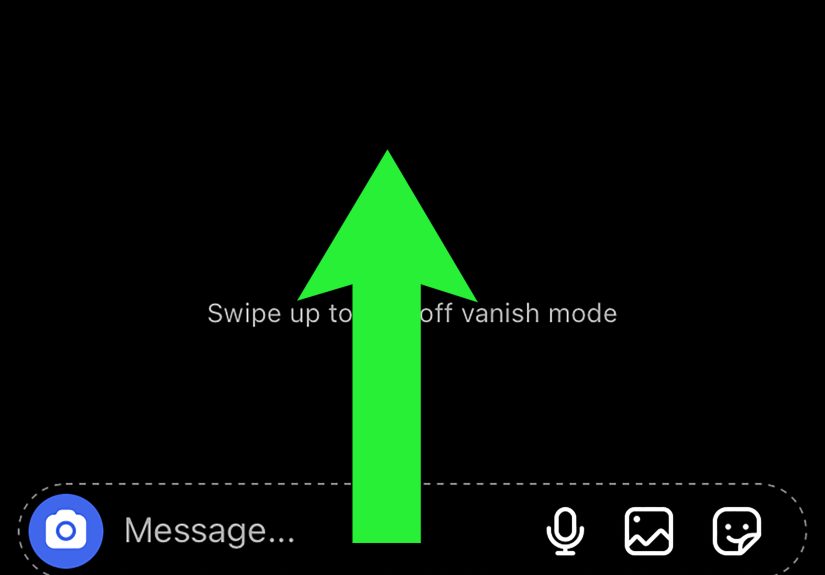
Step 2: Swipe up from the bottom of the chat and hold briefly
Place your thumb near the bottom of the chat window and swipe upward. You may see wording like
“Release to turn off Vanish Mode” (the exact phrasing can vary slightly depending on your app version).Pro tip: This is a chat gesture, not a “scroll the chat history” move. Start from the bottom area of the conversation,
not from the middle of the screen. -
Step 3: Release to exit, then confirm you’re back to normal
Let go when prompted. If Vanish Mode is off, the chat should return to its standard appearance and behavior.
To double-check, send a harmless message like “test” and make sure it remains in the thread when you close and reopen the chat.
If you see a “Turn Off Vanish Mode” button instead
Occasionally, Instagram may show a clear on-screen control (often near the top of the chat) to end Vanish Mode. If you see it, you can tap it.
If you don’t see it, don’t worrythe swipe method is the most consistently available option.
What Happens After You Turn Off Vanish Mode
Turning off Vanish Mode doesn’t delete your entire chat history. Your regular, non-vanishing messages should still be there.
What does change is what happens to content sent while Vanish Mode was active.
1) Vanish-mode messages are meant to be unrecoverable
If a message was sent in Vanish Mode and it disappeared, Instagram generally does not provide a “restore” option.
That’s the whole point of the feature: temporary conversations that don’t hang around forever like a leftover group-chat joke.
2) You’re not turning it off “globally”
Vanish Mode is managed per conversation. Turning it off in one DM doesn’t automatically disable it across all chats.
So if you accidentally enable it in a different conversation later, you’ll need to repeat the same three steps there.
3) Screenshots and screen recordings can trigger notifications
Vanish Mode is designed for privacy, but it’s not a magical force field. Someone can still capture what’s on their screen.
Instagram may notify participants if someone takes a screenshot or starts a screen recording during Vanish Mode.
Common Problems (and How to Fix Them)
If swiping up doesn’t turn off Vanish Mode, don’t panicInstagram features can be picky based on device settings, app version, or account type.
Here are the most common fixes that actually work in the real world.
Problem: “I swiped up and nothing happened.”
- Start the swipe from the bottom edge. If you begin in the middle of the chat, Instagram may interpret it as regular scrolling.
- Swipe up, then release. Some versions require you to hold for a moment and then let go when you see the prompt.
- Try again slowly. Fast swipes can register as a quick scroll instead of a mode toggle.
Problem: “Vanish Mode isn’t available, or I can’t use it in this chat.”
Vanish Mode is primarily for one-on-one conversations, not group chats. It may also be restricted depending on account type, region,
or whether you and the other person have interacted/connected in ways Instagram considers eligible.
Problem: “It works on my friend’s phone but not on mine.”
- Update Instagram. Newer features and toggles often behave better on the latest app version.
- Restart the app. Close it fully and reopen (yes, the oldest trick in tech still works way too often).
- Restart your phone. It can clear temporary glitches affecting gestures and overlays.
Problem: “My chat looks weird, and I think messages disappeared.”
If Vanish Mode was enabled, messages sent during that session may not remain once you exit. If you’re unsure what happened:
- Ask the other person whether they enabled Vanish Mode (either participant can toggle it).
- Check whether you received a notification indicating Vanish Mode was turned on.
-
If you think the conversation involved harassment or threats, consider reporting the account through Instagram’s reporting tools.
Even with disappearing messages, reporting options may still be available for a limited period.
Practical Examples: When You Should (and Shouldn’t) Use Vanish Mode
Use it when:
- You’re planning a surprise party and don’t want details sitting in a chat forever.
- You’re sharing a one-time code or temporary info (and you trust the person).
- You’re joking around and don’t need the conversation preserved for history books.
Skip it when:
- You’re coordinating something important (travel details, addresses, business deliverables).
- You need accountability or a record (client communication, agreements, timelines).
- You’re dealing with someone you don’t fully trust to respect boundaries.
How to Avoid Turning On Vanish Mode by Accident
Instagram doesn’t currently offer a universal “disable Vanish Mode forever” switch for all chats, so prevention is mostly about habits.
Luckily, a few small changes make accidental activation much less likely.
-
Scroll from the middle of the conversation instead of swiping from the bottom edge.
The bottom area is where the Vanish Mode gesture is most likely to register. -
Pause before swiping if you’re one of those people who scroll like you’re trying to start a fire with your thumb.
(No judgment. Okay, tiny judgment.) -
Communicate with frequent DM contacts. If Vanish Mode makes you uneasy, tell close friends not to enable it in your chat.
That way you don’t open a DM later and feel like your messages got abducted by aliens.
Conclusion
Turning off Vanish Mode on Instagram really is that simple: open the chat, swipe up, release, and you’re back to normal messaging.
The main thing to remember is what Vanish Mode is built to domake messages disappearso it’s not the right tool for conversations you may need later.
If the swipe doesn’t work immediately, it’s usually a gesture issue (start from the bottom edge) or an app issue (update and restart).
Once you’ve done it a couple of times, disabling Vanish Mode becomes muscle memorylike muting the group chat that never sleeps.
Real-World Experiences: What People Run Into (and What Works)
In everyday use, Vanish Mode tends to fall into two categories of experiences: intentional privacy and accidental chaos.
The intentional side is pretty straightforwardfriends use it to share something silly, sensitive, or temporary, then switch back to normal DMs.
The accidental side is where most frustration lives. A lot of people report that they triggered Vanish Mode while simply trying to scroll,
especially in fast-moving conversations where they’re bouncing between old messages and the newest replies.
The “oops” moment usually happens because the swipe begins near the bottom of the chat, which is exactly where Instagram expects the Vanish Mode gesture.
Another common experience is confusion over what actually disappeared. People sometimes assume their entire conversation got wiped,
when in reality it’s usually only the content sent during the Vanish Mode session that vanishes after exiting.
The best way users describe calming that panic is doing a quick check: turn off Vanish Mode, close the DM, reopen it, and see what remains.
If your standard chat history is still there, you’re fineyour messages didn’t evaporate into the digital void.
If some messages are missing, it’s likely they were sent while Vanish Mode was enabled and the chat was closed afterward.
Many users also mention that Vanish Mode feels inconsistent from phone to phone.
One person can see a clear “Turn Off Vanish Mode” option at the top, while someone else only gets the swipe gesture.
That’s why the “three-step swipe” remains the most reliable approach: it doesn’t depend on a button showing up.
People who struggle most often fix it by adjusting the motionslower swipe, starting from the bottom edge, and releasing when the prompt appears.
When that still fails, the “classic trio” tends to solve it: update Instagram, force close the app, then restart the phone.
It’s not glamorous, but it’s effectivelike turning Wi-Fi off and on when nothing else makes sense.
Privacy expectations are another big theme in shared experiences.
Some people turn on Vanish Mode thinking it’s “perfect secrecy,” then feel surprised when they learn screenshots can still happen
(even if notifications may alert participants). In practice, experienced users treat Vanish Mode as “less permanent,” not “impossible to capture.”
The healthiest pattern is using it only with people you trust and avoiding it for anything that could cause harm if saved elsewhere.
If you’re messaging a client, coordinating a meeting, or sharing something you may need to reference later, most users recommend staying in normal DMs.
Vanish Mode is best as a convenience featuregood for quick, disposable chatsnot as a guarantee.
Finally, some people find Vanish Mode genuinely helpful once they understand it.
For example, friends planning a surprise party enjoy not leaving clues behind in a chat thread. Others like sending a one-time detail
without cluttering their inbox. The experience tends to improve dramatically after the first “accidental activation,”
because you learn exactly how to exit itand you become more intentional about where you swipe.
In other words: the first time feels like a jump scare; the second time feels like you know the trick.