Table of Contents >> Show >> Hide
- Accessibility Isn’t a “Somebody Else” TopicIt’s the Real World
- What Are Tech Accessibility Features, Exactly?
- Why Every Student Benefits (Even Without a Diagnosed Disability)
- Accessibility Knowledge Builds Better Digital Citizens
- Accessibility Is a Career Skill (Yes, Even in Non-Tech Jobs)
- Practical Classroom Wins: Accessibility in Action
- A Student’s Mini Checklist: How to Get Started Today
- How Schools Can Normalize Accessibility Without Making It Awkward
- Experiences: What It Looks Like When Accessibility Features Become “Just Normal” (Extra )
- Conclusion: Accessibility Features Are the Smartest Study Tools You’re Not Using Yet
- SEO Tags
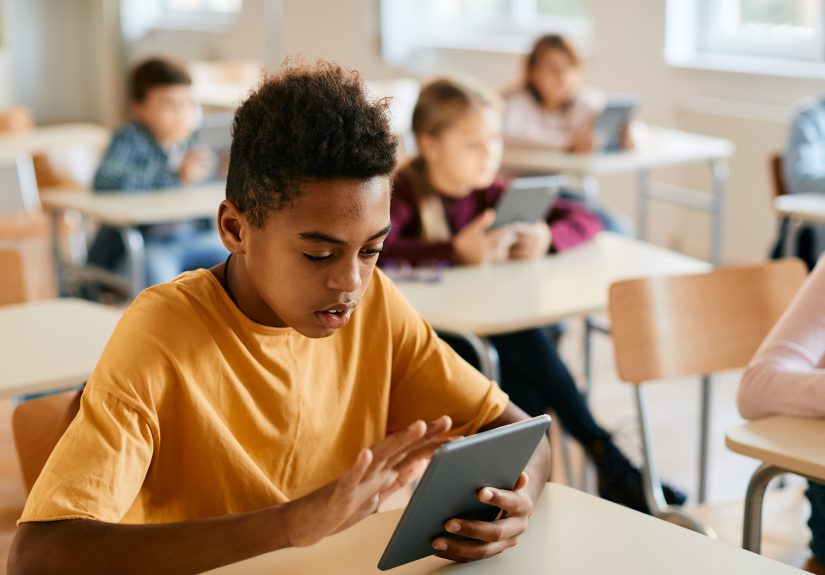
Most students spend a big chunk of their day inside a digital ecosystem: laptops, Chromebooks, tablets, phones,
smartboards, learning platforms, PDFs that mysteriously refuse to copy-and-paste, and videos that decide to whisper
at the exact moment the teacher says, “This will be on the test.”
Here’s the plot twist: the tools that make school tech easier to use aren’t “special” or “only for someone else.”
They’re already built into the devices students carry every dayand they can make learning faster, clearer,
less stressful, and a lot more fair.
Tech accessibility features (like captions, screen readers, text-to-speech, voice typing, and visual adjustments)
aren’t just helpful accommodations. They’re modern literacy. If we teach students how to write a thesis statement,
we can also teach them how to turn on captions.
Accessibility Isn’t a “Somebody Else” TopicIt’s the Real World
In U.S. public schools, millions of students receive special education services under the Individuals with Disabilities
Education Act (IDEA). That’s not a tiny “edge case”it’s a major part of the classroom reality. And disability isn’t
only a childhood issue that disappears after graduation. In adult life, disability is common, too.
But the most important point is bigger than statistics: accessibility supports human variability. That includes:
permanent disabilities, temporary injuries (hello, sprained wrist during finals week), and situational challenges
(like trying to understand a video in a loud cafeteria or on a bus that sounds like a blender).
When students learn accessibility features early, they gain the power to adapt. That’s a life skill that travels
welllike a passport, but for your brain.
What Are Tech Accessibility Features, Exactly?
Accessibility features are built-in settings and tools that help people interact with devices and digital content in
different ways. They’re designed to reduce barriersnot to give anyone “an unfair advantage,” but to give everyone
a fair chance to access information.
For vision and reading
- Screen readers that read what’s on the screen out loud (useful for blind/low-vision usersand surprisingly helpful for proofreading).
- Magnification and zoom to enlarge text and images without turning everything into a blurry mess.
- High contrast, color filters, and dark mode to reduce eye strain and improve visibility.
- Text-to-speech / Read Aloud that speaks digital text (great for reading fatigue, dyslexia, or focus support).
- Structured reading views that reduce clutter and highlight text for better comprehension.
For hearing and audio access
- Closed captions and live captions for videos, meetings, and sometimes real-world conversation.
- Sound recognition alerts for certain noises (like alarms or doorbells on some devices).
- Audio balancing and amplification options for headphones and compatible hearing devices.
For mobility, hands-free use, and physical access
- Voice control / voice access to navigate and type without hands.
- Dictation for speech-to-text writing (useful for motor challenges, but also for brainstorming and drafting).
- Switch access and alternative input support for users who navigate with specialized devices.
- Assistive touch and shortcut menus that reduce complex gestures.
For learning, attention, and comprehension
- Focus modes that reduce distractions from notifications and visual clutter.
- Caption + transcript tools that support comprehension and note-taking.
- Typing supports like word prediction, speech-to-text, and autocorrect customization.
- Reading supports like text spacing, font adjustments, and read-aloud pacing controls.
Students don’t need to memorize every option. The goal is to recognize the categories and know how to find tools when
learning feels harder than it should.
Why Every Student Benefits (Even Without a Diagnosed Disability)
A common misconception is that accessibility features are only for students with documented accommodations. In reality,
accessibility tools often function like “learning upgrades” that help in everyday situations.
Captions help more than you think
Captions aren’t just for students who are Deaf or hard of hearing. They help when audio is unclear, speakers have accents,
classroom acoustics are rough, or the video was recorded with what can only be described as “a microphone made of despair.”
Captions can also improve focus and retention because students receive information through multiple channels.
Text-to-speech is a secret weapon for reading and writing
Text-to-speech (TTS) can support students with dyslexia, reading challenges, or visual fatigue. But it also helps
strong readers power through long digital passages, catch mistakes in their writing, and stay engaged when attention is
running low. Hearing text read aloud while seeing it on screen can reinforce comprehension and reduce cognitive overload.
Voice typing speeds up ideas
Dictation tools can help students who struggle with handwriting, typing fluency, or injuries. But they also help students
capture ideas quicklyespecially during brainstormingthen revise later. It’s like getting your thoughts out of your head
before they evaporate.
Visual adjustments reduce “hidden friction”
Many students deal with headaches, screen fatigue, light sensitivity, or concentration issues. Simple changesbigger text,
improved contrast, reduced motion, and less visual cluttercan make digital learning feel less like swimming upstream.
Accessibility Knowledge Builds Better Digital Citizens
Teaching students accessibility is also teaching empathy with practical skills. When students understand why captions matter,
they stop treating them like an optional “extra.” When they learn how screen readers work, they think differently about
how they format documents and websites.
This matters because students don’t just consume contentthey create it: slides, videos, TikToks, podcasts, class websites,
Canva posters, group presentations, and everything in between. If they understand accessibility early, they’ll produce
work that more people can actually use.
Accessibility Is a Career Skill (Yes, Even in Non-Tech Jobs)
Accessibility isn’t only a “nice-to-have.” In the U.S., there are major civil rights and technology accessibility frameworks
that shape how schools, governments, and businesses provide access to information and services. Students who understand
accessibility are better prepared for the real worldcollege, careers, and civic life.
It shows up in school, college, and the workplace
- State and local government digital services increasingly face specific expectations for accessible web content and mobile apps.
- Federal agencies and many organizations working with them follow digital accessibility requirements for information and communication technology.
- Organizations and employers often expect accessible documents, videos with captions, and usable digital workflowsbecause it’s good practice and reduces legal and usability risk.
Even if a student never becomes a software developer, accessibility shows up in everyday tasks:
writing emails and documents, building slides, making videos, running meetings, designing forms, and posting content online.
“Accessible work” is also “high-quality work”
The habits that make content accessible also make it clearer for everyone:
headings that organize ideas, descriptive link text, readable fonts, strong color contrast, captions, transcripts,
and documents that can be navigated quickly. Accessibility is basically good communication with a backbone.
Practical Classroom Wins: Accessibility in Action
To make accessibility real, it helps to connect it to classroom moments students actually recognize.
Here are a few examples of how accessibility features can quietly rescue learning:
Example 1: The “I missed what the video said” problem
A class watches a documentary clip. Some students catch everything; others miss key phrases due to noise, audio mixing,
or attention drift. Turning on captions gives everyone a second channel of information and makes quoting evidence easier.
Example 2: The “I can read it, but my brain won’t hold it” problem
A student reads a dense article but struggles to retain the main points. Using text-to-speech while following along can
improve comprehension and keep pace steady. Paired with highlighting or note tools, it becomes a study strategynot a workaround.
Example 3: The group project that accidentally excludes someone
A group designs slides with tiny text and low contrast. One student can’t comfortably read them from a distance.
Teaching students basic accessibility checksfont size, contrast, clear structureprevents problems before the presentation starts.
Example 4: The student who writes better when speaking first
Some students generate ideas faster by talking than typing. Voice typing lets them draft quickly, then revise for clarity,
structure, and evidence. That’s not “cheating.” That’s using a tool to support the writing process.
A Student’s Mini Checklist: How to Get Started Today
Accessibility doesn’t require a dramatic tech overhaul. Start small. Treat it like exploring the settings menu the way you
explore a new game: curious, strategic, and slightly overconfident.
On phones and tablets
- Find the Accessibility section in settings and scan what’s available.
- Turn on captions for videos and try live captions if your device supports it.
- Test text size, bold text, contrast, and color filters.
- Try voice control or dictation for hands-free writing.
- Learn how to create an accessibility shortcut (so tools are one click away when you actually need them).
On laptops, Chromebooks, and desktops
- Find built-in tools like screen readers, magnifiers, and caption settings.
- Try Read Aloud or TTS options in browsers, PDFs, and documents.
- Turn on keyboard navigation and learn a few shortcuts (your wrists will thank you later).
- Use focus modes to cut distractions during study sessions.
When creating class content (documents, slides, videos)
- Use real headings (not just bold text) so content is navigable.
- Add alt text to important images and charts.
- Keep strong contrast and readable font sizes (tiny gray text is not a personality trait).
- Caption videos when possible; provide transcripts for audio content.
- Write descriptive links (avoid “click here” when you can name the destination).
How Schools Can Normalize Accessibility Without Making It Awkward
Accessibility works best when it’s normallike using spellcheck or wearing glasses. The classroom culture matters.
If accessibility tools are treated like “special equipment,” students may avoid them to dodge stigma.
If they’re treated like standard learning options, students use what they needquietly and confidently.
Simple ways educators can build a pro-accessibility culture
- Do an “accessibility scavenger hunt” early in the year so everyone learns where tools live.
- Model use publicly (turn on captions, adjust text size, use read-aloud for proofreading).
- Offer choices for how students access and show learningwritten, audio, video, visuals, or mixed formats.
- Teach Universal Design for Learning (UDL) thinking: reduce barriers from the start instead of fixing problems later.
When accessibility is routine, students don’t have to “announce” their needs. They can just learn.
Experiences: What It Looks Like When Accessibility Features Become “Just Normal” (Extra )
Imagine a ninth-grade classroom on a Monday morning. The teacher plays a short video to introduce a new unit, and before
anyone even asks, captions are already on. Not because the teacher is making a statementbecause it’s the default.
One student reads the captions because the audio is quiet. Another reads them because they process language better visually.
A third student uses captions because they’re an English learner and it helps connect spoken words to spelling.
Nobody is singled out. Nobody has to explain. The class just… understands the video.
In another class, a student is recovering from a concussion and screens feel like staring into the sun. They increase text size,
lower brightness, and use a reading view that reduces clutter. The student still participates, still completes assignments,
and still feels like a full member of the class. The “accommodation” is a few setting changesno dramatic paperwork moment,
no spotlight, no awkwardness.
During a group project, students build slides for a presentation. Early in the year, they learned a quick “accessibility check”:
high contrast, readable fonts, clear headings, and image descriptions when visuals carry meaning. Now it’s just part of the workflow,
like checking spelling. One student mentions, “If the text is tiny, the back row is going to suffer.” Another adds,
“Also, if we rely on color alone, some people won’t know what the chart means.” They aren’t acting like accessibility police;
they’re acting like communicators who want their message to land.
In study hall, a student who struggles with reading stamina uses text-to-speech to get through a long article. They follow along with
their eyes while the device reads at a controlled speed. What changes? They finish the reading. They pull accurate quotes.
They can actually discuss the content instead of feeling defeated halfway through. Next to them, a student without any formal learning
plan uses the same toolnot because they “can’t read,” but because they’re tired and trying to keep focus. Both students benefit.
Same tool. Different reasons. Same outcome: learning happens.
Then there’s the student who hates writinguntil they try voice typing. Speaking their ideas out loud helps them get a first draft done.
Later, they edit for grammar, add evidence, and restructure paragraphs. The student’s teacher notices something important:
the student’s thinking was never the problem. The bottleneck was getting thoughts onto the page. Accessibility tools didn’t “lower standards”;
they removed a barrier so the student could meet the standard.
The most powerful experience isn’t a single featureit’s the shift in mindset. Students start to see learning as flexible.
They stop treating “one right way” as the rule. They realize tools exist to support how humans actually work: sometimes fast, sometimes tired,
sometimes stressed, sometimes brilliant, sometimes all of the above at once. And when accessibility becomes ordinary, kindness becomes ordinary too.
Students learn to ask, “Can everyone access this?” before they hit submit. That habit will outlast any single app or device.
Conclusion: Accessibility Features Are the Smartest Study Tools You’re Not Using Yet
Teaching students about tech accessibility features isn’t only about meeting needsit’s about expanding options.
Captions, screen readers, text-to-speech, voice control, magnification, and focus tools help students learn in ways that match
real human variability. They support independence, reduce stigma, and improve digital communication.
When students understand accessibility, they don’t just become better learners. They become better creators, better teammates,
and better citizens in a world that runs on digital content. Accessibility is not a side quest. It’s part of the main storyline.