Table of Contents >> Show >> Hide
- First, a quick clarity check: Are you adding money to the Cash App Card or the Cash App balance?
- Before you head to 7-Eleven: A 60-second checklist
- How to add money to Cash App at 7-Eleven (step-by-step)
- Tips to make it smoother (and faster than deciding between two nearly identical energy drinks)
- Troubleshooting: What to do when something goes sideways
- Alternatives if 7-Eleven isn’t cooperating
- Safety tips: Keep your deposit (and your account) drama-free
- FAQ
- Real-world experiences: what it’s like to load Cash App at 7-Eleven
- Conclusion
You’ve got cash in your pocket, a Cash App Card in your wallet, and exactly zero interest in making a special trip to a bank (or explaining to an ATM why you “just want to deposit money, please”). Good news: in many areas, you can add cash to your Cash App balance at participating retailers like 7-Eleven using Cash App’s Paper Money featurefast, simple, and usually done before your snack cravings evolve into a full-blown “hot dog + taquito combo” situation.
This guide walks you through the whole process step-by-step, explains fees and limits in plain English, and helps you troubleshoot the most common “why is the barcode doing that?” moments. By the end, you’ll know exactly how to load cash at 7-Eleven and have it ready to spend with your Cash App Card.
First, a quick clarity check: Are you adding money to the Cash App Card or the Cash App balance?
Technically, you’re adding cash to your Cash App balanceand your Cash App Card spends from that balance. So when people say “add money to my Cash App Card at 7-Eleven,” what they usually mean is: “Put cash into my Cash App balance so my Cash App Card can use it.”
Before you head to 7-Eleven: A 60-second checklist
1) Make sure your Cash App account can use Paper Money
Paper Money deposits aren’t available for everyone. In general, you’ll want to:
- Have the latest version of Cash App installed.
- Check the Money tab for a Paper Money option.
- Complete any identity verification steps Cash App requires (some features only work for verified customers).
If you don’t see “Paper Money,” it may be unavailable for your account or your area. (More on what to do in that case below.)
2) Bring the obvious stuff (and one non-obvious thing)
- Your phone (with Cash App logged in and enough battery to survive the checkout line).
- Cash you want to deposit.
- A backup payment method (optional, but helpful if you realize you need a snack “for emotional support”).
- Your ID (not always required, but some stores may have their own policies).
3) Know the fee so it doesn’t jump-scare you at the register
Cash App commonly charges a $1 processing fee per Paper Money deposit, and it’s typically taken out of the funds you hand over. Translation: if you give the cashier $50, you may see $49 added to your Cash App balance (depending on how the fee is collected in your flow).
In some cases, Cash App may waive that Paper Money deposit fee if you meet certain activity thresholds (for example, qualifying deposits or spending targets tied to Cash App’s benefits/status programs). If you’re aiming to deposit cash frequently, that waiver can matter.
4) Understand deposit limits (so you don’t try to deposit “just a casual $900” in one shot)
Paper Money deposits generally have:
- Per-deposit limits (a minimum amount and a maximum amount for each transaction).
- Rolling time-frame limits (caps across 7 days and 30 days).
That means you may need multiple deposits over time for larger amountsand the app may block you once you hit your rolling limit. Also, some retailers may enforce additional store-level restrictions.
How to add money to Cash App at 7-Eleven (step-by-step)
The exact screen labels can vary slightly by app version, but the flow is usually consistent.
Step 1: Open Cash App and go to the Money tab
- Open Cash App.
- Tap the Money tab (sometimes shown as a bank/money icon).
- Look for Paper Money.
Step 2: Find a participating 7-Eleven location in the app
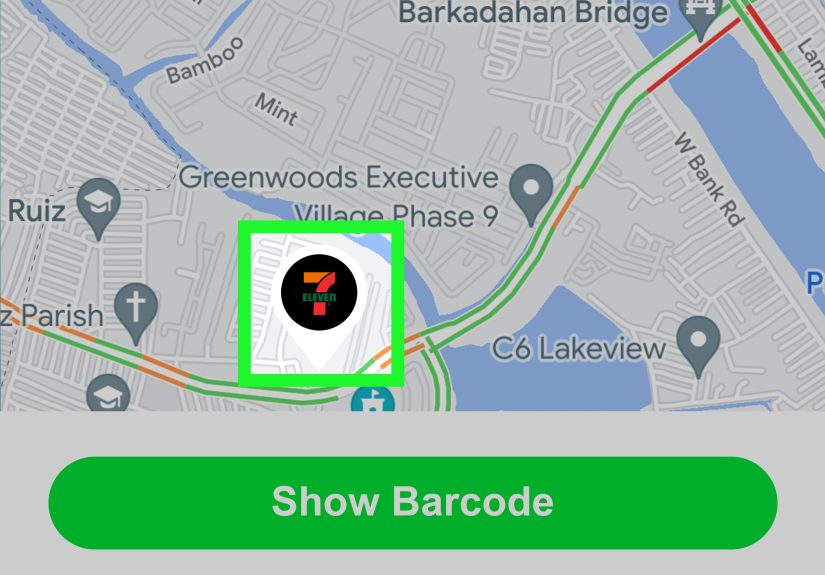
Tap Paper Money and use the in-app map or list to find nearby participating locations. This is important because:
- Not every 7-Eleven location necessarily supports every service.
- Availability can change based on store setup or regional partnerships.
- The app’s map is your “yes, this should work here” sanity check.
Step 3: Generate your deposit barcode (your golden ticket)
In the Paper Money section, Cash App will generate a barcode for the cashier to scan. This barcode connects the deposit to your account.
- Turn your screen brightness up (barcodes love confidence and good lighting).
- Don’t screenshot it unless Cash App specifically indicates that’s okayuse the live barcode when possible.
Step 4: At the register, tell the cashier what you’re doing (use this exact script)
Say: “Hi! I’d like to add money to Cash App using Paper Money. I have the barcode.”
Then:
- Show the cashier your barcode.
- Hand over the cash amount you want to deposit.
- Confirm the total (including any fee/processing difference).
Pro tip: if the cashier looks puzzled, politely ask if they can try scanning the barcode as a “cash reload” or “paper money deposit.” Some registers categorize it differently, and phrasing can help.
Step 5: Confirm the deposit in-app before you leave
In many cases, Paper Money deposits show up quickly in your Cash App balance (often close to instantly). Before you walk out:
- Check your Cash App balance.
- Look for a transaction record.
- Keep the receipt (at least until you see the money posted correctly).
Tips to make it smoother (and faster than deciding between two nearly identical energy drinks)
Deposit a “clean” amount
If your goal is to have exactly $40 available, remember fees. You might choose to deposit a little extra so your available balance lands where you want it.
Avoid the “barcode won’t scan” blues
- Increase screen brightness.
- Wipe your screen (smudges can confuse scanners).
- Hold the phone steadyno interpretive dance required.
- Ask the cashier to try a different scanner if available.
Know that stores can have their own rules
Even when Cash App allows certain limits, a retailer may impose additional constraints (like a different minimum for a certain deposit method). If a deposit fails, it doesn’t always mean you did something wrongsometimes it’s store-side policy or register configuration.
Troubleshooting: What to do when something goes sideways
“I don’t see Paper Money in Cash App.”
- Update the app.
- Check whether your account is verified (some features are limited for unverified users).
- Look under the Money tab for “Paper Money” or similar wording.
- If it still doesn’t appear, use alternative funding methods (below).
“The 7-Eleven cashier says they can’t do Cash App.”
This is surprisingly common and usually comes down to one of three things:
- That location isn’t a participating partner for Paper Money deposits.
- The cashier hasn’t processed it before (training gaps happen).
- The register is temporarily unable (system outages, updates, or limits).
Your best move: check the in-app map for a different nearby location and try again.
“My barcode won’t scan.”
- Turn up brightness.
- Use the barcode inside Cash App (not a blurry screenshot).
- Try closing and reopening the Paper Money screen to refresh it.
- Ask the cashier to scan from a slightly different angle or distance.
“The deposit didn’t show up immediately.”
While many deposits post quickly, occasional delays can happen. If you don’t see it right away:
- Wait a few minutes and refresh your activity feed.
- Confirm the cashier completed the transaction (receipt helps here).
- Check whether you’ve hit rolling deposit limits.
- Contact Cash App support through the app if it still doesn’t appear after a reasonable wait.
Alternatives if 7-Eleven isn’t cooperating
If your closest 7-Eleven isn’t a participating location (or the scanner is having a villain arc), you still have other ways to add money.
Add money from a linked bank account or debit card
In Cash App, you can typically add funds by linking a bank account or debit card and using the Add Money function in the Money tab. This can be a good option when you don’t need to convert physical cash.
Use Direct Deposit
If you want consistent funding without the store run, direct deposit can route paychecks (and other eligible deposits) into your Cash App balance, depending on your setup.
Request money from someone (the modern “spot me $20”)
If a friend owes you anyway, requesting money through Cash App can be the simplest workaround. It’s not a cash depositbut it can solve the same problem fast.
Safety tips: Keep your deposit (and your account) drama-free
- Only use in-app support paths if you need helpavoid random phone numbers from search results or social media.
- Never share verification codes with anyone, including someone claiming to be “support.”
- Confirm your balance before leaving the store, and keep the receipt until everything looks correct.
- Don’t keep more money in any payment app than you need for near-term spendingtreat it like a wallet, not a mattress.
FAQ
Can I load money onto my Cash App Card at 7-Eleven without the card?
Often, yesPaper Money deposits are typically done with a barcode in the app. That said, retailer policies can vary, and some locations may request additional steps.
What’s the minimum and maximum deposit at 7-Eleven?
Paper Money deposits generally have a minimum and a per-transaction maximum (commonly a small minimum and a few-hundred-dollar max per deposit). Your app will show what applies to you, and rolling weekly/monthly limits also apply.
Is there a fee to add cash at 7-Eleven?
Cash App commonly charges a flat processing fee per Paper Money deposit. In some situations, the fee may be waived based on account activity or benefits/status eligibility.
How long does it take for the money to hit my Cash App balance?
Many Paper Money deposits post quickly, often close to instantly. If there’s a delay, keep your receipt and check your activity feed first.
Real-world experiences: what it’s like to load Cash App at 7-Eleven
Let’s talk about the part no one puts in the “official instructions”: the human experience of trying to do a modern fintech thing in a very real-world convenience store while someone behind you is buying exactly one banana and a lottery ticket.
Experience #1: The “easy win” deposit. You walk in, open Cash App, tap Money, tap Paper Money, and the map points to a 7-Eleven two blocks away. You get to the register, say the magic words (“I’d like to add money to Cash App using Paper Money”), and the cashier scans your barcode like they’ve done it 40 times today. You hand them $60, your phone buzzes, and you watch your balance update before you’ve even decided whether your snack should be salty, sweet, or “both, because adulthood is hard.” This is the dream scenario: quick, smooth, and it makes you feel like technology is, for once, doing what it promised.
Experience #2: The “new cashier” moment. Same plan, different day, different cashier. You say “Cash App deposit” and get a look that says, “I have never heard these words in this order.” The barcode is ready. You’re ready. The line behind you is also readyready to sigh dramatically. In this scenario, the most helpful thing you can do is stay calm and keep it simple: “It’s a Paper Money deposit. The register just needs to scan this barcode.” Sometimes the cashier will call a manager, sometimes they’ll try a different screen, and sometimes you’ll learn that this specific location doesn’t support it. The key is not taking it personally. It’s not you. It’s retail systems being retail systems.
Experience #3: The “why won’t you scan?” barcode struggle. Barcodes are weirdly emotional. When they work, they work instantly. When they don’t, it’s like watching someone try to unlock a door with the right key but the door decides it’s on a break. If the scanner won’t read your phone, the usual fixes are surprisingly low-tech: crank up your screen brightness, wipe off smudges, and hold your phone steady. People often find that even a tiny tilt changes everything. If the first scanner doesn’t work, asking the cashier to try another can solve it in two secondsbecause apparently some scanners are just having a day.
Experience #4: The “fee math” realization. A lot of people expect to hand over $50 and see $50 appear. Then the processing fee shows up and your deposited amount lands slightly lower than you pictured. The best move is planning for it. If you need a specific amount available for a bill, a ride, or a purchase, deposit a little extra so you don’t end up short by a dollar at the worst possible moment (like when you’re already late and your card declines over $1). After you’ve done it once, the fee becomes less of a surprise and more of a “yep, that’s the toll for turning paper cash into app money.”
Experience #5: The confidence boost. Once you’ve successfully loaded cash at 7-Eleven one time, you’ll notice something funny: the next time feels dramatically easier. You know where Paper Money lives in the app. You know the script to say at the register. You know to check your balance before leaving. And that tiny routine can be genuinely usefulespecially if you’re paid in cash sometimes, splitting expenses with friends, or just trying to keep your spending organized by moving “physical money” into your Cash App balance for everyday purchases.
Bottom line: the process is usually quick, but the experience can vary based on location, staffing, and store systems. If you go in preparedwith the barcode ready, your brightness up, and a calm “I’ve got this” vibeyou’ll succeed more often than not. And if one location doesn’t work, the in-app map helps you pivot fast.
Conclusion
Adding money to your Cash App Card at 7-Eleven is usually just a quick Paper Money deposit: find a participating store in the app, generate your barcode, let the cashier scan it, hand over your cash, and confirm your balance updates. The main “gotchas” are simplefees, per-deposit limits, rolling limits, and the fact that not every location is set up the same. Once you know the flow, it becomes a reliable way to turn cash into spendable balance without detouring through a bank.