Table of Contents >> Show >> Hide
- Step 1: Confirm Your Edition, Platform, and Permissions
- Step 2: Enable Cheats or Command Permissions (So Minecraft Will Actually Listen)
- Step 3: Open the Chat/Command Bar (Your Portal to Power)
- Step 4: Use the /gamemode Command (The Fastest Switch)
- Step 5: Change Gamemode via Settings (Best for Bedrock, Great for New Players)
- Step 6: Advanced Switches (Servers, Defaults, Multiple Players, and “Oops” Fixes)
- What Each Gamemode Is Actually Good For
- Common Questions (Because Everyone Has the Same Panic at Least Once)
- Conclusion
- Extra: of Real-World “I Learned This the Hard Way” Gamemode Experience
Minecraft is basically a giant digital sandbox where you can build a medieval castle, invent a flying machine, or
spend 45 minutes arguing with a llama. But sometimes you need a different gamemode to match your
mission: Survival when you want the classic grind, Creative when you want unlimited blocks and
zero consequences, Adventure when you’re playing a custom map, or Spectator when you’d like to
become a ghostly drone camera with commitment issues.
The good news: switching game modes is easy once you know where Minecraft hides the “Yes, I really meant to do
that” buttons. The slightly less-good news: the steps vary a bit between Minecraft Java Edition
and Minecraft Bedrock Edition, and between single-player, LAN, and servers. Don’t worrywe’ll keep
it simple, practical, and only mildly sarcastic.
Below are the 6 steps to change your gamemode in Minecraft, plus troubleshooting, server tips,
and examples you can copy-paste without summoning chaos (well… less chaos).
Step 1: Confirm Your Edition, Platform, and Permissions
Before you type commands like a wizard, you need to know which spellbook you’re holding:
Java Edition (PC/Mac/Linux) or Bedrock Edition (Windows, Xbox, PlayStation,
Switch, mobile, and many cross-play setups).
Quick differences that matter for gamemode changes
-
Java Edition: Commands usually require cheats enabled. If you created the world with cheats off,
you can temporarily enable them via Open to LAN (single-player). -
Bedrock Edition: You typically toggle Allow Cheats (or Activate Cheats) in
settings. Turning cheats on usually affects achievements for that world. -
Servers/Realms: You need the right permission level (operator/admin). If you’re not op’d, the
game will politely decline your request with red textMinecraft’s version of “nice try.”
Translation: if /gamemode doesn’t work, it’s usually not because you typed it wrong. It’s because the
world/server is telling you, “Who do you think you are?”
Step 2: Enable Cheats or Command Permissions (So Minecraft Will Actually Listen)
To change gamemodes, you need access to commands. Here’s how to enable them depending on your edition.
Bedrock Edition (Xbox/PS/Switch/Windows/Mobile)
- Pause the game and open Settings.
- Go to the Game section.
- Turn on Allow Cheats (sometimes shown as Activate Cheats).
Important: In many Bedrock worlds, enabling cheats can disable achievements for that worldeven if
you turn cheats off later. If you care about achievements, pause and consider whether this is a “temporary
Creative-mode moment” or a “forever world” decision.
Java Edition (single-player world with cheats OFF)
- Press Esc to pause.
- Click Open to LAN.
- Turn Allow Cheats: ON.
- Click Start LAN World.
This is a classic workaround: you’re essentially starting a temporary LAN session that grants command access.
Heads-up: you may need to do it again the next time you load the world, depending on your setup.
Multiplayer servers
If you’re on a server, you need operator permissions. Ask the server owner/admin to:
op you, add your username to the permission system, or run the command for you.
Step 3: Open the Chat/Command Bar (Your Portal to Power)
Now that commands are allowed, you need to open the command input:
- Java Edition (PC): Press T to open chat, then type commands.
- Bedrock Edition: Open chat (button varies by platform) and type commands.
If you’ve never used commands before, don’t worryMinecraft offers autofill suggestions in many cases. That’s the
game’s way of saying, “I’ve seen players misspell ‘spectator’ in ways science can’t explain.”
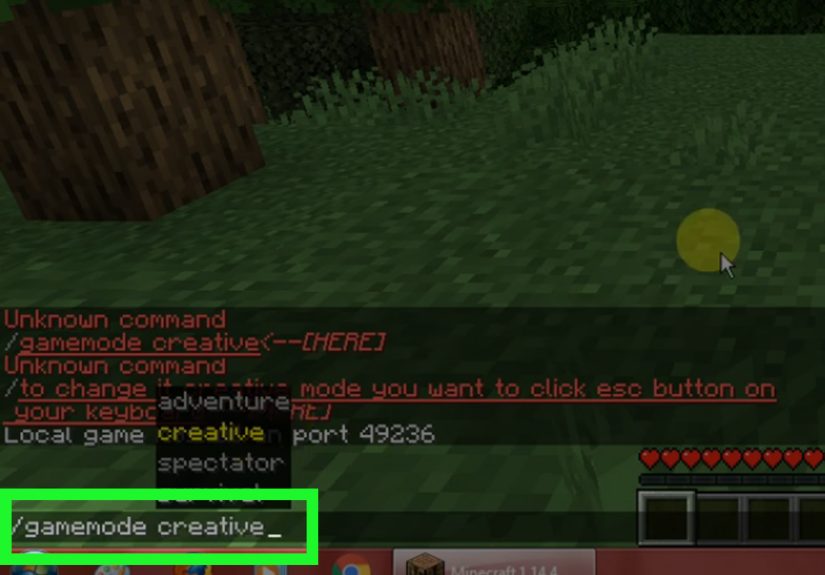
Step 4: Use the /gamemode Command (The Fastest Switch)
The main command you’ll use is:
/gamemode <mode> [target]
If you don’t specify a target, Minecraft usually applies it to you (the command sender). Targets can be a player
name or selectors like @s (self) and @a (all players).
Gamemode options (common names)
- survival (classic gameplay)
- creative (unlimited blocks, flying)
- adventure (great for maps; limited block breaking)
- spectator (free camera; no interaction)
Copy-paste examples (Java Edition)
/gamemode creative/gamemode survival/gamemode adventure @s/gamemode spectator PlayerName/gamemode creative @a(everyone becomes a building deityuse responsibly)
Copy-paste examples (Bedrock Edition)
/gamemode creative/gamemode survival/gamemode adventure/gamemode spectator(availability can depend on version/platform)/gamemode creative @a
Numbers and shortcuts (useful when typing on consoles)
Minecraft often accepts shorthand like c for creative or numeric IDs. Common Java IDs are:
0 survival, 1 creative, 2 adventure, 3 spectator.
Bedrock commonly uses numbers too, though some values (like spectator) can vary by version.
If you’re typing on a console controller, numeric shortcuts can save your thumbs from early retirement.
Step 5: Change Gamemode via Settings (Best for Bedrock, Great for New Players)
Not everyone wants to roleplay as a command-line engineer. On many platformsespecially Bedrockyou can switch game
mode from menus.
Bedrock menu method (typical path)
- Pause the game and open Settings.
- Select Game.
- Find Personal Game Mode (for you) or Default Game Mode (world default).
- Choose Survival, Creative, or another available mode.
This method is especially friendly if you’re learning or if commands feel like you’re about to accidentally delete
the moon. (In Minecraft, you can’t delete the moon. Yet.)
Java Edition menu method?
Java tends to rely more on world creation settings and commands for mid-game switching. If cheats are enabled,
commands are the reliable path.
Step 6: Advanced Switches (Servers, Defaults, Multiple Players, and “Oops” Fixes)
Once you’ve mastered the basic switch, here are the pro-level moves that make you look like you run a tight ship
(even if your base is made of dirt and optimism).
Set the default gamemode on a server
If you want new players to join in a specific mode, you have two common approaches:
-
Command method: Use
/defaultgamemode <mode>to set the default for new
players. -
Server configuration: In
server.properties, setgamemode(and consider
force-gamemodeif you want to prevent players from keeping other modes).
Hosting companies often expose these settings in a control panel (dropdowns, toggles, the whole “no file editing
required” vibe).
Change a specific player’s gamemode
Add the player name (or a selector) to the command:
/gamemode creative PlayerName/gamemode survival @s(you)/gamemode adventure @a(everyone)
Troubleshooting checklist (when Minecraft says “nope”)
- “Unknown command”: Cheats/commands aren’t enabled, or you lack permissions on a server.
- Red error text: Usually permissions. On servers, you may need operator status.
-
Nothing happens: Try specifying a target (
@s) or check if you’re in a restricted
mode/map. -
Achievements concern (Bedrock): If achievements matter, think carefully before enabling cheats
in a world you care about long-term.
Bonus: A speedy Java shortcut (if available)
Some Java setups allow a quick gamemode switcher using a function-key combo (depending on your keyboard and game
settings). If you’re on PC and your keyboard cooperates, it can be faster than typing commands.
If your laptop uses the “F-keys are secretly volume buttons” approach, you may need to use an Fn key.
What Each Gamemode Is Actually Good For
Survival Mode
The “real” Minecraft loop: gather resources, manage hunger, fight mobs, and build that one base you swear will be
organized this time.
Creative Mode
Unlimited blocks, flying, instant break. Perfect for big builds, testing redstone, and pretending you’re an
architect instead of a person who just discovered stairs can go upside-down.
Adventure Mode
Great for custom maps and challenges. You typically can’t break/place blocks freely (unless tools have the right
permissions), which helps map makers keep players from “solving puzzles” with a fist and a bad attitude.
Spectator Mode
You can fly through blocks, watch without interacting, and scout caves like a paranormal wildlife photographer.
Handy for finding structures, checking redstone behind walls, or escaping when you’re stuck somewhere awkward.
Hardcore Mode (special note)
Hardcore is essentially Survival with permanent death (and higher stakes). It’s generally chosen when creating a
world and isn’t something you casually toggle mid-save like a light switch.
Common Questions (Because Everyone Has the Same Panic at Least Once)
“Can I switch to Creative without enabling cheats?”
In normal gameplay, changing to Creative typically requires cheats/commands or admin permissions. If cheats are off,
you’re basically asking Minecraft to break its own rules. Sometimes you can use workarounds (like temporarily
enabling commands in Java via LAN), but the game generally treats gamemode switching as a “cheat-level” action.
“Can I change gamemode for just one player on Bedrock/Realms?”
Yesif you have permission and commands enabled, you can target a specific player with /gamemode.
Use a player name or a selector like @s.
“Why did my achievements stop working?”
On Bedrock, turning on cheats is a big deal for achievements in many worlds. If achievements are your goal, consider
keeping a separate “creative test world” for experiments, and keep your main survival world clean.
Conclusion
Changing your gamemode in Minecraft comes down to three things: (1) enabling commands, (2) using the right method
for your edition (menu vs command), and (3) knowing whether you’re in single-player or a server with permissions.
Once you’ve got that, swapping between Survival, Creative, Adventure, and Spectator is quick enough that you can
test a build in Creative, play it in Survival, and spectate the chaos when your friend “tests” TNT indoors.
If you want the smoothest experience, keep a small toolkit:
a dedicated test world, a mental note about achievements, and your favorite
/gamemode command ready to go. Minecraft is a sandboxchanging gamemodes is just you choosing which
shovel to use.
Extra: of Real-World “I Learned This the Hard Way” Gamemode Experience
The first time most players switch gamemodes, it’s usually not part of a grand plan. It’s part of an emergency.
Like: you fell into a ravine, your pickaxe broke, and you’re staring at a lava pool while whispering, “This is fine.”
That’s when Creative looks less like cheating and more like… disaster recovery. And honestly? Minecraft is
supposed to be fun. If changing your gamemode keeps you building instead of rage-quitting, that’s a win.
A classic “pro move” is using Creative as a laboratory. Want to build a massive storage system? Make a quick copy of
your world (or spin up a test world), go Creative, and prototype it. You’ll save hours of Survival grinding on a
design that might not even fit your base. This is especially true with redstone, where one missing repeater can turn
your “automatic farm” into a machine that produces exactly zero wheat and one loud clicking noise forever.
Spectator mode is the underrated hero. It’s the mode you don’t think you needuntil you do. Lost your underground
base entrance? Spectator lets you drift through the hillside like a friendly ghost and find the exact spot where you
hid that door “so mobs won’t notice.” Spoiler: you won’t notice either. Spectator is also fantastic for checking if
your mob farm is actually working or just hosting a private party for two zombies and an unemployed spider.
Adventure mode shines when you play custom maps or build experiences for friends. If you’ve ever hosted a mini-game
night and watched someone punch through the wall to “speedrun” your maze, you already understand why Adventure mode
exists. It keeps the experience intact and stops your carefully designed puzzle from turning into “dig straight
through the floor and call it skill.”
On Bedrock, many players learn the achievement lesson the hard way: they toggle cheats “just for a second” and later
wonder why achievements aren’t unlocking. The best habit is separating worlds by purpose: a “main” world where you
keep things legit (if achievements matter), and a “sandbox” world where you go wildCreative builds, command blocks,
experiments, and the occasional accidental summon that creates a crater shaped like regret.
The big takeaway? Gamemode switching isn’t just about powerit’s about workflow. Creative is for building and
testing. Survival is for the adventure. Spectator is for scouting and debugging. Adventure is for curated gameplay.
Once you start using gamemodes intentionally, Minecraft stops feeling like a single playstyle and starts feeling
like a toolset. And that’s when your worlds get bigger, your builds get smarter, and your “oops” moments get a lot
less… permanent.