Table of Contents >> Show >> Hide
- Why some websites block copying in the first place
- 1. Open the page in Reader or Reading Mode
- 2. Print the page or save it as a PDF first
- 3. Use Inspect Element to copy the text from the DOM
- 4. View the page source and search for the text
- 5. Temporarily disable JavaScript and reload the page
- 6. Search the page’s loaded resources in DevTools
- 7. Take a screenshot and use desktop OCR
- 8. Use your phone’s text recognition tools
- Which method should you try first?
- Common mistakes to avoid
- Final thoughts
- Real-world experiences: what this usually looks like in practice
- SEO Metadata
Few things on the internet are more annoying than finding the exact sentence you need, dragging your mouse over it, and watching absolutely nothing happen. No highlight. No copy menu. No joy. It feels like the website is personally offended by your clipboard.
The good news is that a “can’t copy text” problem usually has a very ordinary cause. Sometimes the page uses a design trick that blocks text selection. Sometimes the words are actually baked into an image. Sometimes a script is interfering with normal browser behavior. And sometimes the page is a clutter carnival, so the text is there, but the interface makes copying it feel like trying to pick up rice with oven mitts.
If you need to copy text from a website for research, note-taking, accessibility, or quoting small portions fairly and legally, there are several clean ways to do it. In this guide, you’ll learn eight practical methods, when each one works best, and which one to try first so you don’t accidentally turn a ten-second task into a full-time job.
One quick note before we begin: use these methods responsibly. If a page is behind a paywall, protected by licensing rules, or contains copyrighted material you do not have permission to reuse, copying it can still raise legal or ethical issues. This article is about accessing text you can legitimately view, not dodging the rules with a fake mustache.
Why some websites block copying in the first place
Before you fix the problem, it helps to know what you’re dealing with. In most cases, text becomes hard to copy for one of these reasons:
- CSS selection is disabled. The site may use styling that prevents highlighting.
- JavaScript interferes with clicks or right-clicks. Some pages block the context menu or trap mouse actions.
- The text is not real text. It might be part of an image, screenshot, canvas element, or scanned graphic.
- The layout is messy. Pop-ups, sticky ads, overlays, and floating toolbars make selection difficult.
- The text is loaded from another resource. What you see on the screen may be pulled from HTML, JSON, or another loaded file.
That is why the best approach is not “keep clicking harder.” It is to match the method to the cause.
1. Open the page in Reader or Reading Mode
This is the easiest fix, and honestly, it deserves more love. Modern browsers have reading views that strip away ads, pop-ups, sidebars, floating buttons, and other visual chaos so you can focus on the actual article text.
If the page is supported, try one of these:
- Chrome: open the page and use Reading Mode.
- Firefox: use Reader View.
- Microsoft Edge: use Immersive Reader.
- Safari: use Reader when available.
Once the article is displayed in a cleaner reading view, the text is often easy to select and copy normally. This works especially well on news stories, blog posts, tutorials, and long-form articles.
Best for
Blog posts, articles, explainers, reviews, and recipe pages that are technically text but wrapped in a circus tent of page clutter.
Why it works
Reader tools often display the main content in a simplified layout, which removes the interface junk that interferes with text selection. It is the digital version of asking the website to please calm down for one minute.
2. Print the page or save it as a PDF first
If a page refuses to cooperate in normal view, try the print workflow. Open the page, choose Print, and either print it or save it as a PDF. Many browsers create a cleaner print-friendly version of the page, and that version is often much easier to select from.
This method is especially useful when a site blocks right-click actions, when a sticky header keeps jumping into your selection, or when the page layout reflows every time you breathe near the mouse.
How to use it well
- Open print preview.
- If the preview looks clean, save the page as PDF.
- Open the PDF in your browser or PDF reader.
- Try selecting the text there instead.
If the PDF contains actual text, copying is usually straightforward. If it turns into an image-only PDF, move to one of the OCR methods later in this article.
Best for
Long articles, printable recipes, legal pages, help docs, and anything that has a decent print layout.
3. Use Inspect Element to copy the text from the DOM
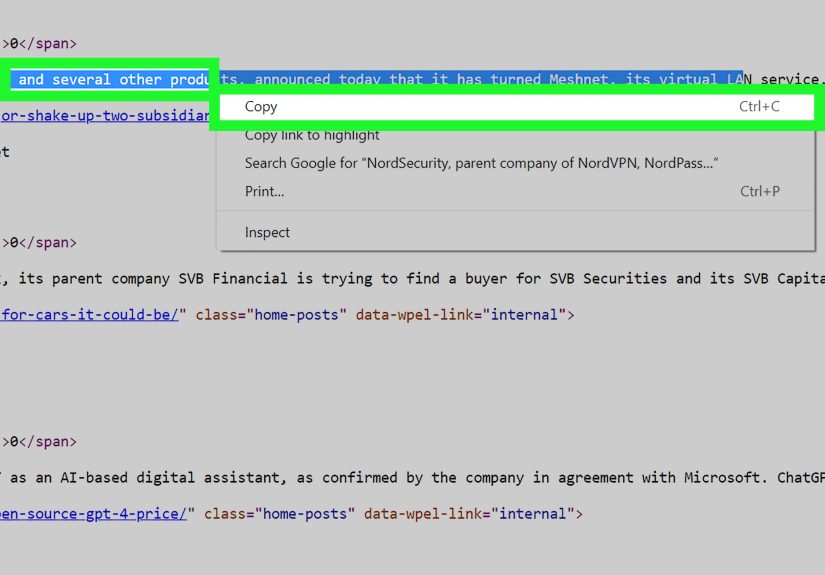
If the text is visible on the page but refuses to highlight, browser developer tools can help. Right-click near the text and choose Inspect. This opens the page structure, often called the DOM, in your browser’s developer tools.
From there, you can often locate the paragraph, heading, or list item containing the text and copy it directly from the HTML panel. This does not require hacking, coding, or wearing dark sunglasses indoors. It just means you are looking at the content structure instead of the fancy front-end styling.
When this works best
It works well when the site disables selection with styling or overlays, but the underlying text still exists as normal HTML content.
What to look for
- Paragraph tags for article text
- Headings for titles and subheads
- List items for bullet points
- Code blocks for snippets and commands
This is one of the most reliable methods for documentation pages, tutorials, and websites that look fancy but are still built from plain text elements underneath.
4. View the page source and search for the text
Sometimes inspecting a single element is too fiddly. In that case, open the page source instead. Page source shows the underlying HTML the browser received. If the content is present in the source, you can search for the phrase you want and copy it from there.
This method is great when the page itself is hard to interact with, when the article is partially hidden behind layout tricks, or when you want to verify whether the text is actually embedded in the HTML at all.
Why this is useful
It tells you very quickly whether the text is real HTML text, dynamically loaded content, or something else entirely. If you search the source and find the sentence, good news: you’re dealing with text. If you do not find it, the content may be loaded later by a script, buried in another resource, or rendered as an image.
Best for
Static pages, article pages, simple documentation, and websites where the visible interface is fighting you for no good reason.
5. Temporarily disable JavaScript and reload the page
Some websites use JavaScript to block right-clicking, trap copy commands, or throw overlays on top of content. If that is the culprit, disabling JavaScript temporarily can reveal a much simpler version of the page.
After disabling JavaScript in your browser tools, reload the page and test whether the text becomes selectable. If it does, you have confirmed that a script was the problem.
Use this carefully
Disabling JavaScript can also break site navigation, forms, menus, and interactive content. That is normal. You are not trying to browse the whole internet this way. You are just testing whether the copy problem disappears when the page scripts are out of the picture.
Best for
Pages with aggressive pop-ups, disabled right-click menus, annoying overlays, or weird anti-selection behavior that feels very “someone over-engineered this.”
6. Search the page’s loaded resources in DevTools
Here is the method many people skip, even though it can be a lifesaver. Some pages load content from separate files or resources instead of placing everything directly in the visible HTML. That means the words you see may exist in a loaded resource that is easier to search and copy.
Open developer tools and use the feature that searches across loaded resources. Search for a unique phrase from the page. If the browser finds it in a file, you may be able to open that resource and copy the text there.
Why it matters
Not every website puts article text neatly into a single block of HTML. Some frameworks split content across components, templates, or fetched files. Searching loaded resources helps you find where the text actually lives.
Best for
Modern web apps, help centers, knowledge bases, and sites built with dynamic front-end frameworks.
7. Take a screenshot and use desktop OCR
If the text is actually part of an image, screenshot, infographic, scanned document, or canvas element, normal copying will not work because there is no selectable text to begin with. In that case, use OCR, which stands for optical character recognition. OCR reads text from an image and turns it into copyable words.
On Windows, tools like Snipping Tool can extract text from a screenshot. PowerToys Text Extractor can also pull text from anywhere on the screen. OneNote can extract text from inserted pictures and printouts as well.
How to do it efficiently
- Capture only the area that contains the text.
- Use the OCR feature to extract or copy the text.
- Paste the result into a notes app.
- Proofread it, because OCR is smart but not magical.
OCR is brilliant for screenshots, scanned PDFs, old forum images, charts with labels, and social media graphics. It is less perfect with decorative fonts, low-resolution images, or text placed on busy backgrounds.
8. Use your phone’s text recognition tools
Sometimes your phone is weirdly better at this than your computer. Apple devices offer Live Text, and Google tools offer text selection through Lens. If the hard-to-copy content appears in an image or on-screen visual, your phone may recognize it immediately.
This is particularly useful when:
- the page contains screenshot text
- desktop selection is blocked
- you only need a few lines quickly
- you are already viewing the page on mobile
You can take a screenshot, open it, select the text, and copy it into your notes, email, or message app. It feels almost suspiciously easy the first time it works.
Which method should you try first?
If you want the short version, here is the best order:
- Try Reader or Reading Mode for article pages.
- Try Print or Save as PDF for long pages and print-friendly content.
- Use Inspect Element if the text is visible but unselectable.
- Use View Source or DevTools search if the content is loaded through page resources.
- Use OCR if the text is actually an image.
That order saves time because it starts with the easiest, least technical fixes and only gets nerdy when needed.
Common mistakes to avoid
- Do not assume the site is “protected” in some advanced way. Many copy issues are just bad page design.
- Do not waste ten minutes dragging harder. Your mouse is innocent.
- Do not trust OCR blindly. Always check names, numbers, punctuation, and unusual formatting.
- Do not confuse visible text with selectable text. If it is in an image, you need OCR, not more optimism.
- Do not ignore copyright and terms of use. Being able to copy something is not the same as being free to republish it.
Final thoughts
If you are trying to copy text that can’t be copied on a website, the trick is not brute force. It is choosing the right method for the way the page is built. Reader modes clean up clutter. Print and PDF workflows flatten messy layouts. Developer tools help when the text exists in the DOM or loaded resources. OCR steps in when the “text” is really just pixels wearing a disguise.
In other words, the text is usually not gone. It is just hiding behind one layer of web nonsense or another. Once you know where to look, copying it becomes much easier, faster, and a lot less dramatic.
Real-world experiences: what this usually looks like in practice
In real life, the most common copy problem is not some high-security website built by clipboard villains. It is usually a normal page with one annoying design choice. Maybe you are pulling a quote from a blog post for your notes, and the site has a sticky share bar that keeps sliding over the paragraph. Maybe you are trying to save a cooking tip from a recipe page, but every time you highlight a sentence, an ad jumps, the page shifts, and suddenly you are copying half the comments section and a coupon for patio furniture. In those situations, Reader Mode feels less like a browser feature and more like emotional support.
Another very common scenario happens with educational or reference content. You find a technical explanation, a formula, a short definition, or a few lines of documentation you want to save. The text is visible, but the page blocks right-clicking or refuses to let you highlight anything. Most people assume the content is locked down in some complicated way, but often it is just a layer of styling or a script getting in the way. Opening developer tools and copying from the underlying text usually solves it in minutes. The first time you do this, it feels a little bit like stepping behind a movie set and discovering that the fancy building is just painted wood from the front.
Then there are the image-based headaches. A quote is posted as a screenshot. A chart label is baked into a PNG. A scanned document appears on a page looking perfectly readable, but your browser sees it as one big image and shrugs. That is where OCR earns its paycheck. People often underestimate how useful screenshot-to-text tools are until they need to grab a phone number, a tracking code, a paragraph from a scan, or a few lines from an infographic. The result is rarely perfect on the first try, but it is still much faster than retyping everything by hand like it is 1998 and your keyboard is the family typewriter.
Mobile devices also surprise people here. Plenty of users spend ten frustrating minutes on desktop, then accidentally solve the whole problem on their phone in thirty seconds with Live Text or Lens. That is especially true when the stubborn content is inside an image. It is not glamorous, but it works. Take screenshot, open image, select text, copy, done. No drama, no plugins, no desperate forum post written in all caps.
The main lesson from these experiences is simple: when a website will not let you copy text normally, do not treat it like one single problem. Ask what kind of text you are dealing with. Is it real HTML text? Is it hidden behind a messy interface? Is it loaded from another resource? Is it actually an image? Once you answer that question, the right tool becomes obvious, and the whole job gets much easier.