Table of Contents >> Show >> Hide
- What Does It Mean to Group Apps on Android?
- Before You Start: Home Screen vs. App Drawer
- How to Group Apps on Android: 9 Steps
- Step 1: Unlock Your Android Phone and Go to the Home Screen
- Step 2: Choose Two Apps That Belong Together
- Step 3: Touch and Hold the First App
- Step 4: Drag the First App on Top of the Second App
- Step 5: Name the Folder Clearly
- Step 6: Add More Apps to the Folder
- Step 7: Rearrange Apps Inside the Folder
- Step 8: Move the Folder to the Best Location
- Step 9: Remove Apps or Delete the Folder When Needed
- Best Folder Ideas for Android App Organization
- Android Folder Tips for Pixel, Samsung, Motorola, and Other Phones
- Common Mistakes When Grouping Apps on Android
- Experience Notes: What Actually Works When Grouping Apps on Android
- Conclusion
Android phones are amazing little rectangles of power. They can help you order dinner, check homework, edit videos, pay bills, track workouts, message friends, and accidentally collect 47 apps you used once in 2022. The problem is not that Android gives you too many options. The problem is that your home screen can start looking like a digital junk drawer with Wi-Fi.
The good news: learning how to group apps on Android is simple. By creating app folders, you can clean up your home screen, organize similar apps, and make your phone feel less chaotic in just a few minutes. Whether you use a Google Pixel, Samsung Galaxy, Motorola, OnePlus, or another Android device, the basic idea is usually the same: drag one app onto another app, name the folder, and add more apps as needed.
This guide walks you through the process in 9 clear steps. You will also learn practical folder ideas, common mistakes to avoid, and real-world organization tips that make your Android phone easier to use every day.
What Does It Mean to Group Apps on Android?
To group apps on Android means to place multiple app icons inside a folder on your home screen or, on some devices, inside the apps screen. Instead of spreading every app across several pages, you can create folders such as Social, Work, Money, Shopping, School, Photos, or Travel.
Think of app folders like tiny rooms for your apps. Instagram, TikTok, Facebook, and Snapchat can live in a Social folder. Gmail, Google Drive, Slack, and Zoom can live in a Work folder. Banking, PayPal, Venmo, and budgeting apps can live in a Finance folder. Suddenly, your home screen stops yelling at you.
Grouping apps is especially useful if you install lots of apps, share a device with family members, use both work and personal apps, or simply want a cleaner Android home screen. It does not uninstall or hide the apps. It only organizes the shortcuts so you can find them faster.
Before You Start: Home Screen vs. App Drawer
Most Android phones have two main places where apps appear:
Home Screen
The home screen is the main screen you see after unlocking your phone. You can place app shortcuts, folders, widgets, and favorite tools here. This is where app grouping is most commonly done.
App Drawer
The app drawer is the full list of installed apps, usually opened by swiping up from the bottom of the home screen. On many Android phones, the app drawer is mostly alphabetical. Some launchers allow folders in the app drawer, while others do not. For example, Samsung’s One UI allows more folder control than some stock launchers, while Pixel Launcher focuses mainly on home screen folders.
If your phone does not let you create folders in the app drawer, do not panic. Your phone is not broken. It is just being Android, which is a polite way of saying “features vary by launcher.” You can still create folders on the home screen.
How to Group Apps on Android: 9 Steps
Step 1: Unlock Your Android Phone and Go to the Home Screen
Start by unlocking your Android device. Go to the home screen where you want your new app folder to appear. If you have several home screen pages, swipe left or right until you find a page with enough space.
A good first folder should be placed somewhere easy to reach. For example, if you are organizing daily apps, use the first home screen page. If you are grouping apps you rarely open, place the folder on a second or third page.
Here is a simple rule: the more often you use the folder, the closer it should be to your thumb. Your thumb deserves respect. It does most of the work.
Step 2: Choose Two Apps That Belong Together
Pick two apps that naturally fit in the same category. For example, choose Gmail and Google Calendar for a Productivity folder, Instagram and Facebook for a Social folder, or Google Maps and Uber for a Travel folder.
Do not overthink the first two apps. You can add, remove, and rearrange apps later. The first pair simply creates the folder. Once the folder exists, you can build it into a neat little app neighborhood.
Good starter folder combinations include:
- Social: Instagram, Facebook, Messenger, Snapchat, TikTok
- Work: Gmail, Drive, Docs, Slack, Zoom
- Money: banking apps, PayPal, budgeting tools, payment apps
- Entertainment: YouTube, Netflix, Spotify, podcast apps
- Travel: Maps, rideshare apps, airline apps, hotel apps
Step 3: Touch and Hold the First App
Press and hold the first app icon until it becomes movable. On many Android phones, you may feel a small vibration or see a pop-up menu. Keep holding your finger on the app icon.
If a menu appears with options such as App info, Widgets, Remove, or Uninstall, do not tap those options. Just keep holding and drag the app slightly. The icon should begin to move.
If the app refuses to move, check whether your home screen layout is locked. Some Samsung Galaxy phones and other Android devices have a setting that prevents accidental icon movement. Long-press an empty area of the home screen, open home screen settings, and look for an option such as Lock Home screen layout. Turn it off if needed.
Step 4: Drag the First App on Top of the Second App
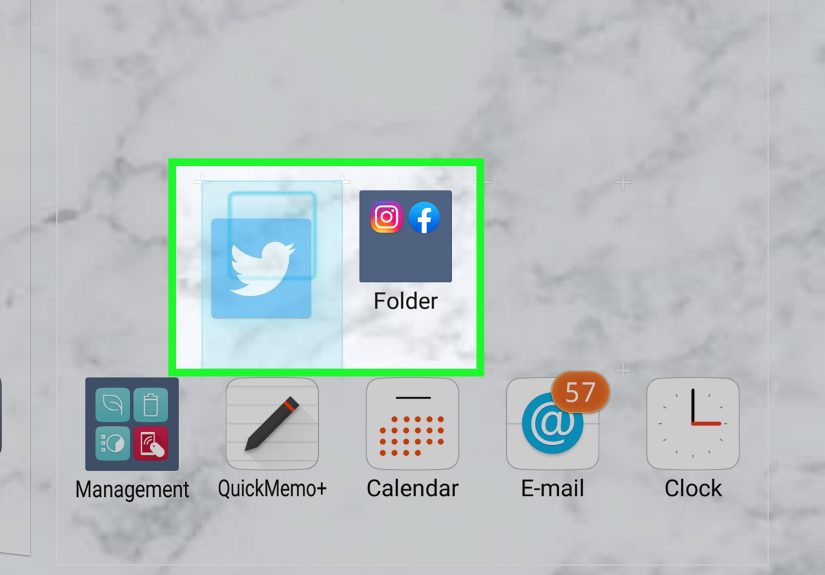
While still holding the first app, drag it directly on top of the second app. When the icons overlap, Android should create a folder preview or show a folder frame around the apps. Release your finger.
Congratulations. You have created an app folder. Please celebrate responsibly. Maybe blink twice and continue.
The folder should now contain both apps. On most devices, the folder appears as a small square or rounded icon showing tiny versions of the apps inside. Tap the folder to open it and view its contents.
Step 5: Name the Folder Clearly
Open the folder and tap the folder name area. Depending on your device, it may say Folder, Unnamed Folder, Edit Name, or show a suggested name. Type a short, useful name.
Clear folder names are better than clever names. A folder called Money is easier to understand than one called Capitalist Goblin Cave, even if the second name is emotionally accurate. Use names that your future self will understand when you are half-awake and trying to pay a bill.
Examples of useful Android folder names include:
- Social
- Work
- School
- Photos
- Music
- Finance
- Shopping
- Travel
- Health
- Games
Step 6: Add More Apps to the Folder
After creating the folder, you can add more apps. The most common method is to touch and hold another app, drag it onto the folder, and release it. The app will move into the group.
On Samsung Galaxy phones, you may also see a plus button or an Add apps option inside the folder. Tap it, select the apps you want, and tap Done. This is helpful when you want to add several apps at once instead of dragging them one by one like a tiny digital moving company.
Try not to overload a folder with every app you own. If a folder contains too many unrelated apps, it becomes another junk drawer. A good folder should help you find apps faster, not make you open a mystery box every time.
Step 7: Rearrange Apps Inside the Folder
Open the folder, touch and hold an app inside it, and drag it to a new position. Place your most-used apps on the first page of the folder if your device supports multiple folder pages.
This small detail matters. If you open your Social folder ten times a day and always use Messenger first, put Messenger in the first spot. If your Finance folder contains five banking apps and one budgeting app you open daily, put the budgeting app first.
Folder organization should match your real behavior, not your fantasy version of yourself. If you use YouTube more than your meditation app, your Entertainment folder already knows the truth.
Step 8: Move the Folder to the Best Location
You can move an Android app folder just like a regular app icon. Touch and hold the folder, then drag it to a different spot on the same home screen or to the edge of the screen to move it to another page.
Some users like to place folders in the bottom row or favorites area for fast access. Others prefer a minimalist home screen with only four or five folders. The best layout depends on how you use your phone.
Try this simple layout:
- Main row: Phone, Messages, Camera, Browser
- Top area: Calendar or weather widget
- Middle area: Work, Social, Finance, Entertainment folders
- Second page: Shopping, Travel, Health, Games folders
This keeps urgent apps visible while still giving you quick access to larger categories.
Step 9: Remove Apps or Delete the Folder When Needed
To remove an app from a folder, open the folder, touch and hold the app, and drag it out to the home screen. This does not uninstall the app. It only removes the shortcut from the folder.
To delete a folder, remove all apps from it or drag the folder to a remove area if your launcher provides one. On many Android phones, removing a folder from the home screen does not uninstall the apps inside. The apps remain installed and can still be found in the app drawer.
Be careful with options such as Uninstall. Removing a shortcut and uninstalling an app are different actions. Removing a shortcut cleans your home screen. Uninstalling deletes the app from your device. In other words, one is tidying your desk; the other is throwing the desk out the window.
Best Folder Ideas for Android App Organization
Once you know how to create folders on Android, the next challenge is deciding what folders you actually need. Here are practical categories that work for most people.
Productivity Folder
Use this for email, notes, cloud storage, calendar, task lists, document editors, and scanning apps. Example apps might include Gmail, Google Calendar, Drive, Docs, Keep, Notion, Microsoft Office, or Adobe Scan.
Social Folder
Group messaging and social media apps here. This keeps them accessible without letting them take over your entire home screen like they are paying rent.
Finance Folder
Place banking, budgeting, payment, and shopping payment apps together. Because finance apps can contain sensitive information, consider keeping this folder off the main home screen if you often use your phone around other people.
Entertainment Folder
This folder can include streaming, music, podcast, reading, and video apps. If you use entertainment apps too often, place the folder on a second screen to add a tiny bit of friction. Sometimes one extra swipe is enough to save you from a 90-minute scrolling adventure.
Travel Folder
Maps, airline apps, hotel apps, rideshare apps, translation apps, and local transit apps belong here. This folder is especially useful when traveling because you do not want to hunt for a boarding pass while standing in a line that appears to be powered by human frustration.
Health Folder
Fitness trackers, medication reminders, telehealth apps, insurance apps, and meditation apps can live together. Keep emergency-related apps or medical ID tools easy to access if you rely on them.
Android Folder Tips for Pixel, Samsung, Motorola, and Other Phones
Google Pixel Phones
On Pixel phones, grouping apps is usually done on the home screen. Touch and hold an app, drag it onto another app, and release to create a folder. You can then tap the folder name to rename it. Pixel’s app drawer is generally designed as a full app list rather than a fully customizable folder space.
Samsung Galaxy Phones
Samsung Galaxy phones offer strong folder controls. You can create folders from the Home screen or Apps screen, add a folder name, change the folder color, and use the plus button to add more apps quickly. If you enjoy customizing your phone, Samsung gives you more toys in the toolbox.
Motorola and Other Android Phones
Many Motorola and other Android phones follow the classic method: touch and hold an app shortcut, drag it onto another app, and release when a folder frame appears. Folder naming and app movement are usually available after opening the folder.
Third-Party Android Launchers
If your default launcher feels limited, you can try a reputable third-party launcher. Some launchers offer advanced features such as app drawer folders, custom grids, icon packs, gestures, hidden apps, and deeper sorting options. However, extra customization can also mean extra settings, so choose a launcher only if you truly need more control.
Common Mistakes When Grouping Apps on Android
Creating Too Many Folders
If every two apps get their own folder, your phone becomes organized in the same way a garage becomes “organized” when everything is placed into unlabeled boxes. Keep your folders broad enough to be useful.
Using Vague Folder Names
A folder called Stuff is not a system. It is a cry for help. Use descriptive names like Finance, Travel, Work, or Photos.
Hiding Important Apps Too Deep
Do not bury apps you use every day. Put your most important apps on the home screen, in the dock, or at the front of a folder.
Mixing Distraction Apps With Work Apps
Putting TikTok next to Google Docs is like putting a trampoline in a library. Keep focus apps and entertainment apps separate if you want fewer distractions.
Forgetting to Review Folders Later
Your app habits change. Review your folders every month or two. Remove apps you no longer use and rename folders that no longer make sense.
Experience Notes: What Actually Works When Grouping Apps on Android
After helping organize many Android home screens, one thing becomes obvious: the best app folder system is not the prettiest one. It is the one you can use without thinking. A beautiful screen full of color-coded icons may look fantastic in a screenshot, but if you cannot find your banking app when you need it, the design has failed its one job.
The most useful approach is to start with behavior. Ask yourself: What do I open first in the morning? What do I use during school or work? What apps distract me? What apps do I need quickly in public? Your answers should decide your folders. For example, if you use Maps, Uber, and a transit app every week, a Travel folder deserves a visible spot. If you only open airline apps twice a year, they can live on a second screen.
Another real-world lesson: fewer folders usually work better. Many people begin with 12 or 15 folders because organizing feels exciting at first. Then, a week later, they forget whether Amazon belongs in Shopping, Money, Delivery, or “Apps I Should Stop Opening.” A simpler system is easier to maintain. Start with five folders: Social, Work, Money, Media, and Tools. Add more only when a folder becomes crowded.
Folder placement also matters more than most people expect. If you put distracting apps in the bottom row, your thumb will open them automatically. That is not a personal failure; that is muscle memory doing its job a little too well. Move distraction folders away from your easiest reach zone. Put useful folders closer. For example, place Work, Calendar, Notes, or Maps near the bottom, and move Games or Social to another page if they steal too much attention.
Using emojis in folder names can help, but only in moderation. A folder named “💰 Money” or “✈️ Travel” is quick to scan. A home screen full of only emojis can become a puzzle designed by a raccoon. Combine short words with simple symbols if your launcher supports it.
One overlooked trick is creating a “Today” folder. This folder holds only the apps you need for the current day: calendar, notes, maps, email, school portal, workout app, or travel app. At the end of the day or week, you can clear it out. This works especially well for students, freelancers, travelers, and anyone juggling different tasks.
Another helpful idea is the “Quiet Home Screen.” Keep only essential apps on the first screen: Phone, Messages, Camera, Calendar, Maps, and maybe one productivity folder. Put everything else on the second screen. This makes your phone feel calmer immediately. You can still access every app, but your phone stops waving every possible distraction in your face the second you unlock it.
Finally, remember that Android organization is not permanent. You are allowed to change your mind. Delete folders that do not work. Rename categories. Move apps around. Your phone should fit your life, not the other way around. A clean Android layout should feel like opening a tidy desk drawer: everything has a place, and nothing bites you.
Conclusion
Learning how to group apps on Android is one of the fastest ways to make your phone cleaner, calmer, and easier to use. The basic process is simple: touch and hold an app, drag it onto another app, name the folder, and add more apps that belong together. From there, you can arrange folders by purpose, frequency, privacy, or focus level.
For the best results, keep folder names clear, avoid overcrowding, place important folders within easy reach, and review your layout regularly. Whether you use a Pixel, Samsung Galaxy, Motorola, or another Android phone, app folders can turn a messy home screen into a smooth, organized command center. Your apps will still be there, but now they will behave like civilized little icons.