Table of Contents >> Show >> Hide
- Can You Really Jump to a Specific Year on Facebook?
- Best Ways to Jump to a Year on Facebook
- How to Jump to a Year on Facebook Desktop
- How to Jump to a Year on Facebook Mobile
- How to Search Facebook Posts by Year and Keyword
- How to Use Download Your Information to Find a Year
- What to Do If the Facebook Year Filter Is Missing
- How to Find the Year You Joined Facebook
- Can You Jump to a Year in Facebook Memories?
- Tips for Managing Old Facebook Posts
- Common Problems When Jumping to a Year on Facebook
- Experience Notes: What It’s Like to Jump Through Years on Facebook
- Conclusion
- SEO Tags
Trying to jump to a specific year on Facebook can feel like opening a closet and being attacked by 14 years of vacation photos, birthday wishes, blurry concert videos, and one mysterious post that simply says, “Big things coming.” Facebook has been around long enough that many users now have a personal museum hidden inside their profiles. The good news: you can jump to a year on Facebook, or at least narrow your search to a year, using filters, Activity Log, profile post tools, and data export options.
The slightly less glamorous news: Facebook does not always give every user the same neat “jump to year” button in every place. The mobile app, desktop website, Activity Log, profile feed, and search results may all look a little different depending on your app version, region, account type, and whether Facebook decided to rearrange the furniture again overnight. Classic Facebook behavior.
This guide explains how to jump to a year on Facebook on mobile and desktop, how to find old Facebook posts by date, how to use Activity Log, what to do when the year filter is missing, and how to use your downloaded Facebook data when scrolling just is not cutting it anymore.
Can You Really Jump to a Specific Year on Facebook?
Yes, but the best method depends on what you are trying to find. If you want to view your own old profile posts, the profile post filter or Activity Log is usually the fastest route. If you want to review likes, comments, tags, searches, or hidden activity, Activity Log is better. If you want a complete archive of your Facebook history, Download Your Information is the power tool.
Facebook’s date tools are not perfect. On some desktop profiles, you may see a Filters button near your posts that lets you choose a year and sometimes a month. On mobile, you may need to tap through a date picker or use Activity Log filters instead. In other words, Facebook gives you a time machine, but sometimes it hides the keys under three menus and a tiny arrow.
Best Ways to Jump to a Year on Facebook
There are four practical ways to reach a specific year on Facebook:
- Profile post filters: Best for viewing your own timeline posts by year.
- Activity Log: Best for filtering your posts, comments, likes, tags, and other actions.
- Facebook search: Helpful when you remember keywords from the old post.
- Download Your Information: Best for serious searching, archiving, or reviewing many years of data.
For most people, start with the profile post filter. If that does not work, move to Activity Log. If you are looking for one specific post from 2012 and only remember that it involved “pizza,” “graduation,” or “never drinking coffee again,” try keyword search or download your data.
How to Jump to a Year on Facebook Desktop
The desktop website often gives you the clearest view of your old posts because there is more screen space and fewer tiny mobile buttons playing hide-and-seek. Here is the simplest method.
Method 1: Use the Profile Posts Filter on Desktop
- Open Facebook in your browser and log in.
- Click your profile picture or name to open your profile.
- Scroll to the posts area, usually below the “What’s on your mind?” box.
- Look for a button labeled Filters.
- Click Filters.
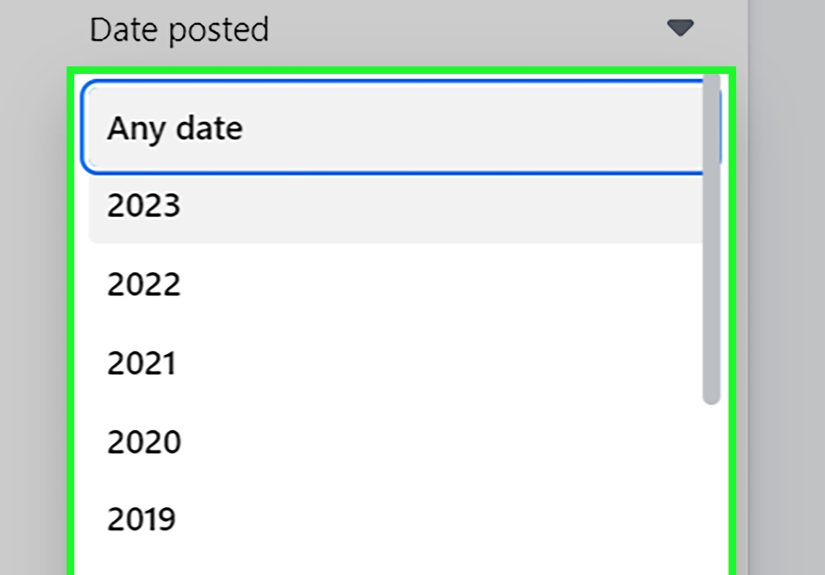
- Use the Go to, year, or date options if they appear.
- Select the year you want to view.
- If available, choose a month to narrow the results.
- Click Done or apply the filter.
This is the closest thing to a true “jump to year” feature for your Facebook profile. It is especially useful if you want to see posts from the year you joined Facebook, revisit a certain life event, or clean up old posts before a job search, college application, or family member discovers your ancient “rawr XD” era.
Method 2: Use Activity Log on Desktop
If the profile post filter is missing, Activity Log is your next best option. It lets you review and filter much more than public profile posts.
- Click your profile picture in the top-right corner of Facebook.
- Select Settings & privacy.
- Click Activity Log. If you do not see it there, go to your profile, click the three-dot menu, and choose Activity Log.
- Choose a category such as Your posts, Posts and comments, Photos and videos, or Activity you’re tagged in.
- Look for Filters or Date.
- Enter a start date and end date for the year you want. For example, use January 1, 2020 through December 31, 2020.
- Apply the filter and review the results.
This method is excellent when you want to find Facebook posts by year, but it is also useful for old comments, reactions, searches, profile updates, group activity, and tagged content. Think of Activity Log as Facebook’s filing cabinet. It is not always pretty, but it usually knows where the skeletons are stored.
Example: Finding Posts From 2018 on Desktop
Suppose you want to find posts from 2018. Go to your profile and click Filters near your posts. Choose 2018 from the year option, then click Done. If that button is not available, open Activity Log, select Your posts, set the date range from January 1, 2018 to December 31, 2018, and apply the filter. You should now see activity from that year without scrolling until your mouse develops trust issues.
How to Jump to a Year on Facebook Mobile
On the Facebook mobile app, the steps are similar, but the interface is usually more compact. Buttons may be hidden behind menus, and the wording may vary between iPhone and Android. The general process remains the same.
Method 1: Use Profile Filters on Mobile
- Open the Facebook app.
- Tap your profile picture or tap Menu, then tap your name.
- Scroll down to your posts.
- Look for Filters near the posts section.
- Tap Filters.
- Select a year, month, or date range if those options appear.
- Tap Done, Apply, or the similar confirmation button.
On some versions of the app, mobile filters may use a calendar instead of a simple year dropdown. That means you may need to choose a start and end date manually. It is a little less elegant, but it works. Just remember: January 1 to December 31 is your friend when filtering a full year.
Method 2: Use Activity Log on Mobile
- Open the Facebook app.
- Tap Menu.
- Tap your name to open your profile.
- Tap the three-dot button or Options near your profile area.
- Select Activity Log.
- Tap View Activity History if prompted.
- Choose a category, such as posts, photos, videos, comments, or tags.
- Tap Filters or Date.
- Select the start and end dates for the year you want.
- Tap Done or Apply.
This is usually the most reliable mobile method because Activity Log is designed to review your Facebook history. It may not feel as quick as a single “jump to year” button, but it gives you more control over what type of activity you want to see.
How to Search Facebook Posts by Year and Keyword
If you remember a word, name, place, or phrase from the old post, Facebook search can save time. For example, if you are looking for a 2016 post about a road trip to Colorado, search your name plus “Colorado,” “road trip,” or the name of the town. Then use filters such as posts from you, posts you have seen, or date options if Facebook displays them.
Search is not always as precise as Activity Log, and date filters may not appear for every search. Still, keyword search is worth trying when you remember the content but not the exact date. It is especially useful for old captions, public posts, group posts, and posts where friends tagged you.
Helpful Search Examples
- “my name graduation 2015” for school or college memories.
- “my name beach trip 2019” for travel posts.
- “my name wedding 2021” for event photos or congratulations.
- “my name dog adopted” for pet posts that deserve their own documentary.
If Facebook search gives messy results, switch back to Activity Log and filter the exact year. Search is useful, but Activity Log is more methodical.
How to Use Download Your Information to Find a Year
If you need a deeper search, use Facebook’s Download Your Information tool. This lets you request a copy of your Facebook data, choose categories, select a date range, and download the file in formats such as HTML or JSON. For casual users, HTML is easier because it opens like a web page. For advanced users, JSON can be easier to search, sort, or analyze.
How to Download Facebook Data on Desktop
- Click your profile picture in the top-right corner.
- Go to Settings & privacy, then Settings.
- Open Accounts Center or Your Facebook Information, depending on your layout.
- Choose Download Your Information.
- Select the profile or account you want.
- Choose the date range you need.
- Select the data categories, such as posts, photos, comments, or messages.
- Choose HTML or JSON format.
- Click Create File or Request a Download.
How to Download Facebook Data on Mobile
- Open the Facebook app.
- Tap Menu.
- Go to Settings & privacy, then Settings.
- Find Accounts Center or Your Information.
- Tap Download Your Information.
- Choose the information types and date range.
- Select format and media quality.
- Request the file.
This method is ideal if you are cleaning your digital footprint, backing up old photos, reviewing posts before deleting your account, or trying to find something from a very specific year. Just store the downloaded file safely. Your Facebook archive may contain private information, messages, photos, locations, and other personal details. Treat it less like a random download and more like a diary with a search box.
What to Do If the Facebook Year Filter Is Missing
If you do not see a year filter, do not panic. Facebook features can appear differently across accounts and devices. Try these fixes:
- Update the Facebook app: An old app version may have outdated menus.
- Try desktop instead of mobile: The desktop site often has clearer profile filters.
- Use Activity Log: Date range filters are often more reliable there.
- Switch categories: Choose “Your posts” instead of viewing all activity at once.
- Clear cache: If the app is glitchy, clearing cache may help performance and display issues.
- Use a browser: If the app refuses to cooperate, open Facebook in Chrome, Safari, Edge, or Firefox.
- Download your data: If nothing else works, your archive may be the best route.
Also remember that you may not be able to jump through someone else’s profile by year the same way you can search your own activity. Facebook’s privacy settings, post visibility, and profile design limit what you can view. If a post was deleted, hidden, restricted to a different audience, or shared in a private group you no longer belong to, it may not show up.
How to Find the Year You Joined Facebook
Sometimes you want to jump to your oldest Facebook year, but you do not remember when you joined. You can usually find your account creation date in your Facebook information settings.
- Open Facebook.
- Go to Settings & privacy, then Settings.
- Open Accounts Center.
- Choose Your information and permissions.
- Select Access your information.
- Look for Personal information or Profile information.
- Find the account creation date.
Once you know the year you joined, you can go back to your profile filters or Activity Log and start from that year. This is useful for finding your first posts, oldest photos, early profile updates, and the version of yourself who thought posting song lyrics as a status was peak communication.
Can You Jump to a Year in Facebook Memories?
Facebook Memories is different from Activity Log. Memories usually shows posts from the same date in previous years, such as “On this day” posts from one year ago, five years ago, or ten years ago. It is fun for nostalgia, but it is not the best tool for jumping to any random year.
Use Memories when you want a daily throwback. Use Activity Log or profile filters when you want to choose a specific year. Memories is like a surprise photo album. Activity Log is like opening the filing cabinet and demanding to see June 2014 immediately.
Tips for Managing Old Facebook Posts
Once you jump to an old year, you may find posts you want to keep, delete, archive, or change. Before deleting everything in a dramatic late-night cleaning session, consider your options.
Archive Instead of Delete
Archiving removes a post from public view but lets you keep it for yourself. This is helpful for posts that are personal, outdated, or slightly embarrassing but still meaningful. Maybe the haircut was a crime, but the memory was real.
Use Trash Carefully
When you move posts to trash, Facebook may keep them temporarily before permanent deletion. That gives you a short window to restore them if you change your mind. Still, do not rely on trash as long-term storage. If a post matters, download or save it first.
Review Tagged Posts
Jumping to a year on Facebook is not only about posts you created. Tagged posts can also shape what appears on your profile. Check the “Activity you’re tagged in” section of Activity Log to review old tags, remove tags, or adjust visibility.
Check Photos and Videos Separately
Photos and videos may appear in different sections from text posts. If you are hunting for old vacation albums, wedding photos, graduation pictures, or videos, use the photos and videos category in Activity Log or your downloaded data.
Common Problems When Jumping to a Year on Facebook
The Filters Button Is Gone
Try Activity Log, switch devices, update the app, or open Facebook in a desktop browser. Facebook frequently tests interface changes, so one account may show a feature that another account does not.
The Year Shows No Posts
There may be no visible posts for that year, or the posts may be hidden, deleted, archived, set to a restricted audience, or placed in another category such as photos, comments, or tags.
Facebook Loads Slowly
Old profiles with years of photos and videos can load slowly. Try a stronger internet connection, clear app cache, close extra browser tabs, or use the desktop site.
You Cannot Find a Friend’s Old Post
You can only view posts that are still available to you based on privacy settings. If your friend deleted the post, changed the audience, blocked you, left a group, or removed a tag, you may not be able to access it.
Experience Notes: What It’s Like to Jump Through Years on Facebook
Searching old Facebook years is part tech task, part emotional archaeology. At first, it feels simple: you just want one old post. Maybe it was a photo from a family trip, a quote from your first job, or proof that you really did bake that banana bread before everyone else made it a pandemic personality trait. Then you open your profile, choose a year, and suddenly you are staring at old birthdays, old friendships, old opinions, and old fashion choices that should probably remain sealed for national security.
The biggest lesson from using Facebook’s year filters is patience. The desktop method usually feels smoother because you can see more at once, click filters faster, and jump through posts without constantly tapping tiny mobile buttons. Mobile is convenient, especially when you are searching casually from the couch, but it can feel cramped. If you are doing serious cleanup, use a laptop. Your thumbs will thank you.
Another practical experience: Activity Log is better than endless scrolling. Many people try to scroll back year by year, but that becomes miserable fast. Facebook may reload, jump around, or bury the post under newer activity. Filters are cleaner. A date range tells Facebook, “No, I do not want 2026. Take me to 2014, where the captions were dramatic and every photo had a filter.”
It also helps to search by memory fragments. If you remember a location, friend’s name, event, pet name, or phrase, combine keyword search with date filters. For example, looking for “camping” inside a 2017 date range is much faster than scanning every post from 2017. Old posts often hide behind ordinary captions, so try several keywords. Search “dog,” “puppy,” “adopted,” and the pet’s name if you are trying to find a pet adoption post.
For cleanup, do not delete too quickly. Some old posts may look silly, but they can also hold sentimental value. Archive is useful when you want privacy without permanent regret. Downloading your information before a major cleanup is also smart, especially if your Facebook account contains years of family photos, personal milestones, or messages you may want later.
The final experience-based tip is to expect inconsistency. Facebook menus change. One phone may show “Filters,” another may show a calendar, and desktop may offer clearer year options. That does not mean you are doing it wrong. It means Facebook is being Facebook. Use the profile filter first, Activity Log second, search third, and Download Your Information when you want the most complete record. With that order, you can usually find the year you need without turning your evening into a digital excavation project.
Conclusion
Learning how to jump to a year on Facebook is really about knowing which tool to use. For quick browsing, try the profile post filter. For more control, use Activity Log and set a date range. For old posts tied to specific words or events, try Facebook search. For serious review, backup, or digital cleanup, use Download Your Information.
Facebook may not always make old posts easy to find, but the tools are there. Whether you are hunting for a favorite memory, cleaning your online presence, checking old tags, or proving to a friend that yes, they absolutely did post that status in 2011, date filters can save you from endless scrolling. Start with the year, narrow by month or category, and let Facebook’s time machine do the heavy lifting.