Table of Contents >> Show >> Hide
- Why This Topic Confuses So Many People
- What Microsoft Paint Is Actually Good At
- Method 1: How to Save a Regular Image as a GIF in Paint
- Method 2: How to Make an Animated GIF Using Paint for the Artwork
- Best Practices for a Better-Looking GIF
- Common Mistakes Beginners Make
- Practical Examples of GIF Ideas You Can Start in Paint
- Troubleshooting: Why Your GIF Is Not Working
- Is Paint Still Worth Using for GIF Work?
- The Real-World Experience of Making a GIF in Paint
- Conclusion
- SEO Tags
If you have ever opened Microsoft Paint and thought, “Today I shall become an internet animation wizard,” you are in very good company. Paint has been the friendly neighborhood art tool of Windows users for decades. It is quick, simple, and wonderfully unpretentious. No subscriptions. No intimidating timeline panel. No dramatic startup music. Just a blank canvas and the confidence of someone about to draw a masterpiece with the spray can tool.
But here is where things get interesting: making a GIF image with Microsoft Paint is absolutely possible if you mean a static GIF file. If you mean an animated GIF, Paint can still play an important role, but usually not the entire orchestra. In most cases, Paint is the frame-making tool, while another app or built-in Windows utility finishes the animation.
Note: Microsoft Paint is great for drawing, editing, resizing, cropping, adding text, and saving an image in GIF format. For a true animated GIF, the smartest workflow is to create the artwork in Paint, save each frame carefully, and then assemble those frames with a GIF tool. Think of Paint as the sketchbook, not the whole movie studio.
Why This Topic Confuses So Many People
The confusion usually starts with one innocent thought: “If Paint lets me save a file as GIF, then it must let me make an animated GIF too.” Reasonable. Logical. Tragically optimistic.
A GIF is not always animated. A GIF can be a single still image. That means if you open Paint, create a drawing, and save it as .gif, you have indeed created a GIF image. Mission technically accomplished. However, an animated GIF is a sequence of frames shown one after another. That requires frame management, timing, looping, and export controls that Paint is not really built to handle on its own.
So the real answer to the question depends on what you want:
- If you want a static GIF file, Paint can do it.
- If you want an animated GIF, Paint can help create the frames, but another tool usually finishes the job.
What Microsoft Paint Is Actually Good At
Before we give Paint a hard time for not being a Hollywood animation suite, let us give it some credit. Paint is fantastic for quick visual work. It is especially handy when your GIF idea is simple, clean, and graphic-heavy instead of photo-heavy.
Paint works especially well for:
- Pixel-style drawings
- Simple icons and logos
- Text-based graphics
- Memes with bold captions
- Step-by-step frame sketches
- Cropping and resizing source images
In other words, Paint is excellent when your GIF concept involves shapes, solid colors, line art, or simple humor. It is less charming when you ask it to manage smooth animation timing or make a cinematic masterpiece of your cat blinking in moonlight.
Method 1: How to Save a Regular Image as a GIF in Paint
Let us start with the easy win. If your goal is to make a standard GIF image file in Microsoft Paint, here is the process.
Step 1: Open Microsoft Paint
Click the Start menu, type Paint, and open the app. You can start with a blank canvas or open an existing image.
Step 2: Create or Edit Your Image
Draw something from scratch, paste in an image, add text, crop the canvas, or resize the picture. Keep things simple if you want the cleanest GIF result. Flat colors and bold outlines usually look better than soft gradients and detailed photos.
Step 3: Go to Save As
Click File, then choose Save As. In the file type options, select GIF picture if your version of Paint shows it in the save list.
Step 4: Name the File
Give your file a clean name, choose a folder, and save it. Congratulations: you just made a GIF image with Microsoft Paint. It may not dance, sing, or loop dramatically, but it is a real GIF file.
When this method makes sense
This is useful when you need a small web graphic, an icon, a simple diagram, or a lightweight image format for basic internet use. It is not the method for animated reaction memes, product demos, or blinking pixel-art eyeballs. For that, keep reading.
Method 2: How to Make an Animated GIF Using Paint for the Artwork
Now for the more fun version. If you want an animated GIF with Microsoft Paint, the practical workflow is to use Paint to create the individual frames, then combine those frames in a GIF-making tool.
Step 1: Plan the Animation First
Do not skip this part unless you enjoy chaos. Decide what your GIF will do. Will text appear one word at a time? Will a face blink? Will an arrow bounce? Will a tiny alien wave at the viewer? Keep it short and simple.
A beginner-friendly GIF idea is something like:
- A blinking smiley face
- A flashing “Sale Now On” banner
- A meme caption reveal
- A cursor moving across a screen mockup
Step 2: Choose One Canvas Size and Stick to It
Open Paint and set your canvas size before you begin. Consistency matters. Every frame should have the same dimensions. If frame one is 500 by 500 pixels and frame four is somehow 517 by 493, your GIF may end up looking like it had too much coffee.
Step 3: Create the First Frame
Draw your first frame in Paint. This is your base image. If your animation is simple, much of the artwork will stay the same from frame to frame.
Step 4: Save the First Frame
Save it with a clear name such as:
frame-01.pngframe-02.pngframe-03.png
Using numbered filenames keeps the sequence organized and saves you from future emotional damage.
Step 5: Make the Next Frames
Change only the parts that need to move. Maybe the eyes close. Maybe the text shifts. Maybe a star sparkles. Save each variation as the next frame number.
For smoother animation, make small changes between frames. For a choppy retro look, use fewer frames. Both styles can work. One says “polished web asset.” The other says “internet charm.”
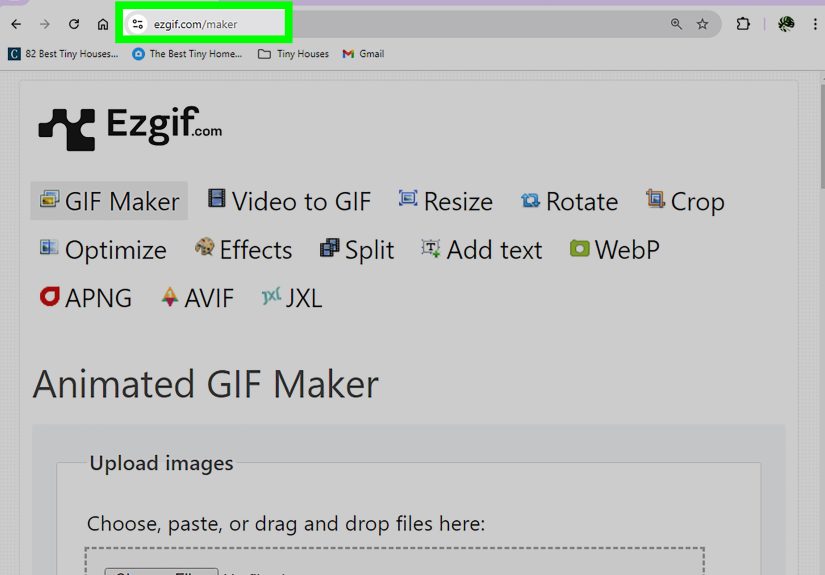
Step 6: Assemble the Frames Into a GIF
Once your frames are ready, import them into a GIF maker or a Windows-based tool that supports image-sequence animation. This is where you set:
- Frame order
- Frame delay
- Looping
- Output quality
A common frame speed for a simple GIF is somewhere around 0.1 to 0.2 seconds per frame, though slower text reveals may need more time. If you are creating a screen-based GIF instead of a frame-by-frame drawing, built-in Windows tools such as Snipping Tool may be a faster route than manually drawing every frame.
Best Practices for a Better-Looking GIF
Just because you can save something as a GIF does not mean it will look good. GIF has limits, and Paint does not magically erase them with the pencil tool. Here is how to get better results.
1. Keep the design simple
GIF works best with solid colors, simple shapes, line art, icons, and cartoon-like visuals. If your image has rich photography, complex shadows, and smooth color gradients, expect some quality loss.
2. Avoid giant dimensions
A huge GIF file is the digital equivalent of showing up to a casual picnic with a grand piano. Impressive, maybe, but nobody asked for it. Smaller dimensions load faster and are easier to share.
3. Use fewer frames when possible
More frames usually means a larger file. If the motion still looks good with 8 frames instead of 24, take the win and enjoy the smaller file size.
4. Reduce unnecessary colors
Because GIF format is limited, simpler color palettes often produce cleaner results. Bright, bold colors tend to survive conversion better than subtle gradients.
5. Crop extra empty space
If your subject only takes up a small area of the canvas, crop the frame. Empty pixels still count toward file size. A tighter GIF is usually a better GIF.
Common Mistakes Beginners Make
Trying to animate directly inside Paint
This is the biggest one. Paint is excellent for frame creation, not full animation control. If you expect a built-in timeline, Paint will simply stare back at you with the emotional range of a toolbar.
Changing the frame size accidentally
If one frame is cropped differently or resized by accident, the GIF may jump around. Keep every frame identical in size and alignment.
Using Paint for detailed photos
Paint is not the strongest choice for photo-heavy GIF work. If your source is a realistic photo or video clip, it is usually smarter to use a video-to-GIF workflow instead.
Saving over your original frames
Always keep your original files. Save edited versions separately. Future you will be grateful and slightly less dramatic.
Practical Examples of GIF Ideas You Can Start in Paint
Blinking avatar
Draw a simple character face. Frame one: eyes open. Frame two: half closed. Frame three: closed. Frame four: open again. It is easy, cute, and surprisingly effective.
Animated text banner
Create a series of frames where text appears letter by letter. This works well for announcements, product tags, or retro-style web graphics.
Mini tutorial graphic
Paint is useful for making instructional frames, such as arrows moving toward a button or a box highlighting a feature. When stitched together, the result can be a lightweight visual guide.
Pixel-art loop
If you enjoy retro design, Paint is delightfully suited to pixel art. A bouncing coin, flickering flame, or walking sprite can look great even with a very small number of frames.
Troubleshooting: Why Your GIF Is Not Working
My GIF is not animated
If you saved a file directly from Paint and it does not move, that probably means you created a static GIF, not an animated one. You need an animation-capable tool to combine multiple frames into a looping file.
The colors look weird
That is one of the classic quirks of GIF. Try simplifying the color palette, reducing gradients, or using flatter artwork. GIF likes bold and simple more than soft and photorealistic.
The file size is too large
Resize the canvas, reduce the frame count, shorten the animation, or trim extra blank space. Even tiny improvements can shrink the file dramatically.
The text looks blurry
Use larger text, stronger contrast, and fewer fancy effects. Small decorative fonts tend to suffer in compressed web graphics.
Is Paint Still Worth Using for GIF Work?
Yes, with the right expectations. If you want a fast, free, built-in Windows app to sketch frames, create simple graphics, or save a lightweight static GIF, Paint is still useful. It is approachable, familiar, and much less intimidating than full design software.
Where Paint falls short is final animation control. But that does not make it useless. It just means the smartest workflow is hybrid: use Paint for what it does well, then pass the project to a tool designed to handle timing and looping.
That workflow is honestly not a compromise. It is efficient. Paint gives you speed. A GIF tool gives you motion. Together, they get the job done without forcing you into heavyweight software just to animate a blinking face or a dancing arrow.
The Real-World Experience of Making a GIF in Paint
One of the most relatable experiences with this topic is the moment a person discovers that “Save as GIF” does not automatically equal “make it animated.” That realization usually lands somewhere between mild confusion and a dramatic inner monologue. The good news is that this is not a failure. It is really just the first lesson in understanding how GIF creation works.
In practice, the experience of making a GIF with Microsoft Paint is often charming, a little clunky, and strangely satisfying. Paint feels approachable in a way that many modern design tools do not. You open it and immediately understand the mission. There is a pencil. There is text. There is a bucket. There are shapes. Nothing is hiding behind ten mysterious menus with names like “dynamic raster behavior module.” Paint says, very politely, “Here is a canvas. Good luck.”
That simplicity makes Paint especially enjoyable for beginners. A lot of people use it to make their first frame-by-frame drawings because it feels less like software and more like a toy box. You can build a blinking face, a tiny pixel character, or a meme with changing text without needing a design degree or a strong emotional relationship with keyboard shortcuts.
But the experience also teaches patience. When you are making multiple frames by hand, you quickly learn the value of organization. Naming files clearly matters. Keeping the canvas size the same matters. Moving one eyebrow by just a few pixels matters. Suddenly, you are not just drawing anymore. You are thinking like an animator, even if your project is only a five-frame GIF of a taco wearing sunglasses.
Another common experience is discovering how much GIF quality depends on design choices. Something that looks fantastic as a full-color image may look rough once turned into a GIF. Gradients can become uneven. Fine shadows can get muddy. Tiny text can lose sharpness. This is where many users start to appreciate the old-school beauty of bold colors, simple shapes, and clean outlines. Paint accidentally teaches a useful design principle: simpler visuals often communicate better on the web.
There is also a small thrill in making something unexpectedly fun with such a basic tool. That is probably the biggest reason this topic keeps coming back. People like using simple software to create something playful. There is a certain joy in making internet-ready graphics with a program that has been around forever. It feels scrappy, creative, and a little rebellious in the best way.
So yes, the real experience of making a GIF with Microsoft Paint includes trial and error. It includes a few “why is this not moving?” moments. It includes opening the wrong file, saving over a frame, and learning that file names matter more than your past self believed. But it also includes quick wins, creative freedom, and the delightful realization that you do not need expensive software to start making fun visual content. Sometimes all you need is Paint, a good idea, and enough patience to save frame-01 through frame-12 without losing your mind.
Conclusion
If you want to make a GIF image with Microsoft Paint, the best answer is simple: Paint can absolutely create and save a static GIF file, and it is also a great tool for designing frames for an animated GIF. The part it does not handle especially well is the final animation assembly. Once you understand that, the whole process becomes much easier.
Use Paint for drawing, editing, cropping, resizing, and frame creation. Use a GIF-capable tool for timing and export when motion matters. That combination gives you the best of both worlds: the simplicity of Paint and the functionality of a true animation workflow.
And honestly, that is a pretty good deal for a program that has helped generations of Windows users create everything from stick figures to accidental abstract art.