Table of Contents >> Show >> Hide
- What Google Suggestions on Mobile Actually Are
- How to Remove Google Suggestions on Android
- How to Remove Google Suggestions on iPhone
- When the Suggestion Is Not Google at All
- Why Google Suggestions Keep Coming Back
- How to Remove Personal Information from Google Search Results
- What Not to Do
- Best Practices for Keeping Suggestions Private Going Forward
- Real-World Experiences: What People Notice After Removing Google Suggestions from Mobile Devices
- Conclusion
If Google suggestions on your phone are helping a little too enthusiastically, you are not imagining it. One minute you are trying to search for a dinner recipe, and the next your phone is boldly offering a full list of your past searches, trending topics, and oddly specific guesses about what you might type next. Helpful? Sometimes. Creepy? Also sometimes. Annoying? Absolutely.
The good news is that you can remove Google suggestions from mobile devices without performing digital surgery or throwing your phone into a decorative fountain. In most cases, the fix comes down to understanding which kind of suggestion you are seeing. Some come from Google Search itself. Some come from your browser history. Some come from your keyboard. And on iPhone, some come from Safari or Siri, which is the tech equivalent of several people finishing your sentence at once.
This guide walks through how to remove Google suggestions on Android and iPhone, how to stop them from coming back, and how to deal with suggestions tied to your search history, personalization, trending topics, or browser behavior. By the end, your phone should feel less like a nosy roommate and more like a respectful tool.
What Google Suggestions on Mobile Actually Are
Before changing settings, it helps to identify the source of the suggestion. That matters because deleting the wrong thing is like mopping the kitchen floor when the leak is upstairs.
1. Search suggestions from Google
These appear when you tap the Google search bar, use the Google app, or start typing on Google.com. They may include trending searches, related predictions, or personalized suggestions based on prior activity.
2. Browser suggestions
Chrome and Safari can suggest websites, previous URLs, or old search queries from your browsing history. If a suggestion looks suspiciously familiar, it is probably coming from the browser, not Google Search itself.
3. Keyboard suggestions
Gboard, Samsung Keyboard, and Apple’s keyboard can suggest words or phrases while you type. If the suggestion appears directly above the keyboard instead of under the search box, the keyboard is usually the culprit.
4. Device or assistant suggestions
On iPhone, Safari Suggestions, Search Engine Suggestions, Show Recent Searches, and Siri Suggestions can all influence what appears while you search. That is why many people think “Google won’t stop suggesting things” when the actual source is Apple’s side of the equation.
How to Remove Google Suggestions on Android
Android gives you several layers of control. That is great for privacy, although it can feel like a scavenger hunt designed by someone who enjoys nested menus a little too much.
Delete Recent Searches in the Google App
If you want to remove specific searches that keep popping up, start here. Open the Google app, tap your profile picture, then open Search history. From there, you can delete individual searches or wipe a larger time range. On many Android phones, you can also tap the Google search bar, press and hold a recent query, and delete it one by one.
This is the best option if the problem is a handful of embarrassing or outdated suggestions. Maybe you searched “best way to fix squeaky shoes” at 2 a.m. Maybe you searched your ex’s new haircut. No judgment. Just delete the item and move on with dignity.
Turn Off Trending Searches
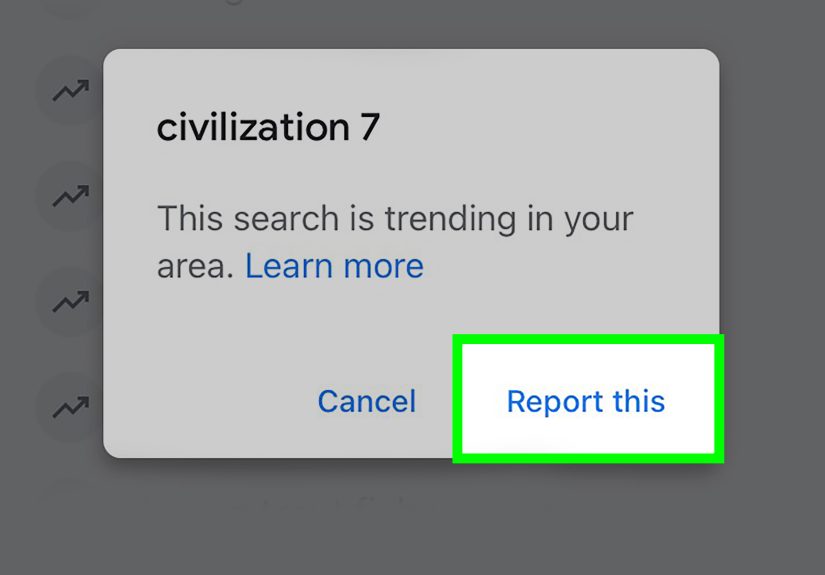
If the suggestions are not personal but still annoying, trending searches may be the issue. In the Google app on Android, open your profile, go to Settings, then Other settings or Autocomplete settings, and turn off Autocomplete with trending searches. On some versions of the app, the wording may vary slightly, but the idea is the same.
This setting is useful when your phone keeps offering the internet’s current obsession and you would prefer not to see the day’s viral chaos every time you tap the search box.
Turn Off Search Personalization
If Google keeps making very personal guesses, switch off search customization or personalization. In the Google app, open Settings, then Privacy & Safety, and look for Search customization or Search personalization. Turning that off reduces personalized recommendations and predictions tied to your browsing and search behavior.
This does not erase your history by itself, but it tells Google to stop using that activity to make search feel “more relevant,” which is often corporate language for “more familiar than you wanted.”
Turn Off or Limit Web & App Activity
If you want a stronger privacy reset, go to your Google Account settings and review Web & App Activity. On Android, open Settings, tap Google, then Manage your Google Account, then Data & privacy. Under History settings, you can turn off Web & App Activity, choose auto-delete, or delete existing activity.
For many people, this is the real fix because search suggestions often reflect saved activity across Google services. You can also set activity to auto-delete after a certain period so old searches do not linger forever like a bad nickname from middle school.
Clear Chrome History and Browsing Data
If suggestions appear in Chrome’s address bar, clear browser history too. Open Chrome, tap the menu, choose Delete browsing data, and remove browsing history. You can delete specific items or everything from all time, depending on how dramatic you are feeling.
This matters because Chrome may keep suggesting sites or past searches even after you delete activity from the Google app. If the ghost of an old search keeps resurfacing, it is often living in browser history.
Check Whether Chrome Search Suggestions Are Enabled
On some mobile Chrome versions, there is also a Google services setting that controls how suggestions are improved or sent as you type. If your version shows an option like Improve search suggestions, turning it off can reduce the amount of live suggestion behavior. Menu names can vary by version, so look under Chrome Settings and Google services.
How to Remove Google Suggestions on iPhone
On iPhone, the challenge is that Google suggestions may come from the Google app, Chrome, Safari, or Siri-related settings. In other words, several systems are trying to be useful at once, and the result is often chaos in a neat Apple font.
Delete Recent Searches in the Google App
If you use the Google app on iPhone, open it, tap your profile image, then go to Search history. Delete individual searches or clear activity by time range. This is the fastest fix for repeated suggestions tied to your account history.
Turn Off Trending Searches in the Google App
In the Google app on iPhone, go to your profile, then Settings, then Other settings, and turn off Autocomplete with trending searches. If you use Google in a browser instead of the app, visit Google.com, open settings, and disable trending-search autocomplete there as well.
Reduce Chrome Suggestions on iPhone
If you use Chrome on iPhone, open Chrome, tap the menu, go to Settings, then Google services, and review options related to search suggestions. Depending on your Chrome version, you may see a setting such as Improve search suggestions. Turning it off can make Chrome less eager to predict what you are typing. Then clear browsing data if old searches are still hanging around.
Turn Off Safari Search Suggestions
If Google is your default search engine in Safari, what looks like a Google suggestion may actually be Safari helping out. To reduce that, go to Settings on iPhone, tap Apps, then Safari. Turn off Search Engine Suggestions if you do not want suggested search terms to appear. You can also turn off Show Recent Searches if you do not want old queries appearing when you tap the search field.
Turn Off Safari Suggestions and Siri Suggestions
If Safari still feels too psychic, turn off Safari Suggestions. If device-wide suggestions are part of the problem, open Settings, then Siri or Apple Intelligence & Siri, and review the suggestion options for apps. That can reduce the “I typed two letters and my phone wrote a biography” effect.
Clear Safari History and Website Data
Still seeing old suggestions? Go to Settings, then Apps, then Safari, and clear history and website data. This removes stored browsing information that can feed old search or URL suggestions.
When the Suggestion Is Not Google at All
This is one of the most common troubleshooting mistakes. A user says, “How do I remove Google suggestions from my phone?” but the suggestion strip is actually coming from the keyboard.
Here is a quick rule of thumb:
- If suggestions appear under the search box, it is probably Google or the browser.
- If suggestions appear in a strip just above the keyboard, it is probably Gboard, Samsung Keyboard, or Apple’s keyboard.
- If suggestions appear on Safari’s start page or in iPhone search areas, Safari or Siri settings may be involved.
So if you disable Google suggestions and the phone still keeps guessing your next word like an overeager game-show contestant, open your keyboard settings and review predictive text, autocorrect, and learned words.
Why Google Suggestions Keep Coming Back
If you deleted suggestions once and they returned, one of these reasons is usually to blame:
You cleared one layer but not the others
Deleting Google Search history does not automatically erase Chrome history, Safari history, keyboard suggestions, or synced activity from another signed-in device.
Your Google account is still saving activity
If Web & App Activity remains on, Google may continue storing searches and using them to shape future suggestions.
You are signed in on multiple devices
If a tablet, old phone, or desktop browser is still syncing activity, your suggestions can repopulate across devices.
Search personalization is still enabled
Even after deleting history, personalization settings can continue influencing what Google shows based on current and recent behavior.
Your browser or cache still remembers old data
Chrome and Safari keep their own stored information. Clearing browsing history and website data can help complete the cleanup.
How to Remove Personal Information from Google Search Results
Sometimes “Google suggestions” is really shorthand for something more serious: your name, phone number, address, or other personal details showing up in search results. That is a different problem, and it needs a different fix.
Google offers a tool called Results about you, which lets you find and request removal of certain personal information from Google Search results. This is especially useful if your phone number, home address, or email appears in search results and you want it removed where policy allows.
This does not mean Google can erase the internet, because the original page may still exist. But it can remove eligible results from Google Search, which is a big improvement if privacy is the concern.
What Not to Do
When people get frustrated, they often install random “phone cleaner” apps that promise to wipe suggestions, speed up the device, optimize memory, restore romance, and possibly align the stars. Skip that.
Use built-in settings first. Stick to the Google app, Chrome, Safari, your Google Account controls, and trusted device settings. If suggestions start behaving strangely, look for unsafe apps and run Google Play Protect on Android instead of handing your phone to a mystery utility with a logo that looks like it was designed in seven minutes.
Best Practices for Keeping Suggestions Private Going Forward
- Use Incognito or Private Browsing when searching for things you do not want saved.
- Set Web & App Activity to auto-delete if you still want some convenience without permanent storage.
- Turn off trending searches if you prefer a cleaner search box.
- Review Safari, Chrome, and keyboard settings separately.
- Sign out of unused devices that may still sync your browsing activity.
- Periodically clear search history and browsing data on shared devices.
Real-World Experiences: What People Notice After Removing Google Suggestions from Mobile Devices
In real use, the biggest surprise is how many people do not realize there are several different kinds of suggestions layered together. Someone deletes their Google history and expects total silence, but Chrome still suggests an old website. Then Safari adds recent searches. Then the keyboard jumps in with a word prediction that has nothing to do with either one. It can feel like your phone is ignoring you, when in reality three separate systems are all trying to “help” at once.
A common experience on Android is that removing a few recent searches works immediately, but the search box still shows broad recommendation-style prompts. That is usually where turning off trending searches and search personalization makes the biggest difference. Once those features are disabled, the Google app often feels much calmer. People tend to describe it as cleaner, less distracting, and less weirdly intimate.
On iPhone, many users discover that Google is only part of the story. They may use Google as the search engine but still search through Safari, which means Safari settings control some of what appears. Turning off Search Engine Suggestions and Show Recent Searches can make a bigger difference than expected. For users who also disable Safari Suggestions or some Siri suggestion options, the search field starts behaving more like a blank box and less like a memory lane tour.
Another pattern shows up with shared devices. Parents, couples, and roommates often notice suggestions that clearly belong to someone else’s browsing habits. In those cases, deleting search history is only half the job. Logging out of shared Google accounts, clearing browser history, and using private browsing for sensitive searches helps prevent the same problem from returning. Nothing ruins a casual search faster than your phone loudly offering someone else’s shopping habits in front of the whole room.
People who use Chrome across multiple devices also run into sync issues. They remove suggestions on the phone, only to watch them return later because a laptop or tablet is still signed in and contributing browsing data. Once sync settings and Web & App Activity are reviewed together, the fixes tend to stick. That is why a full cleanup usually works better than a single quick delete.
There is also a practical privacy benefit beyond simple annoyance. A cleaner search field matters on phones because phones are public little rectangles. You check directions in front of friends, search recipes in the kitchen, look up products at the store, and hand your phone to other people more often than you think. Reducing personalized or recent suggestions cuts down on awkward moments and gives you more control over what appears on screen without warning.
In the end, most people do not want zero convenience. They just want a sensible balance. They want Google to find what they ask for, not volunteer a dramatic reading of their digital past. Once the right settings are adjusted, that balance is very possible. Your phone can still be useful without acting like it has a long memory and no boundaries.
Conclusion
If you want to remove Google suggestions from mobile devices, the fastest path is to do four things in order: delete recent searches, turn off trending searches, reduce search personalization, and clear browser history. After that, check whether the remaining suggestions are coming from Chrome, Safari, Siri, or your keyboard. Once you separate those layers, the mystery disappears and the fix becomes much simpler.
The result is a cleaner search experience, fewer privacy surprises, and a phone that minds its business a little better. Which, frankly, is all most of us wanted in the first place.