Table of Contents >> Show >> Hide
- What Happens When You Block Someone on Instagram?
- How to See the Users You Have Blocked on Instagram
- How to Unblock Someone From Your Blocked Accounts List
- How to Unblock Someone From Their Instagram Profile
- Can You Unblock Someone on Instagram From a Computer?
- What Happens After You Unblock Someone on Instagram?
- Why You Cannot Find Someone You Blocked
- Unblocking vs. Restricting: Which Should You Use?
- Privacy Tips Before You Unblock Someone
- Common Problems and Quick Fixes
- Experience-Based Guide: What It Feels Like to Review Your Instagram Blocked List
- Final Thoughts
Blocking someone on Instagram is a little like putting up a digital “Do Not Disturb” sign, except with fewer hotel towels and more peace of mind. Whether you blocked an old classmate, a spam account, a noisy stranger, a brand that posted 47 times before breakfast, or someone you simply needed distance from, Instagram keeps a list of the accounts you have blocked.
The good news is that you can view that blocked users list and unblock accounts whenever you choose. The slightly less glamorous news is that Instagram menus move around from time to time, because apparently app settings like to play hide-and-seek. Still, the process is simple once you know where to look.
This guide explains how to see users you have blocked on Instagram, how to unblock them from the blocked accounts list, how to unblock someone from their profile, what changes after unblocking, and what to do if the account does not appear. It is written in plain American English, with real-world examples and practical tips so you do not have to tap through every corner of the app like you are solving a tiny social media escape room.
What Happens When You Block Someone on Instagram?
Before you unblock anyone, it helps to understand what blocking actually does. When you block someone on Instagram, that person generally cannot find your profile, view your posts, watch your stories, message you, follow you, or interact with your content in the usual way. Instagram also does not notify people when you block them, which is polite of the app, even if the rest of the internet is not always known for its manners.
Instagram may also give you the option to block other accounts that person may have or create. This feature is meant to reduce repeat unwanted contact from the same person using different accounts. For users dealing with harassment, spam, impersonation, or uncomfortable attention, this can be more useful than a screen door on a submarine.
Blocking is different from restricting, muting, unfollowing, or making your profile private. Blocking is the strongest everyday privacy control for cutting off contact with a specific account. Restricting quietly limits a person’s comments and messages. Muting hides someone’s posts or stories from your feed without unfollowing them. A private account limits who can see your content, but it does not block a specific person unless you take that extra step.
How to See the Users You Have Blocked on Instagram
The most direct way to see blocked Instagram users is through your settings. The exact wording can vary slightly depending on whether you use iPhone, Android, or a newer version of the app, but the general path is the same.
Step-by-Step Method on the Instagram App
- Open the Instagram app on your phone.
- Tap your profile picture in the bottom-right corner.
- Tap the three-line menu icon in the top-right corner.
- Choose Settings and activity or a similar settings option.
- Scroll to the section related to who can see your content or privacy.
- Tap Blocked or Blocked accounts.
- You will see a list of Instagram accounts you have blocked.
From this page, Instagram usually shows the account name and an Unblock button beside each blocked profile. That means you do not have to remember the username, search for the person manually, or scroll through old direct messages like an archaeologist with Wi-Fi.
Why You Might Not See the Same Menu Names
Instagram updates its app frequently. In older versions, many users found blocked accounts under Settings > Privacy > Blocked accounts. In newer versions, the menu may appear under Settings and activity, with the blocked list placed in a section about who can see your content or how others interact with you.
If you cannot find it immediately, use Instagram’s settings search bar if it appears. Type blocked, block, or privacy. Instagram’s search inside settings can save you from the classic modern problem of opening seven menus and forgetting why you came there in the first place.
How to Unblock Someone From Your Blocked Accounts List
Once you are viewing the blocked accounts list, unblocking someone is quick.
- Find the account you want to unblock.
- Tap Unblock next to the account name.
- Confirm by tapping Unblock again when Instagram asks.
The second confirmation matters. It helps prevent accidental unblocking, which is useful if your thumb has the decision-making power of a caffeinated squirrel. After you confirm, the account is removed from your blocked list, and the previous block no longer applies.
Example Scenario
Let’s say you blocked a former coworker during a stressful project. Months later, the project is over, everyone survived the spreadsheet drama, and you want to reconnect. Instead of searching for their profile, you can open your blocked accounts list, find their username, tap Unblock, and confirm. If your profile is public, they may be able to see your posts again. If your profile is private, they would typically need to follow you or send a follow request to see private content.
How to Unblock Someone From Their Instagram Profile
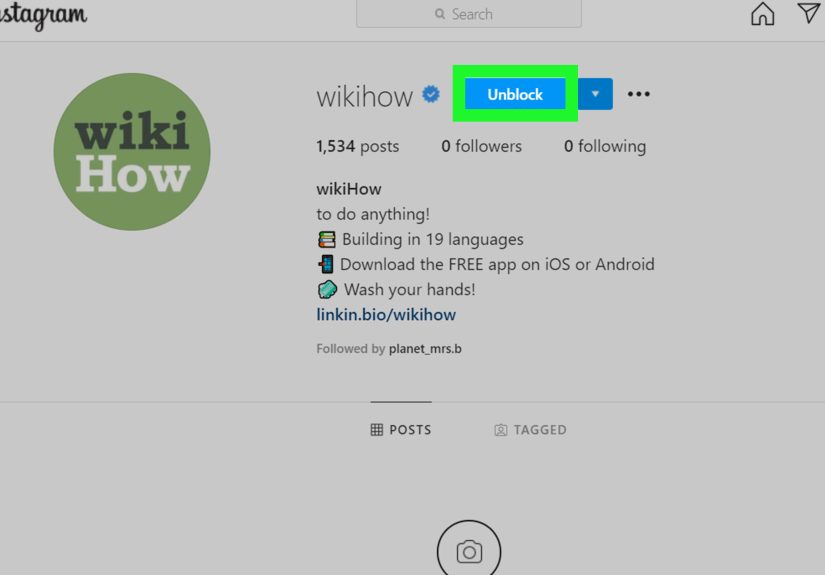
You can also unblock a person directly from their profile if you can find it.
- Open Instagram.
- Tap the search icon.
- Type the person’s username or display name.
- Open their profile.
- Tap Unblock.
- Confirm the action.
This method works well when you remember the username. It is also useful if the blocked account appears in an old direct message thread or a tagged conversation. However, blocked profiles may not always be easy to find through search. If the account does not appear, use the blocked accounts list instead.
Can You Unblock Someone on Instagram From a Computer?
Instagram’s web version can be useful, but the mobile app is usually the most reliable place to manage your full blocked accounts list. On a desktop browser, you may be able to visit a blocked person’s profile and click Unblock. However, the blocked list itself may be easier to access from the iPhone or Android app.
If you are using Instagram on a computer, try this:
- Go to Instagram in your web browser and log in.
- Use the search bar to look for the blocked account.
- Open the profile if it appears.
- Click Unblock and confirm.
If the profile looks unavailable or does not show up, switch to the mobile app. The app often provides better access to blocked account management than the web version.
What Happens After You Unblock Someone on Instagram?
When you unblock someone, Instagram removes the block between your account and theirs. That means the person may be able to find your profile again, view your public posts, see your public stories, send message requests, follow you, like posts, comment, or interact depending on your privacy settings.
Instagram does not send a notification saying, “Great news, you have been unblocked!” Nobody gets a confetti cannon from the app. However, the person might figure it out if they search for your profile and can suddenly see it again.
You May Need to Follow Them Again
If you previously followed each other, blocking usually removes that connection. After unblocking, you may need to follow the account again if you want their posts in your feed. If their account is private, they may need to approve your follow request.
Old Likes and Comments May Not Return Automatically
Unblocking does not always restore everything exactly as it was before. Some past interactions may not reappear in the way users expect. If you deleted comments manually, those comments are gone unless the person comments again. Think of unblocking as reopening the door, not magically rebuilding the entire hallway.
Why You Cannot Find Someone You Blocked
Sometimes you may remember blocking someone, but you cannot find their account. There are several possible reasons.
They Changed Their Username
Instagram users can change usernames. If you are searching for the old one, the account may not appear. The blocked accounts list is helpful here because it may show the current profile information, depending on the account’s status.
They Deleted or Disabled Their Account
If the person deleted or temporarily disabled their Instagram account, you may not be able to open the profile. In some cases, the account may remain on your blocked list but be difficult to interact with.
They May Have Blocked You Too
If both people blocked each other, finding the profile can become confusing. You may need to use the blocked accounts list rather than search. If you unblock them but still cannot see their content, they may still have you blocked on their end.
Instagram May Be Glitching
Apps glitch. It is one of the few universal truths of modern life, along with low battery warnings appearing at the worst possible time. If your blocked list does not load, update Instagram, close and reopen the app, check your internet connection, or try again later.
Unblocking vs. Restricting: Which Should You Use?
If you are not sure whether to unblock someone fully, consider whether another privacy tool might work better.
Use Unblock When You Are Comfortable Reopening Contact
Unblocking makes sense when the reason for the block no longer applies. Maybe it was a misunderstanding, a temporary conflict, or an accidental tap. Maybe you blocked a brand account because it was posting too many ads, and now you actually want to see a sale. Personal growth comes in many forms.
Use Restrict When You Want Distance Without a Full Block
Restricting someone can limit how their comments and messages affect you without making the situation obvious. It is useful when you want less interaction but do not want to fully cut off access.
Use Mute When You Just Need a Quieter Feed
If the person is not bothering you directly but posts too much, mute may be enough. Muting hides posts or stories from your feed without blocking, unfollowing, or creating social tension.
Privacy Tips Before You Unblock Someone
Before tapping Unblock, take a moment to review your privacy comfort level. Ask yourself a few simple questions: Do I want this person to see my posts? Can they message me? Is my account public or private? Am I unblocking because I genuinely want to, or because I feel pressured?
If your account is public, unblocked users can generally view your public content. If your account is private, they may need to follow you before seeing posts and stories. You can also adjust message controls, comment settings, story visibility, and tag permissions to make your account feel safer and more manageable.
Check Your Story Settings
If you unblock someone but do not want them seeing your stories, review your story privacy settings. Instagram lets you hide stories from specific people. This can be helpful if you want to unblock someone for basic profile access but still keep your daily updates private.
Review Message Controls
After unblocking, a person may be able to send a message request depending on your settings. If you do not want random or uncomfortable messages landing in your inbox, review who can message you.
Common Problems and Quick Fixes
The Unblock Button Does Not Work
Close and reopen Instagram, check your internet connection, and update the app. If that does not help, try from another device or use Instagram on the web.
The Account Still Looks Blocked
Refresh the profile, restart the app, or wait a few minutes. If the person blocked you too, unblocking them from your side will not make their profile visible to you.
You Accidentally Unblocked Someone
You can block them again from their profile. Go to the account, tap the three-dot menu, choose Block, and confirm. If Instagram asks whether you want to block other accounts they may have or create, choose the option that best fits your safety needs.
You Cannot See the Blocked List
Make sure your app is updated. Then go to your profile, open the three-line menu, choose settings, and search for “Blocked.” If you still cannot find it, try logging out and back in or reinstalling the app.
Experience-Based Guide: What It Feels Like to Review Your Instagram Blocked List
Reviewing your blocked users list can feel surprisingly personal. It is not just a settings page; it is a tiny museum of past decisions. Some blocks are obvious: fake giveaway accounts, spam bots promising luxury sunglasses for $3, strangers who sent weird messages, or accounts that copied your photos. Those are easy. You see the username and think, “Yes, past me made an excellent choice.”
Other blocks are more complicated. You might see a former friend, an old coworker, an ex, a classmate, or someone from a messy group chat that should have been retired long before it became a full-time emotional weather system. In those cases, the unblock button can feel bigger than it looks. It is only a small button, but it carries a question: do you want this person back in your Instagram world?
A practical way to handle this is to review blocked accounts slowly. Do not unblock everyone in one heroic digital spring-cleaning session. Start with the easy accounts. If it is a bot, a deleted account, or an old brand page you no longer care about, decide quickly. For real people, pause. Ask whether unblocking them supports your peace or simply reopens a door you worked hard to close.
One common experience is unblocking someone and expecting a dramatic change, only to realize nothing happens immediately. Instagram does not announce it. No spotlight appears. The person may never notice unless they search for you, message you, or interact with shared content. That quietness is actually useful. It lets you make your own decision without turning it into a public event.
Another common experience is realizing that unblocking does not rebuild the old connection. You may not automatically follow each other again. Their posts may not return to your feed. If your account is private, they may still need approval to follow you. In other words, unblocking is not the same as reconnecting. It simply removes a barrier. What happens next depends on your settings and your choices.
For creators, small businesses, and public profiles, reviewing blocked users can be part of account maintenance. Maybe you blocked angry commenters during a heated campaign, spam accounts during a giveaway, or suspicious profiles during a fake-account wave. Every few months, it can be useful to check the list and decide whether the blocks still make sense. This is especially true if you manage a brand account where customer service, community safety, and visibility all matter.
For personal accounts, the best rule is simple: your Instagram should feel like a space you control. You do not owe anyone access to your posts, stories, messages, or attention. Unblock someone only when it feels right, not because curiosity, guilt, or boredom is driving the bus. Boredom is a terrible driver. It never signals and always takes the emotional toll road.
If you are unsure, try adjusting privacy settings first. You can keep your account private, limit message requests, hide stories from certain people, restrict comments, or mute accounts instead of fully reopening contact. Instagram gives you more than one tool for managing attention, and the block list is only one part of that toolbox.
The best experience is the one where you finish reviewing the list and feel calmer, not more stressed. Maybe you unblock a few harmless accounts. Maybe you leave most of them blocked. Maybe you discover a spam profile you forgot existed and wonder why it had a username that looked like a broken license plate. Whatever the case, the goal is not to create a perfect blocked list. The goal is to make your Instagram experience safer, quieter, and more intentional.
Final Thoughts
Seeing the users you have blocked on Instagram is simple once you know where to go: open your profile, tap the menu, enter settings, find the blocked accounts section, and review the list. From there, you can unblock someone with a tap and a confirmation.
Just remember that unblocking restores access, but it does not always restore the relationship, the follow connection, or the exact old interaction history. If your profile is public, the person may be able to see your content again. If your profile is private, you still have more control over who follows you. And if you are not ready to unblock someone, that is completely fine. The block button exists for a reason, and sometimes that reason is “I enjoy peace.” A very underrated hobby, honestly.
Note: Instagram’s interface may change over time. If a menu label looks different, search inside Instagram settings for “Blocked” or update the app before trying again.