Table of Contents >> Show >> Hide
- Why NFS (and When It’s the Right Tool)
- NFSv4 vs NFSv3: Pick Before You Type Commands
- Architecture: One Server, Many Clients
- Step 1: Install NFS Packages
- Step 2: Create the Shared Directory and Set Permissions
- Step 3: Configure /etc/exports (The “Who Gets What” File)
- Step 4: Apply Exports and Start Services
- Step 5: Firewall and Security (Because “Open NFS to the Internet” Is a Horror Genre)
- Step 6: Mount the Share on the Client
- Step 7: Make the Mount Persistent (Survives Reboots)
- Performance Tips (Without Turning Your Data Into Confetti)
- Security Hardening Checklist
- Troubleshooting: The Greatest Hits of “Why Isn’t This Working?”
- When You Might Choose Something Else
- Conclusion: Make NFS Boring (That’s the Goal)
- Extra: Real-World Experiences and “Stuff You’ll Learn the Hard Way” (So You Don’t Have To)
NFS (Network File System) is the classic Linux way to make a folder on one computer show up on another computer
like it lives there. Not “download a copy,” not “sync a duplicate,” but a real mount pointyour apps read and write
as if the files are local. It’s simple, fast on a LAN, and (when configured well) boring in the best possible way.
In other words: exactly what you want from file sharing.
This guide walks you through setting up an NFS server and connecting one (or many) Linux clients. We’ll cover NFSv4
vs NFSv3, exports, permissions, firewalls, persistent mounts, troubleshooting, and a reality-based “here’s what
usually goes wrong” section at the endbecause NFS is great, but it definitely has opinions.
Why NFS (and When It’s the Right Tool)
Use NFS when you want Linux-to-Linux file sharing that feels native: home directories for lab machines,
shared project folders, media libraries, build artifacts, VM images, or team scratch space on a private network.
It’s especially nice when your users and services already live in Linux land.
NFS is not the best choice when your clients are mostly Windows (Samba/SMB is usually easier),
when you need “works anywhere on the internet” (use SFTP/SSH-based options or a VPN), or when you need multi-user
collaboration features like file locking across flaky networks and rich identity integration (you can do that with
NFS, but it’s more work).
NFSv4 vs NFSv3: Pick Before You Type Commands
NFSv4 (recommended for most modern setups)
- Simpler networking: typically just TCP port
2049for NFS traffic. - Better security options: supports strong authentication (Kerberos) if you want it.
- Cleaner exports: can use a “pseudo-root” export so clients mount from one top-level path.
NFSv3 (still common, sometimes required)
- Uses additional RPC services (rpcbind/mountd/lockd/statd), which can complicate firewall rules.
- Works fine on trusted LANs, and some appliances/tools still expect NFSv3.
If you’re starting fresh on Linux-to-Linux on a private network, default to NFSv4.
You can always force a version per mount if you need to interoperate.
Architecture: One Server, Many Clients
NFS is a client/server model:
- NFS server: exports (shares) one or more directories.
- NFS clients: mount those directories at a local mount point.
Before you configure anything, decide:
- Which directory will be shared (example:
/srv/nfs/projects) - Which clients are allowed (example subnet:
192.168.10.0/24) - Read-only or read-write
- NFSv4 or NFSv3
Step 1: Install NFS Packages
On Debian/Ubuntu family (server):
On RHEL/CentOS/Rocky/Fedora family (server):
On clients (Debian/Ubuntu family):
On clients (RHEL-family):
Step 2: Create the Shared Directory and Set Permissions
Create a dedicated directory for exports. This keeps your life clean and your future self grateful.
Now decide how you want clients to authenticate. NFS uses numeric UID/GID to decide who can do what.
That means user alice on the server should have the same UID as alice on the clients if you
want permissions to behave like you expect.
A practical permissions approach
- Create a shared group (example:
nfsproj) with the same GID on all machines. - Make project folders group-owned and group-writable.
- Use the setgid bit so new files inherit the group.
(If the group already exists or GID 2000 is taken in your environment, pick a GID that’s consistent everywhere.)
Step 3: Configure /etc/exports (The “Who Gets What” File)
NFS exports are controlled by /etc/exports. Each line is: a directory, then which clients can access it,
then options in parentheses.
Example: Export to a trusted subnet (read-write)
Common export options (human translation included)
rw/ro: read-write or read-onlysync: safer; server confirms writes to stable storage before replying (slower, but reliable)async: faster; higher risk if the server crashes (use only if you accept that tradeoff)root_squash: remote root becomes “nobody” (good default for safety)no_root_squash: remote root stays root (use only when you absolutely trust the client)no_subtree_check: reduces subtree checking overhead; often recommended unless you have a reason not to
For many home-lab or office-LAN setups, a safe default is:
rw + sync + root_squash + no_subtree_check.
NFSv4 pseudo-root (optional, but nice)
With NFSv4, you can present a clean “top” export. One common style:
The fsid=0 line creates the NFSv4 root export, and everything underneath becomes mountable from that
logical root. It’s like giving your clients a neat lobby instead of making them climb in through a window.
Step 4: Apply Exports and Start Services
Export (reload) your configuration:
Start and enable the NFS service:
(Different distros name the service differently. If one fails, the other usually works.)
Step 5: Firewall and Security (Because “Open NFS to the Internet” Is a Horror Genre)
Keep NFS on trusted networks. If you’re using NFSv4, the key port is typically TCP 2049.
NFSv3 often requires additional RPC-related ports and extra configuration.
Firewalld (common on RHEL-family)
If you’re strictly using NFSv4 and want to be minimal, you may instead open only 2049/tcp, but be sure
your environment truly is NFSv4-only and your clients can connect reliably.
UFW (common on Ubuntu)
SELinux note (RHEL-family)
SELinux can block exports if contexts/booleans don’t allow them. If you’re exporting directories outside common
paths and you get mysterious permission issues, check SELinux booleans related to NFS exporting.
You can inspect booleans and adjust carefully (don’t flip switches blindly in production).
Step 6: Mount the Share on the Client
Create a local mount point. Choose a path that won’t confuse future you (future you is easily confused).
Mount using NFSv4
Note the path: with an NFSv4 pseudo-root, you often mount from server:/ plus the exported path under that root.
If you didn’t set an NFSv4 pseudo-root, you might mount the full exported directory path instead.
Mount using NFSv3 (if needed)
Verify it worked
Step 7: Make the Mount Persistent (Survives Reboots)
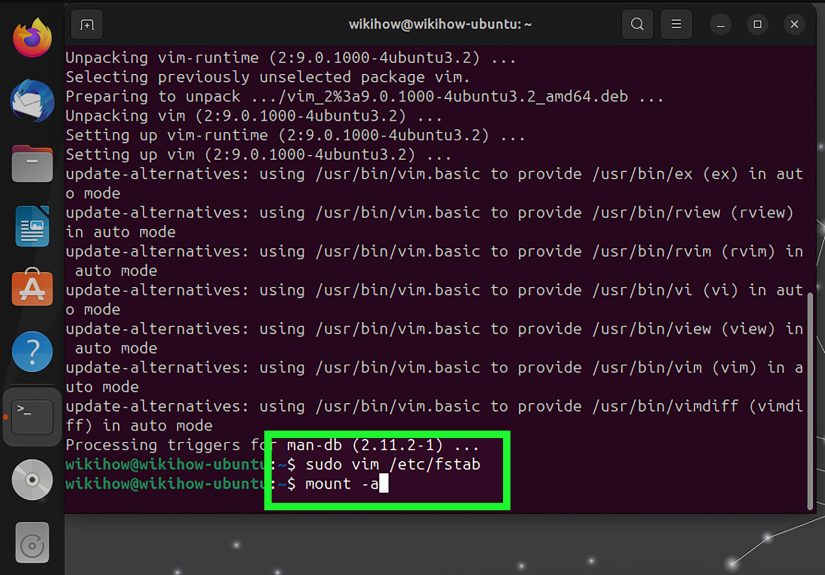
If you want the share mounted after reboot, add an entry to /etc/fstab.
Here’s a practical, “won’t ruin your boot if the server is down” style entry using systemd options:
Then test it safely:
If your clients are laptops or frequently off-network, nofail and automount options are your best friends.
Otherwise, you’ll discover a brand-new boot animation: “Waiting for network…” (it’s not a fun one).
Performance Tips (Without Turning Your Data Into Confetti)
NFS on a modern LAN is usually fast enough with defaults. But if you’re moving big files or building code over NFS,
these tweaks are worth knowing:
Client mount options that can help
rsize/wsize: read/write buffer sizes (often auto-tuned today, but configurable)hardvssoft: hard retries forever (safer), soft can fail operations (riskier)timeoandretrans: tune retry timing on unreliable networks
When in doubt: prefer reliability over “benchmarks that look cool in a screenshot.” If the share holds anything you’d
cry about losing, keep sync on the server and avoid overly aggressive settings.
Security Hardening Checklist
- Restrict clients by IP/subnet in
/etc/exports(avoid wildcards). - Use NFSv4 when possible to simplify firewall exposure.
- Keep NFS off the public internet; use a VPN or private VLAN if you need remote access.
- Don’t use
no_root_squashunless you truly understand the consequences. - Log and monitor: track server load, disk latency, and client behavior.
Troubleshooting: The Greatest Hits of “Why Isn’t This Working?”
1) “Access denied by server”
- Confirm the client IP matches what’s allowed in
/etc/exports. - Run
sudo exportfs -von the server to confirm the export is active. - Reload exports:
sudo exportfs -ra.
2) “Permission denied” (but it mounts)
- Check directory permissions and ownership on the server.
- Verify UID/GID alignment across machines (especially for multi-user shares).
- On SELinux systems, confirm SELinux isn’t blocking your export paths.
3) It works until the firewall turns on
- For NFSv4, ensure TCP
2049is allowed. - For NFSv3, ensure rpcbind/mountd/lock-related services and ports are handled.
4) “Stale file handle”
- This often happens if you move/replace exported directories while clients are mounted.
- Try unmounting/remounting on the client (and avoid big server-side reshuffles during active use).
5) Diagnose like a grown-up
When You Might Choose Something Else
- SSHFS/SFTP: easier over the internet, great for occasional access (not always fastest).
- Samba (SMB): best when Windows clients are involved.
- Syncthing/rsync: when you want copies on each machine, not a shared live filesystem.
Conclusion: Make NFS Boring (That’s the Goal)
A good NFS setup is like a good refrigerator: you only notice it when it stops working. Start with NFSv4, export a
dedicated directory, restrict access to trusted clients, align UID/GID for predictable permissions, and use persistent
mounts that won’t brick your boot when the server is offline. Do that, and you’ll get fast, simple Linux-to-Linux
file sharing that quietly does its job while you move on to more interesting problemslike why your terminal font
suddenly looks “slightly smug.”
Extra: Real-World Experiences and “Stuff You’ll Learn the Hard Way” (So You Don’t Have To)
Here’s the part nobody tells you in a neat bullet list: NFS usually fails in the same handful of ways, and it’s
rarely because NFS itself is “broken.” It’s almost always because humans are creative.
The UID/GID trap (aka “Why does Bob own my files?”)
In many small environments, you create users on each machine whenever you feel like it. On server A, alice
gets UID 1001. On client B, alice gets UID 1002. You mount NFS, create a file, and suddenly the file shows
up owned by some random user (or by a number) on the other side. NFS is not being dramaticit’s being literal.
It trusts UID/GID numbers, not the name you gave your user.
The fix is boring but effective: decide on consistent IDs (manually for small labs, or centrally via LDAP/FreeIPA in
bigger environments). If you can’t do that, keep shared directories group-based with a consistent group ID, and avoid
pretending that per-user ownership will magically align.
Root squashing: the safety feature that feels like a betrayal
You’ll mount the share as root on a client, try to chown everything, and get denied. Your first reaction may be:
“NFS is rude.” Your second reaction should be: “Oh, right. Root squashing.”
root_squash is the default in many sane setups because it prevents a compromised client from acting as
superuser on the server’s exported filesystem. If you truly need privileged operations from a client, the safer approach
is usually: perform those operations on the server (or via controlled admin access), not by giving clients god-mode.
If you flip to no_root_squash, do it with eyes wide openand ideally only for a specific admin host on an isolated network.
The “works on my desk, fails in production” firewall story
On an open LAN, NFS mounts fine. Then someone enables a firewall policy, and suddenly the mount hangs like it’s waiting
for a personal apology. If you’re on NFSv4, life is generally simpler: focus on TCP 2049. If you’re on NFSv3,
the extra RPC services can turn firewall configuration into a small puzzle box. That’s why many admins push NFSv4 as the
default when possiblefewer moving parts, fewer ports, fewer late-night surprises.
Boot-time sadness (and how to avoid it)
Adding NFS to /etc/fstab feels responsible… until your laptop boots at a coffee shop and stalls because it can’t
reach server1. This is where nofail, _netdev, and systemd automount options earn their keep.
With automount, the system boots normally and mounts the share only when you actually access the mount point.
It’s the difference between “portable workstation” and “hostage negotiation with init.”
“Stale file handle” is not an insult, it’s a clue
If you reorganize exported directories on the server while clients are mountedmove folders, replace a filesystem,
restore from backup into a new inode universeclients may complain with “stale file handle.” It sounds ancient,
but it’s basically the client saying, “The thing I was pointing at doesn’t exist the same way anymore.”
The usual fix is unmount/remount. The long-term fix is planning: treat exported paths as stable interfaces,
and avoid swapping them out mid-flight.
My favorite “quiet win” setup
For a small team, a setup that tends to feel good in day-to-day life looks like this:
NFSv4, exports restricted to a subnet, a dedicated /srv/nfs tree, group-based permissions, and client mounts with
automount so reboots aren’t held hostage. It doesn’t try to be clever. It just works. And that’s the whole point.