Table of Contents >> Show >> Hide
- Why Syncing Outlook Calendar with iPhone Matters
- The Easiest Way to Sync Outlook Calendar with iPhone
- Alternative Method: Use the Outlook App on iPhone
- Which Method Is Best?
- How to Choose the Right Default Calendar on iPhone
- Common Problems When Outlook Calendar Is Not Syncing with iPhone
- How to Fix Outlook Calendar Sync Issues Fast
- Work Account vs Personal Outlook Account
- Best Practices for Keeping Your Calendar Organized
- Example: The Simplest Real-Life Setup
- Final Thoughts
- Experiences Related to Syncing Outlook Calendar with iPhone
If your schedule lives in Outlook but your life lives on your iPhone, you need those two to stop acting like distant cousins at a family reunion. The good news is that syncing Outlook Calendar with iPhone is usually simple, quick, and far less dramatic than people expect. The even better news? You do not need a secret IT badge, three adapters, or a candlelit ritual involving old USB cables.
The easiest way to sync Outlook Calendar with iPhone is to add your Outlook or Microsoft account directly to your iPhone’s calendar settings. Once it is connected, your events can appear in Apple Calendar, update across devices, and follow you around like a very organized personal assistant. For many people, this is the cleanest setup because it lets the iPhone’s built-in Calendar app do the heavy lifting while Outlook remains the calendar source.
In this guide, you will learn the fastest setup method, an alternative using the Outlook app, the difference between work and personal accounts, the most common sync problems, and the little settings that make the whole thing run smoothly. By the end, you should have your Outlook calendar on your iPhone without yelling at either company.
Why Syncing Outlook Calendar with iPhone Matters
Calendar sync sounds like a small convenience until the moment it is not. One missed dentist appointment, one forgotten Zoom meeting, or one mystery lunch that somehow landed on the wrong day, and suddenly calendar management becomes personal.
When Outlook Calendar syncs properly with your iPhone, you get one reliable view of your day. That means your work meetings, family events, doctor appointments, and reminders are easier to manage whether you are looking at your computer, your phone, or your brain at 7:12 a.m. before coffee has had a chance to do its thing.
Syncing also helps in practical ways:
- You can see Outlook events in the native iPhone Calendar app.
- You can receive alerts on your phone for upcoming meetings.
- Changes made to your schedule can update across connected devices.
- You can separate work and personal calendars while still seeing them together.
- You reduce the risk of double-booking yourself into chaos.
The Easiest Way to Sync Outlook Calendar with iPhone
For most people, the simplest method is to add the Outlook account directly in iPhone settings. This is the best route if your goal is to see your Outlook Calendar in Apple Calendar and keep everything available in the built-in iOS experience.
Step 1: Open iPhone Settings
Start with the Settings app on your iPhone. Yes, the boring gray icon. This is where the magic begins.
Step 2: Go to Calendar Accounts
On current iPhones, go to Apps > Calendar > Calendar Accounts. If you have seen older tutorials that say Mail > Accounts, that is because iOS menus have changed over time. Same idea, fresher hallway.
Step 3: Tap Add Account
Choose Add Account, then select the Microsoft-related option that matches your account. If you use a personal Outlook, Hotmail, or Live address, you will often use Outlook.com. If you use a company or school account, you may be guided through a Microsoft Exchange or Microsoft 365-style sign-in.
Step 4: Sign In with Your Microsoft Credentials
Enter your email address and password, then complete any verification prompts. If your organization uses extra security, such as two-step verification or device approval, follow those prompts too. Corporate accounts like to be careful, and honestly, that is fair.
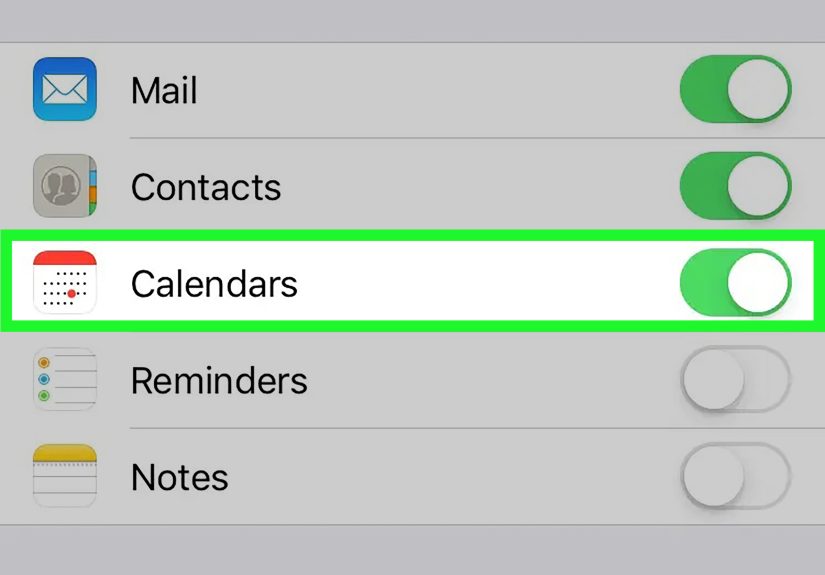
Step 5: Turn Calendar On
After the account is added, return to the account settings and make sure the Calendar toggle is switched on. This is the step people skip, then later blame modern technology as a whole.
Step 6: Open the Calendar App
Launch the Apple Calendar app, tap Calendars at the bottom, and confirm that your Outlook calendar is visible and selected. Once that is done, your Outlook events should begin appearing on your iPhone.
That is the easiest way to sync Outlook Calendar with iPhone if you want the native iPhone calendar experience.
Alternative Method: Use the Outlook App on iPhone
If you spend most of your day in Microsoft tools anyway, the Outlook app is another easy option. In fact, for some users, it is the fastest way to get calendar access on iPhone because it combines email and calendar in one place.
Here is the difference:
- Adding Outlook to iPhone settings puts the calendar inside Apple Calendar.
- Using the Outlook app keeps the calendar inside Outlook on your iPhone.
If all you want is to view and manage your schedule from your phone, the Outlook app may be enough. If you prefer Apple Calendar, widgets, or a more native iPhone workflow, add the account through Settings instead.
How to Set Up the Outlook App
- Download Microsoft Outlook from the App Store.
- Sign in with your Outlook, Microsoft 365, or Exchange account.
- Grant calendar permissions when prompted.
- Open the Calendar tab in Outlook to view events.
This method is especially useful for people with work accounts, shared office calendars, or meeting-heavy days where Outlook is already the command center.
Which Method Is Best?
If you want the short answer, here it is:
- Choose iPhone Settings + Apple Calendar if you want the most natural iPhone experience.
- Choose the Outlook app if you live in the Microsoft ecosystem and want everything in one app.
For many users, the native sync method is still the easiest way because it makes Outlook Calendar feel like part of the iPhone instead of a separate destination. Your events show up alongside your other calendars, Siri can work with them more naturally, and your daily schedule stays easy to glance at.
How to Choose the Right Default Calendar on iPhone
Once you sync Outlook Calendar with iPhone, there is one setting you should not ignore: Default Calendar.
If you have more than one calendar on your iPhone, your new events need a default home. Otherwise, you may create a personal event and accidentally save it to your work calendar, which is how innocent lunch plans become visible to your team. That can be harmless. It can also be awkward. Sometimes both.
To adjust it, go to Settings > Apps > Calendar > Default Calendar, then choose the calendar you want new events to use automatically.
This is a small setting, but it makes a big difference if you manage multiple calendars, especially a mix of Outlook work events and personal iPhone appointments.
Common Problems When Outlook Calendar Is Not Syncing with iPhone
Most sync issues come from a handful of repeat offenders. The good news is that they are usually fixable without calling tech support or dramatically deleting everything.
1. Calendar Toggle Is Off
After adding the account, make sure the Calendar option is actually enabled. It sounds obvious, but this is one of the most common reasons Outlook Calendar does not show up on iPhone.
2. The Account Was Added the Wrong Way
If an account is set up as basic IMAP or POP email instead of an Exchange-style account, your mail may sync while your calendar does not. That is because calendars and contacts usually require the proper Microsoft account setup, not a mail-only shortcut.
3. You Are Looking at the Wrong Calendar View
Open Apple Calendar, tap Calendars, and verify that the Outlook calendar is checked. Sometimes the calendar is syncing just fine, but it is hidden from view. Technology loves a plot twist.
4. Background App Refresh Is Disabled
If you use the Outlook app, Background App Refresh can affect how current the data feels on your iPhone. If the app seems stale, check your iPhone settings and make sure Outlook is allowed to refresh in the background.
5. Fetch Settings Are Too Slow
Some accounts do not use push updates. In those cases, your iPhone may check for changes on a schedule instead of instantly. If your calendar updates feel delayed, your fetch settings may be the reason.
6. Corporate Security Policies Are Involved
Work and school accounts can be subject to organization rules. Your company may require extra authentication, device approval, or mobile management tools before calendar sync works properly. If everything looks right but access is blocked, your IT team may be the missing piece.
How to Fix Outlook Calendar Sync Issues Fast
If your Outlook calendar is not syncing with your iPhone, try these fixes in order:
- Check that your Microsoft account is added correctly.
- Confirm the Calendar toggle is turned on.
- Open Apple Calendar and make sure the Outlook calendar is selected.
- Restart your iPhone.
- Open Outlook and make sure you are signed in with the correct account.
- Enable Background App Refresh for Outlook if you use the app.
- Remove the account and add it again.
- For work accounts, confirm that your company allows mobile calendar access.
In many cases, the fix is surprisingly unglamorous. Re-adding the account solves more problems than people want to admit. It is the digital version of unplugging the router and pretending you discovered electricity.
Work Account vs Personal Outlook Account
Not all Outlook accounts behave exactly the same, and this matters when syncing to iPhone.
Personal Outlook Accounts
If you use an address like @outlook.com, @hotmail.com, or @live.com, setup is usually straightforward. Sign in, turn Calendar on, and you are in business.
Work or School Accounts
If your account comes from an employer or school, setup can be more complex. You may need to approve the sign-in, verify the device, or follow company security steps. These accounts often sync beautifully once connected, but they are less casual about who gets in the door.
This is one reason many professionals prefer using the Outlook app as a backup or primary option. It is often designed with Microsoft 365 environments in mind and can feel more seamless for business users.
Best Practices for Keeping Your Calendar Organized
Once Outlook Calendar is synced with iPhone, do yourself a favor and keep the system tidy. A synced mess is still a mess. It is just a synchronized one.
Use Different Calendars for Different Parts of Life
Separate work, family, travel, and personal tasks when possible. This makes your schedule easier to scan and helps prevent mix-ups.
Set the Correct Default Calendar
This deserves a second mention because it saves people from a surprising amount of trouble. New events should land where you expect them to land.
Review Alerts and Notifications
Some people want loud reminders for every meeting. Others want fewer interruptions. Adjust your alert settings so your phone helps rather than heckles.
Keep One Main Calendar App for Daily Use
You can technically use both Apple Calendar and Outlook on the same iPhone, but your brain may prefer one clear home base. Pick the app you check most often and let it become the schedule headquarters.
Example: The Simplest Real-Life Setup
Imagine a project manager named Dana. She uses a Microsoft 365 work account for client meetings and an iPhone for everything else. Dana wants to see her work meetings in the Apple Calendar app because that is where she checks her day every morning.
She adds her Microsoft account through iPhone settings, turns Calendar on, and then sets her personal calendar as the default so her weekend plans do not accidentally end up in the office system. Now her work meetings appear on iPhone, her alerts show up on time, and she still keeps personal events separate.
That is what a good sync setup should feel like: not flashy, not confusing, just quietly useful.
Final Thoughts
If you have been wondering how to sync Outlook Calendar with iPhone, the easiest way is usually the best one: add your Outlook or Microsoft account directly in your iPhone calendar settings, make sure Calendar is turned on, and verify the calendar is visible in the Apple Calendar app.
If you prefer Microsoft’s own workflow, the Outlook app is also a solid option, especially for work accounts and Microsoft 365 users. Either way, the goal is the same: one reliable calendar system that follows you everywhere without creating extra work.
Once the setup is done, your schedule becomes easier to manage, your notifications become more useful, and your odds of forgetting a meeting drop significantly. Your future self, who no longer has to guess whether Thursday’s appointment is on the laptop or the phone, will be deeply grateful.
Experiences Related to Syncing Outlook Calendar with iPhone
People usually expect calendar syncing to be either instant magic or total disaster. In reality, it tends to fall somewhere in the middle: easy once you know the right setup, mildly annoying when one tiny setting is wrong, and oddly satisfying when everything finally clicks into place.
One common experience is that the first sync feels slower than expected. A person adds the account, opens Apple Calendar, and stares at the screen like it owes them money. Then, a minute later, the events appear. That short delay is often enough to make users think the sync failed, even when it is actually working. Patience is not always fun, but sometimes it is technically appropriate.
Another familiar situation happens with work accounts. A user enters the correct Microsoft email and password, expects a quick win, and then gets greeted by extra verification, a device approval request, or a company security message. It can feel like a hassle, but it is also a reminder that business calendars are often protected more carefully than personal ones. Once that approval process is finished, the sync usually becomes much smoother.
Many users also discover that the biggest problem is not syncing at all. It is visibility. The account is connected. The calendar is syncing. The events are there. But the Outlook calendar is not checked in the Calendar app, so the schedule looks empty. This leads to a very modern form of confusion where the information exists perfectly, just not where the person is looking. It is less of a technical problem and more of a digital hide-and-seek championship.
Then there is the default calendar issue, which quietly causes a surprising number of headaches. Someone syncs Outlook Calendar to iPhone successfully, creates a new event on the phone, and later realizes it was saved to the wrong calendar. Suddenly a hair appointment is sitting in a work schedule, or a staff call is trapped in a personal calendar no one else can see. The sync worked. The setup just needed one more minute of attention.
Users who prefer the Outlook app often describe the experience as cleaner for work life. Everything stays in one place: email, meetings, invitations, and schedule updates. People who prefer Apple Calendar usually say it feels lighter, faster to glance at, and more natural on an iPhone. Neither side is wrong. This is one of those rare tech debates where the best answer is honestly based on habit.
There is also a psychological benefit to getting calendar sync right. When your Outlook events appear properly on your iPhone, your day feels more under control. You stop wondering whether a meeting was only added on your desktop. You stop checking two apps every hour. You stop doing that nervous pre-appointment search where you open three screens and still somehow trust none of them.
In the end, the real experience of syncing Outlook Calendar with iPhone is not about the setup itself. It is about what happens after: fewer missed meetings, less duplicate planning, better visibility, and a schedule that finally behaves like a single system instead of a small administrative rebellion. That is why this simple sync matters so much. It is not glamorous, but neither is showing up to the wrong event at the wrong time.