Table of Contents >> Show >> Hide
- What “System Link” Actually Means
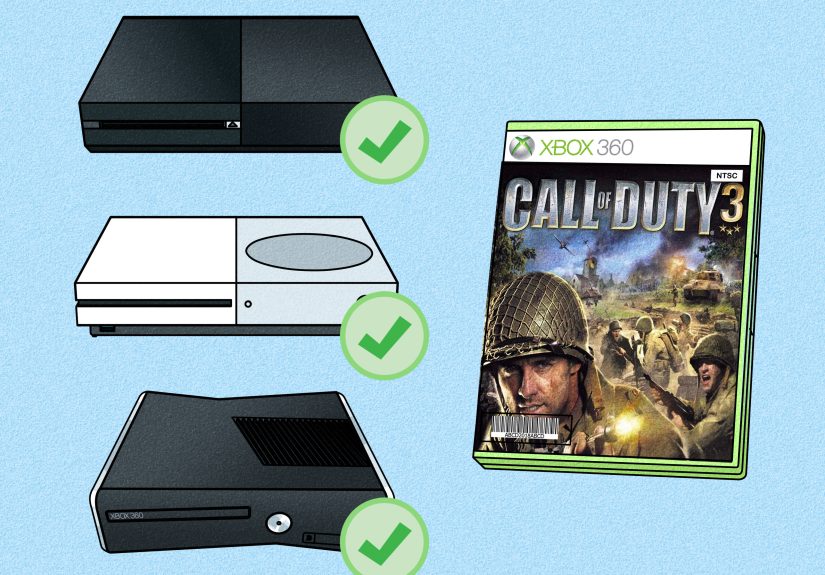
- Which Xbox Consoles Can Be Linked?
- What You Need Before You Start
- How to System Link Two Xbox Consoles
- How to System Link Three or More Xbox Consoles
- How to Find the Right Menu in the Game
- Common Problems and How to Fix Them
- Best Practices for a Smooth Xbox LAN Party
- Is System Link Still Worth It?
- Final Thoughts
- Extra Experience and Real-World Tips From Actual Xbox Link Setups
There was a time when “multiplayer setup” meant one person bringing snacks, one person bringing an extra TV, and one hero showing up with a tangled nest of Ethernet cables like they were diffusing a bomb. Good news: if you want to recreate that glorious LAN-party energy, you still can. Better news: it is less mysterious than it sounds.
If you want to system link two or more Xbox consoles, the trick is understanding one important detail right away: System Link is not the same thing as ordinary online multiplayer. On classic Xbox and Xbox 360 titles, System Link means connecting consoles over a local network so players can join the same match without relying on internet-based matchmaking. On newer Xbox One and Xbox Series X|S systems, there is no universal “System Link” button at the console level for every game. Instead, whether local network play works depends on the specific game, especially if you are playing native Xbox One or Xbox Series titles.
So yes, you can still pull off a proper Xbox LAN session. You just need the right consoles, the right game, the right network setup, and a tiny amount of patience. Preferably more patience than the guy who insists the cable “was working five minutes ago.”
What “System Link” Actually Means
System Link is local multiplayer across multiple consoles on the same network. Every console runs its own copy of the game, every player gets a full screen, and the match happens over a cable or local router instead of through standard online servers. That is why System Link has always felt more like a mini event than a casual menu option. It is multiplayer with furniture movement.
On Xbox 360, Microsoft’s support guidance is refreshingly straightforward: you can link two consoles directly with the correct cable, or you can connect more than two consoles through a network device such as a router, hub, or switch. For supported Xbox 360 games, the console family can handle up to 16 systems on one network, which is either an amazing party or an excellent way to learn which friend talks the most trash under pressure.
For newer hardware, the picture changes a bit. Xbox Series X|S supports a huge backward-compatible library, and some older titles preserve their local-link spirit beautifully. In fact, backward compatibility has allowed certain classic original Xbox experiences to connect across console generations in supported cases. But that does not mean every Xbox One or Series game magically supports LAN play. Many do not. Many rely purely on internet multiplayer. So the first job is always the same: check whether your exact game supports LAN, local network multiplayer, or System Link.
Which Xbox Consoles Can Be Linked?
Original Xbox and Xbox 360
These are the kings of classic System Link. If the game supports it, you are in business. This is the era that turned Halo nights into folklore and made carrying a CRT television feel like a legitimate athletic event.
Xbox One and Xbox Series X|S
These consoles can still participate in local network gaming, but only in two main situations: either you are playing a backward-compatible game that preserves System Link behavior, or you are playing a newer title that specifically includes LAN support in its multiplayer options. In other words, modern Xbox hardware is capable, but the game has to meet you halfway.
Mixed Generations
This is where things get fun. Some backward-compatible original Xbox games can work across generations, which means an older console and a newer Xbox may be able to join the same local session in supported titles. That is wonderfully nerdy, surprisingly practical, and a great excuse to keep older hardware alive just a little longer.
What You Need Before You Start
A successful System Link setup usually needs more gear than people expect, but less drama than people fear.
- Two or more Xbox consoles that can run the same compatible game.
- A copy of the game for each console, or at minimum licensed access on each system. For the smoothest setup, assume every console should have its own legitimate access to the game.
- A display for each console, whether that is a TV or monitor.
- A controller for each player, plus any guest profiles or signed-in accounts you plan to use.
- Ethernet cables for every wired connection.
- A router or network switch if you are linking more than two consoles, or if you want the easiest modern setup.
- The same game version, map packs, and updates on every console. This part matters more than people think.
That last item is the sneaky one. If one console has a title update, map pack, or mission update that the others do not, your session can fail even when the network itself is perfectly fine. It is the gaming equivalent of trying to do a group project when one person is working from last semester’s syllabus.
How to System Link Two Xbox Consoles
If you are connecting only two consoles, you have two realistic options.
Option 1: Connect Both Consoles to the Same Router or Switch
This is the easiest method for most people and the one I recommend first. Run one Ethernet cable from each Xbox to the same router or network switch. Once both consoles are on the same local network, launch the same game on both systems and look for the multiplayer option labeled System Link, LAN, or Local Network.
This method is simple, stable, and less picky than trying to go direct console-to-console with random cables from the junk drawer. It also scales better if a third or fourth console suddenly appears because your friend texted, “Wait for me, I found my old Xbox.”
Option 2: Directly Connect Two Older Consoles
For classic Xbox 360-style setups, Microsoft’s support guidance allows a direct two-console connection using the appropriate link or crossover Ethernet cable. This is the old-school method. It works, and it feels wonderfully retro, but it is usually less convenient than using a switch or router unless you are deliberately going for that authentic 2007 basement tournament vibe.
After the physical connection is made, power on both consoles, insert or launch the same game, and head into the game’s multiplayer menu. Do not stare at the Xbox dashboard waiting for a giant flashing sign that says “LAN achieved.” In most cases, the magic happens inside the game.
How to System Link Three or More Xbox Consoles
This is where the setup starts looking impressive enough that someone will absolutely take a photo and caption it “we have become powerful.”
To link three or more consoles:
- Connect every Xbox to the same router or Ethernet switch.
- Make sure every console is using the same local network.
- Install the same game, the same updates, and the same map or mission content on every console.
- Launch the game on every system.
- On one console, create a System Link or LAN match.
- On the other consoles, search for that local session and join it.
If you are using Xbox 360 hardware and a supported title, this can scale much farther than most casual players realize. Microsoft has long documented support for up to 16 linked systems in compatible Xbox 360 games. You may not need 16, of course, unless your life goal is to transform your garage into a temporary esports cathedral.
How to Find the Right Menu in the Game
This part trips people up because the console itself usually does not manage the actual match. The game does.
Once the consoles are linked on the same local network, open the game and go to multiplayer. Look for terms like:
- System Link
- LAN
- Local Network
- Link Play
- Offline Multiplayer with LAN options
One console hosts. The others join. If the join screen stays empty, that almost always points to one of four issues: the game does not really support LAN on that version, the consoles are not on the same network, the game versions do not match, or an update or DLC pack is inconsistent across systems.
Common Problems and How to Fix Them
The Consoles Cannot See Each Other
Start with the basics. Verify that every console is plugged into the same router or switch. On modern setups, go into the Xbox network settings and confirm each console is actually connected. If you are using Wi-Fi, try wired Ethernet instead. Wired connections are boring, dependable, and exactly what you want during a LAN session.
If you are working with older hardware, reboot the consoles and the network gear. Yes, that advice sounds ancient. Yes, it still works suspiciously often.
The Match Appears but Joining Fails
This is usually a game-version problem. On Xbox 360, Microsoft specifically notes that linked consoles need the same game, the same game version, and the same maps or mission updates. One mismatched update can make your setup behave like it is haunted.
Double-check all installed DLC, title updates, and bonus content. If one machine has extra multiplayer maps and the others do not, either install the missing content everywhere or remove it so the configurations match.
Your Router Acts Weird with Multiple Consoles
If your setup also touches the Xbox network for sign-in, updates, or hybrid multiplayer features, router behavior can matter more than expected. Xbox support notes that not all routers handle multiple consoles gracefully with an Open NAT. UPnP often helps on modern home networks, and in some cases manual port forwarding or a static IP setup can improve stability.
That said, for a pure offline LAN session on a switch with supported games, you may not need to wrestle with internet-side settings at all. Keep it simple unless the game forces you to get fancy.
You Assumed Every Modern Xbox Game Supports System Link
Ah, the classic trap.
Some newer releases offer split-screen. Some offer online co-op. Some offer LAN. Some offer one, two, or none of the above. And some collections even remove classic LAN features that older versions once had. A famous example is that the original Halo releases helped define console System Link culture, while later collections have not always preserved that exact same LAN behavior in the way fans expected.
The lesson is simple: never assume based on nostalgia alone. Verify the exact edition of the exact game on the exact console generation you plan to use.
Best Practices for a Smooth Xbox LAN Party
The cleanest System Link setups follow a few boring rules, and boring rules are beautiful when you just want the match to start.
- Use wired Ethernet whenever possible.
- Update every console before the event, not after everyone arrives.
- Test the game on all systems the day before.
- Label cables and power bricks if you are bringing multiple consoles.
- Keep extra controllers, HDMI cables, and one spare Ethernet cable nearby.
- Choose games you know support local network play instead of discovering the truth at 11:48 p.m.
Also, if you are using digital libraries, plan ahead. Xbox’s Home Xbox sharing features can help with household access, but for simultaneous multiplayer across more than one machine, the safest plan is still to make sure every console has proper access to the game before party night begins.
Is System Link Still Worth It?
Absolutely. System Link remains one of the most satisfying ways to play multiplayer because it combines the best parts of online and couch gaming. Everyone gets a full screen, the room is full of actual human reactions, and there is almost no substitute for hearing someone shout “WHO THREW THAT GRENADE?” from eight feet away instead of through a headset.
It is also one of the best ways to keep older Xbox hardware relevant. Between backward compatibility on newer consoles and the stubborn durability of many classic games, a modern LAN night can feel like gaming archaeology in the best possible way. You are not just playing; you are preserving a ritual.
Final Thoughts
If you want to system link two or more Xbox consoles, the formula is simple: use a game that actually supports local linking, put every console on the same network, match the game versions and content, and host the match from inside the game’s LAN or System Link menu. For two consoles, a direct older-style cable setup can still work in the right scenario, but for most people, a router or Ethernet switch is the easiest path. For three or more consoles, a shared wired network is the clear winner.
The biggest mistake people make is assuming every Xbox game supports System Link because Xbox as a brand has such strong LAN-party history. The second biggest mistake is trusting one untested cable found in a shoebox labeled “random tech stuff.” Avoid both mistakes, and you are already ahead of the game.
So gather the consoles, clear the table, untangle the cables, and embrace the chaos. The menu music is humming, the session is open, and someone is about to say, “Wait, which screen am I on?” That is how you know you did it right.
Extra Experience and Real-World Tips From Actual Xbox Link Setups
The first time most people try to link multiple Xbox consoles, they expect the hard part to be the cables. Funny enough, the real challenge is usually expectations. One person assumes any game with multiplayer will support LAN. Another person shows up with a newer console and thinks it will automatically connect to every older title ever made. A third person says they “already updated everything,” which translates to “I updated one console sometime in the spring.” The lesson from real-world setups is that preparation beats heroics every single time.
In practice, the smoothest sessions happen when you build the network first and treat the game second. Plug all consoles into the same switch or router. Confirm they are alive on the network. Then launch the game. This sounds obvious, but people love launching the game early and then diagnosing network problems from inside a menu that gives almost no useful information. Start with the physical setup. It saves time and saves friendships.
Another common experience is discovering that older games are often better suited to System Link than newer ones. Classic Xbox and Xbox 360 titles were built during an era when LAN play was not just a bonus feature; it was part of the social fabric of the platform. With newer games, publishers often put more emphasis on cloud saves, online accounts, and server-based matchmaking. That does not make modern games worse. It just means they are designed with different assumptions. If your goal is a dependable local event, older supported titles are often the least fussy and the most rewarding.
There is also a very practical social advantage to System Link that people forget until they experience it again: every player gets a full screen. No split-screen squinting. No arguing about who gets the bigger side of the couch. No accidental screen-watching unless someone physically turns their head like a nosy owl. For competitive games especially, that full-screen setup changes the energy immediately. The room feels louder, funnier, and much more alive.
One of the best habits from experienced LAN hosts is building a “rescue kit.” Put one spare Ethernet cable, one spare HDMI cable, fresh batteries or charge cables for controllers, and at least one extra power strip in a box. It does not sound glamorous, but this little kit is what separates a legendary game night from forty-five minutes of crouching behind a TV stand asking, “Did anyone bring another cable?”
Finally, do not underestimate the value of a trial run. Even a fifteen-minute test the day before can expose a wrong update, a missing map pack, a bad cable, or a game that does not support LAN the way everyone assumed. That tiny rehearsal is the difference between a party that starts on time and a party that begins with six people staring silently at two menus that refuse to find each other.
And when it all works, it is wonderful. Multiple Xbox consoles, separate screens, one local network, and a room full of shouting players still delivers a kind of multiplayer magic that online matchmaking cannot fully replace. System Link is not just a setup method. It is an experience. Slightly messy, occasionally ridiculous, and absolutely worth doing.