Table of Contents >> Show >> Hide
- What “Nightstand Mode” Actually Does
- What You Need to Use Your Apple Watch as a Nightstand Clock
- How to Turn On Nightstand Mode
- How to Set Up the Perfect Nightstand Clock Layout
- How to Check the Time at Night (Without Blasting Your Eyes)
- Set Alarms That Work Great with Nightstand Mode
- Make It Sleep-Friendly: Settings That Reduce Nighttime Disruption
- Troubleshooting: When Nightstand Mode Doesn’t Work
- Upgrade Your Setup: Small Changes That Feel Surprisingly “Luxury”
- Should You Use Apple Watch or iPhone as Your Nightstand Clock?
- Common Mistakes (And How to Avoid Them)
- Conclusion: A Nightstand Clock You Already Own
- Experiences: What Using an Apple Watch as a Nightstand Clock Feels Like in Real Life (And Why People Stick With It)
Your Apple Watch already knows how to tell time (shocking, I know). But at night, many people do the classic bedtime shuffle:
phone alarm here, charger cable there, squint at a screen like a raccoon in a trash can. Meanwhile, your Apple Watch is sitting there,
quietly begging for a second job: nightstand clock.
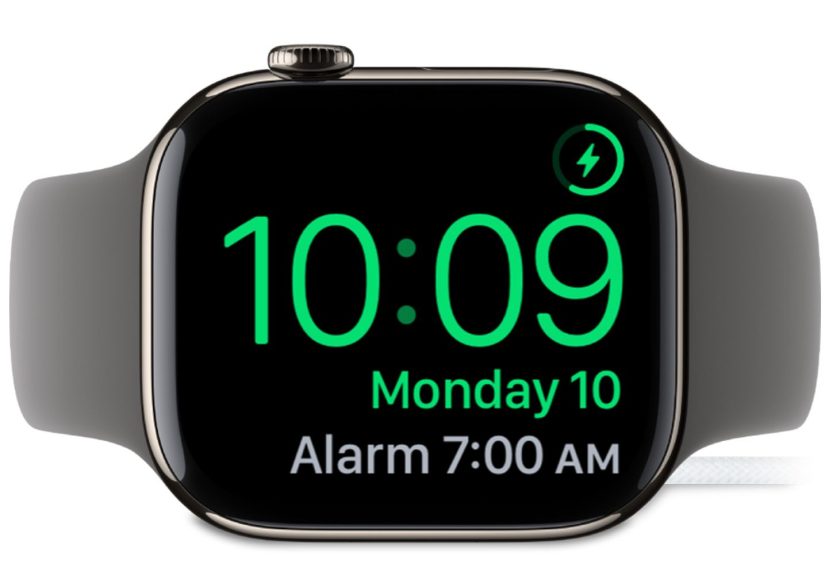
With Apple Watch Nightstand Mode (sometimes called “Bedside Mode” in older guides), you can turn a charging Apple Watch into a
bedside-friendly clock that shows the time with a tap, nudges you awake with an alarm, and keeps your room from looking like a tiny lighthouse.
The best part? You don’t need extra apps, subscriptions, or a “smart” alarm clock that’s mostly smart at sending you marketing emails.
What “Nightstand Mode” Actually Does
Nightstand Mode is built into watchOS and is designed specifically for when your Apple Watch is charging on its side.
When it’s enabled and your watch is connected to power, your watch can display:
- The current time (in a large, easy-to-read view)
- The date
- Charging status
- Your next alarm (and controls when it rings)
Instead of staying bright all night, the screen sleeps and then wakes when you tap the display or lightly nudge the watch/nearby surfaceperfect for
checking the time without fully waking your brain into “today is a spreadsheet” mode.
What You Need to Use Your Apple Watch as a Nightstand Clock
Let’s keep this refreshingly simple. You need:
- An Apple Watch running watchOS (most modern models support Nightstand Mode)
- A charger (Magnetic Charging Cable, puck, or compatible charging dock)
- A way to place the watch on its side while it charges
That last part matters. Nightstand Mode is triggered by the watch’s orientation while charging. If your watch is upright like it’s standing at attention,
it usually won’t go into Nightstand Modeso a stand that supports sideways charging can make the whole setup feel effortless.
How to Turn On Nightstand Mode
In most cases, Nightstand Mode is already on by default. But if you want to confirm (or you’ve turned it off in the past during a 2 a.m. “why is this glowing?” moment),
here’s how to enable it.
Option A: Turn it on directly on your Apple Watch
- Open the Settings app on your Apple Watch.
- Tap General.
- Scroll to Nightstand Mode.
- Toggle Nightstand Mode to On.
Option B: Turn it on from your iPhone (Watch app)
- Open the Watch app on your iPhone.
- Tap General.
- Find Nightstand Mode and switch it On.
How to Set Up the Perfect Nightstand Clock Layout
You can get Nightstand Mode working in under a minute, but if you want it to feel like a real bedside clock (and not a tiny gadget doing Pilates),
a few placement choices make a big difference.
1) Put the watch on its side (and pick your “up” direction)
Place your watch horizontally on a stand or flat surface while it charges. The screen is designed to show the time in a sideways orientation.
A practical tip: test the orientation before you commit. If the time looks rotated the “wrong” way, flip the watch so the buttons/crown face the other direction.
2) Use a stand if your cable keeps flopping around
Many people start by balancing the watch on the charger puck like a tiny modern art sculpture. It works… until it doesn’t.
A simple Apple Watch stand (or a multi-device charging station) makes the angle consistent and keeps the watch easy to tap at night.
Some docks even enlarge the display visually (through magnification), which can be helpful if you want a bigger bedside clock experience.
3) Place it where you can tap it without doing yoga
The sweet spot is close enough that you can tap the screen or nudge the surface without sitting up fully, but not so close that you’ll smack it off the nightstand
during a dramatic blanket adjustment.
How to Check the Time at Night (Without Blasting Your Eyes)
In Nightstand Mode, your Apple Watch won’t stay fully lit all night. Instead, it wakes when you:
- Tap the display
- Lightly nudge the watch or the surface it’s on
- Press a button (depending on model and settings)
This is exactly what you want at 3:14 a.m.: enough information to answer “How much sleep do I have left?” without also activating “Let’s think about everything awkward I’ve ever said.”
Set Alarms That Work Great with Nightstand Mode
Your Apple Watch can act like a full alarm clock. You can set alarms right on the watch, and when it’s in Nightstand Mode, it can wake you with a distinct alarm experience designed for the bedside.
Set an alarm on Apple Watch
- Open the Alarms app on your Apple Watch.
- Tap Add Alarm.
- Use the Digital Crown to set the time.
- Choose options like Repeat, Label, and Snooze.
What happens when the alarm rings in Nightstand Mode?
When the alarm goes off, you typically get two very convenient hardware controls:
- Press the side button to turn the alarm off
- Press the Digital Crown to snooze
This setup is weirdly brilliant: it reduces fumbling, and it’s easy to learn even when your brain is still loading its morning software update.
Make It Sleep-Friendly: Settings That Reduce Nighttime Disruption
Using your Apple Watch as a bedside clock should make your nights easiernot brighter, noisier, or more chaotic. A few quick adjustments can help you build a calmer setup.
Use Focus modes wisely (especially Sleep Focus)
If you use Sleep Focus, it can help reduce notifications and keep your nightstand from turning into a buzz-and-glow festival.
Many people prefer letting Sleep Focus handle the “quiet hours” while Nightstand Mode handles “tell me the time and wake me up.”
Consider Silent Mode + Haptics
If you share a room, you may prefer a gentler wake-up. Silent Mode can mute some sounds while haptics still deliver a tap-like alert.
(Exact behavior can vary by settings and alarm type, so test it once before a big morning.)
Try Theater Mode if your screen wakes too easily
If you find the display turning on more than you’d like (especially if your nightstand gets bumped), Theater Mode can reduce accidental wake-ups.
You’ll still be able to tap intentionally when you want the timewithout surprise glow events.
Troubleshooting: When Nightstand Mode Doesn’t Work
If your Apple Watch stubbornly refuses to become a nightstand clock, don’t panic. It’s usually one of these quick fixes:
1) Confirm it’s charging
Nightstand Mode requires power. If the charger isn’t seated properly (or the cable is loose), the watch may not switch into Nightstand Mode.
Re-seat the charging puck and look for charging confirmation.
2) Confirm the watch is sideways
Orientation matters. If the watch is too vertical, Nightstand Mode may not trigger. Try rotating it to a more horizontal angle
(many stands work at slight angles, not just a perfect 90 degrees).
3) Verify Nightstand Mode is enabled
Double-check Settings → General → Nightstand Mode on the watch (or the Watch app on iPhone).
If it’s off, the watch will charge normally without the bedside clock interface.
4) If the time looks “sideways wrong,” flip the watch
Some setups show the time rotated differently depending on how the watch is oriented (buttons/crown up vs. down).
Flip the watch in the stand to see which orientation looks correct from your bed.
5) Update watchOS if behavior seems inconsistent
If you’re experiencing odd behavior (like display settings not sticking), check for watchOS updates. Apple frequently refines Focus and sleep-adjacent behaviors
over time, and updates can resolve quirks.
Upgrade Your Setup: Small Changes That Feel Surprisingly “Luxury”
You can absolutely do the basic setup with a cable and a flat surface. But if you want your nightstand to look intentionallike a place where sleep happensthese upgrades help.
A dedicated Apple Watch stand
A simple stand keeps the watch at a consistent angle so you can tap it easily. It also prevents the charger from wandering behind your nightstand like it’s trying to escape your life.
A multi-device charging station
If you also charge your iPhone and AirPods at night, a multi-device dock reduces cable clutter.
Bonus: if your iPhone supports StandBy mode, you can create a tidy “clock corner” with both devices playing their roleswithout fighting for outlet space.
A “bigger clock” dock
Some docks are designed to visually enlarge the Apple Watch display so it reads more like a traditional bedside clock from farther away.
If you prefer glancing at the time without leaning in, this can be a surprisingly practical option.
Should You Use Apple Watch or iPhone as Your Nightstand Clock?
If you have an iPhone with StandBy mode support, you might wonder which device should be your bedside clock.
The honest answer: it depends on your sleep style and what you want on your nightstand.
Apple Watch Nightstand Mode is great if you want:
- A minimal display that wakes on demand
- An alarm you can control with physical buttons
- A compact bedside footprint
- Less temptation to “just check one thing” and accidentally read the internet
iPhone StandBy is great if you want:
- A larger clock display visible from farther away
- Widgets like weather, calendar, or photos
- A more “smart display” vibe
Many people end up using both: iPhone StandBy for bigger glanceable info, and Apple Watch Nightstand Mode as the quieter,
simpler backup alarm (and the one you can smack with a button when it’s too early to be alive).
Common Mistakes (And How to Avoid Them)
Putting the watch on the charger vertically
If you want Nightstand Mode, the watch needs to be sideways. If your stand only holds it upright, consider swapping to a stand designed for Nightstand Mode.
Assuming alarms “just sync” the way you expect
Apple Watch can use alarms set on the watch and can also reflect alarms from your iPhone depending on your settings.
For reliability, set the alarm on the device you’ll be using as your primary wake-upthen test it once.
Letting notifications crash your bedtime routine
Nightstand Mode is for time and alarms, not for late-night group chat chaos. Use Focus modes to keep your bedside setup calm.
Conclusion: A Nightstand Clock You Already Own
Turning your Apple Watch into a nightstand clock is one of those small life upgrades that feels bigger than it should.
It reduces nighttime phone temptation, gives you a clean bedside time check, and makes your alarm easier to manageespecially when you’re half-asleep and operating on instinct.
Enable Nightstand Mode, charge your watch on its side, set a reliable alarm, and tweak Focus or sound settings to match your sleep style.
You’ll end up with a bedside setup that’s simpler, calmer, andbest of allalready paid for.
Experiences: What Using an Apple Watch as a Nightstand Clock Feels Like in Real Life (And Why People Stick With It)
Once Nightstand Mode becomes part of your routine, it’s the little moments that convince people to keep using it. The first is the “midnight time check.”
With a phone, checking the time can turn into checking notifications, checking headlines, checking your group chat, checking why a celebrity is trending,
and suddenly it’s 1:48 a.m. and you’ve learned nothing except that your brain is now awake. With the Apple Watch, the experience is usually much more controlled:
you tap, you see the time, you go back to sleep. It’s almost aggressively practical.
Another common experience: learning the alarm buttons by muscle memory. Nightstand Mode tends to make alarms easier to handle because the controls are physical.
When the alarm rings, many users quickly memorize: side button = stop, Digital Crown = snooze.
The first few mornings feel like a mini-gamepress the right thing before the noise winsbut after a week it becomes automatic, even when you’re not fully awake.
And because the watch is stationary on the nightstand, you’re not chasing a vibrating phone across a mattress like you’re trying to catch a small, panicked animal.
People also notice how “polite” the display feels compared to other bedside screens. In a dark room, a bright rectangle can feel like someone turned on a stage light
for your eyeballs. Nightstand Mode’s on-demand approach is gentler: the screen stays quiet until you ask for it. If your nightstand gets bumped easilypets, kids,
shaky tables, energetic blanket adjustmentsthere can be a short adjustment period where you tweak placement or enable Theater Mode to reduce unwanted wake-ups.
But once it’s dialed in, it’s the kind of calm you don’t think about… which is exactly what you want at bedtime.
There’s also a surprisingly satisfying “setup pride” moment. A clean charging stand makes the watch look intentional, like a small bedside clock that belongs there.
You stop draping cables everywhere. You stop doing the nightly “where did my charger go?” search. If you use a multi-device charger, the whole nightstand can feel
like a tiny charging station instead of a tangled tech nest. Some people even angle the watch so it’s easiest to tap from their usual sleeping positionbecause yes,
we are all creatures of habit, and yes, we will optimize anything if it means we can stay under the blanket.
Finally, many users end up liking Nightstand Mode because it supports two different sleep philosophies. If you wear your watch to bed for sleep tracking,
Nightstand Mode still works on nights you don’t wear itlike when the band feels annoying or you just want your wrist to be free.
If you don’t wear your watch to bed, Nightstand Mode becomes the perfect justification: “It’s charging because it’s being useful.”
In both cases, you get a bedside clock and alarm without turning your phone into the center of your sleep routine. And honestly, that’s a pretty good trade.