Table of Contents >> Show >> Hide
- Before You Start: A 60-Second Compatibility Check
- Method 1: USB Cable (MTP/PTP) The Fastest, Least Dramatic Option
- Method 2: Bluetooth Perfect for Small Stuff and “I Forgot My Cable” Moments
- Method 3: Wi-Fi Cable-Free Transfers with AirDroid Web + Cloud Sync
- Which Connection Method Should You Use?
- Troubleshooting Cheat Sheet (Because Something Will Eventually Be Weird)
- Bonus: If You Ever Upgrade Past Windows 8
- Real-World Experiences and Lessons Learned (The Extra You’ll Actually Use)
- Conclusion
Windows 8 might be old enough to vote, but your Android doesn’t care. If you’re trying to move photos, grab a
document, back up your files, or just prove to yourself that technology can still cooperate, you’ve got options.
The trick is choosing the connection method that matches what you’re doing: fast bulk transfer, quick one-off
sharing, or totally wireless convenience.
Below are three reliable ways to connect an Android phone (or tablet) to a Windows 8 / 8.1 PC, with practical
steps, real-world troubleshooting, and a few “been there” lessons people tend to learn the hard way (usually
while frantically trying to print something in five minutes).
Before You Start: A 60-Second Compatibility Check
A little prep prevents a lot of “why is nothing happening” drama. Here’s the short checklist that makes all
three methods smoother:
- Unlock your phone before you connect. Many Android devices won’t expose files while locked.
- Use a data-capable USB cable (not charge-only). Yes, those still exist. Yes, they still ruin lives.
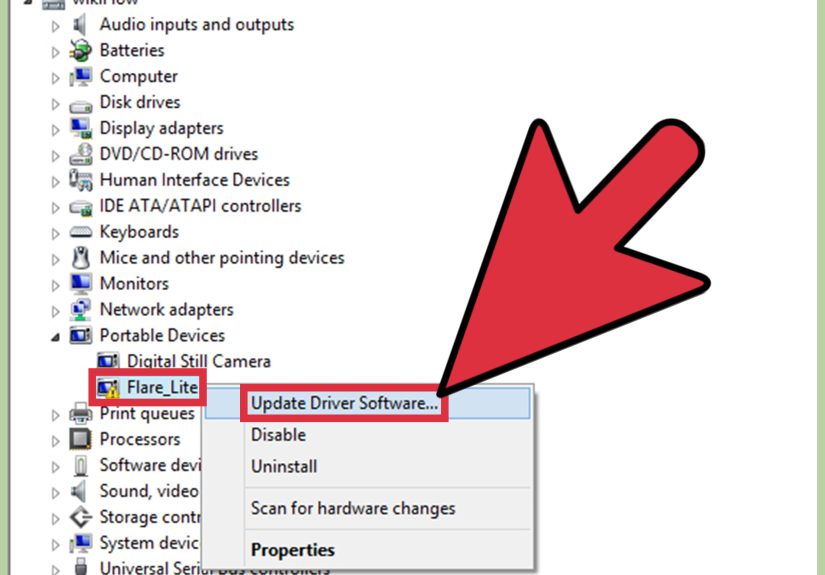
- Update drivers if needed (especially Bluetooth). Windows 8 can be picky with older adapters.
- Know your goal: big transfers (USB), small quick shares (Bluetooth), or cable-free (Wi-Fi).
- Be mindful of security: Windows 8 and 8.1 are out of support, so avoid risky networks and keep transfers intentional.
A quick note about Windows 8 support (and why you should care)
Microsoft ended support for Windows 8 and later ended support for Windows 8.1, which means no ongoing security
updates from Microsoft. You can still connect devices and move files, but treat this setup like an older car:
it can run fine, but you drive it with extra awareness.
Method 1: USB Cable (MTP/PTP) The Fastest, Least Dramatic Option
If you want the simplest “plug in and move stuff” approach, USB is still king. Most modern Android devices use
MTP (Media Transfer Protocol) for file transfer. Some devices also offer PTP, which
makes the phone appear more like a camera. Windows 8 generally handles both well, and USB is usually the best
choice for moving a lot of filesespecially large videos.
What “MTP vs. PTP” means in plain English
- MTP (File Transfer): Best for dragging folders, music libraries, downloads, and documents.
- PTP (Photo Transfer / Camera): Helpful if Windows won’t recognize the phone in MTP modeoften shows up as a camera device.
- USB Mass Storage: Mostly a legacy option on very old Android devices; uncommon on modern phones.
Step-by-step: Connect Android to Windows 8 via USB
- Connect your Android to your PC using a USB cable. (Again: data-capable is the goal.)
- On your Android, pull down the notification shade and tap the USB notification (often says something like
“Charging this device via USB”). - Under “Use USB for,” choose File Transfer (MTP). If File Transfer isn’t working, try Photo Transfer (PTP).
- On Windows 8, open File Explorer (press Windows Key + E).
- Look under Computer / This PC for your phone name or a portable device entry.
- Open it, browse internal storage (and/or SD card), then drag and drop files to a folder on your PC.
- When you’re done, close transfer windows and unplug the cable. (If Windows offers an “eject” option for the device, use it.)
Practical examples: When USB is the obvious winner
- Backing up photos/videos after a trip (or after your camera roll becomes a chaotic documentary).
- Moving large files like 2–10 GB videos where wireless transfers may timeout.
- Offline transfers where Wi-Fi is slow, restricted, or non-existent.
When USB goes wrong: Fixes that actually help
USB problems usually fall into a few predictable categoriescable, mode, lock screen, or drivers. Try these in
order before you declare your devices enemies:
- Swap the cable. If the phone charges but never shows storage options, it may be charge-only or damaged.
- Switch USB mode. Try File Transfer (MTP) first, then Photo Transfer (PTP) if Windows won’t detect it.
- Unlock the phone. Some phones won’t expose files until you unlock and approve access.
- Try a different USB port. Use a direct port on the PC instead of a hub, if possible.
- Restart both devices. It’s cliché because it works more often than anyone wants to admit.
- Install manufacturer drivers if your specific device needs them (rare, but still possible with older Windows setups).
Bottom line: USB file transfer is typically the most stable connection between Android and Windows 8especially
if you’re moving more than a handful of files.
Method 2: Bluetooth Perfect for Small Stuff and “I Forgot My Cable” Moments
Bluetooth is like the slow-but-loyal friend who always shows up… eventually. It’s not ideal for huge videos, but
it’s great for small documents, a few photos, or quick sharing when you don’t want to install anything.
Step 1: Turn on Bluetooth on both devices
- On Android: Settings → Bluetooth (or Quick Settings tile) → turn it on.
-
On Windows 8 / 8.1: You’ll typically find Bluetooth in PC settings. On Windows 8.1 especially,
it’s commonly accessed via the Charms bar:- Open the Charms bar (move mouse to top-right corner, or press Windows Key + C)
- Select Settings → Change PC settings
- Go to PC and devices → Bluetooth (Windows 8.1)
Step 2: Pair your Android with Windows 8
- In Windows Bluetooth settings, make sure Bluetooth is on and your PC is discoverable.
- On Android, tap Pair new device (or scan for devices).
- Select your PC from the list, then confirm the pairing code on both devices.
- Once paired, your devices can exchange files when Bluetooth is enabled.
Send a file from Android to Windows 8
- On Windows, open the Bluetooth file transfer tool (often available as “Bluetooth File Transfer”).
A quick shortcut is to press Windows Key + R, type fsquirt, and press Enter. - Select Receive files on the Windows PC. You’ll see a “waiting” screen.
- On Android, open the file (photo, PDF, etc.), tap Share, then choose Bluetooth.
- Select your Windows PC, confirm any prompts, and wait for the transfer to complete.
- Windows will ask where to save the incoming file (or will use a default folder depending on settings).
Send a file from Windows 8 to Android
- On Windows, right-click the file you want to send.
- Choose Send to → Bluetooth device (if available). If you don’t see it, open the Bluetooth file transfer tool and choose Send files.
- Select your Android device, then click Next to send.
- On Android, accept the incoming transfer prompt.
Bluetooth reality check: Pros, cons, and expectations
- Best for: A few photos, a small doc, quick one-off transfers.
- Not great for: Large videos, big folders, or “my entire music library.”
- Common gotcha: Pairing works but transfers failoften a driver or discoverability setting issue.
If Bluetooth won’t behave, try this
- Make the PC discoverable in Bluetooth settings (some adapters hide until explicitly allowed).
- Update Bluetooth drivers from your PC manufacturer if transfers fail repeatedly.
- Stay close (Bluetooth range is not “from the other side of the house,” no matter what optimism says).
- Re-pair the devices if they connect but won’t transfer.
Method 3: Wi-Fi Cable-Free Transfers with AirDroid Web + Cloud Sync
If USB feels too wired and Bluetooth feels too slow, Wi-Fi is the sweet spotespecially for routine transfers.
With Windows 8, you can use browser-based tools or cloud services to connect your Android and PC without drivers.
This method shines when you want convenience: send files from your phone to your PC while you’re sitting on the
couch pretending you’ll “organize later.”
Option A: AirDroid Web (wireless transfer in a browser)
AirDroid is popular because it works through a web interfacemeaning your Windows 8 PC can connect through a
browser without fancy system integration.
- Install AirDroid on Android (from Google Play) and open it.
- Create/sign in to an account in the app (or follow the app’s steps for web access).
- On your Windows 8 PC, open a browser and go to AirDroid Web.
- Log in (or scan the QR code if prompted by the service).
- Use the web dashboard to upload/download files, manage photos, or move documents between devices.
Tip: For best speed and reliability, keep both devices on the same Wi-Fi network and avoid
power-saving modes that put your phone’s Wi-Fi to sleep.
Option B: Cloud sync (OneDrive / Google Drive / Dropbox)
Cloud storage isn’t a direct “cable connection,” but it’s a practical bridge between Android and Windows 8especially
if you already use a cloud account. The workflow is simple: upload on Android, access on Windows 8 (via app or browser).
OneDrive on Windows 8.1
Windows 8.1 was built to work with OneDrive (formerly SkyDrive), so you may see OneDrive integrated right in
File Explorer. If you’re on Windows 8 (not 8.1), you can still access OneDrive through a browser or the appropriate app.
Google Drive / Dropbox (works well on Windows 8 via browser)
- On Android: Upload the file to your cloud app (Drive/Dropbox/OneDrive).
- On Windows 8: Open the same service in your browser and download the file (or use a desktop client if supported).
- Bonus: Sharing links works great for large files if email attachments start complaining.
Wi-Fi transfers: Security and privacy tips
- Avoid public Wi-Fi for sensitive transfers when possible.
- Log out of web dashboards when you’re done (especially on shared PCs).
- Use strong passwords and enable 2-step verification for cloud accounts.
- Keep visibility settings tight if an app supports “nearby” discovery.
Which Connection Method Should You Use?
Here’s a quick comparison so you can pick the right tool instead of trying all three while muttering, “Why is
technology like this?”
| Method | Setup Difficulty | Speed | Best For | Common Downsides |
|---|---|---|---|---|
| USB (MTP/PTP) | Low | Fast | Big transfers, backups, videos | Bad cables, wrong USB mode, occasional driver quirks |
| Bluetooth | Medium | Slow to Medium | Small files, quick sharing without apps | Pairing/driver issues, slow for large files |
| Wi-Fi (AirDroid/Cloud) | Medium | Medium to Fast | Convenience, routine transfers, cable-free | Account setup, network reliability, security considerations |
Troubleshooting Cheat Sheet (Because Something Will Eventually Be Weird)
Problem: Android doesn’t show up in File Explorer
- Make sure the phone is unlocked and you selected File Transfer (MTP).
- Try a different USB cable (many “freebie” cables are charging-only).
- Switch to PTP if MTP isn’t detected.
- Restart phone and PC, then reconnect.
Problem: Bluetooth pairs but won’t transfer files
- Open fsquirt on Windows and try sending/receiving from the wizard.
- Update Bluetooth drivers from your PC manufacturer.
- Remove the pairing and re-pair the devices.
- Keep devices close and avoid interference (yes, even microwaves can be rude).
Problem: Wi-Fi transfer can’t find your device
- Confirm both devices are on the same Wi-Fi network (guest networks sometimes block discovery).
- Disable VPN temporarily if the service uses local discovery.
- Make sure your phone isn’t in aggressive battery saver mode.
- Use cloud upload/download as a fallback when local discovery fails.
Bonus: If You Ever Upgrade Past Windows 8
If you move to a newer Windows version (Windows 10/11), you’ll unlock more “modern” phone-to-PC features. For
example, Google’s Quick Share for Windows requires a newer Windows version (Windows 10 64-bit or later), so it
won’t be a solution for Windows 8but it can be a nice upgrade perk.
Real-World Experiences and Lessons Learned (The Extra You’ll Actually Use)
In real life, connecting Android to Windows 8 is rarely “Step 1: connect. Step 2: happiness.” It’s more like
“Step 1: connect. Step 2: stare at your screen. Step 3: suddenly remember you own three different USB cables and
none of them are who they claim to be.” One of the most common experiences people report is the
charge-only cable trap: the phone charges, Windows makes a polite sound, and File Explorer shows
absolutely nothing. The fix is almost always a different cableideally one that came with a device known for
transferring data (or one you’ve successfully used for file transfer before). If you’re diagnosing a “dead”
connection, swapping cables is often faster than reading ten forum threads and learning three new ways to feel
disappointed.
Another classic: the USB mode mystery. Many Android phones default to “Charging” for safety, and
Windows 8 won’t see file storage until you explicitly choose File Transfer (MTP). People often
plug in the phone, see it charging, and assume the computer should “just know” what they want. Windows is not a
mind reader; it’s more of a “please select from the menu” kind of roommate. Once you tap the USB notification on
Android and switch to File Transfer, the device usually appears in File Explorer immediately. If it still doesn’t,
switching to PTP can sometimes force recognitionespecially on older Windows setups that behave
better when the phone pretends to be a camera.
Bluetooth has its own personality. A common experience is: pairing works fine, but transfers fail, stall, or only
succeed when the moon is in the correct phase. In practice, people get better results when they initiate the
transfer from Windows using the Bluetooth File Transfer wizard (the fsquirt tool) and select
“Receive files” before sending from Android. That “waiting to receive” screen matters more than it should, but it
does. Another recurring theme is driver qualitysome laptops and USB Bluetooth adapters need updated drivers to
handle file transfer reliably. When Bluetooth is working, it’s fantastic for a quick PDF or a couple of photos.
When it’s not, it can turn a simple task into an unplanned mindfulness exercise.
Wireless tools like AirDroid (and cloud services) tend to win on convenience, but the real-world experience often
depends on your network. On a clean home network, Wi-Fi transfers feel magical: you can send a file without
crawling behind a desk, and your USB ports remain unbothered. On restricted networks (guest Wi-Fi, office Wi-Fi,
dorm networks), device discovery can fail because the network blocks peer-to-peer connections. When that happens,
people usually fall back to cloud syncingupload on Android, download on Windows 8 in a browserbecause it works
even when local device discovery is blocked. The tradeoff is speed (and privacy), so it’s smart to reserve cloud
for what you actually need, not your entire “Screenshots” folder from 2017.
One more experience-based tip: if you’re using Windows 8 / 8.1 today, you’ll get the best results by choosing
your method based on file size and urgency. If you’re moving a big batch of photos, USB is still the least
stressful. If you’re sending a single file and you’re not near a cable, Bluetooth is finejust accept that it’s
not a race car. If you want the “send from anywhere” vibe, Wi-Fi and cloud tools are excellent, especially when
you make a habit of keeping a shared folder (like “To PC”) so you don’t spend half your time searching for where
you saved the thing you just uploaded. The most consistent success stories come from people who pick one method
and set it up properly oncethen reuse itrather than reinventing the wheel every time they need to move a file.
Conclusion
Connecting your Android to Windows 8 doesn’t have to be complicatedyou just need the right method for the job.
Use USB (MTP/PTP) when speed and reliability matter, Bluetooth for quick small
transfers without extra software, and Wi-Fi tools like AirDroid or cloud storage when you want
cable-free convenience. Once you pick your “default” option and learn its one or two quirks, you’ll spend a lot
less time troubleshooting and a lot more time actually using your fileslike a person who definitely has their
life together.