Table of Contents >> Show >> Hide
- Can You Send Software Through Gmail?
- The Best Way to Send Software Through Gmail
- Step 1: Prepare the Software Before Sending
- Step 2: Decide Whether Gmail Can Attach the File Directly
- Step 3: Upload the Software to Google Drive
- Step 4: Insert the Google Drive File in Gmail
- Step 5: Write a Clear Software Delivery Email
- Step 6: Use Version Numbers and Release Notes
- Step 7: Share Source Code the Right Way
- Step 8: Protect Sensitive Software Files
- Step 9: Tell the Recipient What to Expect
- Common Mistakes to Avoid
- Best Practices for Sending Software Through Gmail
- When Not to Send Software Through Gmail
- of Practical Experience: What Actually Works in Real Life
- Conclusion
Sending software through Gmail sounds like it should be as easy as attaching a photo of your lunch. Click the paperclip, choose the file, hit send, and boomyour app flies across the internet wearing a tiny superhero cape. Unfortunately, Gmail is not that relaxed when software files are involved. It has security rules, attachment limits, file-type restrictions, malware scanning, and a deep suspicion of anything that looks like an installer, executable, script, or mysterious “final_final_REAL_setup.exe.”
The good news is that you can still share legitimate software through Gmail safely. The trick is understanding what Gmail allows, what it blocks, and which method works best for your situation. In most cases, the smartest approach is not attaching the software directly. Instead, you upload the file to Google Drive, a secure cloud storage service, a code repository, or an official download page, then send the recipient a controlled access link through Gmail.
This step-by-step guide explains how to send software through Gmail without turning your message into a digital red flag. You will learn when to use a regular attachment, when to use Google Drive, how to set permissions correctly, how to write a professional software delivery email, and how to avoid the common mistakes that make recipients nervousor make Gmail say, “Absolutely not, my friend.”
Can You Send Software Through Gmail?
Yes, but with important limits. Gmail allows ordinary attachments up to the account’s sending limit, but it blocks many file types that can spread harmful software. That includes common executable and script-based formats, as well as some files hidden inside compressed archives. In simple terms, Gmail does not want to become a free delivery truck for viruses, malware, or suspicious installers.
If you are sending harmless software, such as a beta version of your desktop app, a small utility, a plugin, a script package, or source code, you need to choose the right delivery method. A plain text readme file may attach easily. A PDF installation manual will likely be fine. A Windows installer, executable app, macro-heavy document, or password-protected archive may be rejected or flagged.
That does not mean Gmail is broken. It means Gmail is doing its job. Software can change a computer, access files, run commands, or install background components. Because of that, email services treat software differently from normal documents. If you want your recipient to trust the file, your delivery method should look professional, transparent, and secure.
The Best Way to Send Software Through Gmail
The best method depends on what you are sending. For small, safe files such as documentation, license text, screenshots, or source code snippets, a regular Gmail attachment may work. For actual software installers, compiled apps, large ZIP packages, or anything above Gmail’s size limit, use a cloud link instead.
Here is the practical rule: if the file is small, non-executable, and clearly safe, attach it. If it is large, installable, blocked, sensitive, or meant for multiple users, upload it somewhere secure and email the link.
Recommended delivery options
Google Drive is usually the easiest option because it works directly inside Gmail. You can upload the software package to Drive, insert the file using Gmail’s Drive icon, and let Gmail check whether your recipients have access.
GitHub Releases is better for developers distributing public or private software versions. It gives you version numbers, release notes, downloadable assets, and a cleaner history than random email attachments.
OneDrive or Dropbox can work well when your client or company already uses Microsoft 365 or Dropbox. These services also offer sharing controls, permission settings, and link management.
Your official website or customer portal is the most professional choice for commercial software. Instead of emailing the installer directly, send users to a branded download page with instructions, checksums, release notes, and support contact details.
Step 1: Prepare the Software Before Sending
Before you open Gmail, prepare the software package like a person who wants to be taken seriously. Do not send a random file with a confusing name like newapp2testmaybe.zip. That filename says, “I was assembled at 2:14 a.m. beside an empty coffee cup.”
Use a clear file name that includes the app name, version number, operating system, and date if useful. For example:
- InvoiceTracker-v2.1.0-Windows.zip
- DesignPlugin-v1.4.3-macOS.dmg
- CRM-Connector-v3.0-Source-Code.zip
- SetupGuide-InvoiceTracker-v2.1.pdf
Add a simple readme file. It should explain what the software does, who it is for, the supported operating system, installation steps, version number, and who to contact for help. If the recipient is a client, include a short changelog so they know what has changed since the last version.
You should also scan the file with reputable security software before sharing it. This is not just for safety; it is also for trust. If your recipient asks whether the file has been checked, you can answer confidently instead of doing the awkward keyboard equivalent of staring at the ceiling.
Step 2: Decide Whether Gmail Can Attach the File Directly
Open Gmail, click Compose, and choose the paperclip icon only if the file is appropriate for direct attachment. Gmail’s direct attachment method is best for harmless supporting files, not full software installers.
Good direct-attachment candidates include:
- PDF user manuals
- License documents
- Plain text readme files
- Small screenshots or diagrams
- Non-sensitive source code samples in plain text
Files that often create problems include executable files, scripts, installer packages, macro-enabled files, and password-protected archives. Even if you compress an executable inside a ZIP file, Gmail may still block it. That is normal. Do not waste time trying clever renaming tricks. They look suspicious, they may violate security policies, and they make your recipient wonder whether they should unplug their router and move to a cabin.
Step 3: Upload the Software to Google Drive
For most legitimate software sharing, Google Drive is the smoothest Gmail-friendly option. It avoids the attachment size problem, gives you permission controls, and keeps the email itself lightweight.
Follow these steps:
- Go to Google Drive.
- Click New.
- Select File upload or Folder upload.
- Choose your software package.
- Wait until the upload finishes completely.
- Right-click the file and select Share.
- Add the recipient’s email address or adjust link access.
- Choose the correct role, usually Viewer.
- Copy the link or insert it directly from Gmail.
For software delivery, Viewer permission is usually the safest choice. The recipient can download the file, but they cannot edit or replace it. Avoid giving Editor access unless you are collaborating on source files with a developer or team member.
Step 4: Insert the Google Drive File in Gmail
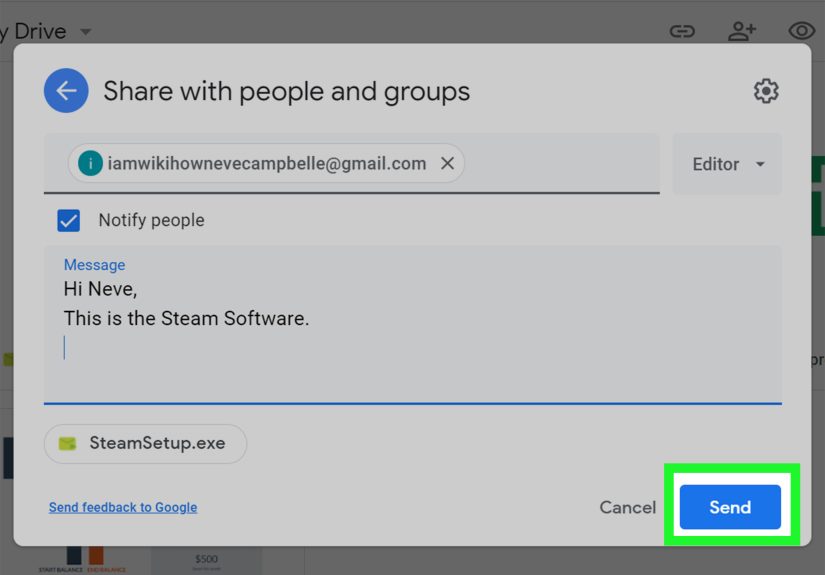
After the file is uploaded, open Gmail and click Compose. Write your email, then select the Google Drive icon at the bottom of the compose window. Choose the software file and decide whether to send it as a Drive link or attachment. For software packages and larger files, choose a Drive link.
Gmail may check whether your recipient has permission to open the file. If they do not, Gmail can prompt you to adjust sharing settings before sending. Pay attention to this step. A broken access link is the email version of handing someone a locked suitcase and forgetting to include the key.
When possible, share only with the specific recipient’s email address. Use “Anyone with the link” only when the file is meant for broad distribution and does not contain private or sensitive material. For client software, beta builds, internal tools, or paid products, specific-recipient access is safer.
Step 5: Write a Clear Software Delivery Email
The email matters almost as much as the file. A vague message with a mysterious download link can look suspicious, even when the software is perfectly legitimate. Your recipient should immediately understand who sent the file, why they received it, what it contains, and what to do next.
Here is a simple email structure:
- Subject line: Include the software name and version.
- Opening: Remind the recipient why you are sending it.
- File details: Mention the file name, version, and platform.
- Instructions: Explain how to download and install it.
- Safety note: Mention that the file was scanned or comes from your official account.
- Support: Provide a contact method for questions.
Sample Gmail message for sending software
Subject: InvoiceTracker v2.1.0 Download and Installation Guide
Hello Alex,
Here is the download link for InvoiceTracker v2.1.0 for Windows. This version includes the updated tax report export, faster invoice search, and several bug fixes from last week’s test build.
File name: InvoiceTracker-v2.1.0-Windows.zip
Platform: Windows 10 and Windows 11
Included: installer, readme file, and installation guide
Please download the file from the link below and follow the instructions in the included readme document. The package has been scanned before upload. After installation, open the app and confirm that the dashboard loads correctly.
Download link: [insert Google Drive link]
Best,
Your Name
This type of message feels trustworthy because it gives context. The recipient is not being asked to blindly click a floating link that arrived with no explanation. Always write as if the person receiving the file is busy, cautious, and allergic to confusion.
Step 6: Use Version Numbers and Release Notes
If you send software more than once, version control becomes essential. Without version numbers, your recipient may install the wrong file, test an outdated build, or ask why the “new” version still has the bug you fixed three days ago.
Use a consistent version format such as:
- v1.0.0 for the first stable release
- v1.1.0 for a feature update
- v1.1.1 for a bug fix
- v2.0.0-beta for a major test version
Include release notes in the email or attach a separate readme file. Release notes should list new features, bug fixes, known issues, installation requirements, and upgrade instructions. You do not need to write a novel. A short, organized list is better than a dramatic essay titled “The Journey of Button Alignment.”
Step 7: Share Source Code the Right Way
If you are sending source code rather than a compiled application, Gmail may work for small text files, but a repository is usually better. GitHub, GitLab, Bitbucket, or a private company repository gives developers a cleaner way to review files, track changes, open issues, and download specific releases.
For a small one-time code sample, you can attach a plain text file or share a Google Drive folder. For a real project, use a repository link. If the project is private, invite the recipient’s account and explain which branch, tag, or release they should review.
Example:
“I’ve shared access to the private repository. Please review the release/v2.1 branch and download the packaged build from the v2.1.0 release page.”
That sentence saves everyone time. It tells the recipient exactly where to go and prevents the classic developer treasure hunt through five branches, three folders, and one file named “old-do-not-use-but-maybe-important.”
Step 8: Protect Sensitive Software Files
Some software should not be shared casually. Internal tools, licensed applications, beta builds, customer-specific installers, API keys, database scripts, and private configuration files need extra care. Before sending anything through Gmail, ask one important question: “Would it be a problem if this link was forwarded?”
If the answer is yes, restrict access. Share only with named recipients. Avoid public links. Use expiration dates when your storage service supports them. Remove access after the recipient downloads the file. Never include passwords, private keys, license secrets, or API credentials inside the same email as the download link.
If a password is truly needed, send it through a separate secure channel approved by your organization. For business use, follow your company’s IT policy. Your company may require a managed file-sharing platform instead of personal Gmail or personal cloud storage.
Step 9: Tell the Recipient What to Expect
Software downloads can trigger browser, operating system, antivirus, or email warnings. Sometimes those warnings are normal for new software, especially if the app is unsigned or rarely downloaded. But recipients should not be forced to guess.
Tell them what they should see after opening the link. For example:
- The expected file name
- The approximate file size
- The operating system it supports
- Whether it is an installer, ZIP package, DMG file, or source code folder
- What installation screen or setup step appears first
If you provide checksums, digital signatures, or official release notes, mention them. These details are especially useful for technical users who want to verify that the file has not been changed.
Common Mistakes to Avoid
Trying to bypass Gmail’s blocked file rules
Do not rename executable files to hide what they are. Do not disguise installers as harmless documents. Do not encourage recipients to ignore warnings. Gmail blocks risky file types for a reason, and trying to sneak around those protections can damage trust.
Using public links for private software
“Anyone with the link” is convenient, but it is not always appropriate. If the file is private, paid, unreleased, client-specific, or sensitive, share it only with specific people.
Forgetting to test the link
Before sending, open the link in a private browser window or ask a teammate to test access. This catches permission problems before your client replies, “I can’t open it,” which is possibly the least thrilling email in business history.
Sending no instructions
A download link without instructions creates friction. Add a short installation guide, system requirements, and support contact. Even technical recipients appreciate clarity.
Mixing old and new versions
Delete outdated links or clearly label them as archived. If several versions are floating around, someone will eventually install the wrong one. Software versions multiply like socks in a laundry basket unless you manage them.
Best Practices for Sending Software Through Gmail
Use Gmail as the communication channel, not necessarily the storage container. That is the safest mindset. Gmail is excellent for sending the message, context, instructions, and access link. Cloud storage, repositories, or official portals are better for hosting the actual software package.
Use clear naming, limited permissions, and direct instructions. Keep your email short but complete. Mention the software name, version, operating system, file size, and purpose. Tell the recipient whether the file is a test build, stable release, patch, plugin, or source package.
For professional software delivery, use a repeatable checklist:
- Confirm the software is legitimate and safe to share.
- Scan the file before upload.
- Name the file clearly.
- Add a readme or installation guide.
- Upload it to Google Drive or another secure platform.
- Set recipient-specific permissions.
- Write a clear Gmail message.
- Test the link before sending.
- Remove access when it is no longer needed.
When Not to Send Software Through Gmail
Sometimes Gmail is not the right delivery method. If you are distributing software to hundreds or thousands of users, use an official website, app store, package manager, or release platform. If you are sharing confidential company tools, use your organization’s approved secure file transfer system. If the software includes sensitive credentials, stop and repackage it properly before sharing.
You should also avoid sending software to people who are not expecting it. Even if the file is harmless, unexpected software links look suspicious. Contact the person first, explain what you are sending, and use a recognizable sender address. Trust is part of delivery.
of Practical Experience: What Actually Works in Real Life
In real-world software sharing, the biggest problem is rarely the upload button. The biggest problem is confusion. The sender thinks, “I sent the file.” The recipient thinks, “What is this link, why is my browser warning me, and do I need to call IT?” A good software delivery email prevents that little drama before it begins.
One practical lesson is to never send a software link without context. Even a trusted client may hesitate if the email only says, “Here is the file.” That sentence is too mysterious. It belongs in a detective movie, not a professional inbox. Instead, write two or three useful lines: what the file is, why the recipient is receiving it, and what they should do after downloading it.
Another experience-based tip: keep one “latest version” folder and one “archive” folder. Many teams accidentally share old builds because every version sits in the same messy cloud folder. If you send software often, organize your storage like this: Current Release, Beta Builds, Archived Versions, and Documentation. That small structure saves you from the nightmare of sending version 1.8 when everyone was supposed to test version 2.0.
Permissions also deserve more attention than most people give them. When you are in a hurry, “Anyone with the link” feels wonderful. It is fast, simple, and dangerously easy to forget. For public files, that setting may be fine. For client software, private tools, or paid downloads, use specific-recipient sharing. It is slightly slower, but much safer. You can also remove access later, which is useful after a beta test or project handoff ends.
Testing the link is another habit that separates amateurs from pros. Senders often assume the recipient can open a file because it works on the sender’s computer. That proves almost nothing. You are already logged in, already have permission, and already own the file. Before sending important software, test the link in an incognito window or from another account. If you see an access request screen, your recipient probably will too.
For developers, GitHub Releases or a similar release platform usually beats Gmail attachments. It gives every version a home, lets you write release notes, and makes it easier for users to download the correct package. Gmail still plays a role: it announces the release, explains the update, and gives the recipient a clean link. Think of Gmail as the invitation, not the entire party.
Finally, make your recipient feel safe. Mention the exact file name and version. Include installation requirements. Tell them whether they should uninstall the old version first. Add a support email. If there is a known warning because the app is new or unsigned, explain it honestly without telling people to ignore security. Responsible software sharing is not about forcing a file through Gmail. It is about delivering the right file, to the right person, with the right instructions, in a way that does not make anyone nervous.
Conclusion
Sending software through Gmail is possible, but direct attachment is not always the best route. Gmail blocks many executable and risky file types, and large files can exceed attachment limits. The smarter approach is to prepare your software properly, upload it to Google Drive or another trusted platform, set careful permissions, and send a clear Gmail message with instructions.
If you remember only one thing, remember this: do not fight Gmail’s security system. Work with it. Use Gmail to communicate professionally, use secure storage to host the file, and give your recipient enough information to download and install the software confidently. That is how you send software through Gmail without confusion, blocked messages, or the digital equivalent of a raised eyebrow.