Table of Contents >> Show >> Hide
- First: a quick reality check (the reason plugins “disappear” for many people)
- ChatGPT Plugins Not Showing Up: 9 Simple Fixes for Access
- Fix #1: Confirm you’re not trying to enable a retired feature
- Fix #2: Double-check you’re logged into the right account (and the right plan)
- Fix #3: Try the web version first (then the desktop/mobile app)
- Fix #4: Look for tool settings, not “Plugins” (the label changed)
- Fix #5: Do a hard refresh (and a full sign-out) to unstick the UI
- Fix #6: Clear site data/cookies for ChatGPT (the “reset the brain” option)
- Fix #7: Disable extensions and content blockers (temporarily)
- Fix #8: Try a different network (VPNs and corporate filters can hide features)
- Fix #9: Check outages and workspace restrictions (Team/Enterprise admins matter)
- If you still want “plugin power,” here are the modern alternatives that usually work
- FAQ: quick answers to common “Where did it go?” moments
- Bonus: Real-world troubleshooting stories (500+ words of what actually worked)
- SEO tags (JSON)
You open ChatGPT, ready to summon a plugin like a wizard pulling a rabbit out of a hat… and the rabbit is gone. No “Plugins” option. No Plugin Store. Just you, your coffee, and a growing suspicion that the internet lied to you.
Good news: this is usually fixable. Better news: even when it’s not fixable (plot twist), you still have plugin-like options that do the same joboften faster, with fewer pop-ups and less “why is this button missing today?” energy.
First: a quick reality check (the reason plugins “disappear” for many people)
If you’re searching for the classic ChatGPT “Plugins” toggle from the old GPT-4 model picker, you may be chasing a feature that was officially wound down. In early 2024, OpenAI stopped allowing new plugin conversations and later ended ongoing plugin chats. That means many users will never see “Plugins” againbecause there’s nothing left to turn on.
So what replaced them? In plain English: GPTs (custom versions of ChatGPT you can browse in the GPT Store / “Explore GPTs”), plus built-in tools like browsing, file uploads/data analysis, and API-style “actions” inside certain GPTs. If your goal is “I want ChatGPT to do the thing plugins used to do,” you’re still in businessyou’re just taking a newer on-ramp.
With that out of the way, here are the fixes that cover both scenarios: (1) you truly can’t access plugins because they’re retired, or (2) you can’t access the modern equivalent (GPTs/tools) because something is glitchy, blocked, or misconfigured.
ChatGPT Plugins Not Showing Up: 9 Simple Fixes for Access
-
Fix #1: Confirm you’re not trying to enable a retired feature
This is the #1 reason the Plugins option “isn’t showing.” It’s not your browser. It’s not your account. It’s not Mercury in retrograde. It’s that the plugin beta was wound downso the Plugin Store may be gone entirely.
What to do instead:
- Look for Explore GPTs (or a GPT directory/store) in the ChatGPT sidebar or menu.
- Search for a GPT that matches the plugin you used to rely on (travel planning, spreadsheets, shopping research, etc.).
- If you need a specialized workflow, consider building your own GPT (more on that below).
If the tutorials you’re following show a “Plugins” dropdown in a GPT-4 menu, you’re likely watching content from a previous era. (Yes, AI tutorials age like bananas.)
-
Fix #2: Double-check you’re logged into the right account (and the right plan)
A surprisingly common “bug” is simply being signed into a different email/account than the one you pay for. That can make features vanish instantlylike a magic trick, except you’re not impressed.
Checklist:
- Confirm your email/profile is the one tied to your paid plan (if you have one).
- Log out completely and log back in (yes, the IT Crowd was right).
- If you’re on a free plan, you may still have access to some tools, but the ability to create/publish GPTs and access certain directories can vary by plan and rollout.
Tip: If your company uses ChatGPT Team/Enterprise, your workspace settings may be different from your personal accounteven on the same device.
-
Fix #3: Try the web version first (then the desktop/mobile app)
Feature rollouts and UI changes don’t always land everywhere at the same time. If something “isn’t showing” in the iOS/Android/desktop app, the fastest test is often the web app.
- Open ChatGPT in a desktop browser first.
- Check whether “Explore GPTs” (or similar) appears there.
- If it works on web but not mobile, update the mobile app and restart it.
This also helps you distinguish a true account limitation from a device-specific UI issue.
-
Fix #4: Look for tool settings, not “Plugins” (the label changed)
Many people say “plugins” when they really mean: browsing, file analysis, or connecting an external service. In modern ChatGPT, those capabilities may live under a Tools menu, a GPT’s enabled capabilities, or an “apps” directorydepending on your plan and workspace.
Examples of what to look for:
- Browsing/Search tools for up-to-date info
- Data analysis / file uploads for spreadsheets and PDFs
- GPT actions (inside certain GPTs) for external services
Translation: if you can’t find “Plugins,” don’t panicfind the capability you need and enable it in the modern interface.
-
Fix #5: Do a hard refresh (and a full sign-out) to unstick the UI
If menus are missing, buttons don’t respond, or the page looks “half-loaded,” treat it like a stuck vending machine: give it the gentle (digital) shake first.
- Hard refresh your browser tab (on Windows: Ctrl + Shift + R).
- Sign out of ChatGPT, close the tab, reopen, and sign back in.
- If you use the desktop app, fully quit it (not just minimize) and relaunch.
This fixes a lot of “my settings vanished” issues caused by cached scripts or partial updates.
-
Fix #6: Clear site data/cookies for ChatGPT (the “reset the brain” option)
If a hard refresh doesn’t work, clear site data for ChatGPT in your browser settings. Corrupted cookies or stale local storage can cause features to disappear, menus to misbehave, and the UI to forget who it is (relatable).
Practical approach:
- Clear cookies/site data for ChatGPT only (not your entire browsing history, unless you enjoy unnecessary suffering).
- Restart your browser and sign back in.
Expect to be logged out, and you may need to redo certain preferencesannoying, but often effective.
-
Fix #7: Disable extensions and content blockers (temporarily)
Ad blockers, privacy extensions, script blockers, corporate endpoint tools, and even some “AI helper” extensions can break ChatGPT’s menus. If the GPT Store page won’t load or tool toggles won’t appear, this is a prime suspect.
Quick test:
- Open an Incognito/Private window with extensions disabled.
- Log into ChatGPT and check whether the missing options return.
- If yes, re-enable extensions one by one until you find the troublemaker.
Common culprits: aggressive ad blockers, tracker blockers, script filters, and security extensions that rewrite web pages.
-
Fix #8: Try a different network (VPNs and corporate filters can hide features)
If ChatGPT pages load partiallyor directories/tools never appearyour network path may be interfering. VPNs, proxies, strict corporate firewalls, and DNS filters can block resources ChatGPT needs for the UI.
- Turn off your VPN and refresh.
- Switch from office Wi-Fi to mobile hotspot (or vice versa).
- If you’re on a managed work device, try a personal device as a control test.
If it works on one network but not another, you’ve found the problemand your IT department is about to get a very polite email.
-
Fix #9: Check outages and workspace restrictions (Team/Enterprise admins matter)
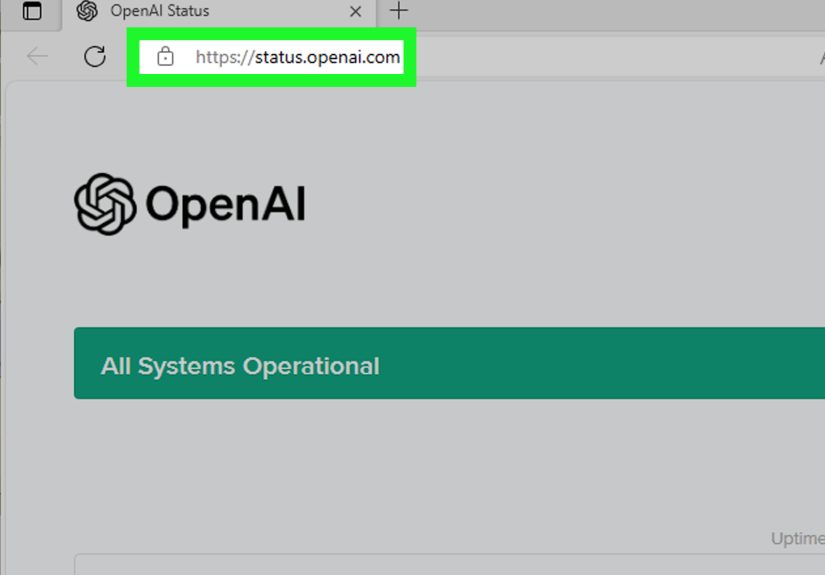
Sometimes it’s not youit’s a service issue. When ChatGPT is having an incident, some features can disappear or fail to load. Check the OpenAI Status page to confirm whether ChatGPT components are experiencing problems.
If you’re on a Team/Enterprise workspace, your admin may also restrict:
- Access to GPT sharing or publishing
- Use of connected apps
- External actions/tools inside GPTs
In that case, the “fix” is administrative: ask your workspace admin what’s enabled, and whether your org allows GPTs/apps/actions.
If you still want “plugin power,” here are the modern alternatives that usually work
Option A: Use the GPT Store / “Explore GPTs”
Think of GPTs as purpose-built assistants: some are great at resumes, some at tutoring, some at coding, some at travel planning, and some at turning messy notes into neat deliverables. Instead of installing three plugins, you often pick one GPT that already bundles the capabilities you want.
Option B: Build your own GPT for repeatable workflows
If you keep doing the same tasks (content briefs, product comparisons, SOP drafts, keyword clustering, etc.), a custom GPT can save time. You can set instructions, upload reference material, and enable tools like browsing or file handlingso the GPT behaves consistently.
Example: A marketing-team GPT that always:
- asks for audience + intent
- suggests a content outline
- creates an SEO meta title + meta description
- keeps tone “smart, helpful, slightly funny”
Option C: Use approved apps / connected services (where available)
Many “plugin” use cases were really about connecting to external tools. In newer setups, you may be able to connect approved apps directly in ChatGPT (especially on business plans). If you’re missing an app directory or connected sources, that often points back to plan/workspace availability or admin policy rather than a “bug.”
FAQ: quick answers to common “Where did it go?” moments
Why do I still see old articles saying “Enable Plugins in Settings”?
Because the internet never forgetsand tutorial writers rarely update screenshots. Some official release notes and older documentation still describe how plugins worked during the beta period, which can confuse people reading it today.
Are browser “ChatGPT plugins” the same as OpenAI’s Plugins?
Not necessarily. Many Chrome/Edge extensions use the word “plugin” casually. They can be useful, but they’re third-party software with their own privacy and security considerations. If you’re troubleshooting missing features, disable those extensions firstthey’re frequent UI-breakers.
Can I combine multiple “tools” like I used to combine multiple plugins?
Often, yesjust differently. Many GPTs bundle multiple capabilities, and you can switch between GPTs quickly depending on the task. If you’re trying to replicate a “3 plugins at once” workflow, the modern approach is typically: one GPT that includes the tools you need, plus occasional handoffs to another GPT when you want a specialist.
Bonus: Real-world troubleshooting stories (500+ words of what actually worked)
Here’s what “fixed it” in real life for different types of usersnot in a mythical lab environment where every browser is clean, every network is perfect, and nobody has seventeen extensions named something like “UltraPrivacyShieldProPlus.”
Story #1: The marketer who swore plugins were “working yesterday.”
This one usually starts with a screenshot from a YouTube tutorial and ends with mild disbelief. The user is on a paid plan, uses ChatGPT daily, and remembers selecting plugins in a model dropdown. But when they try again, the option is missing. The fix wasn’t clearing cache or reinstalling anything. The fix was understanding the timeline: plugin chats were phased out, and what they really needed was a GPT that could browse, summarize sources, and generate outlines. Once they switched to “Explore GPTs” and found a research-focused GPT (or built one), the workflow actually improvedfewer toggles, fewer “select up to three plugins,” and more consistent outputs. The only real casualty was nostalgia.
Story #2: The student whose GPT directory wouldn’t load.
They could chat normally, but “Explore GPTs” loaded forever like a dramatic pause that never ends. The fix was hilariously simple: Incognito mode. In the normal browser profile, a content blocker was stripping a script required for the directory UI. In Incognito (with extensions off), everything worked instantly. Once they whitelisted ChatGPT (or removed the offending extension), the GPT Store came back. Moral of the story: sometimes your browser is “helping” so hard it breaks things.
Story #3: The remote worker on a corporate VPN.
This person had the classic symptoms: the ChatGPT UI looked slightly “off,” certain menus were missing, and clicking around felt like tapping a touchscreen with oven mitts. Turning off the VPN fixed it immediately. Their company’s VPN was filtering traffic in a way that partially blocked needed endpoints. After that, the practical workaround was: ChatGPT on personal internet for creative work; corporate VPN for internal systems. Not ideal, but better than spending three hours blaming your laptop like it personally chose violence.
Story #4: The Team workspace with admin restrictions.
Everything worked on a personal account, but inside the work workspace the “fun stuff” was missingno sharing GPTs, fewer connected options, and stricter tool availability. This wasn’t a glitch; it was policy. The actual fix was a 10-minute conversation with the workspace admin about what the org allows. Once the admin enabled the appropriate workspace settings (or clarified what was blocked), the mystery vanished. This is the most boring fix, but also the most common in professional environments: you can’t troubleshoot your way around permissions.
Story #5: The “I cleared my cache and now everything is worse” saga.
Clearing cache is useful, but if you clear everything (passwords, autofill, cookies for all sites), you’ve basically done digital spring cleaning with a leaf blower. The fix here is calmer: clear site data for ChatGPT only, restart the browser, sign in again, and stop there. Yes, you may need to re-enable preferences, but you won’t accidentally log out of every website you’ve used since 2014.
Final takeaway: When “ChatGPT plugins not showing” happens, the right solution depends on which bucket you’re in: (1) the plugin feature is retired and you should switch to GPTs/tools, or (2) the modern UI is available to you but something local (cache, extensions, VPN, permissions, outages) is blocking it. Run the nine fixes in order, and you’ll typically identify the culprit within minutesnot hours.