Table of Contents >> Show >> Hide
- What Is a PUB File?
- Is a PUB File the Same as an EPUB File?
- Can You Open a PUB File Directly on iPhone?
- Easy Ways to Open a Pub File on iPhone: 4 Steps
- Step 1: Find the PUB File on Your iPhone
- Step 2: Choose the Best Way to Open the PUB File
- Step 3: Convert the PUB File to PDF on iPhone
- Step 4: Open, Save, and Share the Converted PDF
- Best Method for Different Situations
- Important Privacy Tips Before Uploading a PUB File
- Common Problems When Opening PUB Files on iPhone
- Should You Convert PUB to PDF, Word, or Image?
- Why PDF Is Usually the Best Answer
- Extra Experience: What It Is Actually Like Opening PUB Files on iPhone
- Conclusion
So, someone just sent you a mysterious .pub file, and your iPhone is staring at it like it has been handed a handwritten menu in ancient pirate. You tap it. Nothing useful happens. You try again, because hope is free. Still nothing. Welcome to the oddly specific world of Microsoft Publisher files on iPhone.
The good news: you can open a PUB file on an iPhone. The honest news: your iPhone usually cannot open a Microsoft Publisher file directly the way it opens a photo, PDF, Word document, or spreadsheet. A PUB file is the native file format for Microsoft Publisher, a desktop publishing program traditionally used for flyers, newsletters, brochures, greeting cards, posters, labels, menus, and small business marketing materials. It is layout-heavy, which means it may contain text boxes, images, columns, shapes, fonts, and page design elements that need special handling.
If your goal is simply to read the file, the easiest solution is to convert the PUB file to PDF. If your goal is to edit it, you will usually need Microsoft Publisher on a Windows computer, a remote Windows setup, or a desktop alternative that can attempt to import Publisher files. On iPhone, the smartest path is not to fight the file. It is to politely escort it into a format your phone actually likes.
This guide explains how to open a PUB file on iPhone in 4 easy steps, including what to do if the file came through email, Messages, Google Drive, OneDrive, Dropbox, or iCloud Drive. We will also cover safe conversion tips, privacy warnings, troubleshooting advice, and real-world experience so you do not spend your afternoon yelling at a tiny rectangle of glass.
What Is a PUB File?
A .pub file is a Microsoft Publisher document. Publisher is not the same as Word, PowerPoint, or Excel. It is built for page layout, which is why people use it to design printed or digital materials such as:
- Business flyers
- School newsletters
- Church bulletins
- Restaurant menus
- Event invitations
- Postcards and brochures
- Marketing handouts
- Printable signs and labels
The problem is that iPhone does not include a native Microsoft Publisher viewer. Apple’s Files app can help you find, store, share, rename, and move the file, but that does not mean iOS can understand every file format inside it. Think of the Files app as a very organized librarian. It knows where the book is. It does not automatically know how to read a book written in a language it was never taught.
Is a PUB File the Same as an EPUB File?
No, and this is where many people get tripped up. A PUB file and an EPUB file are completely different things.
An EPUB file is an ebook format that iPhone can often open with Apple Books or another ebook reader. A PUB file is a Microsoft Publisher document. If someone says, “Open the pub file,” double-check the extension. If it ends in .epub, you are probably dealing with an ebook. If it ends in .pub, you are dealing with a Publisher document, and the conversion steps below are what you need.
Can You Open a PUB File Directly on iPhone?
Usually, no. You can store a PUB file on your iPhone, attach it to an email, upload it to cloud storage, or share it with another app. But direct viewing is limited because Microsoft Publisher files are not a standard iOS document format.
That is why the best practical method is to convert the PUB file to PDF. PDF is widely supported on iPhone. Once converted, you can open it in Files, Apple Books, Safari, Adobe Acrobat Reader, Mail, Messages, or another PDF-friendly app. PDF also preserves the visual layout better than many other formats, which matters when the original document is a flyer, newsletter, or brochure.
Easy Ways to Open a Pub File on iPhone: 4 Steps
Here is the simple version first. Then we will break down each step in detail.
- Find the PUB file in Mail, Messages, Files, iCloud Drive, OneDrive, Google Drive, or Dropbox.
- Choose the best opening method: ask for a PDF, use an online converter, or access Publisher remotely.
- Convert the PUB file to PDF if you only need to view or share it.
- Open, save, and share the converted PDF using Files, Books, Adobe Acrobat, or another PDF app.
Step 1: Find the PUB File on Your iPhone
Before you can open anything, you need to locate the file. On iPhone, PUB files usually arrive through one of these places:
- Email attachment in Apple Mail, Gmail, Outlook, or another mail app
- Messages or another chat app
- Files app under Downloads, iCloud Drive, or On My iPhone
- Cloud storage such as Google Drive, Dropbox, Box, or OneDrive
- Safari download folder
- AirDrop from a Mac or another Apple device
How to Find a Downloaded PUB File in Files
Open the Files app on your iPhone. Tap Browse, then check common locations such as Downloads, iCloud Drive, and On My iPhone. If you know the file name, use the search bar at the top. Search for “.pub” if you are not sure what the file was called.
If the file came through Safari, it is often in the Downloads folder. If it came through email, you may need to tap the attachment first and then choose Share or Save to Files. If it came through Google Drive or Dropbox, open that app and use its file search feature.
Pro Tip: Save the Original File Before Converting
Always save a copy of the original PUB file before trying to convert it. Conversions can occasionally shift fonts, spacing, images, or text boxes. Having the original gives you a backup in case the first conversion looks like the document sneezed and rearranged itself.
Step 2: Choose the Best Way to Open the PUB File
There are three practical ways to handle a PUB file on iPhone. The best choice depends on whether you only need to view the file or actually edit it.
Option A: Ask the Sender to Export It as a PDF
This is the cleanest method. If the person who sent the file still has Microsoft Publisher on a Windows computer, ask them to open the PUB file and export or save it as a PDF. This keeps the formatting closer to the original and avoids uploading the file to a third-party converter.
You can send a quick message like this:
Could you please resend this Publisher file as a PDF? My iPhone cannot open .pub files directly, but it can open PDFs easily.
This method is especially good for sensitive documents, business materials, private school flyers, church directories, internal newsletters, or anything that contains names, addresses, phone numbers, pricing, or personal information.
Option B: Convert the PUB File Online
If you cannot ask the sender for a PDF, use a reputable online file converter that supports PUB to PDF conversion. Many browser-based converters allow you to upload a PUB file, choose PDF as the output, and download the finished file to your iPhone.
Online conversion is convenient, but use good judgment. Do not upload confidential files unless you trust the service and understand its privacy policy. A lunch menu? Probably fine. A private client proposal with financial details? Maybe do not toss that into the internet volcano.
Option C: Use Publisher Through a Windows Computer or Remote Access
If you must edit the file, conversion to PDF may not be enough. PDFs are great for viewing and sharing, but they are not the same as fully editable Publisher files. For serious editing, use Microsoft Publisher on a Windows computer while it remains available, or connect to a Windows PC remotely from your iPhone using a supported remote desktop solution.
This option is more advanced, but it helps if you need to update text boxes, replace images, adjust margins, or preserve a complex layout. It is also useful for organizations that still have older Publisher files stored in archives.
Step 3: Convert the PUB File to PDF on iPhone
For most iPhone users, this is the main step. Once the PUB file becomes a PDF, life gets dramatically easier. Your iPhone understands PDFs much better than Publisher files.
How to Convert a PUB File Using an Online Converter
Follow these general steps:
- Open Safari on your iPhone.
- Go to a reputable file conversion website that supports PUB to PDF.
- Tap the upload button and choose your PUB file from Files, iCloud Drive, or another storage app.
- Select PDF as the output format.
- Start the conversion and wait for the file to process.
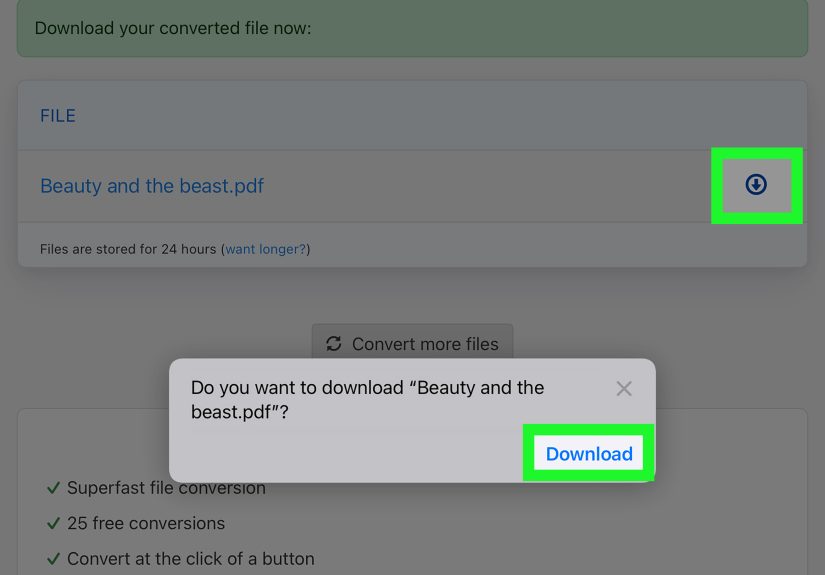
- Download the converted PDF.
- Save it to Files, Books, Adobe Acrobat, or your preferred PDF app.
After downloading, open the PDF and inspect it closely. Look at the headings, images, page breaks, tables, text boxes, and any small print. Publisher files can contain precise layouts, so even a good conversion may need a quick review.
What If the Converter Fails?
If the online converter does not work, try these fixes:
- Check that the file extension is really .pub.
- Make sure the file is not password-protected or corrupted.
- Try a different converter.
- Rename the file if it contains unusual symbols.
- Upload from Files instead of directly from email.
- Ask the sender to export the file as PDF from Microsoft Publisher.
If the file is large or contains many high-resolution images, the conversion may take longer or fail on mobile. In that case, try converting it on a desktop browser or ask someone with Publisher to export it directly.
Step 4: Open, Save, and Share the Converted PDF
Once you have the PDF, opening it on iPhone is simple. Tap the file, and iOS should display it using a built-in viewer or offer apps that can open it. You can also use Apple Books, Adobe Acrobat Reader, Files, Safari, or another PDF app.
Open the PDF in Files
Open the Files app, find the downloaded PDF, and tap it. From there, you can view it, rename it, move it to a folder, upload it to iCloud Drive, or share it through Mail, Messages, AirDrop, or another app.
Open the PDF in Apple Books
If you want to keep the file for reading later, Apple Books can be a tidy option. Use the Share button and choose Books. This is helpful for newsletters, guides, manuals, handouts, and other documents you may want to revisit.
Open the PDF in Adobe Acrobat Reader
Adobe Acrobat Reader is useful if you want extra PDF tools such as commenting, highlighting, signing, filling forms, or syncing documents across devices. If the converted Publisher file is something you need to review carefully, Acrobat can make annotation easier.
Best Method for Different Situations
Not every PUB file needs the same treatment. Here is the practical breakdown:
| Situation | Best Method | Why It Works |
|---|---|---|
| You only need to read the file | Convert PUB to PDF | PDF opens easily on iPhone and keeps the layout mostly intact. |
| The file is private or sensitive | Ask sender to export PDF | Avoids uploading confidential content to a third-party converter. |
| You need to edit the design | Use Microsoft Publisher on Windows | Publisher gives the best chance of preserving editable layout elements. |
| You are away from your computer | Use remote access to a Windows PC | Lets you work with Publisher from your iPhone if the PC is configured. |
| The file has broken formatting after conversion | Ask for a fresh PDF export | The original creator can export with better settings and correct fonts. |
Important Privacy Tips Before Uploading a PUB File
Online converters are convenient, but convenience should not replace caution. Before uploading a PUB file, ask yourself what is inside it.
A community bake sale flyer is low risk. A contract draft, business proposal, employee schedule, school directory, customer brochure, medical handout, or anything with personal details deserves more care. Read the converter’s privacy policy, check whether files are automatically deleted, and avoid using unknown websites for sensitive documents.
When privacy matters, the safest choices are:
- Ask the sender to export the file as PDF.
- Use Microsoft Publisher on a trusted Windows computer.
- Use a company-approved conversion tool.
- Keep the file inside secure cloud storage controlled by your organization.
Common Problems When Opening PUB Files on iPhone
The File Opens as Blank
This usually means the app cannot read the Publisher format. Save the file to Files and convert it to PDF instead.
The Layout Looks Different After Conversion
This can happen when fonts are missing, images are linked instead of embedded, or the Publisher file uses complex design elements. Ask the sender to export a PDF directly from Publisher using high-quality settings.
The File Is Too Large
Large Publisher files may contain high-resolution photos. Try using Wi-Fi, upload from Files rather than email, or convert the document on a desktop computer.
The File Is Actually an EPUB
If the extension is .epub, open it with Apple Books or another ebook reader. Do not use PUB-to-PDF instructions unless the file extension is truly .pub.
You Need to Edit the Text
A converted PDF may let you annotate or make small changes, but it will not behave like the original Publisher document. For real editing, use Publisher on Windows or a desktop publishing alternative that can import Publisher files with varying results.
Should You Convert PUB to PDF, Word, or Image?
PDF is usually the best format for opening a PUB file on iPhone. It preserves layout better than Word and is easier to read than a set of image files.
Choose PDF if you want to read, print, send, or archive the document. Choose Word only if you need to extract and edit text, knowing that the design may break. Choose PNG or JPG if you need a quick image preview of a flyer or poster, but remember that text in an image is harder to copy, search, or edit.
Why PDF Is Usually the Best Answer
PDF is the practical hero of this story. It works across iPhone, iPad, Mac, Windows, Android, and most web browsers. It is easy to attach to emails, upload to websites, print at a copy shop, and store in cloud folders. Most importantly, it is built for sharing documents while preserving appearance.
Publisher files are design files. PDFs are delivery files. If the document is finished and you only need to view it, print it, approve it, or forward it, PDF is the format you want.
Extra Experience: What It Is Actually Like Opening PUB Files on iPhone
In real life, opening a PUB file on iPhone usually starts with mild confusion. The file arrives as an attachment, and it looks official enough. Maybe it is called Spring-Fundraiser.pub, Menu-Draft.pub, or Newsletter-Final-FINAL-v7.pub, which is the international file name for “there will definitely be another version.” You tap it expecting magic, and your iPhone gives you the digital equivalent of a shrug.
The first lesson is that the iPhone is excellent at many things, but Microsoft Publisher compatibility is not one of its party tricks. It can store the file. It can move it around. It can upload it. It can send it to someone else. But direct opening is where the wheels get wobbly. This is not your fault, and it does not mean the file is broken. It simply means the format was made for a different software environment.
The smoothest experience usually happens when you ask the sender for a PDF. This sounds almost too simple, but it solves most problems immediately. The person who created the file has the best chance of exporting it correctly because their computer has the original fonts, images, layout settings, and Publisher version. When they export to PDF, the flyer or newsletter usually arrives looking the way it was intended. On iPhone, that PDF opens with one tap. No drama. No mysterious error messages. No sudden urge to move to a cabin with no technology.
Online converters are the second-best experience. They are fast, especially for ordinary flyers and one-page designs. The process is usually easy: upload the PUB file, choose PDF, wait a moment, and download the result. For everyday documents, this works well enough. However, you should always review the converted file before forwarding it. Sometimes a headline shifts, a font changes, or an image moves slightly. A birthday invitation may survive that just fine. A business brochure going to print may not.
One surprisingly useful trick is to save both the original PUB file and the converted PDF in the same folder. For example, create a folder in Files called Publisher Conversions. Put the original file there, then save the PDF next to it. This keeps your workflow clean and prevents the classic problem of having five files with similar names scattered across Mail, Downloads, iCloud Drive, and your general sense of despair.
If you work with PUB files often, create a repeatable system. Ask people to send PDFs by default. If they must send Publisher files, ask them to include a PDF preview too. For teams, schools, clubs, churches, and small businesses, this one habit saves time. It also prevents the common situation where one person can open the file and everyone else is trapped outside the design castle.
Editing is where expectations need to stay realistic. If you need to change one date or fix a typo, it may be tempting to convert the file to PDF and edit the PDF. That can work for minor changes, but it is not the same as editing the Publisher file. If the design has multiple columns, overlapping text boxes, custom fonts, or carefully placed images, editing the PDF can become frustrating. For proper edits, use Publisher on Windows or ask the original creator to make the changes.
The biggest practical lesson is this: do not treat the iPhone as the main editing station for Publisher documents. Treat it as a viewing, approving, sharing, and light-review device. Convert the file to PDF, check the layout, mark it up if needed, and send feedback. For full layout work, use desktop software. That division keeps your workflow sane.
Finally, remember that file formats are not moral judgments. A PUB file is not “bad” just because your iPhone cannot open it directly. It is simply specialized. Once you know the trickconvert it to PDF or ask for a PDF exportthe whole process becomes much easier. Your iPhone gets a friendly format, you get the document open, and the PUB file can stop acting like a secret society with a file extension.
Conclusion
Opening a PUB file on iPhone is less about finding a hidden iOS feature and more about choosing the right workaround. Since iPhone does not natively view Microsoft Publisher files, the best everyday solution is to convert the PUB file to PDF. Start by locating the file in Files, Mail, Messages, or cloud storage. Then decide whether to ask the sender for a PDF, use a trusted online converter, or access Publisher through a Windows computer if editing is required.
For most users, the winning formula is simple: save the PUB file, convert it to PDF, open the PDF on iPhone, and keep the original as a backup. That gives you a readable, shareable, printer-friendly version without wrestling with unsupported software. Use privacy common sense, review the converted layout, and ask for a direct Publisher export whenever the document is important.
In other words, your iPhone can handle the job. It just needs the PUB file to put on a PDF costume first.