Table of Contents >> Show >> Hide
- Before You Start: Know What You Are Really Trying to Fund
- How to Add Money to Apple Pay without a Debit Card: 7 Steps
- Step 1: Open Wallet and Check Whether You Have Apple Cash
- Step 2: Use a Supported Prepaid Card Instead of a Debit Card
- Step 3: Receive Apple Cash from Someone Else
- Step 4: Use Tap to Cash for In-Person Transfers
- Step 5: Send Apple Card Daily Cash to Apple Cash
- Step 6: Move Money from Apple Savings to Apple Cash
- Step 7: Use Apple Account Balance for Apple Purchases
- What You Cannot Do without a Debit Card
- Best Alternatives to a Debit Card for Apple Pay
- Safety Tips When Adding or Receiving Money
- Common Problems and Quick Fixes
- Real-World Experience: What It Feels Like to Add Money without a Debit Card
- Conclusion
- SEO Tags
Note: Apple Pay is a payment method, not a bank account with a balance you “top up.” In everyday language, most people who ask how to add money to Apple Pay without a debit card actually mean one of three things: adding money to Apple Cash, adding money to an Apple Account balance, or using Apple Pay without linking a debit card. This guide explains the real options clearly.
Trying to add money to Apple Pay without a debit card can feel like asking a vending machine for emotional support: technically possible only if you know which button to press. Apple uses similar-sounding namesApple Pay, Apple Cash, Apple Account balance, Apple Card, Walletand each one does something different. That is where most confusion begins.
Here is the clean version: Apple Pay does not store money by itself. It lets you pay with eligible cards and certain balances stored in the Wallet app. Apple Cash, on the other hand, is a digital card in Wallet that can hold money, send money, receive money, and be used for purchases with Apple Pay in the United States. Apple Account balance is different again; it is mainly for Apple products, apps, subscriptions, iCloud+, Apple Music, and purchases from Apple.
So, can you add money to Apple Pay without a debit card? Yesbut with a few important limits. You may be able to use a supported prepaid card, receive Apple Cash from someone, collect Apple Card Daily Cash, move money from Apple Savings to Apple Cash, redeem an Apple Gift Card to your Apple Account balance, or simply use a credit card in Apple Pay instead of adding cash first. This guide walks through the process in seven practical steps, minus the tech fog and financial fairy dust.
Before You Start: Know What You Are Really Trying to Fund
The first step is not tapping a button. It is naming the thing you want to use. Apple Pay is the checkout tool. Apple Cash is the money-holding card. Apple Account balance is store credit for Apple-related purchases. Mixing them up is like pouring coffee into a gas tank and wondering why the car is judgmental.
If your goal is to pay at stores, in apps, or on websites that accept Apple Pay, you do not necessarily need to add money first. You can use a supported credit card, prepaid card, Apple Cash balance, or Apple Card. If your goal is to send money to a friend or spend a stored balance, you are probably looking for Apple Cash. If your goal is to buy apps, subscriptions, iCloud storage, Apple hardware, or Apple services, you may be looking for Apple Account balance.
Apple Cash is available only in the United States on eligible devices, and standard Apple Cash accounts require the user to be at least 18 and a U.S. resident. Family organizers can set up Apple Cash Family for eligible children and teens, but some features may be limited. This matters because many online tutorials skip eligibility and jump straight to buttons that may not appear on your device.
How to Add Money to Apple Pay without a Debit Card: 7 Steps
Step 1: Open Wallet and Check Whether You Have Apple Cash
On your iPhone, open the Wallet app and look for the Apple Cash card. If you see it, tap it and check the balance. If you do not see it, go to Settings, tap Wallet & Apple Pay, and check whether Apple Cash can be turned on.
If Apple Cash is not available, there are usually three possible reasons: you are outside the supported region, your device or software is not eligible, or your Apple Account does not meet the requirements. Update iOS, confirm your region settings, and make sure you are signed in with your Apple Account. If identity verification is requested, complete it carefully. Apple Cash may ask for verification for security, fraud prevention, and regulatory reasons.
This step is important because “Add Money” only appears where adding money is actually supported. If you are staring at Wallet and wondering why your screen looks nothing like the tutorial, the answer may not be you. It may be eligibility.
Step 2: Use a Supported Prepaid Card Instead of a Debit Card
If you do not have a debit card, the closest direct alternative is a supported prepaid card already added to Apple Pay in Wallet. Apple states that Apple Cash can be funded only from a supported U.S. debit card or supported prepaid card used with Apple Pay. That means a regular credit card generally will not work for adding money directly to Apple Cash.
To try this method, add your prepaid card to Wallet first. Open Wallet, tap the plus button, choose Debit or Credit Card, and follow the instructions from the card issuer. Even if the menu says “Debit or Credit Card,” certain prepaid cards may be supported if the issuer allows Apple Pay. If the card is declined, Apple usually tells users to contact the card issuer because the bank or issuer decides whether the card can be used with Apple Pay.
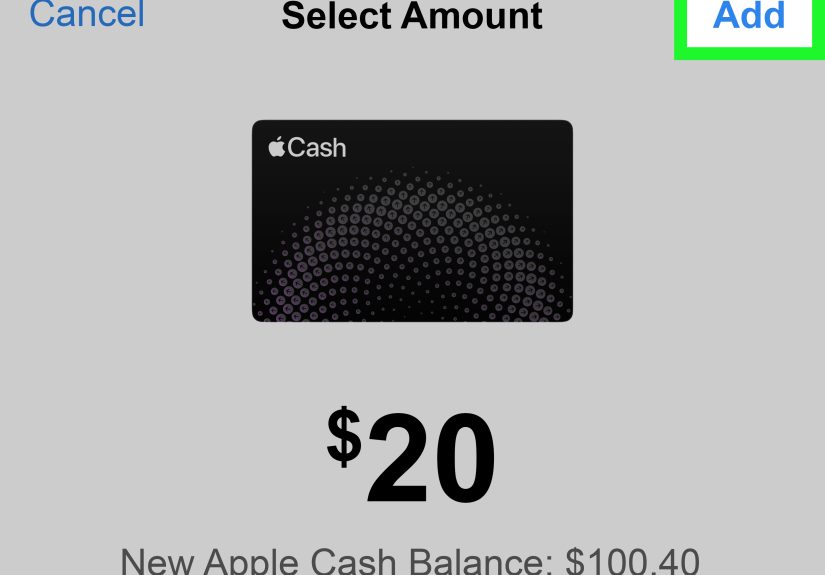
After the prepaid card is in Wallet, tap your Apple Cash card, choose Add Money, enter the amount, select the prepaid card as the payment method, and authenticate with Face ID, Touch ID, or your passcode. Apple Cash has a minimum add-money amount, so do not panic if your tiny test transfer is rejected. The system is not mad; it just has rules.
Step 3: Receive Apple Cash from Someone Else
No debit card? No problemif someone can send you Apple Cash. Receiving money is one of the simplest ways to increase your Apple Cash balance without funding it yourself from a debit card. A friend, parent, roommate, client, or family member can send money through Messages, Wallet, or Tap to Cash if they meet Apple Cash requirements.
To receive money in Messages, open the conversation, accept the payment if prompted, and the money should appear on your Apple Cash card. If automatic acceptance is turned off, you may need to tap Accept. Once the funds are in Apple Cash, you can use that balance with Apple Pay in stores, apps, and websites that accept it.
This is useful for everyday situations: splitting dinner, getting reimbursed for concert tickets, collecting rent from a roommate, or receiving allowance through Apple Cash Family. Treat Apple Cash transfers like cash, though. Only send and receive money with people you trust. If a stranger “accidentally” sends money and asks you to send it back, that is not a cute rom-com beginning. It may be a scam.
Step 4: Use Tap to Cash for In-Person Transfers
Tap to Cash is another way to receive Apple Cash without using a debit card. It lets eligible users send or receive Apple Cash by holding an iPhone or Apple Watch near another compatible Apple device. You do not need to share a phone number, email address, username, or QR code, which makes it handy for in-person payments.
To use it, open Wallet, tap Apple Cash, tap Send or Request, and choose Tap to Cash. The sender enters the amount, confirms the payment, and holds their device near yours. Once accepted, the funds go to Apple Cash.
Tap to Cash is perfect for small real-life moments: buying a used textbook, paying someone back for coffee, settling up after a yard sale, or reimbursing the person who bravely ordered the group pizza. There are limits, including rolling seven-day limits, so it is better for personal transfers than large payments.
Step 5: Send Apple Card Daily Cash to Apple Cash
If you have Apple Card, you may be able to build your Apple Cash balance through Daily Cash. Daily Cash is the cash back earned on Apple Card purchases. Depending on your settings, Daily Cash can be deposited into Apple Cash or into Apple Savings. If you choose Apple Cash, those rewards can be spent with Apple Pay or sent to others.
To check or change this, open Wallet, tap Apple Card, tap the More button, and look for Rewards & Offers or Daily Cash Election. Choose Apple Cash if you want rewards to land there. This does not “load” Apple Cash instantly like a debit card transfer, but it is a legitimate way to grow the balance without connecting a debit card.
For example, if you buy groceries, gas, or Apple products using Apple Card, your Daily Cash can build up over time. It is not dramatic. No confetti cannon erupts from your iPhone. But it is steady, automatic, and useful for people who already use Apple Card responsibly.
Step 6: Move Money from Apple Savings to Apple Cash
Apple Card users who have Apple Savings may have another route. Apple allows transfers from Savings to a linked external bank account or to Apple Cash, depending on availability and account setup. This can be helpful if your Daily Cash has been going into Savings and you later want some of it available for spending with Apple Pay through Apple Cash.
Open Wallet, tap your Apple Card, go to Savings, and look for transfer options. If Apple Cash appears as a destination, choose it, enter the amount, and confirm. Transfers may be subject to review, limits, and timing rules, so do not rely on this method for an emergency checkout line moment. The cashier does not want to watch you troubleshoot your financial ecosystem while the person behind you clutches a melting pint of ice cream.
This method is not for everyone because Apple Savings requires Apple Card eligibility. Still, for Apple Card users, it is one of the cleaner ways to move reward money into a spendable Apple Cash balance without using a debit card.
Step 7: Use Apple Account Balance for Apple Purchases
If your goal is to buy from Apple rather than pay any merchant with Apple Pay, use Apple Account balance. You can add funds by redeeming an Apple Gift Card or, in some regions, by adding money to your Apple Account card in Wallet. This balance can be used for many Apple purchases, including apps, games, subscriptions, Apple Music, iCloud+, accessories, and purchases from Apple.
To redeem a gift card, open the App Store, tap your profile, choose Redeem Gift Card or Code, and follow the instructions. In Wallet, if your Apple Account card is available, you may be able to tap it and choose Add Money. Some methods require iOS 18.1 or later and a valid Apple Pay payment method.
Here is the catch: Apple Account balance is not the same as Apple Cash. You generally cannot use Apple Account balance like a universal Apple Pay wallet at every store that accepts contactless payments. It is best for Apple-related spending. Think of it as store credit for the Apple universe, not a magic tap-to-pay treasure chest.
What You Cannot Do without a Debit Card
It is just as important to know the dead ends. You generally cannot add money directly to Apple Cash using a regular credit card. You also cannot usually transfer money from a standard bank account into Apple Cash the same way you might fund some other payment apps. Bank account connections are commonly used for transfers out of Apple Cash or for Apple Card payments, not as a universal Apple Cash funding source.
You also should not buy sketchy “Apple Pay reload” services from strangers online. Apple does not need a middleman in a hoodie named “FastCashMike_77.” If a service promises to load Apple Pay for a fee, especially through gift cards, screenshots, or remote access, walk away. Better yet, sprint politely.
Best Alternatives to a Debit Card for Apple Pay
Use a Credit Card in Apple Pay
If you simply want to use Apple Pay at checkout, add a supported credit card. This does not add cash to Apple Pay, but it lets you pay with Apple Pay without a debit card. For many users, this is the simplest solution.
Use a Supported Prepaid Card
A prepaid card may work for Apple Pay and may work for adding money to Apple Cash if it is a supported U.S. prepaid card. Support depends on the issuer, so check with the card provider before relying on it.
Use Apple Cash Transfers
Ask someone you trust to send Apple Cash through Messages, Wallet, or Tap to Cash. This is often easier than trying to force an unsupported funding method.
Use Apple Gift Cards for Apple Purchases
If the spending goal is Apple services, apps, subscriptions, or products, Apple Gift Cards are a practical debit-card-free option. Just remember that Apple Account balance and Apple Cash are not the same thing.
Safety Tips When Adding or Receiving Money
Mobile payment apps are convenient, but convenience can make people move too fast. Before sending or accepting money, confirm the person, amount, and purpose. Do not share one-time passcodes. Do not let anyone remotely access your iPhone. Do not accept “verification” requests from strangers. Apple Pay and Apple Cash use strong device authentication, but no security feature can fully protect someone who is tricked into approving the wrong action.
Turn on transaction alerts where available. Keep your iPhone updated. Use Face ID, Touch ID, or a strong passcode. If your device is lost, use Find My to mark it lost or erase it remotely. For Apple Cash issues, review the transaction in Wallet and contact Apple Support if needed. For scams, report the incident to the payment platform and to the proper consumer protection channels.
Common Problems and Quick Fixes
The Add Money Button Is Missing
Make sure Apple Cash is set up, your device is eligible, your software is updated, and you are in a supported region. If Apple Cash is unavailable in your country, the button may not appear.
The Prepaid Card Is Declined
Not every prepaid card works with Apple Pay or Apple Cash. Contact the card issuer and ask whether the card supports Apple Pay and Apple Cash funding.
The Money Has Not Appeared Yet
Check your internet connection, refresh Wallet, and review the transaction history. Security checks can sometimes delay availability.
You Added Apple Account Balance but Cannot Use It in Stores
That is expected. Apple Account balance is for Apple purchases and eligible Apple services. For regular Apple Pay purchases at merchants, use Apple Cash or a supported payment card.
Real-World Experience: What It Feels Like to Add Money without a Debit Card
The first time people try to add money to Apple Pay without a debit card, the experience is usually less “sleek futuristic finance” and more “why are there five Apple things with almost the same name?” The Wallet app is clean, but the vocabulary can be confusing. A user may open Wallet expecting one big balance called Apple Pay. Instead, they see cards, passes, Apple Cash, Apple Account, maybe Apple Card, maybe transit cards, and possibly a coffee rewards card from 2018 that refuses to leave.
In practice, the easiest debit-card-free path depends on the person’s real goal. For a college student who only needs spending money from a parent, Apple Cash Family or a direct Apple Cash transfer may be the smoothest route. The parent sends money, the student accepts it, and the balance can be used with Apple Pay. No debit card required on the student’s side. The main lesson is to set expectations about limits and approved contacts before the first “I need money for lunch” message becomes a daily subscription.
For someone who receives reimbursements from friends, Apple Cash can work beautifully. Imagine one person pays for a group dinner, and everyone sends their share through Messages or Tap to Cash. The receiver’s Apple Cash balance grows without adding money from a debit card. Later, that balance can cover groceries, a ride, or a quick online purchase using Apple Pay. The experience feels natural because it happens where the conversation already is. The awkward partasking three people to pay you backis still human, not technical.
For Apple Card users, Daily Cash is the quiet hero. It is not a dramatic funding method, but it is satisfying. You buy normal things, Daily Cash appears, and if your election sends it to Apple Cash, you gradually build a balance. This works best for people who pay their credit card responsibly and do not treat rewards as an excuse to overspend. Cash back is nice; paying interest because you chased cash back is like buying a coupon for a store you never wanted to visit.
Prepaid cards are the most hit-or-miss option. When they work, they feel almost identical to using a debit card. When they do not, the error message may be vague. The card issuer may support Apple Pay for purchases but not Apple Cash funding, or the card may have restrictions that block the transaction. The smart move is to test with the minimum allowed amount and keep expectations realistic.
Apple Gift Cards are excellent when the goal is Apple spending. They are less helpful when someone wants to buy lunch at a restaurant with Apple Pay. Many users learn this the hard way: they redeem a gift card, see money in Apple Account balance, and assume it can be tapped anywhere. It cannot. Once you understand that difference, Apple Gift Cards become useful againjust in the right lane.
The biggest experience-based advice is simple: do not chase workarounds. Use the official routes that match your goal. For paying stores, add a supported credit card, prepaid card, or use Apple Cash. For receiving money, use Apple Cash transfers or Tap to Cash. For Apple purchases, use Apple Account balance. Once those buckets are clear, adding money without a debit card stops feeling like a puzzle and starts feeling like normal phone stuffwhich is exactly how Apple wants it to feel.
Conclusion
Adding money to Apple Pay without a debit card is possible, but only if you understand what you are actually funding. Apple Pay itself is not a balance. Apple Cash is the spendable digital card that can hold money and work with Apple Pay. Apple Account balance is for Apple-related purchases. Without a debit card, your best options are a supported prepaid card, Apple Cash received from someone else, Tap to Cash, Apple Card Daily Cash, Apple Savings transfers, Apple Gift Cards for Apple purchases, or simply using a credit card directly with Apple Pay.
The smartest strategy is not to force Apple Pay to behave like every other payment app. Use the Apple tool that fits the job. Your future selfand the people waiting behind you at checkoutwill be grateful.