Table of Contents >> Show >> Hide
- Quick Answer: Can You Cancel a PayPal Payment?
- Before You Start: Know Your Payment Status
- How to Cancel a PayPal Payment: 14 Steps
- Sign in to your PayPal account
- Go to your Activity page
- Find the payment you want to stop
- Click the transaction to open the details
- Check whether the payment is pending or unclaimed
- Confirm the recipient information
- Look for the Cancel option
- Click Cancel
- Confirm the cancellation
- Watch for a confirmation message or email
- Check the transaction status again
- Track where the money is going back
- Contact the seller if the payment is already completed
- Use the Resolution Center if the seller does not help
- What If the Cancel Button Is Missing?
- How to Cancel a Recurring PayPal Payment or Subscription
- How Refunds and Disputes Work on PayPal
- How Long Does It Take to Get Your Money Back?
- Common Mistakes to Avoid
- Examples of Real-World PayPal Cancellation Situations
- Experience Section: What Trying to Cancel a PayPal Payment Actually Feels Like
- Final Thoughts
- SEO Tags
Sending money on PayPal can feel wonderfully easy right up until the exact moment you realize you sent it to the wrong person, bought the wrong thing, or clicked “Pay” with the confidence of a person who absolutely should have waited 30 more seconds. The good news? Sometimes you can cancel a PayPal payment. The less-fun news? Not every payment is cancelable, and PayPal can be a bit picky about timing and status.
This guide breaks down exactly how to cancel a PayPal payment in 14 clear steps, what to do when the cancel option does not appear, how refunds and disputes work, and how to stop recurring payments before they keep nibbling away at your wallet like a very polite raccoon.
Quick Answer: Can You Cancel a PayPal Payment?
Yes, but only in certain situations. In general, a PayPal payment can be canceled when it is still marked Pending or Unclaimed. If the payment is already Completed, you usually cannot cancel it yourself. At that point, your next move is to contact the seller for a refund or open a dispute if there is a legitimate problem.
That distinction matters because many people search for “how to cancel a PayPal payment” when what they actually need is one of three different fixes:
- Cancel a pending or unclaimed payment
- Request a refund for a completed payment
- Stop an automatic or recurring PayPal payment
Think of PayPal status labels like traffic lights. Green means the money is gone. Yellow means there may still be time to stop it. Red means you need a different plan.
Before You Start: Know Your Payment Status
Before you go hunting for a magical Cancel button, check the payment status in your PayPal account. This is the step many people skip, and then they wonder why PayPal is acting like a brick wall with a login screen.
Pending
A pending payment has not fully gone through yet. In some cases, this is the easiest kind to cancel.
Unclaimed
An unclaimed payment often means the recipient has not accepted the money yet, or the payment was sent to an email address or phone number that is not fully connected to a PayPal account. This is the sweet spot for cancellation.
Completed
If a payment shows as completed, the transfer has already been processed. You generally cannot cancel it yourself. Instead, you will need to ask the seller for a refund or use PayPal’s Resolution Center if the transaction qualifies for a dispute.
How to Cancel a PayPal Payment: 14 Steps
The steps below focus on canceling a payment through the PayPal website, since the web interface usually gives the clearest path for transaction details.
-
Sign in to your PayPal account
Open PayPal in your browser and log in using your email and password. If you have two-factor authentication turned on, complete that too. Yes, it adds one more step, but it also helps keep random strangers from treating your account like a vending machine.
-
Go to your Activity page
Once you are signed in, click Activity. This is where PayPal keeps your recent transactions, including sent payments, received money, refunds, and the occasional financial decision you would rather not revisit.
-
Find the payment you want to stop
Scroll through your transactions or use any available filters to locate the payment. Double-check the date, amount, and recipient name so you do not accidentally cancel the wrong thing and create a whole new problem for Future You.
-
Click the transaction to open the details
Select the payment to view its status and full transaction information. This page usually tells you whether the payment is completed, pending, unclaimed, refunded, or returned.
-
Check whether the payment is pending or unclaimed
If the payment is marked Pending or Unclaimed, you may be able to cancel it. If it says Completed, skip ahead to the section on refunds and disputes because the self-serve cancellation route is usually gone.
-
Confirm the recipient information
Review the recipient’s email address, phone number, or merchant name. This matters because an unclaimed payment often happens when money was sent to an address that is not fully set up in PayPal. If you sent it to the wrong person, this is where the reality check hits.
-
Look for the Cancel option
If the payment qualifies, you should see a Cancel link or button associated with the transaction. If no cancellation option appears, that is a clue that the payment has either completed or falls into a category that must be handled another way.
-
Click Cancel
Once you see the option, click it. Do not overthink it. This is one of those rare internet moments where the correct move is actually the obvious button.
-
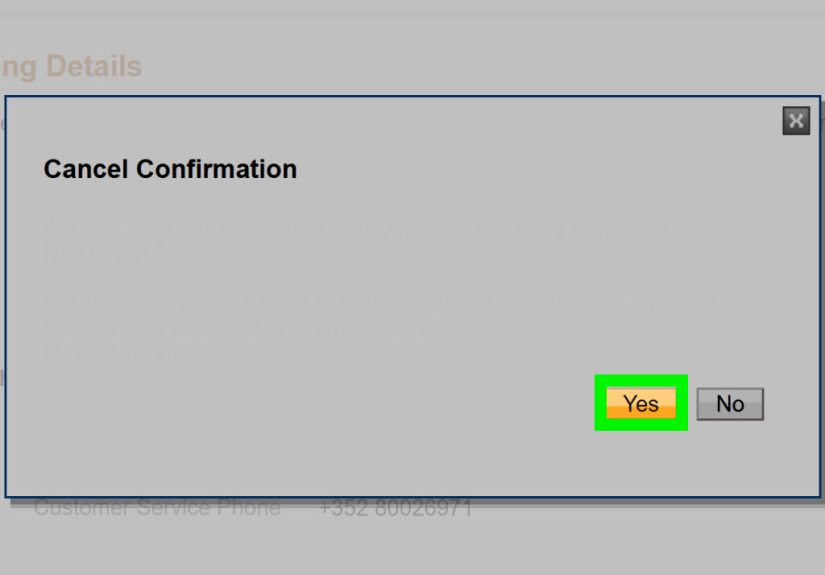
Confirm the cancellation
PayPal may ask you to confirm that you really want to cancel the payment. Confirm it. This second confirmation is there to prevent accidental reversals, not to judge you for your purchase choices.
-
Watch for a confirmation message or email
After you cancel, PayPal typically updates the transaction and may send an email confirmation. Keep that message until the money is fully returned, especially if the payment came from a linked bank account or credit card.
-
Check the transaction status again
Go back to your Activity page and verify the payment no longer shows as active. Depending on the situation, it may display as Canceled, Returned, or a similar status.
-
Track where the money is going back
Refund timing depends on the original funding source. Money paid from your PayPal balance may return quickly. Bank-funded refunds often take a few business days. Card refunds may take longer to post, sometimes up to a billing cycle.
-
Contact the seller if the payment is already completed
If there is no Cancel option and the status is completed, contact the seller immediately and ask for a refund. Many issues are resolved faster this way than by jumping straight into a formal case. Be polite, be specific, and save the messages.
-
Use the Resolution Center if the seller does not help
If the payment involved an item not received, a product not as described, an unauthorized charge, or another eligible issue, open a case in PayPal’s Resolution Center. That is the right path when the payment cannot be canceled directly but still needs to be challenged.
What If the Cancel Button Is Missing?
This is the part that frustrates people most. You followed the steps, found the transaction, clicked into it, and there is no Cancel option. Annoying? Absolutely. Mysterious? Not really.
Here are the most common reasons:
- The payment is already completed. Once the money reaches the recipient, self-canceling is usually off the table.
- The seller already accepted it. Some transactions move fast, especially when sent to an active PayPal account.
- The payment is tied to a merchant order. In that case, the seller may need to cancel the order on their end.
- The issue is really a subscription. You may need to cancel the automatic payment agreement instead of the individual payment.
If that button is missing, do not keep refreshing like you are waiting for a concert ticket drop. Move on to the correct remedy: refund request, subscription cancellation, or dispute.
How to Cancel a Recurring PayPal Payment or Subscription
Sometimes the payment you want to stop is not a one-time charge. It is a recurring payment, automatic payment, or subscription. That is a different workflow.
Use these steps to stop future charges
- Log in to PayPal.
- Click the gear icon or go to Settings.
- Open Payments.
- Select Automatic Payments or Subscriptions and saved businesses.
- Choose the merchant or service.
- Click the option to Cancel the automatic payment.
- Confirm your choice.
This stops future charges. It does not automatically reverse a payment that already went through. For that, you still need to ask the merchant for a refund or open a case if necessary.
How Refunds and Disputes Work on PayPal
If a completed PayPal payment cannot be canceled, your next best option is a refund. Start with the seller. That route is usually faster, simpler, and less dramatic than filing a dispute at 11:48 p.m. while fueled by caffeine and righteous indignation.
Ask for a refund when:
- You paid the wrong merchant by mistake
- You no longer want the item and the seller agrees
- You were charged twice
- The order was canceled but the money was not returned yet
Open a dispute when:
- You did not receive the item
- The item was significantly different from what was described
- You believe the transaction was unauthorized
It is also smart to keep documentation: screenshots, confirmation emails, shipping details, chat records, and the exact date of payment. A dispute without evidence is basically just a digital shrug.
How Long Does It Take to Get Your Money Back?
This depends on how the payment was funded and how it was reversed.
- PayPal balance: often the fastest
- Bank account: commonly several business days
- Credit or debit card: sometimes longer, depending on the card issuer
So if you cancel a payment and do not see the money instantly, do not panic and assume your cash has moved to a tropical island. Check the funding source and give the reversal process time to finish.
Common Mistakes to Avoid
1. Waiting too long
Speed matters. An unclaimed payment may be cancelable, but a completed one usually is not. The sooner you check the transaction, the better your odds.
2. Confusing cancellation with a refund
A cancellation stops a qualifying payment before it fully lands. A refund sends money back after it already landed. Those are cousins, not twins.
3. Ignoring recurring billing settings
If a charge keeps returning every month like a bad sequel, you are probably dealing with an automatic payment agreement, not a one-time transaction problem.
4. Using Friends and Family for purchases
Many users learn this lesson the hard way. Sending money as a personal payment for a purchase can reduce your protections. If you are buying goods or services from someone you do not know well, choose the appropriate payment type.
5. Falling for fake “PayPal support” messages
Scammers love fake payment alerts and fake cancellation notices. If you get an email or text telling you to call a number to cancel a charge, go directly to PayPal instead of using the contact info in the message.
Examples of Real-World PayPal Cancellation Situations
Example 1: You sent money to the wrong email address
You notice the recipient email is wrong and the payment is listed as unclaimed. Good news: this is often the ideal cancellation scenario. Go to Activity, open the payment, and cancel it before the recipient claims it.
Example 2: You bought something and changed your mind
If the payment is already completed, you likely cannot cancel it yourself. Contact the seller, explain the situation, and ask whether they can refund the payment and cancel the order.
Example 3: A subscription keeps charging you
Do not just stare at the latest charge in horror. Cancel the automatic payment agreement in PayPal settings so future charges stop, then discuss any recent billing issue with the merchant.
Example 4: You see a payment you did not authorize
That is not a cancellation issue. It is a security issue. Change your password, secure your account, and report the unauthorized transaction through the Resolution Center right away.
Experience Section: What Trying to Cancel a PayPal Payment Actually Feels Like
Let’s be honest: most people do not search for “how to cancel a PayPal payment” because they are relaxed and curious. They search because they are in a mild panic, staring at a completed transaction and hoping the internet has better news than their own eyeballs.
A common experience starts with confidence. You send money, close the tab, and move on with your day. Then, ten minutes later, your brain replays the moment in glorious high definition. Was that the right email address? Did I just pay for the wrong listing? Was that subscription supposed to renew today? Suddenly, you are back in PayPal faster than a cat hearing the treat bag open.
If the payment shows as pending or unclaimed, the emotional journey gets a lot better. There is relief. There is hope. There is a Cancel button. You click it with the concentration of a surgeon diffusing a bomb in a movie. Then you refresh the page three times just to make sure it really worked. That is normal. Not elegant, but normal.
Things get more interesting when the payment is completed. This is usually where frustration kicks in. People assume online payments work like undoing an email or canceling a food order within 30 seconds. PayPal does not always work that way. Once the money has reached the recipient, the solution usually becomes social rather than technical. You have to message the seller, explain the issue, and ask for a refund. For many users, that is the most uncomfortable part. Clicking buttons is easy. Negotiating with humans is where the plot thickens.
Then there is the subscription experience, which deserves its own tiny dramatic soundtrack. You think you are canceling a charge, but what you really need to cancel is the billing agreement behind the charge. Many users do not realize this until another payment appears next month like an unwelcome houseguest with excellent timing. Once you learn where automatic payments live inside PayPal settings, the process becomes much easier, but that first discovery can feel like a scavenger hunt designed by accountants.
There is also a practical lesson people often take away after all this: speed matters, screenshots matter, and transaction details matter. The users who handle problems best are usually the ones who act quickly, save records, and avoid guessing. They check the status, verify the recipient, and move to the correct remedy instead of hammering the refresh button and hoping PayPal develops a conscience in real time.
In the end, the experience teaches a useful truth about digital payments. They are convenient because they are fast, and they are stressful for the exact same reason. When everything goes right, PayPal feels wonderfully frictionless. When something goes wrong, that same speed can make you wish the internet would slow down for one glorious minute. Since it usually will not, the smartest move is knowing the difference between canceling, refunding, disputing, and stopping recurring payments before the next charge arrives wearing sunglasses and pretending not to know you.
Final Thoughts
If you are trying to cancel a PayPal payment, the key is simple: check the status first. If the payment is pending or unclaimed, you may be able to cancel it directly from your Activity page. If it is completed, shift gears and pursue a refund, dispute, or subscription cancellation instead. The process is not hard once you know which lane you are in. The hard part is usually figuring that out before your blood pressure auditions for a superhero movie.
Use the 14 steps above, act quickly, keep records, and do not ignore any transaction that looks odd. In digital payments, a fast response is often the difference between “problem solved” and “well, this escalated.”