Table of Contents >> Show >> Hide
- First: Make sure your mouse is actually “Unifying”
- What you’ll need
- Option A: Connect using Logi Options+ (recommended)
- Option B: Connect using Logitech Unifying Software (classic method)
- Connecting multiple devices to one Unifying receiver
- Troubleshooting: when the mouse refuses to connect
- 1) Confirm you’re using the correct receiver type
- 2) Try a different USB port (and skip the hub for setup)
- 3) Power-cycle the mouse like you mean it
- 4) If the mouse supports Bluetooth, temporarily turn Bluetooth off
- 5) Remove old pairings and try again
- 6) Fix sleep/wake USB issues (Windows tip)
- 7) Don’t over-repair: sometimes re-pairing isn’t the real fix
- Special situations (because real life loves plot twists)
- FAQ
- Real-World Experiences: what people run into (and how they solve it)
- Conclusion
Pairing a Logitech wireless mouse to a Unifying receiver is usually a 2-minute job…
unless your desk is currently hosting three nearly identical USB dongles, a forgotten Bluetooth pairing,
and a mouse that chose today to go on a silent retreat. Don’t worrywe’ll get it talking again.
This guide walks you through the modern method (Logi Options+) and the classic method (Logitech Unifying Software),
plus the troubleshooting steps that fix most “it’s connected but it’s not connected” situations.
First: Make sure your mouse is actually “Unifying”
Logitech has a few different wireless “families,” and they don’t all speak the same language. Before you install anything,
do this quick reality check:
-
Look for the Unifying logo (usually an orange, star-like symbol) on the USB receiver and often on the bottom of the mouse.
If you see it, you’re in the right place. - If your receiver says Logi Bolt, it’s a different system. Bolt devices pair to Bolt receiversnot Unifying.
-
If you’re using a Logitech gaming mouse (often LIGHTSPEED), it generally won’t pair with Unifying receivers.
Gaming receivers are typically model-specific.
What you’ll need
- Your Logitech Unifying receiver (USB-A). If your computer only has USB-C, you’ll need a USB-C to USB-A adapter.
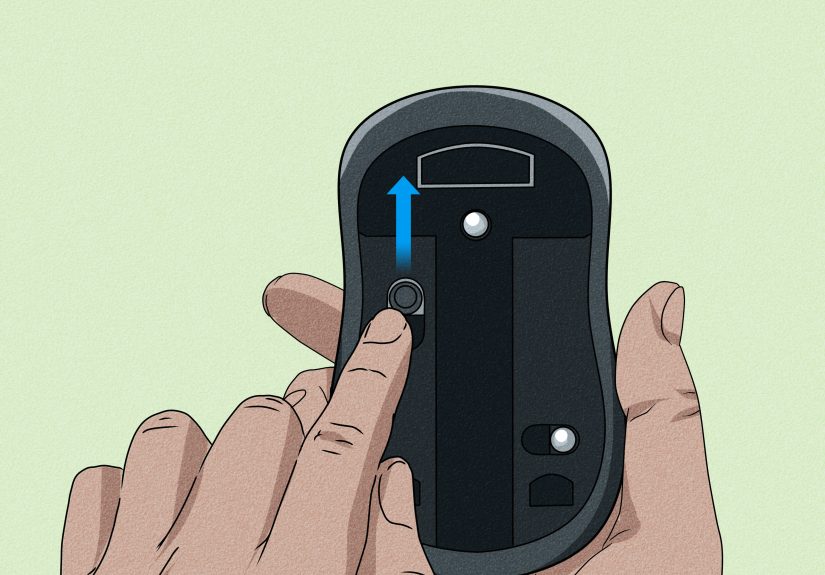
- Your Logitech wireless mouse (with battery installed and power switch working).
- A computer (Windows or macOS works best for initial pairing).
- Optional but helpful: fresh batteries and a second USB port to test if the first one is cranky.
Option A: Connect using Logi Options+ (recommended)
Logi Options+ is Logitech’s newer app for supported devices. It’s typically the easiest route on current versions of Windows and macOS,
and it can walk you through connecting via a Unifying receiver.
Step-by-step pairing in Logi Options+
- Plug in the Unifying receiver directly into your computer (avoid unpowered USB hubs for setup if possible).
-
Install and open Logi Options+.
Once it launches, you’ll usually see an option like “+ Add device”. -
Click + Add device, then choose the connection method:
- Logi Unifying Receiver (that’s the one you want here)
-
Follow the on-screen instructions. Most of the time it will ask you to:
- Turn the mouse off, wait a second, then turn it on
- Sometimes press a Connect button (if your model has one)
-
When the mouse is detected, confirm it works by moving the cursor and clicking.
If the app asks, confirm Yes to finish.
Pro tip: If your mouse supports both Bluetooth and Unifying, make sure you’re not accidentally paired via Bluetooth already.
Some computers will “helpfully” reconnect to Bluetooth while you’re trying to pair to the receiverlike a cat sitting on your keyboard
the moment you start a video call.
Option B: Connect using Logitech Unifying Software (classic method)
The older “Logitech Unifying Software” is a straightforward pairing utility. If you already have it installedor if Logi Options+ isn’t cooperating
this method still gets the job done.
Step-by-step pairing in Logitech Unifying Software
- Plug the Unifying receiver into a USB port on your computer.
-
Launch the Logitech Unifying Software.
On many systems you’ll see a Welcome screen. - Click Next to start the pairing wizard.
-
When prompted, turn your mouse off and then turn it back on.
(Yes, this is the official version of “have you tried turning it off and on again?” and it works surprisingly often.) - Wait for the software to detect the mouse. You should see a confirmation screen.
- Confirm the mouse works, then choose Yes (if asked) and click Next to complete setup.
How to unpair a device (when you’ve hit the “six devices” limit)
A single Unifying receiver can connect multiple compatible devices, but it does have a cap.
If you’re trying to add “just one more thing” and it won’t pair, you may need to remove an older device first.
- Open the Unifying software.
- Click Advanced.
- Select the device you want to remove.
- Click Un-pair, then close the window.
Connecting multiple devices to one Unifying receiver
Unifying’s whole charm is that you can use one tiny receiver instead of a “USB porcupine.”
In practical terms:
- One receiver can connect up to six compatible Logitech Unifying mice and keyboards.
- Pair devices one at a time using Logi Options+ or the Unifying Software wizard.
- Once paired, the receiver usually remembers the devicesso you don’t have to repeat pairing every reboot.
Troubleshooting: when the mouse refuses to connect
If pairing fails, it’s almost always one of these issues. Work through the list in orderyou’ll save time and avoid the
temptation to “fix it” by angrily buying a new mouse at 11:48 PM.
1) Confirm you’re using the correct receiver type
- Unifying devices pair to Unifying receivers (orange logo).
- Logi Bolt devices pair to Logi Bolt receivers (different logo/technology).
- Many gaming receivers are model-specific and won’t accept other devices.
2) Try a different USB port (and skip the hub for setup)
- Move the receiver to a different port (front vs. back ports on desktops can behave differently).
- If you’re using a USB hub or docking station, try plugging the receiver directly into the computer during pairing.
3) Power-cycle the mouse like you mean it
- Turn the mouse off.
- Wait 5–10 seconds.
- Turn it back on.
- If the battery is old, swap in a fresh onelow power can cause “it pairs but doesn’t move” weirdness.
4) If the mouse supports Bluetooth, temporarily turn Bluetooth off
This prevents your computer from reconnecting over Bluetooth while you’re pairing to the Unifying receiver.
You can always re-enable Bluetooth later.
5) Remove old pairings and try again
If the receiver already has several devices paired, unpairing one you no longer use can clear the way.
Use the Advanced screen in the Unifying software (or the device connection flow in Logi Options+).
6) Fix sleep/wake USB issues (Windows tip)
If your receiver works… until your PC sleeps… and then your mouse acts like it forgot your name,
Windows power management may be putting USB devices into a low-power state.
-
In Windows power settings, look for USB selective suspend and consider disabling it if you’re having repeated dropouts.
(This can be especially helpful on laptops.) - If you’re in IT mode: also check Device Manager power management settings for USB hubs/controllers.
7) Don’t over-repair: sometimes re-pairing isn’t the real fix
If your mouse suddenly stops working, it’s tempting to re-pair immediately. But some official guidance notes that a device stopping
can be due to other causes, and it’s not always because pairing was “lost.”
In those cases, focus first on batteries, USB ports, and software/driver stability before repeating pairing.
Special situations (because real life loves plot twists)
You lost the receiver
If your mouse is Unifying-only, you’ll need a Unifying receiver to use it wirelessly.
Once you have a replacement Unifying receiver, pair it using Logi Options+ or the Unifying Software.
If your mouse also supports Bluetooth, you may be able to connect via Bluetooth with no receiver at all.
You’re setting up on a Chromebook
Chromebooks can use a Unifying receiver like a normal USB input device, but managing pairing may require a supported pairing method.
A common workaround is to pair the mouse and receiver on a Windows or Mac computer first, then move the receiver to the Chromebook.
There are also newer web-based approaches for managing Unifying on ChromeOS depending on what tools are available at the time.
You’re on Linux
Many Linux users manage Logitech receivers with Solaar, a popular open-source device manager that can pair and unpair supported devices
(including Unifying) and show useful status info on compatible hardware.
FAQ
How many devices can I connect to one Unifying receiver?
Up to six compatible Logitech Unifying devices (like mice and keyboards) can share one receiver.
Is Unifying the same as Bluetooth?
Nope. Unifying uses a proprietary 2.4 GHz wireless protocol, while Logi Bolt is based on Bluetooth Low Energy technology.
They are not cross-compatible.
How far does a Unifying receiver work?
In typical conditions, expect reliable use around the “normal desk radius.” Logitech commonly describes about 10 meters (33 feet),
though real-world range depends on interference, walls, and your computer setup.
Real-World Experiences: what people run into (and how they solve it)
Since you’re likely here because something didn’t “just work,” let’s talk about what actually happens out in the wildhome offices,
IT departments, coffee shops, and that one conference room where Wi-Fi goes to disappear.
Experience #1: “It worked yesterday, now nothing moves.”
A super common pattern is a mouse that’s technically powered on, but the cursor won’t budge. Most people assume the receiver “unpaired itself,”
but the fix is usually more boring: the battery is dying, the mouse power switch is half-on, or Windows put the USB port into a low-power state after sleep.
Swapping in a fresh battery and moving the receiver to a different USB port fixes a surprising number of “mystery failures.”
If the problem happens specifically after sleep/wake, adjusting USB selective suspend settings can be the final “oh wow, that was it” moment.
Experience #2: “I have a Logitech receiver… why won’t it pair?”
Logitech receivers can look like twins at a distance. People often try pairing a Unifying mouse to a Bolt receiver, or a gaming mouse to a Unifying receiver.
The pairing wizard will keep asking you to power-cycle the mouse, and you’ll keep doing it, and the two of you will slowly lose faith in each other.
The win here is identification: match the logo on the receiver and the bottom of the mouse. If they don’t match, the software can’t “convince” them to.
Experience #3: “My laptop has only USB-C, and the adapter is… suspicious.”
USB-C adapters and docks are greatuntil they aren’t. Some users notice lag, intermittent disconnects, or failed pairing when the receiver is plugged into a cheap hub.
The practical fix is to pair with the receiver connected directly (or with a known-good adapter), then move it back to your dock once everything is stable.
If problems return, the dock or hub may be the real culprit, not the mouse.
Experience #4: “I’m trying to reduce dongle clutter… and now I’ve hit a limit.”
Power users love Unifying because it turns six USB problems into one USB problem. But when you hit the device cap,
you’ll need to unpair something you no longer use. People often forget they paired an old travel mouse or a spare keyboard years ago.
Opening the Advanced/unpair list and pruning “ancient artifacts” is the cleanest path forwardand it feels oddly satisfying.
Experience #5: “Office computer won’t let me install software.”
In managed environments, you may not have admin rights to install pairing tools. A practical approach some users take is:
pair the device and receiver on a personal computer using Logi Options+ or the Unifying utility, then move the paired receiver back to the work machine.
Since the receiver remembers the pairing, the mouse often works immediately on the restricted computerno installation required there.
(Company policies vary, so follow your workplace rules.)
The big takeaway: most pairing problems aren’t “mysterious.” They’re usually mismatched receiver types, power/battery issues,
USB port quirks, or a computer aggressively trying to save power. Once you know the usual suspects, you can fix the connection in minutesand keep your
desk drawer from turning into the Island of Misfit Dongles.
Conclusion
To connect a Logitech wireless mouse to a Unifying receiver, start by confirming your mouse is Unifying-compatible (look for the orange Unifying logo),
then pair it using Logi Options+ (recommended) or the classic Logitech Unifying Software.
If pairing fails, the fastest fixes are: check receiver type, try another USB port, power-cycle the mouse, replace the battery, andon Windowsreview USB power settings
if problems appear after sleep.
Once paired, you can keep adding compatible devices to the same receiver (up to six) and enjoy a cleaner setup with fewer dongles and fewer “where did that tiny USB thing go?”
moments.