Table of Contents >> Show >> Hide
- Quick Start: Turn Off (or On) NotificationsFast
- Master the Controls in Edge
- Fewer Prompts, Fewer Mistakes
- Troubleshooting: When Alerts Don’t Appearor Won’t Stop
- Advanced: Admin & Power-User Playbook
- Best Practices That Keep You Sane
- Examples You Can Steal
- Conclusion
- Real-World Experiences: What Works Long-Term (500+ Words)
Edge notifications can be heroes or hecklers. Done right, they nudge you about new messages, calendar reminders, and important account alerts. Done wrong, they bing-bong your brain into submission with every sale, flash headline, and “we miss you” pop-up on the internet. This guide shows you exactly how to control Microsoft Edge notifications on Windows, macOS, Android, and iOSso you keep the signal and silence the noise.
Quick Start: Turn Off (or On) NotificationsFast
Inside Microsoft Edge (Desktop)
- Open Edge > select Settings and more (⋯) > Settings.
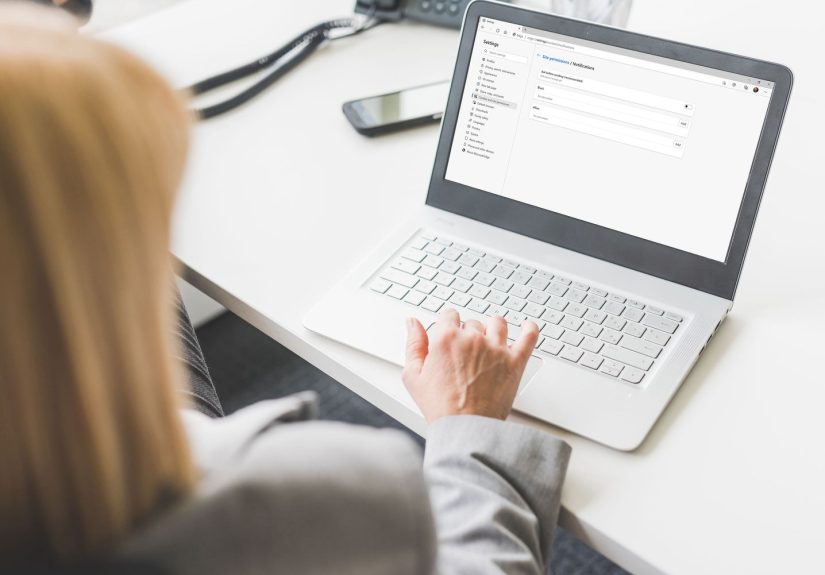
- Go to Privacy, search, and services > Site permissions > Notifications.
- To stop prompts entirely, switch “Ask before sending” off (this blocks new requests). To review sites you’ve already allowed, scroll to Allow and click each site to Block or Clear & reset.
- Need to fine-tune a specific site? Click its entry and change Notifications to Block or Allow without affecting others.
Windows 11/10 System-Level Controls
- Open Settings > System > Notifications.
- Find Microsoft Edge in the app list and toggle notifications On/Off.
- Customize Edge’s banners, sounds, priority, and whether notifications appear on the lock screen.
- Use Do not disturb/Focus assist for distraction-free time: silence most notifications by schedule or while you’re duplicating your display, gaming, or in a focus session.
macOS (System Settings)
- Open System Settings > Notifications > Microsoft Edge.
- Toggle Allow Notifications on/off. Choose None, Banners, or Alerts, enable/disable sounds, show in Notification Center, and set time-sensitive behavior.
Android (Edge on Mobile)
- In Edge for Android: ⋮ > Settings > Site permissions > Notifications to allow/block website prompts.
- OS level: Settings > Apps > Edge > Notifications to turn Edge notifications on/off or categorize channels (banners, sounds, badges).
iPhone/iPad (What’s Actually Possible)
On iOS/iPadOS, standard browser tabs don’t deliver web push when the site isn’t active. However, Home Screen web apps (installed PWAs) can receive push on iOS 16.4+ if you’ve granted permission. Edge on iOS uses the same WebKit foundation, so this behavior applies across browsers. For site-by-site control, manage notification permissions within the PWA or turn off notifications for Edge or the PWA under Settings > Notifications.
Master the Controls in Edge
Per-Site Permissions (Granular Quiet)
You don’t need to burn it all down. In Settings > Site permissions > Notifications, use the Allow and Block lists to decide who gets to ping you. Click any site to flip its setting, or use Clear & reset if you want Edge to ask again next time you visit.
Use Quieter Notification Requests
Annoyed by constant “Allow notifications?” pop-ups? Edge’s quieter notification requests transform those prompts into a subtle indicator, so you’re not ambushed mid-article. In the same Notifications page, enable the quieter experience if you prefer a low-key bell icon to full-screen nagging.
Reset, Revoke, and Start Fresh
If a site keeps pestering youespecially one you barely remember grantingopen its page, select the padlock icon in the address bar, and view permissions. Reset the site’s settings or block notifications right there. If the problem continues, clear that site’s cookies and site data in Settings > Privacy, search, and services to sever any lingering ties.
Silence Without Blocking
Sometimes you want notifications but quietly. On Windows, keep Edge allowed but turn off Sound for Edge in Settings > System > Notifications (or set low priority). On macOS, set Edge to Banners with sound off. You’ll still see badges and toasts when you’re readyminus the jump scare.
Fewer Prompts, Fewer Mistakes
Decide Wisely When a Site Asks
- Verify the site: Is it one you trust and visit often (banking, messaging, productivity)? If not, click Block.
- Look for intent: Does the site explain what you’ll get (order updates, direct messages), or is it vague (“Get notifications”)? Vague often equals spammy.
- Use the padlock (left of the URL) any time to audit and change permissions on the fly.
Let Edge Screen the Noise
With quieter/adaptive requests, Edge reduces low-quality prompts automatically. If you’re a power user, you can still toggle the setting to match your tolerance. The result: more control, fewer interruptions, and better focus.
Troubleshooting: When Alerts Don’t Appearor Won’t Stop
If You’re Not Getting Notifications
- Check Edge: Settings > Site permissions > Notificationsis the site Allowed?
- Check the OS: On Windows/macOS, ensure Edge notifications are enabled and not silenced by Do not disturb/Focus assist.
- Battery/Background: Mobile power-saving modes can delay or suppress notifications. Loosen restrictions for Edge if necessary.
- Time sensitivity (macOS/iOS): If available, allow time-sensitive notifications for critical apps.
- For iOS PWAs: Make sure the site is installed to your Home Screen and you’ve granted permission within that PWA.
If You’re Getting Too Many
- Block at the source: Move offenders from Allow to Block in Edge’s Notifications settings.
- Mute, don’t nuke: Keep notifications enabled but disable sounds or pop-ups at the OS level.
- Use Focus/Do Not Disturb during meetings, presentations, or deep-work sessions.
Advanced: Admin & Power-User Playbook
Enforce Defaults with Edge Policies (Work or School Devices)
On managed PCs, administrators can set a default notifications behavior (allow, block, or ask) for all users via Microsoft Edge policy. That ensures kiosk machines or busy call centers stay unbothered, while essential alerts still get through on knowledge-worker laptops.
Jump Straight to the Right Page
- Type
edge://settings/content/notificationsin the address bar to open the Notifications page directly. - From there, add domains to Block for a permanent unsubscribe, or prune the Allow list to a tight, trustworthy set.
Pair With Focus Tools
Windows Focus sessions and macOS Do Not Disturb are your “cone of silence.” Schedule them for daily deep-work windows or trigger them automatically when you share your screen or start a meeting. You’ll finish more in less timeand you won’t miss anything truly urgent because you can allow priority apps through.
Best Practices That Keep You Sane
- Be picky with “Allow.” Approve notifications only for sites that provide clear, high-value updates (messaging, project trackers, finance, travel).
- Block unknowns by default. If you can’t articulate why a site needs to notify you, it probably doesn’t.
- Review monthly. Open Edge’s Notifications settings and prune old “Allow” entries. Your 2023 holiday-deal site doesn’t need a 2025 passport to your taskbar.
- Silence strategically. Prefer OS-level mutes when you want notifications to remain availablejust without sound or screen takeovers.
- Protect your attention. During presentations or recordings, toggle Do Not Disturb/Focus. No one needs to see your pizza coupon pop-ups on a 120-inch projector.
Examples You Can Steal
“I need two hours of quiet, but don’t want to miss DMs.”
Enable Do not disturb/Focus (allow priority apps like your messenger). Edge stays permitted, but only whitelisted apps break through.
“I want shipping updates, not sales spam.”
Keep your retailer’s order-status subdomain on Allow, but block the marketing site. If they’re the same domain, keep it allowed in Edge and disable sounds/banners at OS level.
“On macOS, I want notifications, but quietly.”
Under Notifications > Microsoft Edge, set Banners, turn sound off, and show only in Notification Center. You’ll catch up when you’re ready.
“On Android, let my banking alerts throughblock the rest.”
Allow your bank’s site in Edge’s Notifications permissions. In Android > Apps > Edge > Notifications, keep badges on but disable sound/vibration for everything else.
Conclusion
Edge notifications don’t have to be a constant drum solo. With a few minutes of setupper-site permissions in Edge, smart OS-level rules, and a focus routineyou can turn notifications back into helpful nudges instead of attention-vacuuming ads. Set it once; review monthly; enjoy the quiet all year.
SEO Goodies
sapo: Microsoft Edge notifications should help, not hijack your day. This in-depth guide shows exactly how to master per-site permissions, use quieter prompts, and tune Windows/macOS/Android/iOS settings. You’ll block spammy pop-ups, keep important alerts, and build a distraction-free workflow with Focus/Do Not Disturbplus pro admin tips and real-world scenarios you can copy in minutes.
Real-World Experiences: What Works Long-Term (500+ Words)
Living with Edge notifications is a lot like living in a busy city: the right noise is energizing, the wrong noise is exhausting. After coaching teams and power users through this for years, a few patterns always stand out.
First, the biggest win is separating transactional from promotional traffic. Transactional notifications (security prompts, passwordless logins, order delivered, calendar reminders) deserve a path to your eyeballs. Promotional (“One-day sale!” “Breaking celebrity news!”) rarely does. In practice, this means allowing notifications for the services you use to do workproject management, messaging, calendar, bankingand blocking or muting everything else. One product lead I worked with cut 70% of interruptions by allowing only three sites: a chat app, a bug tracker, and their CI system for production incidents. Everything else was either blocked in Edge or made silent at the OS level. Their sprint velocity improved the very next cycle, which isn’t a coincidence.
Second, use quieter notification requests if you tend to click “Allow” impulsively. It’s human nature to accept prompts in the heat of a task. Quieter requests add just enough friction to help you decide with intention. Over a month, users who turned this on allowed far fewer low-value sitesand didn’t miss anything they actually cared about.
Third, schedule your quiet. Focus/Do Not Disturb is the unsung hero of good notification hygiene. A sales manager I advised carved out daily 90-minute focus sessionsno banners, no soundsthen reviewed Notification Center afterward. Because mission-critical tools were set to priority, true emergencies still surfaced. The result was higher throughput and fewer “Why did I even open that tab?” moments. If you present or record often, add an auto-rule that turns on Focus when you mirror your display. Your audience will thank you.
Fourth, think in layers: Edge controls who can talk to you; the OS controls how loudly they talk. When a site is valuable but noisy (newsrooms, trading dashboards), keep it allowed in Edge and tame it at the OS leveldisable sounds, choose banners over alerts, or lower its priority. Conversely, when a site is untrustworthy or vague, block it at the browser so it can’t sneak back in.
Fifth, review monthly. Notifications creep. New SaaS tools join your stack, and holiday shopping sites sneak into your Allow list. A monthly two-minute audit in edge://settings/content/notifications keeps your attention budget under control. Pair it with a sweep through Windows/macOS notification settings and you’ll catch stale permissions and noisy defaults.
Sixth, on mobile, be ruthless. Phones multiply distractions because they’re always with you. Let banking, travel, authenticator, and one messenger through; put the rest on silent or block. For iOS specifically, remember that only Home Screen web apps can receive true web push, so if you don’t explicitly add a site as a PWA, you won’t be buzzed later. On Android, notification channels are your friendkeep badges on (so you can glance without opening), but mute sound and vibration for non-critical categories.
Finally, for teams and families, write it down. A short “notification policy” (what gets through and when) cuts friction. In my experience, aligning on a few principlesblock promotional, allow transactional, focus from 9:30–11:00eliminates the passive chaos that ruins mornings. Edge gives you the tools; your routine turns them into a system.
Bottom line: treat notifications like VIP passes to your attention. Give out very few, review often, and let Edge plus your OS do the bouncer work.