Table of Contents >> Show >> Hide
- First, What Do You Mean by “Python Shell”?
- Quick Cheat Sheet: Fastest Ways to Increase/Decrease Font Size
- Option 1: Changing Font Size in IDLE (The “Python Shell” Most People Mean)
- Option 2: Python in a Terminal (Windows Terminal, Command Prompt, PowerShell, macOS, Linux)
- Option 3: VS Code Python Shell (Integrated Terminal + Zoom)
- Option 4: PyCharm / JetBrains Python Console (Fast Mouse-Wheel Font Scaling)
- Option 5: Jupyter Notebook / JupyterLab (Browser Zoom + Lab Settings)
- Troubleshooting: When Font Changes Don’t Work (or Work “Wrong”)
- Accessibility and Comfort: A Quick Reality Check
- Real-World Experiences: What It Feels Like When You Finally Fix Your Python Shell Font Size (500-ish Words)
- Wrap-Up
- SEO Tags
If your Python Shell looks like it’s whispering from across the room, you’re not alone. Font size is one of those tiny settings that can
turn “I’ll just run this quick test” into “why do my eyes feel like they just did a marathon?” The good news: in most Python “shell” setups,
you can change the font size in secondsoften with a shortcut you already use everywhere else.
This guide shows fast, practical ways to change font size depending on where your Python Shell actually lives: IDLE, a terminal window,
VS Code, PyCharm, or a browser-based notebook. We’ll keep it simple, specific, and just opinionated enough to save you time.
First, What Do You Mean by “Python Shell”?
“Python Shell” can mean different things depending on how you launch Python. The font-size fix depends on the container:
- IDLE Shell: Python’s built-in editor/shell with the
>>>prompt in a GUI window. - Terminal REPL: Python running inside Command Prompt, PowerShell, Windows Terminal, macOS Terminal, or a Linux terminal.
- IDE/Editor Shell: VS Code’s integrated terminal, PyCharm’s Python Console, etc.
- Notebook “shell-like” experience: Jupyter Notebook/JupyterLab in a web browser.
Quick Cheat Sheet: Fastest Ways to Increase/Decrease Font Size
Use this as your “I just need it bigger right now” menu:
| Where you’re running Python | Fastest way to change font size | “Make it stick” option |
|---|---|---|
| IDLE Shell (Windows/Linux) | Options → Configure IDLE → Fonts/Tabs → Size | IDLE saves preferences automatically |
| IDLE Shell (macOS) | Application menu → Preferences (or Configure IDLE/Preferences) | IDLE saves preferences automatically |
| Windows Terminal running Python | Ctrl + + / Ctrl + - (zoom) | Set default font size in Settings (profile appearance) |
| Command Prompt / classic console | Title bar → Properties → Font → Size | Title bar → Defaults → Font → Size |
| VS Code (terminal + UI) | View → Appearance → Zoom In/Out, or Ctrl + = / Ctrl + - | Set window.zoomLevel or terminal font size settings |
| PyCharm / JetBrains IDEs | Enable Ctrl/Cmd + Mouse Wheel to change editor font | Editor font settings + the mouse-wheel toggle |
| Jupyter Notebook in a browser | Browser zoom: Ctrl + + / Ctrl + - | JupyterLab settings for editor font size (if using Lab) |
Option 1: Changing Font Size in IDLE (The “Python Shell” Most People Mean)
If you opened something literally named “IDLE” and you’re staring at a GUI window with a Python prompt, congratsyou’re in the IDLE Shell.
This is the most straightforward place to change font size because it’s built into the menus.
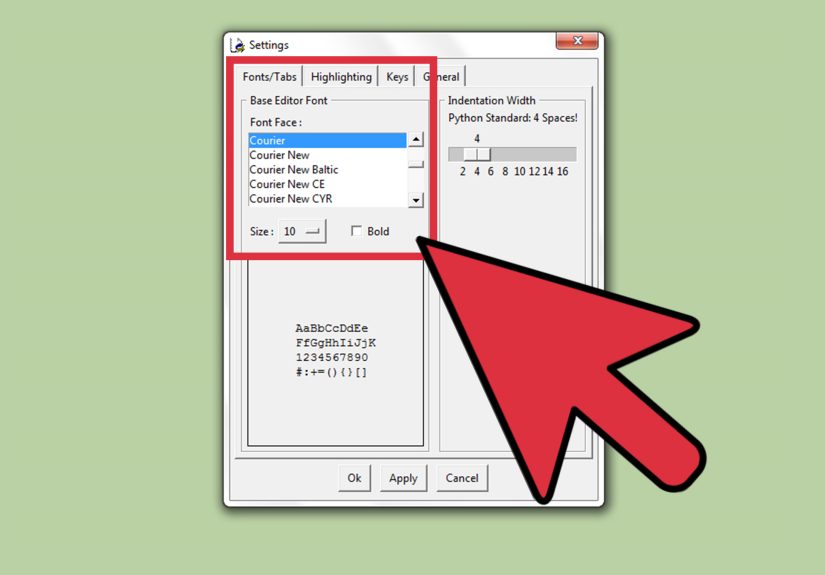
Windows/Linux: Options → Configure IDLE
- Open IDLE (the Shell window with the
>>>prompt). - Click Options in the menu bar.
- Select Configure IDLE.
- Open the Fonts/Tabs tab.
- Increase the Size value (try 14–18 on high-res displays).
- Click Apply or OK.
macOS: Preferences Instead of Options
On macOS, IDLE typically places preferences under the application menu (the one next to the Apple menu). Look for
Preferences… and then go to the Fonts/Tabs area to adjust size.
Pro tip: If IDLE gets “weird,” reset your user config
IDLE stores your custom preferences in user config files (often under a folder named .idlerc). If you ever set something that
makes IDLE feel hauntedtiny fonts, odd colors, strange key behaviorresetting those user config files can restore defaults.
This is the software equivalent of turning it off and back on, but with more dignity.
Option 2: Python in a Terminal (Windows Terminal, Command Prompt, PowerShell, macOS, Linux)
If you start Python by typing python or py in a terminal, your “shell” font size is controlled by the terminal itself.
So you’re not changing Python’s fontyou’re changing the text rendering of the terminal window.
Windows Terminal: Quick Zoom + Permanent Defaults
In Windows Terminal, you can usually zoom the text size quickly using keyboard shortcuts (and reset back to normal just as fast).
If you like the new size, you can set it as the default font size in your Terminal profile settings.
Fast zoom (temporary)
- Zoom in: Ctrl + + (often Ctrl + Shift + =)
- Zoom out: Ctrl + -
- Reset: Ctrl + 0
Make it stick (profile appearance)
Windows Terminal lets you set a default font size per profile in Settings. Here’s an example style of what that looks like conceptually:
Once set, every new terminal session uses your preferred sizeso Python, Git, Node, and everything else stops squint-shaming you.
Command Prompt (Classic Console): Properties → Font
If you’re running Python inside the classic Command Prompt window, use its built-in font settings:
- Click the Command Prompt icon in the top-left corner of the window (or right-click the title bar).
- Choose Properties (for this window) or Defaults (to apply for future windows).
- Open the Font tab.
- Select a larger Size.
- Click OK.
Linux terminals (GNOME Terminal, Xfce Terminal, etc.): Zoom is usually built-in
Many Linux terminals support zooming the font size with shortcuts like Ctrl + + and Ctrl + -.
Some require Ctrl + Shift + + because “plus” is really “shift + equals” on many keyboards.
If the shortcut doesn’t work, check the terminal’s Preferences for “Zoom In/Out” keybindings or font settings under a Profile.
macOS Terminal: Use standard app zoom shortcuts
On macOS, Terminal-style apps typically support zoom shortcuts similar to other apps. If your Python REPL is tiny, zoom in. If it’s
comically huge (no judgment), zoom out. If you want it permanent, check the Terminal profile settings for font size.
Option 3: VS Code Python Shell (Integrated Terminal + Zoom)
In VS Code, people often confuse three different “size knobs”:
- Window zoom: Makes the whole VS Code UI bigger or smaller (menus, tabs, sidebars, terminaleverything).
- Editor font size: Changes the code editor text only.
- Integrated terminal font size: Changes only the terminal panel where you might run
python.
Fastest: Zoom the entire window
If you need a quick fix during a meeting (or because your laptop decided to go full ant-mode), use:
- Zoom In: Ctrl + =
- Zoom Out: Ctrl + -
- Reset Zoom: Ctrl + Numpad 0
Targeted fix: Make only the terminal bigger
If your code editor looks fine but the Python Shell in the terminal is tiny, adjust VS Code’s integrated terminal font size in Settings.
Look for a setting named like terminal.integrated.fontSize and bump it up.
Make it persistent: set a stable zoom level
If you always want VS Code slightly bigger (for example, on a high-DPI monitor), set a persistent zoom level in settings
(commonly via a setting named window.zoomLevel).
Option 4: PyCharm / JetBrains Python Console (Fast Mouse-Wheel Font Scaling)
In JetBrains IDEs, a popular “make it bigger right now” trick is enabling font-size changes with Ctrl/Cmd + Mouse Wheel.
Once enabled, you can hover the editor and scroll to resize text on the flygreat for presentations, pairing, or switching between monitors.
Enable Ctrl/Cmd + Mouse Wheel font size changes
- Open Settings/Preferences.
- Find Editor → General (look for a “Mouse Control” section).
- Enable the option like Change font size with Ctrl/Command+Mouse Wheel.
- Return to the editor (or console), hold Ctrl/Cmd, and scroll.
If you prefer keyboard-only life (respect), you can also increase the configured font size via the Editor font settings.
Option 5: Jupyter Notebook / JupyterLab (Browser Zoom + Lab Settings)
Jupyter “feels” like a shell because you run code interactively, but its font size is mostly a browser-and-UI problem.
The fastest universal method is browser zoom:
- Zoom in: Ctrl + +
- Zoom out: Ctrl + -
- Reset: Ctrl + 0
JupyterLab: adjust editor font size via Settings
If you’re using JupyterLab (not classic Notebook), you can also increase the text editor font size from the JupyterLab Settings menu.
This can be nicer than browser zoom because it targets the editor experience more directly.
Troubleshooting: When Font Changes Don’t Work (or Work “Wrong”)
“Ctrl + minus makes everything tiny and I didn’t ask for this.”
Many terminals treat Ctrl + - as “zoom out.” That’s convenient until you hit it accidentally and spend five minutes
wondering why your Python session looks like it’s printed on a grain of rice. The fix is simple: use the matching zoom-in shortcut or reset.
If it keeps happening, check your terminal’s keybindings/shortcuts preferences.
High-DPI screens: the menu text is still tiny
On 4K and high-DPI setups, you might increase the shell font but still find menus or UI elements too smallespecially in older GUI apps.
In those cases, the more reliable fix is OS-level scaling (Display settings on Windows, Display settings on macOS, desktop environment scaling on Linux).
Think of it as turning up the room lighting, not just putting a brighter bulb in one lamp.
Changes apply to new windows only
Some environments distinguish between “this window” and “defaults for future windows.” If you changed settings and nothing happened,
close and reopen the shell, or make sure you edited the “Defaults” (persistent) settings rather than “Properties” (current window only).
Accessibility and Comfort: A Quick Reality Check
Bigger font isn’t “cheating.” It’s efficiency. If you’re reading error traces, scanning logs, or teaching Python, a readable shell reduces
mistakes and fatigue. A good starting point for many people is 14–16pt in GUI shells and terminal profiles, then adjust based on distance,
monitor size, and whether you’re coding on a laptop or an external display.
Real-World Experiences: What It Feels Like When You Finally Fix Your Python Shell Font Size (500-ish Words)
Developers tend to discover font size problems at the worst possible momentslike five minutes into a live demo, right after saying,
“This will be quick.” The Python Shell opens, the >>> prompt appears, and suddenly the room goes quiet because everyone is
watching you squint like you’re trying to read a license plate from space. That’s usually when people learn the fastest shortcut in their
environment (often Ctrl + +) and never forget it again.
Another common scenario: switching between monitors. On a laptop screen, your Python REPL might look fine at 12pt. Plug into a 27-inch 4K
display andsurpriseyour “fine” text becomes a delicate suggestion of letters. This is where persistent settings pay off: IDLE’s saved
preferences, Windows Terminal profile font size, and editor-specific font settings mean you stop re-fixing the same problem every morning.
People who work across multiple setups (home office, coworking, client site) often prefer a slightly larger default everywhere, then use
quick zoom for temporary adjustments rather than starting from scratch each time.
Pair programming and teaching amplify the font issue. When two people look at one screen, the “correct” font size is almost always bigger
than what a solo developer would choose. In those settings, quick changes matter because you don’t want to interrupt the flow. VS Code’s
zoom controls are popular here because they enlarge the terminal, editor, and UI togetherso the person watching can follow along without
leaning in like they’re trying to overhear a secret conversation.
Then there’s the “accidental zoom” club. Someone brushes a trackpad gesture, hits Ctrl + -, or scrolls with a modifier key held down,
and suddenly the Python Shell looks like it’s set to “microscopic.” This is frustrating the first time, but it becomes almost funny later
because the fix is usually a single key combo. Many developers end up memorizing reset shortcuts (Ctrl + 0 in lots of apps) the way
people memorize the location of the light switch in a new apartmentbecause it’s the fastest way to restore sanity.
The best part is how quickly the change improves everything. Tracebacks become readable. Indentation errors become obvious. You stop
misreading l as 1 and O as 0. And if you write or debug code for long stretches, the comfort upgrade
is not subtleit’s like trading a squeaky chair for one that doesn’t make you angry. Font size isn’t a vanity setting; it’s a productivity
multiplier that costs exactly zero dollars and about ten seconds of your life.
Wrap-Up
To quickly change the font size in Python Shell, first identify where your shell is running (IDLE, terminal, VS Code, PyCharm, or a browser notebook),
then use the fastest control available: a built-in preferences menu for GUI shells, zoom shortcuts for terminals/editors, and persistent settings
for your daily default. Once you set a comfortable baseline, you’ll spend less time wrestling with your toolsand more time actually using Python.