Table of Contents >> Show >> Hide
- Why Sending GIFs on Android Can Feel Different From Phone to Phone
- Method 1: Send GIFs in Google Messages
- Method 2: Send GIFs With Gboard
- Method 3: Send GIFs With Samsung Keyboard
- Method 4: Send a GIF From the GIPHY App or Your Gallery
- RCS, SMS, and MMS: Why Your GIF Looks Great Sometimes and Weird Other Times
- Common Problems When GIFs Will Not Send on Android
- Best Tips for Sending GIFs Successfully
- Which Method Is Best for Most Android Users?
- Conclusion
- Real-World Experiences Sending GIFs in Text Messages on Android
Sometimes words are not enough. Sometimes you need a dramatic eye-roll, a tiny dancing cat, or a perfectly timed “I told you so” loop to do the heavy lifting. That is where GIFs come in. If you use an Android phone, sending GIFs in text messages is usually very easy, but the exact steps can vary depending on your messaging app, keyboard, phone brand, and whether your conversation is using RCS, SMS, or MMS.
The good news is that you do not need to be a tech wizard, a meme curator, or the family member everyone calls when the Wi-Fi blinks funny. You just need to know where Android hides the GIF button and what to do if it disappears. In this guide, you will learn the simplest ways to send GIFs in text messages on Android, how to fix common problems, and how to make sure your funny animation actually reaches the other person instead of vanishing into the digital void.
Why Sending GIFs on Android Can Feel Different From Phone to Phone
Android is not one single experience. A Google Pixel, a Samsung Galaxy, a Motorola device, and a budget Android phone can all handle texting a little differently. Some people use Google Messages. Others use Samsung Messages. Some rely on Gboard, while others stick with Samsung Keyboard. That is why one person sees a giant shiny GIF button and another sees only a keyboard, a plus sign, and rising confusion.
In most cases, though, sending a GIF comes down to one of four methods:
- Using the GIF option inside Google Messages
- Using the GIF search built into Gboard
- Using Samsung Keyboard on Galaxy phones
- Sharing a GIF from the GIPHY app or your gallery
Once you know those methods, you are basically carrying a small comedy club in your pocket.
Method 1: Send GIFs in Google Messages
Google Messages is the default texting app on many Android phones, and it is one of the easiest places to send GIFs. The exact layout may shift slightly as Google updates the app, but the general process stays familiar.
How to send a GIF in Google Messages
- Open Google Messages.
- Tap an existing conversation or start a new one.
- Tap the message field so your keyboard appears.
- Look for the emoji icon, plus icon, or a dedicated GIF button.
- Tap GIF.
- Browse trending GIFs or use the search bar to find one that matches your mood.
- Tap the GIF you want.
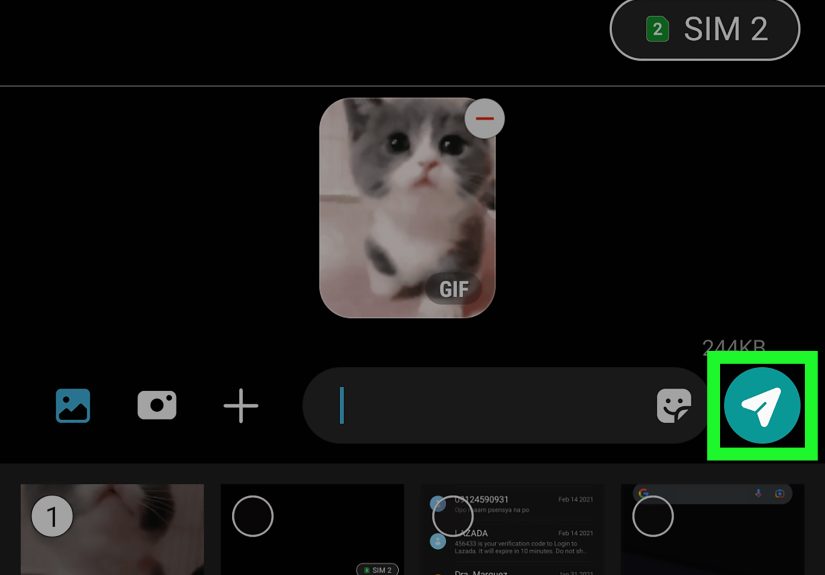
- Add text if you want, then tap Send.
That is it. No ceremony. No secret password. No need to whisper “enhance” at your phone.
Google Messages also supports multimedia sharing over RCS on supported chats, which usually means a better experience than old-school MMS. In plain English, your GIFs are more likely to look smoother and arrive with less compression when your conversation uses modern chat features instead of legacy text messaging.
Can you make your own GIF in Google Messages?
On some devices and app versions, yes. Google Messages includes a selfie GIF feature for certain users. If available, you can open a conversation, press and hold the camera button, record a short clip, and send it like a mini reaction GIF. It is basically the fastest way to say, “Here is my live response, and yes, I am judging you.”
Method 2: Send GIFs With Gboard
If Google Messages is the stage, Gboard is often the performer. Gboard, Google’s keyboard app, includes built-in GIF search, and this works in many texting and messaging apps on Android.
How to use Gboard for GIF texting
- Open your text conversation in your messaging app.
- Tap the text box to bring up Gboard.
- Tap the emoji icon on the keyboard.
- Select the GIF tab.
- Search for a reaction, phrase, or emotion.
- Tap the GIF you want to insert.
- Hit Send.
This method is especially handy because it does not always depend on the messaging app itself having a built-in GIF browser. If the app accepts media properly, Gboard can often handle the fun part for you.
What if Gboard does not show a GIF option?
If the GIF tab is missing, try these quick fixes:
- Update Gboard from the Play Store
- Make sure Gboard is your default keyboard
- Restart your phone
- Check app permissions
- Open a different conversation to see whether the issue is app-specific
Sometimes the keyboard is fine and the messaging app is the one acting like it woke up on the wrong side of the bed.
Method 3: Send GIFs With Samsung Keyboard
If you use a Samsung Galaxy phone, you may prefer Samsung Keyboard instead of Gboard. Samsung’s keyboard can also offer emojis, stickers, and GIF tools, although the layout can vary by device model, One UI version, and keyboard settings.
How to send a GIF using Samsung Keyboard
- Open your text message thread.
- Tap the message field to open Samsung Keyboard.
- Tap the emoji, sticker, or GIF icon.
- Browse or search for the GIF you want.
- Tap the GIF to add it to your message.
- Tap Send.
If you do not see a GIF option, check your Samsung Keyboard settings. Some Galaxy phones let you manage third-party content services used for GIF search. If that setting is off, your keyboard may suddenly feel like it forgot how to have fun.
Method 4: Send a GIF From the GIPHY App or Your Gallery
If your messaging app is being stubborn, the easiest workaround is to use a dedicated GIF app or a saved GIF file. GIPHY is a popular option because it makes searching, saving, and sharing GIFs pretty painless.
How to send a GIF using GIPHY
- Open the GIPHY app.
- Search for the GIF you want.
- Tap the GIF.
- Choose the Text Message or Share option.
- Select your messaging app.
- Choose your contact and send it.
You can also save a GIF to your phone and attach it like a photo:
- Open your messaging app.
- Tap the plus sign, paperclip, or gallery icon.
- Select the saved GIF from your photos or files.
- Send it like any other attachment.
This method is useful when you have a favorite reaction GIF you use so often it should probably pay rent.
RCS, SMS, and MMS: Why Your GIF Looks Great Sometimes and Weird Other Times
This is the part most quick tutorials skip, but it matters. Not every text message is sent the same way.
RCS
RCS is the newer, richer messaging standard available in Google Messages and through some carriers. It supports better media sharing, read receipts, typing indicators, and higher-quality images or videos. If both people have compatible chat features enabled, sending GIFs usually feels smoother and more modern.
SMS
SMS is plain text only. It does not really handle GIFs as media attachments. If you are sending a GIF in a traditional texting context, the phone usually switches to MMS for the actual media.
MMS
MMS is the older multimedia text format. It works, but it is not exactly glamorous. File sizes are often limited by the carrier, and the message may be compressed. That is why a crisp, hilarious animation can arrive looking smaller, blurrier, or oddly unimpressed with itself.
If your GIF fails to send, shows up as a still image, or looks like it went through a tiny washing machine, MMS limits are often the reason.
Common Problems When GIFs Will Not Send on Android
If your GIF drama level is currently at eleven, here are the most common causes and fixes.
1. The GIF button is missing
Update your messaging app and keyboard first. Then check whether you are using Gboard or Samsung Keyboard as your default keyboard. On some phones, the GIF feature lives in the keyboard, not the texting app.
2. The GIF will not send
Check your mobile data or Wi-Fi, especially if you are using RCS. If the conversation falls back to MMS, make sure mobile data is on. Also try a smaller GIF, since carrier size limits can block large animated files.
3. The GIF sends as a still image
This often happens when the receiving app or network handles the file differently. Try another GIF source, use Google Messages, or send the GIF through RCS if available. In some cases, the animation survives best when shared from a modern messaging thread rather than a basic MMS route.
4. Group texts are especially messy
Group conversations sometimes magnify compatibility issues. If one person in the group is using a network or device that forces older messaging behavior, your GIF can get compressed or arrive unpredictably. Classic group text chaos: one person gets the joke, one person gets a blurry rectangle, and one person only receives “Downloading…”
5. Permissions are blocked
Your messaging app may need permission to access photos, media, files, or the camera. If the app cannot reach your saved GIFs, it cannot send them either.
Best Tips for Sending GIFs Successfully
- Use Google Messages if you want the most broadly supported modern Android texting experience.
- Use Gboard if your app lacks a built-in GIF picker.
- Keep your apps updated.
- Prefer RCS chats when available for better media quality.
- Choose smaller GIFs if you are sending through MMS.
- Save favorite GIFs to your phone for quick reuse.
- Test one GIF in a conversation with yourself or a trusted friend before sending your masterpiece to the family group chat.
Which Method Is Best for Most Android Users?
For most people, the easiest option is Google Messages plus Gboard. That combination gives you built-in GIF access, broad Android compatibility, and an easier path to RCS features. Samsung users who prefer the Galaxy ecosystem may be perfectly happy with Samsung Keyboard and Samsung Messages, but Google Messages is increasingly the safer recommendation for consistency.
And if all else fails, the GIPHY app is your emergency exit. It is the “fine, I’ll do it myself” option of the GIF world.
Conclusion
Learning how to send GIFs in text messages on Android is much easier once you know where the feature lives. In most cases, you can send a GIF directly from Google Messages, Gboard, Samsung Keyboard, or the GIPHY app. The trick is understanding that Android texting is not one-size-fits-all. Your phone model, keyboard, messaging app, and chat type all play a role.
Still, the overall formula is simple: open a conversation, find the GIF option, pick your animation, and send it. If something goes wrong, check your keyboard, update your apps, verify permissions, and remember that MMS can still be a little dramatic. Once you get the hang of it, sending GIFs becomes second nature. Soon enough, you will be responding to everyday messages with the exact energy they deserve.
Because honestly, “okay” is fine. But a raccoon giving a thumbs-up is better.
Real-World Experiences Sending GIFs in Text Messages on Android
In real life, sending GIFs on Android is one of those features that feels incredibly smooth when everything lines up and hilariously awkward when it does not. A lot of Android users first discover GIF texting by accident. They tap the smiley face while replying to a friend, see the GIF tab, and suddenly realize they have access to an entire emotional vocabulary that ranges from “polite laugh” to “full reality-show meltdown.” It is a beautiful moment.
One common experience is that people assume every Android phone handles GIFs the exact same way. Then they switch devices and spend five full minutes hunting for the button like they are on a low-budget treasure quest. On a Pixel, the steps may feel very Google-clean and simple. On a Samsung phone, the feature might be tucked into the keyboard or tied to a specific content service. On another phone, the messaging app may support GIFs but the keyboard makes the process easier. That is why so many users feel confused at first even though the feature itself is not difficult.
Another very normal experience is sending a GIF to one person and having it work perfectly, then sending a similar GIF to someone else and watching it arrive as a static image or a tiny compressed blur. That usually leads to the classic reaction: “Wait, it worked yesterday.” In many cases, the difference is not the GIF at all. It is the chat type. RCS conversations often feel more polished, while older MMS-based threads can behave like they are still living in 2012 and refusing to move out.
There is also the group chat effect, which deserves its own warning label. A GIF sent in a one-on-one conversation may look fantastic, but the same GIF in a group thread can trigger pure unpredictability. Maybe it sends instantly. Maybe it compresses into mush. Maybe one friend sees it animate while another sees a frozen frame that completely kills the joke. Group texting has always had a little chaos baked in, and GIFs just reveal it faster.
Many users also find that once they start sending GIFs regularly, they develop favorites. Not “favorites” in a casual way, either. More like a tiny emotional toolkit. One GIF for Monday mornings. One for fake enthusiasm. One for “I am listening, but only spiritually.” At that point, saving GIFs to your phone or using recent searches becomes genuinely useful. What began as a fun feature turns into communication strategy.
Probably the most relatable experience of all is helping someone else figure it out. The moment a parent, sibling, or friend asks, “How did you send that moving picture thing?” you realize you have become the unofficial Android GIF support department. The answer is usually simple, but explaining it feels surprisingly satisfying. And once they send their first successful GIF back, usually something wildly overdramatic, you know the cycle is complete.